> ## Documentation Index
> Fetch the complete documentation index at: https://docsv4.mile.app/llms.txt
> Use this file to discover all available pages before exploring further.
# Task
> The task list: where you create, assign, follow and review every task in the selected hub.
A **task** is one piece of work for a field worker, such as a delivery, a pickup or a site visit. The task is the center of the product: most other features start from a task or work on tasks.
* You assign a task to a field worker. Once assigned, it appears in their field app and they work on it there.
* A task that has an address and a time window can be planned with [Routing](/pages/planning/routing/introduction), and the field worker then visits the stops in the planned order.
* Tasks can create other tasks through [Automation](/pages/workflow/automation/introduction), or be created on a repeating plan with a [Task Schedule](/pages/planning/schedule/task-schedule).
* Each task belongs to a [task type](/pages/workflow/task-type/introduction). The task type decides what is filled in when the task is created and what the field worker fills in on the field app.
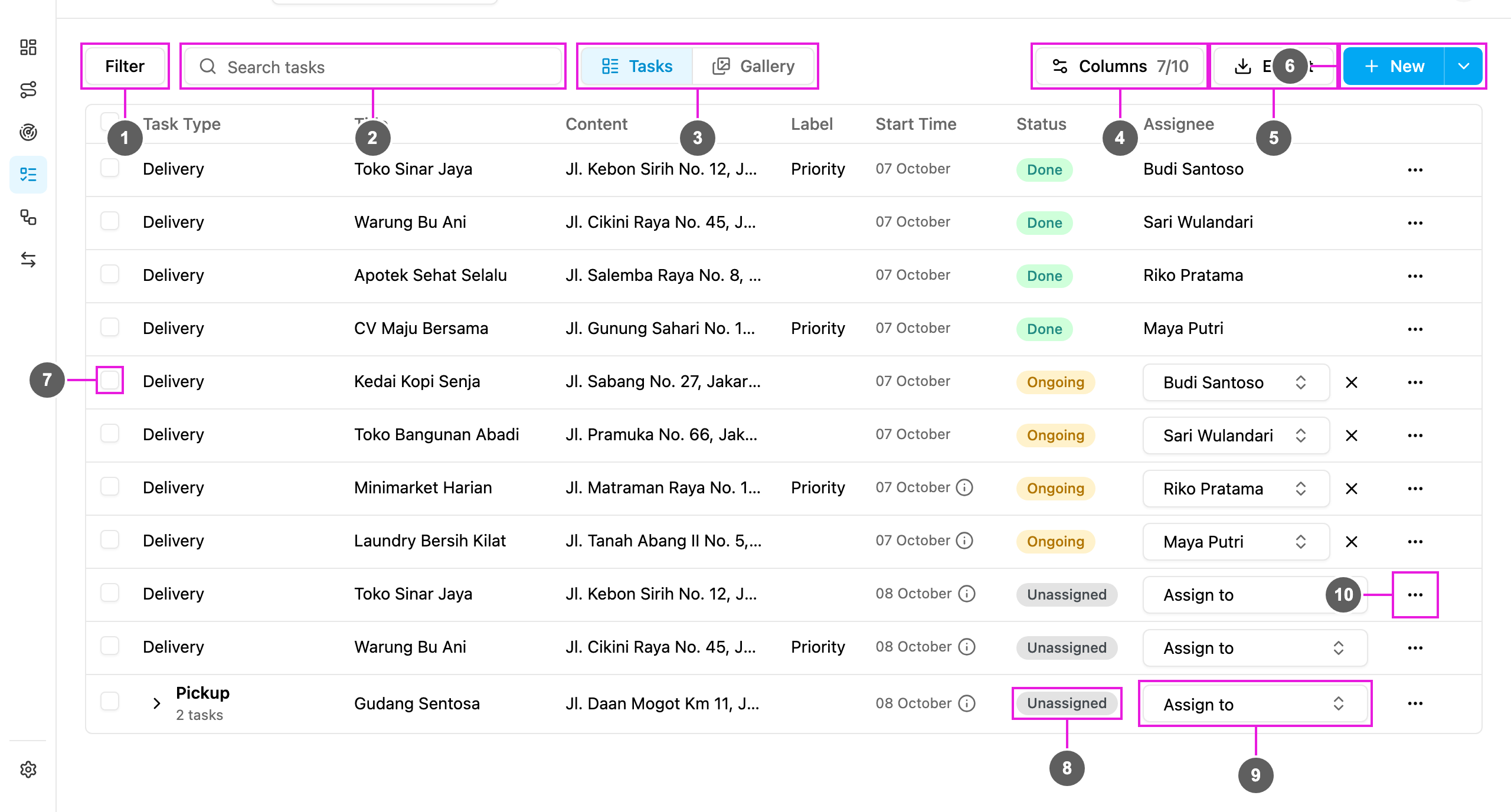
Open **Activities › Task**. This is also the first page you see after you sign in. From here you add a task, import many tasks, assign them, check the status of each task, open its details and export a report.
Required permission:
* View task
1. **Filter**: narrow the list by status, assignee, task type and date range. See [Filtering and Searching Tasks](/pages/activities/task/filter-and-search).
2. **Search tasks**: find a task by any text it contains.
3. **Tasks / Gallery**: switch between the task list and the [Gallery](/pages/activities/task/gallery) of photos taken on done tasks.
4. **Columns**: choose which columns the list shows. See [Task Columns](/pages/activities/task/task-columns).
5. **Export**: download the tasks in the list as a spreadsheet. See [Export](/pages/export-import/export).
6. **New**: create a task. The arrow beside it (**More create options**) opens **Bulk**, to create many tasks at once. See [Creating a Task](/pages/activities/task/create-task) and [Creating Tasks in Bulk](/pages/activities/task/bulk-create).
7. **Select this task**: tick one or more rows to act on them together (assign, unassign, move, edit time, delete).
8. **Status**: Unassigned, Ongoing or Done for each task.
9. **Assignee**: who does the task. Pick people right in the row. See [Assigning Tasks](/pages/activities/task/assign-task).
10. **Task actions**: **View**, **Edit**, **Delete**, and **Do task** when the task is yours to do on the web.
## Ways to create a task
| Way | Where |
| - | - |
| Web form, one task at a time | **New** on this page. See [Creating a Task](/pages/activities/task/create-task). |
| Spreadsheet upload or a manual table | **New › Bulk**. See [Creating Tasks in Bulk](/pages/activities/task/bulk-create). |
| Field app | The field worker taps **+** in the field app, picks a task type, fills in the first page and creates the task on the go. Useful when the work is not planned in advance. |
| Automation | Another task's event creates the task. See [Automation](/pages/workflow/automation/introduction). |
| Schedule | Tasks are created on a repeating plan. See [Task Schedule](/pages/planning/schedule/task-schedule). |
| API | Your own system creates tasks through the API. |
## Task status
| Status | Meaning |
| - | - |
| **Unassigned** | Nobody has the task yet. |
| **Ongoing** | Someone has the task and has not finished it. |
| **Done** | The task is finished. A done task cannot be edited, reassigned, moved or deleted. |
## What you can do from the list
| Action | Where | Page |
| - | - | - |
| View a task's details | **Task actions › View**, or click the row | [Viewing and Editing a Task](/pages/activities/task/view-and-edit-task) |
| Edit a task | **Task actions › Edit** | [Viewing and Editing a Task](/pages/activities/task/view-and-edit-task) |
| Do a task on the web | **Task actions › Do task** | [Doing a Task on the Web](/pages/activities/task/do-task) |
| Assign and unassign | **Assignee** cell, or the bar that appears when rows are ticked | [Assigning Tasks](/pages/activities/task/assign-task) |
| Change the time window | Tick rows, then **Edit time** | [Assigning Tasks](/pages/activities/task/assign-task#edit-the-time-of-many-tasks) |
| Move to another hub | Tick rows, then **Move** | [Assigning Tasks](/pages/activities/task/assign-task#move-tasks-to-another-hub) |
| Delete | **Task actions › Delete**, or tick rows, then **Delete** | [Deleting a Task](/pages/activities/task/delete-task) |
Your filters, search and page number are kept in the page address. Bookmark the page or share the link to open the same list again.
## Data retention
Task data and task history are kept for 1 year from the day the task was created. After that, they are deleted automatically. Export the tasks you need to keep for longer on a regular basis.
This documentation is built and hosted on [Mintlify](https://mintlify.com), a developer documentation platform.