> ## Documentation Index
> Fetch the complete documentation index at: https://docsv4.mile.app/llms.txt
> Use this file to discover all available pages before exploring further.
# Task Columns
> Choose the columns of the task list and learn what each one shows.
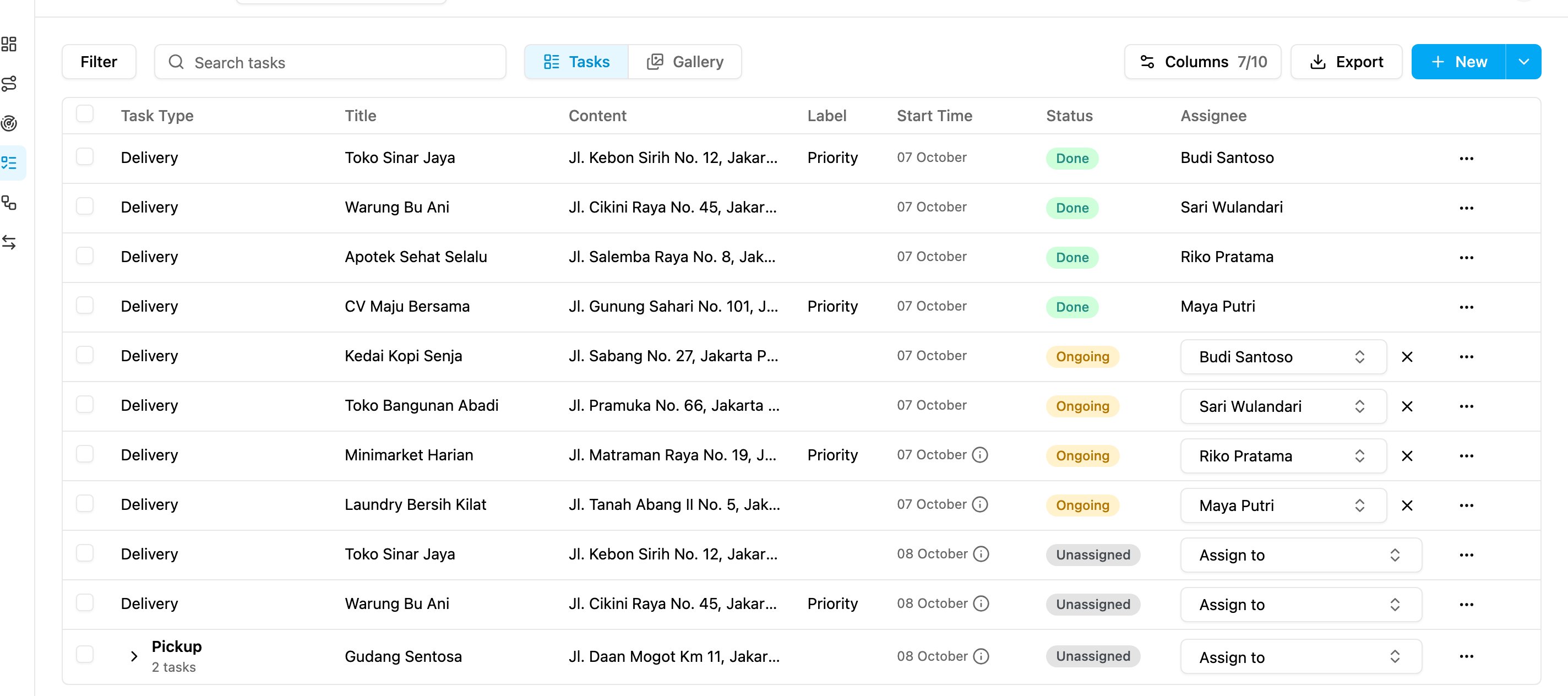
The task list shows seven columns at first: **Task Type**, **Title**, **Content**, **Label**, **Start Time**, **Status** and **Assignee**. You can show up to ten columns at once, taken from the standard columns and from the fields of your task types.
Required permission:
* View task
## Choose columns
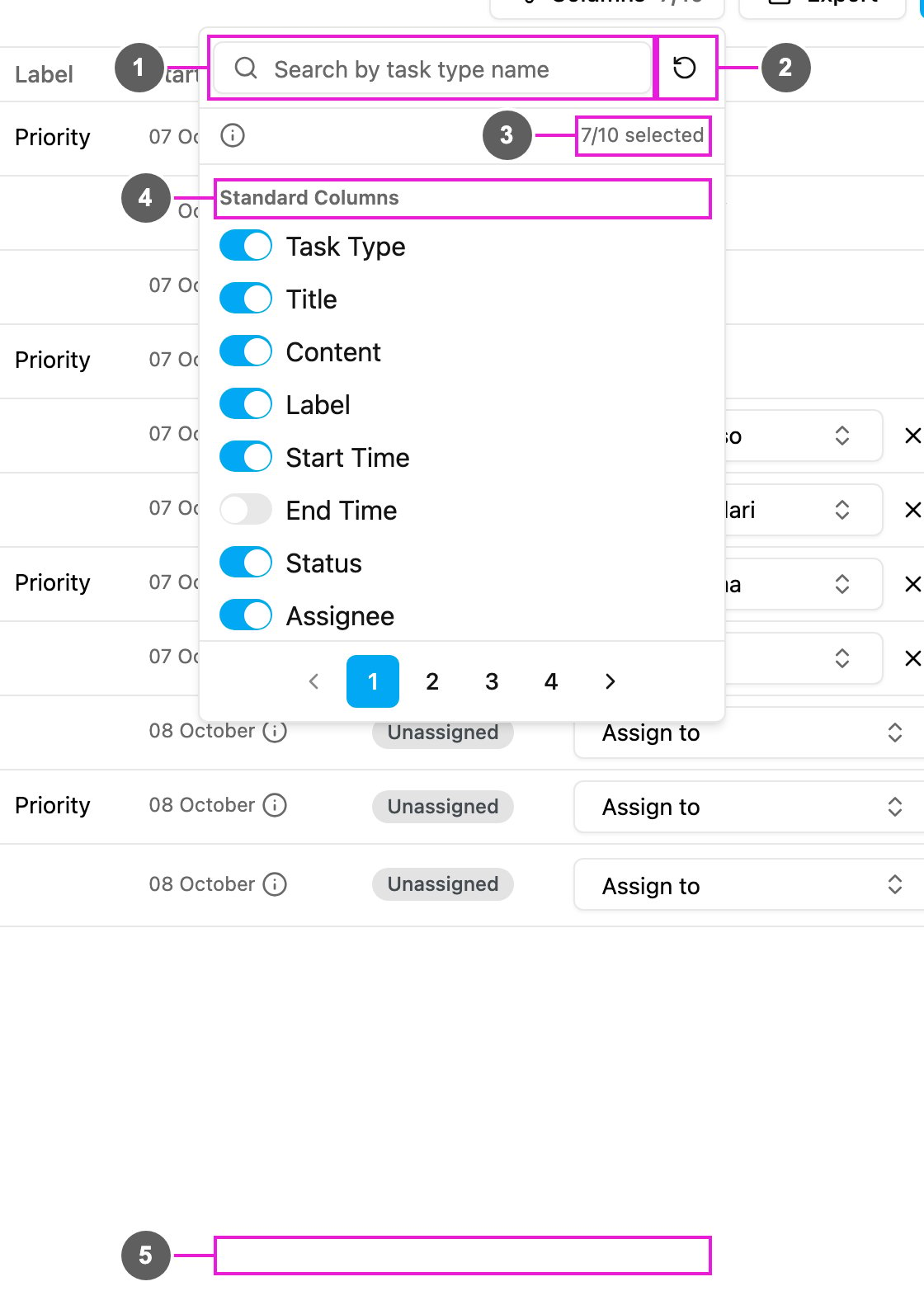
Open **Activities › Task** and click **Columns**.
1. **Search by task type name**: find a column, or the task type whose fields you want.
2. **Reset to the default columns**: go back to the seven default columns.
3. **Counter**: how many columns are on, out of ten. Point at the **i** icon to read which fields can be added: input, select and most view fields from every task type.
4. **Standard Columns**: the columns every task has. Turn one on or off with its switch.
5. **Task type groups**: after the standard columns come the fields of each task type, one group per task type, page by page.
Once ten columns are on, the other switches are locked until you turn one off.
Your column choice is saved in this browser for you, per organization. Drag a column header's edge to make it wider; the width is kept too.
## Standard columns
| Column | What it shows |
| - | - |
| **Task Type** | The task type the task belongs to. |
| **Title** | The task's title, set when the task is created. |
| **Content** | The task's description, often an address or a note. |
| **Label** | Labels on the task, such as *Priority*. When there are many, a **+N** badge shows how many more. |
| **Start Time** | When the task starts. Before this time the task cannot be done. |
| **End Time** | When the task ends. After this time the task has expired: it cannot be done or assigned until the end time is changed. |
| **Status** | **Unassigned**, **Ongoing** or **Done**. |
| **Assignee** | Who has the task. Pick or remove people right in the cell. See [Assigning Tasks](/pages/activities/task/assign-task). |
| **Created by** | Who created the task. |
| **Created** | When the task was created. |
| **Assigned by** | Who assigned the task. |
| **Assigned** | When the task was assigned. |
| **Updated by** | Who changed the task last. |
| **Updated** | When the task was changed last. |
| **Done by** | Who finished the task. |
| **Done** | When the task was finished. |
| **Created from** | Where the task was created: **WEB** (the web app), **IMPORT** (a bulk upload), **MOBILE** (the field app), or another source such as an automation or the API. |
| **Done from** | Where the task was finished: **MOBILE** (the field app) or **WEB** ([done on the web](/pages/activities/task/do-task)). |
| **Hub** | The hub the task belongs to. |
## Task type columns
Below the standard columns, each task type lists its own fields, for example *Receiver Name* or *Delivery Status*. A task type field column is filled only for tasks of that task type; other rows stay empty.
This documentation is built and hosted on [Mintlify](https://mintlify.com), a developer documentation platform.