> ## Documentation Index
> Fetch the complete documentation index at: https://docsv4.mile.app/llms.txt
> Use this file to discover all available pages before exploring further.
# Add-ons
> Install extra features for your organization from Settings.
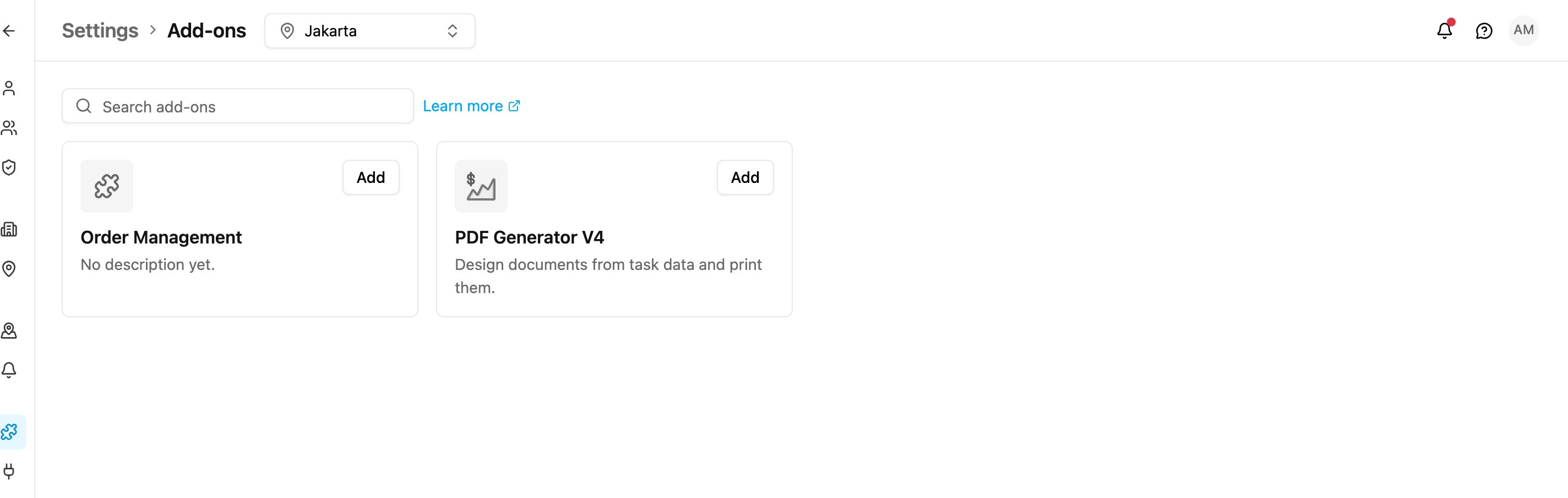
**Add-ons** extend the app with features beyond the core platform, such as document templates or order management. Each installed add-on gets its own entry in the left menu.
Open **Settings › Add-ons**.
Required permission:
* Create custom module (to add an add-on)
* Delete custom module (to remove one)
Each card shows the add-on's icon, name and description. Use **Search add-ons** to find one by name or description.
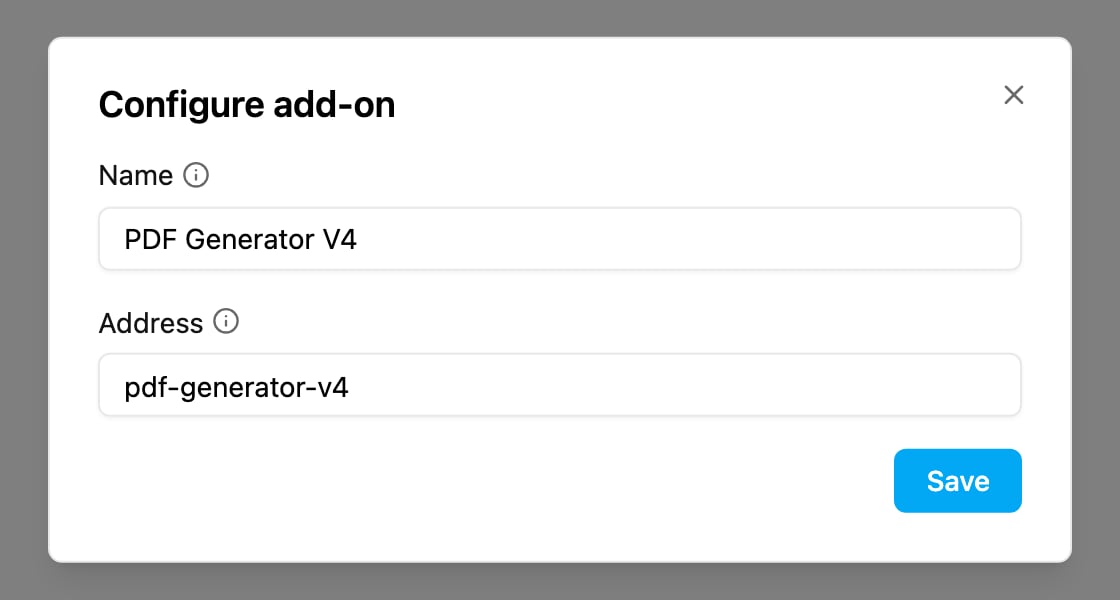
* **Add**: install the add-on. A dialog asks for its **Name** (the label in the left menu) and **Address** (the last part of its page address), both filled in for you.
* **Configure**: on an installed add-on, change its name or address.
* **Remove**: uninstall it after confirming. Its menu entry and permission are removed.
For the full guide, the list of available add-ons and what each one does, see [Add-ons](/pages/add-ons/introduction).
This documentation is built and hosted on [Mintlify](https://mintlify.com), a developer documentation platform.