> ## Documentation Index
> Fetch the complete documentation index at: https://docsv4.mile.app/llms.txt
> Use this file to discover all available pages before exploring further.
# Report
> Save the columns you keep viewing and exporting for one task type or data type, then run them again whenever you need them.
A **report** is a saved set of columns for one task type or one data type. Instead of picking columns every time, you save them once and then **view** or **export** the report whenever you need it. Open **Analytics › Report** to see every report in your organization.
A report remembers:
* **Report type**: one task type (for example *Task - Delivery*) or one data type (for example *Data - Stores*).
* **Hub**: the hubs whose records it shows. A shared data type has no hub.
* **Columns**: the fields it shows, in the order you set.
* **Default filters** (task reports only): the date range, status and assignee it starts with.
The date range of a task report is not fixed. It is set each time you run the report.
Required permission:
* View report
* Add report (to create a report)
* Edit report (to change a report)
* Delete report (to delete a report)
To view a task report you also need **View task**, and to export it you need **Export task**. A data report needs **View data source**. Actions you can't use don't show in the menu.
## The report list
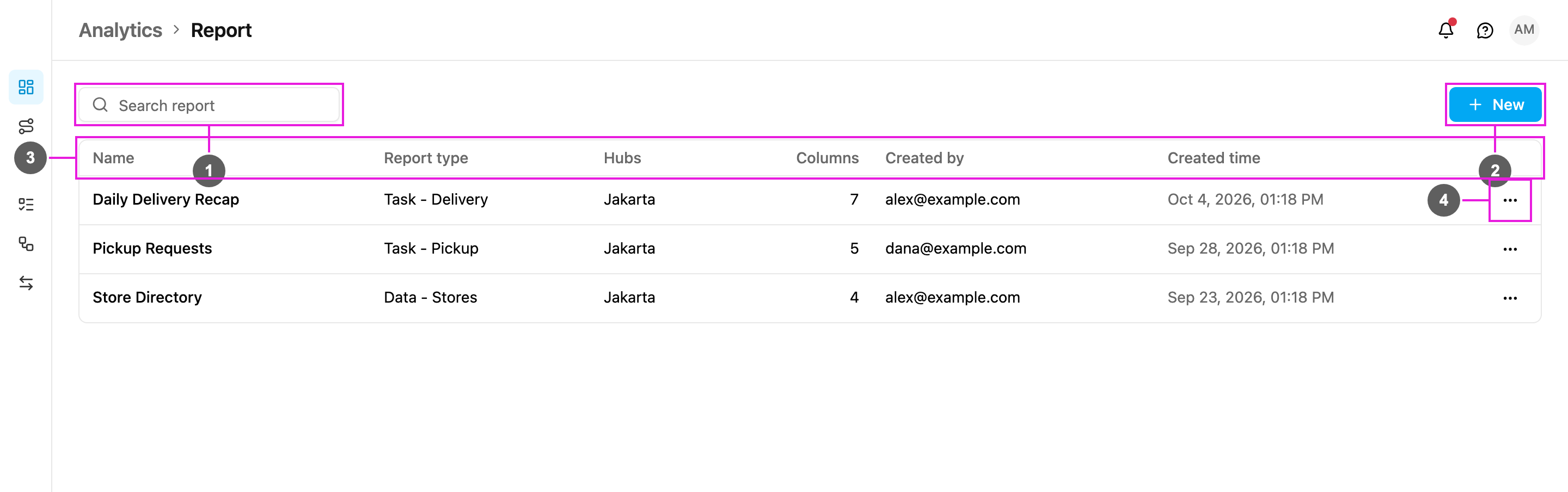
1. **Search report**: find a report by name.
2. **New**: create a report. See [Creating a Report](/pages/analytics/report/creating-a-report).
3. **Table**: every report in your organization.
4. **⋯**: the actions for one report.
The table has these columns:
| Column | What it shows |
| - | - |
| **Name** | The report name. |
| **Report type** | *Task -* followed by the task type, or *Data -* followed by the data type. If that task type or data type was deleted, it says *Source deleted*. |
| **Hubs** | The hubs the report covers, or *Shared data* for a shared data type. |
| **Columns** | How many columns the report shows. |
| **Created by** | The email of the person who created the report. |
| **Created time** | When the report was created. |
The list shows 10 reports per page. If nothing matches the search, it says *No matching report*, with **Clear filters** to show every report again. With no reports at all it says *No reports yet*.
## Report actions
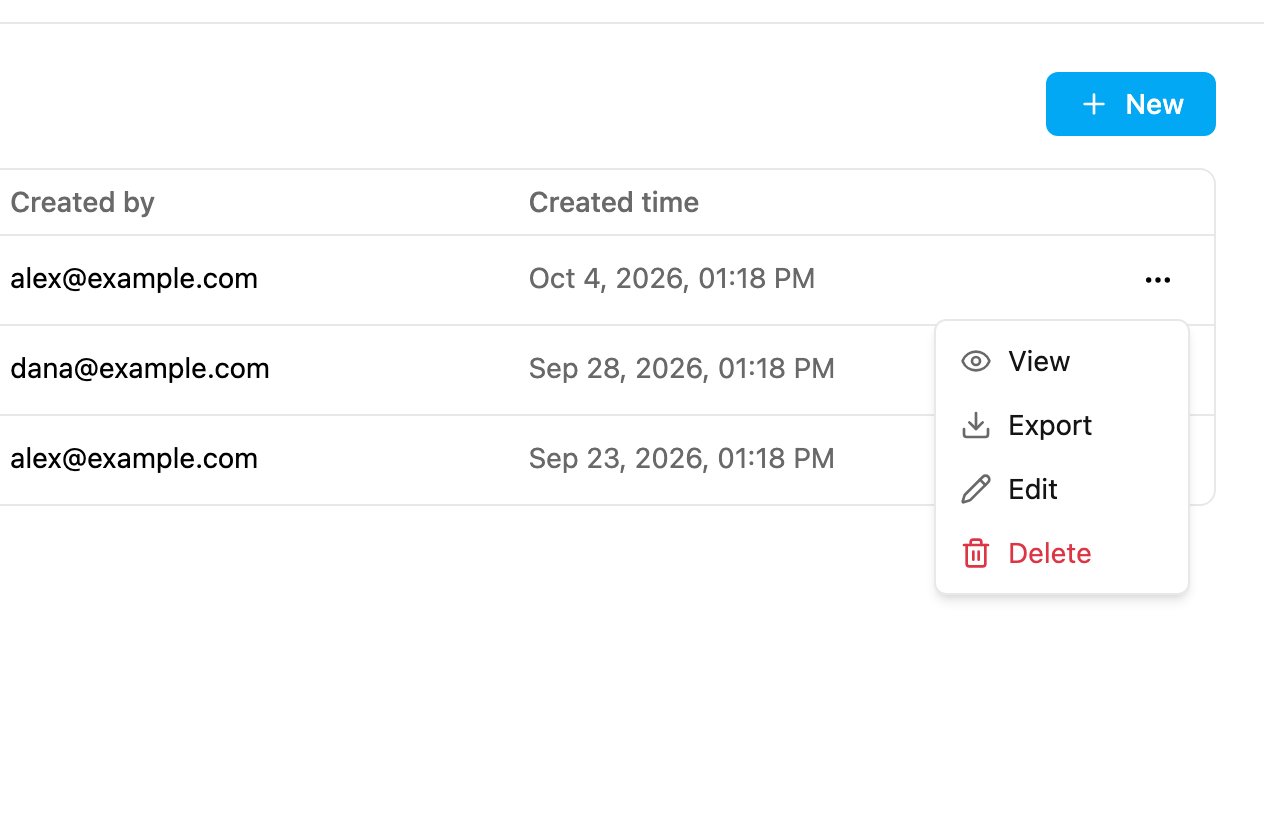
Click **⋯** on a report to open its actions.
* **View**: show the report's rows on screen. See [Viewing and Exporting a Report](/pages/analytics/report/viewing-and-exporting).
* **Export**: download the report as an Excel file. See [Viewing and Exporting a Report](/pages/analytics/report/viewing-and-exporting#export-a-report).
* **Edit**: change the name, hubs, default filters or columns. See [Creating a Report](/pages/analytics/report/creating-a-report#edit-a-report).
* **Delete**: delete the report.
## Delete a report
1. Click **⋯** on the report, then **Delete**.
2. The app asks you to confirm: *"Report name" will be deleted permanently. Files already exported are not affected.*
3. Click **Delete**. The app says *Report "…" deleted*.
Deleting a report doesn't delete any task, record or exported file.
This documentation is built and hosted on [Mintlify](https://mintlify.com), a developer documentation platform.