> ## Documentation Index
> Fetch the complete documentation index at: https://docsv4.mile.app/llms.txt
> Use this file to discover all available pages before exploring further.
# Email
> Send an automatic email with a rich body to fixed addresses or addresses taken from the task.
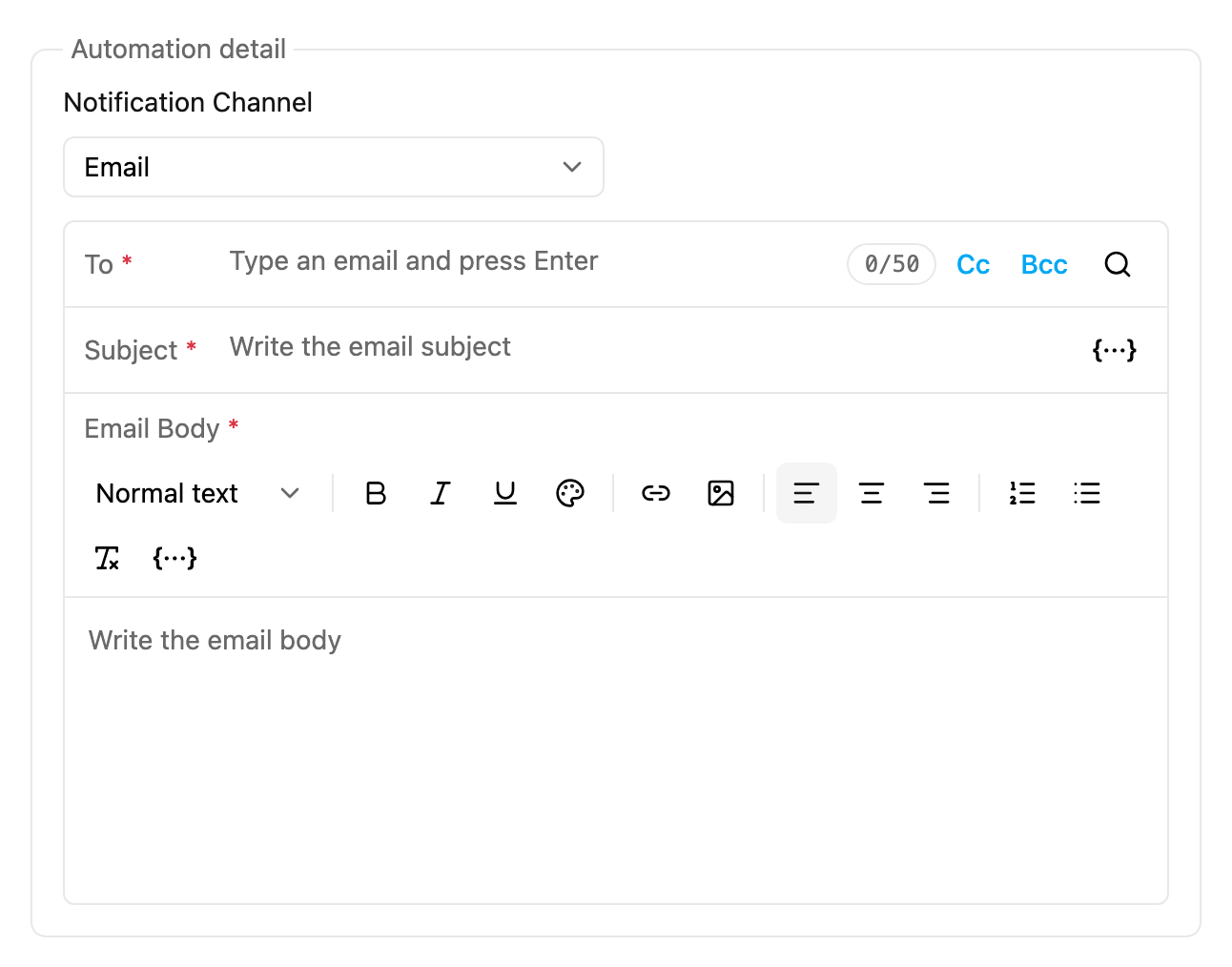
The **Email** channel of the [Notification](/pages/workflow/automation/actions/notification) action sends an email when the automation runs. It replaces the phone and message fields with an email composer: **To**, **Cc** and **Bcc** recipients, a **Subject** and a rich-text **Email Body**. No third-party account is needed.
It's available for **On Task Created**, **On Task Assigned** and **On Task Finished**.
Required permission:
* View automation
* Create automation
Email is offered only to accounts with the official sender. Other accounts see WhatsApp (Fonnte) only.
## Set it up
Choose **Automation Type** › **Notification**, then **Notification Channel** › **Email**.
* **To**: required. At least one recipient.
* **0/50**: how many recipients are set, out of the maximum of 50 (To, Cc and Bcc together). It changes colour as you approach the limit.
* **Cc** and **Bcc**: click to show the Cc and Bcc rows. Both are optional.
* **Search icon** (recipient from task field): add a recipient taken from a field of the task.
* **Subject**: required. Plain text; the **\{…}** button inserts a variable.
* **Email Body**: required. A rich-text editor with a formatting toolbar.
Click **Submit**.
## Recipients
Each row (To, Cc, Bcc) takes two kinds of recipient:
* **Fixed address**: type an email and press **Enter**. You can paste several addresses separated by commas, semicolons or spaces; each becomes its own recipient. Invalid addresses are flagged with "Invalid email address".
* **Recipient from Task Field**: click the search icon and pick a field of the task type. When the email is sent, the task's value for that field is used as the address. Only plain **text input** fields are offered; select, number, date, phone, address and other fields never appear, even if their value looks like an email. The tooltip reads "Add a recipient from a task field (text input only)."
Rules:
* **To** needs at least one recipient: a fixed address, a task field, or both.
* **50 recipients at most**, counting To, Cc and Bcc together. Once the limit is reached, no more can be added ("Recipient limit reached: maximum 50"). The limit is checked again when the email is sent.
* **No duplicates across rows.** If the same address ends up in more than one row, it's kept only in the highest row, in the order To, Cc, Bcc, and it's charged once.
## Subject and body
The **Email Body** toolbar offers:
| Tool | Does |
| - | - |
| **Normal text** / Heading 1–3 | Text style. |
| **Bold**, **Italic**, **Underline** | Emphasis. |
| **Text color** | Default, Dark, Blue, Red, Green, Orange or Purple. |
| **Insert link** / **Remove link** | Links. |
| **Insert image** | An inline image. |
| **Align left / center / right** | Alignment. |
| **Numbered list** / **Bulleted list** | Lists. |
| **Clear formatting** | Removes formatting from the selection. |
| **\{…}** (Add variable) | Inserts a variable at the cursor. |
### Variables
Click **\{…}** in the Subject or the body toolbar, search, and pick a variable. It's inserted as `{{token}}` and replaced with the task's value when the email is sent. Variables show as highlighted chips; a token the system doesn't recognise is marked "Unknown variable — it will be sent as typed."
Task variables:
| Variable | Token | Value |
| - | - | - |
| Task ID | `{{_id}}` | The task's unique ID. |
| Task Title | `{{title}}` | The name of the task. |
| Task Status | `{{status}}` | The task's current status. |
| Assignee | `{{assignedTo.name}}` | The user assigned to the task. |
| Created Date | `{{createdTime}}` | When the task was created. |
| Finished Date | `{{doneTime}}` | When the task was finished. |
| Tracking Link | `{{tracking_link}}` | The task's public tracking link. |
| Organization | `{{organization.name}}` | Your organization's name. |
Below them, the picker lists the fields of the task type, grouped by page and named by their titles. Fields that hold a single value (text, number, date, time, select, phone number, address, currency, URL, coordinate) are offered. Bill, list, photo, video, voice, capture, signature, timer, subpage, subflow and view components are not.
Example:
* Subject: `Your delivery {{title}} is on its way`
* Body:
```
Hi, {{assignedTo.name}} is delivering your order.
Track it here: {{tracking_link}}
Thanks for choosing {{organization.name}}!
```
### Images
Paste an image into the body, or click **Insert image** and pick a file. It shows inline straight away. Images are uploaded only when you click **Submit**; if you close the form without saving, nothing is uploaded.
* Formats: **JPG, PNG, GIF and WEBP**. Other types are refused ("Unsupported image type").
* Size: up to **5 MB** per image ("Image is too large").
* If an upload fails, the automation isn't saved; try again.
## Cost
Each email uses your organization's **Credits** balance, the same balance used by WhatsApp, SMS and OTP messages: **1 credit per unique recipient**, after duplicates are removed. Organizations on an unmetered licence aren't charged and always send to everyone.
When the email is sent, the balance is checked:
* **Enough credit**: everyone receives it.
* **Credit for only some recipients**: it's sent to as many as the balance allows, in the order To, Cc, Bcc; the rest are dropped and the [log](/pages/workflow/automation/log) notes "insufficient credit".
* **No credit**: nothing is sent.
* **The balance can't be checked**: nothing is sent, and the log notes "Could not verify email credit balance". You're never charged for a send that couldn't be confirmed.
Credit is only used for emails actually sent.
## Automation log
The [log](/pages/workflow/automation/log) of an email automation shows who it was sent to and who was dropped, with the reason: an invalid address, or insufficient credit. So you can tell whether to fix a task's data or top up.
## Questions
**Do I need an API key?** No.
**Why doesn't my select or number field show up as a recipient?** Only plain text input fields can hold a recipient.
**What if To, Cc and Bcc add up to more than 50?** You can't add more than 50 in the form. If task fields bring the total over 50 when it runs, the send is refused until you reduce the recipients.
**Is someone charged twice if they're in To and Cc?** No. Each address is kept once and charged once.
**If I retry a failed run, are recipients charged again?** Only recipients actually sent to on the retry are charged.
This documentation is built and hosted on [Mintlify](https://mintlify.com), a developer documentation platform.