> ## Documentation Index
> Fetch the complete documentation index at: https://docsv4.mile.app/llms.txt
> Use this file to discover all available pages before exploring further.
# Managing automations
> Switch automations on and off, edit them, open their log and delete them.
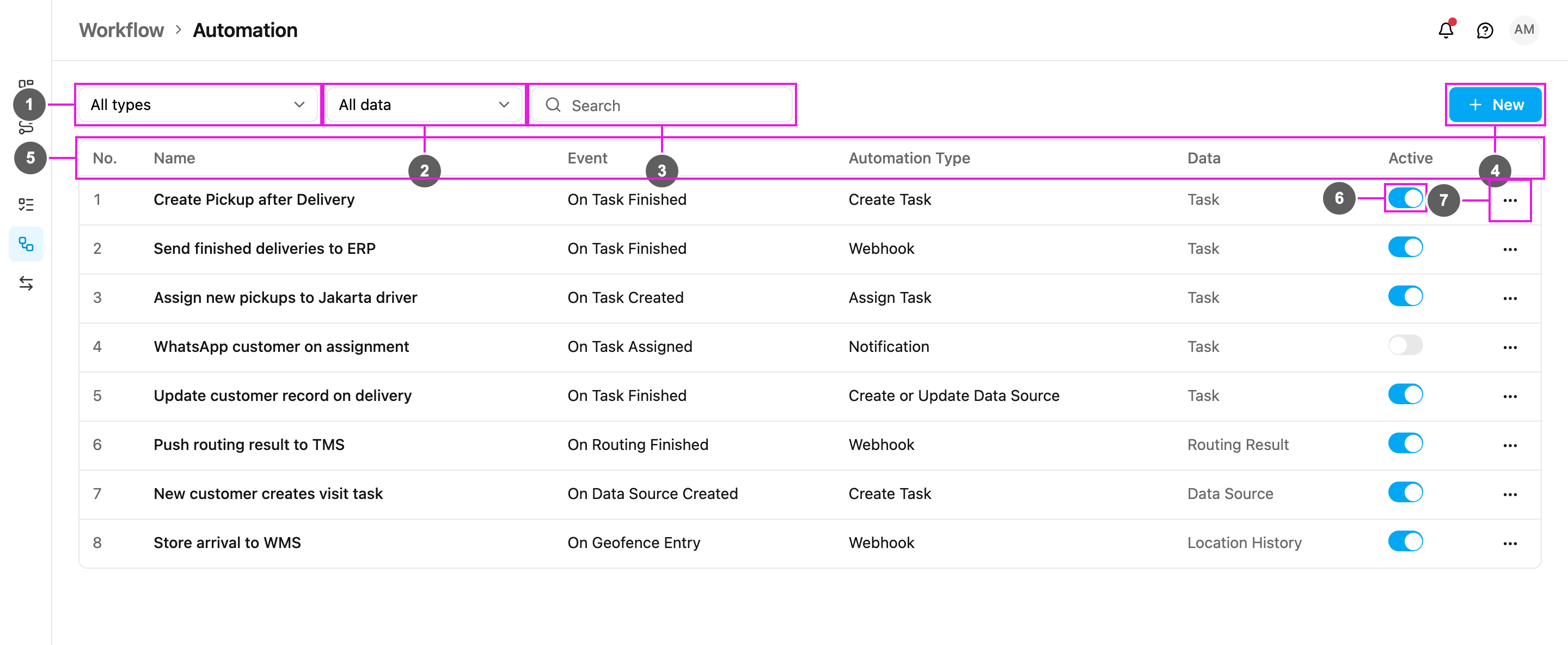
Everything you do with an existing automation starts from its row on **Workflow › Automation**.
Required permission:
* View automation
* Edit automation, Delete automation
## Switching an automation on or off
The **Active** switch (6) on each row decides whether the automation runs:
* **On (blue)**: the automation runs whenever its event happens.
* **Off (grey)**: the automation is never triggered and its action never runs.
Click the switch to change it. Switch an automation off to pause it without losing its settings.
## The row menu
Click **⋯** (7) at the end of a row:
* **Edit**: open the automation to view or change it.
* **Log**: open the [automation log](/pages/workflow/automation/log).
* **Delete**: delete the automation.
## Viewing and editing
Click **Edit**. The **Edit automation** form opens with the same fields as when it was [created](/pages/workflow/automation/creating-an-automation). You can change the name, the task type (or data type, or geofence group), the rules and the automation detail, then click **Submit**.
**Event** and **Automation Type** are locked when editing. To use a different event or automation type, create a new automation instead.
## Deleting
Click **Delete**, then confirm **Delete this automation?** ("... will be removed permanently."). The automation's log is deleted with it, so download any log entries you want to keep first.
This documentation is built and hosted on [Mintlify](https://mintlify.com), a developer documentation platform.