> ## Documentation Index
> Fetch the complete documentation index at: https://docsv4.mile.app/llms.txt
> Use this file to discover all available pages before exploring further.
# Export
> Download tasks, trip activity or data source records as a spreadsheet, and follow each export until its file is ready.
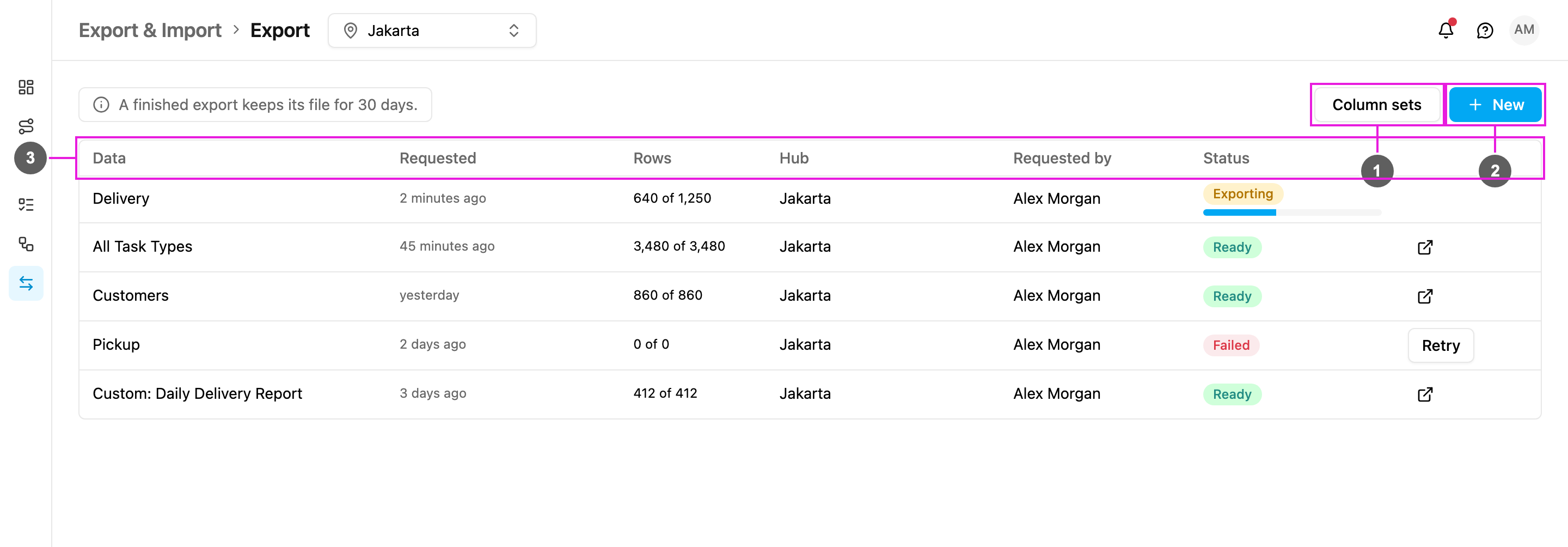
The **Export** page lists every export that was requested in your organization, with how far each one has got. Exports run in the background: you start one, keep working, and download the file from this list when it is ready. Task exports can include **Trip Activity** data, such as the start and end time of each trip, its coordinates, distance (km) and duration (minutes).
Open **Export & Import › Export**.
Required permission:
* View Data Export
* Export task, to export tasks
* Export Data Source, to export data source records
1. **Column sets**: saved lists of columns to export, in a fixed order. See [Column sets](/pages/export-import/column-sets).
2. **New**: start an export. See [Filters and columns](/pages/export-import/export-filters-and-columns).
3. **The export list**: one row per export, newest first.
The note above the list reads **A finished export keeps its file for 30 days**. After 30 days the row and its file are removed from this page.
## The export list
| Column | What it shows |
| - | - |
| **Data** | What was exported: the task type (for example **Delivery**), **All Task Types** when no task type was chosen, the data type of a data source export (for example **Customers**), or **Custom:** followed by the column set name when a saved column set was used. |
| **Requested** | When the export was started, such as **2 minutes ago** or **yesterday**. |
| **Rows** | Rows written so far out of the total, such as **640 of 1,250**. |
| **Hub** | The hub, or hubs, the export covers. More than one hub shows as **+N more**. |
| **Requested by** | The user who started the export. |
| **Status** | **Exporting** with a progress bar while the file is being built, **Ready** when it can be downloaded, or **Failed**. |
| Last column | The download link on a **Ready** row, or **Retry** on a **Failed** row. |
* **Download**: click the link icon on a **Ready** row to open the file. You can only download an export when its status is **Ready**.
* **No rows to download** shows instead of the link when the export found nothing to write.
* **Another hub** shows instead of the link when the export covers a hub you do not have access to.
* **Retry**: a failed export keeps the request that produced it. Click **Retry** to run the same export again without filling in the dialog.
Click **Load more** at the bottom of the list to see older exports.
To export only the tasks you are looking at, use **Export** on the [Task](/pages/activities/task/introduction) page. The export appears in this list as well.
This documentation is built and hosted on [Mintlify](https://mintlify.com), a developer documentation platform.