> ## Documentation Index
> Fetch the complete documentation index at: https://docsv4.mile.app/llms.txt
> Use this file to discover all available pages before exploring further.
# Checking and Uploading an Import
> What happens after you choose a file: the row check, the outdated-template warning, the confirm step, the background import, and the file of failed rows.
After you choose a file in **Import a file** (see [Import](/pages/export-import/import#import-a-file)), the file is read in your browser before anything is sent. You see how many rows will be imported, and whether the file is missing any of the data type's columns. Nothing is saved until you confirm.
Required permission:
* View Data Import
* Create data
## Step 1: Check the file
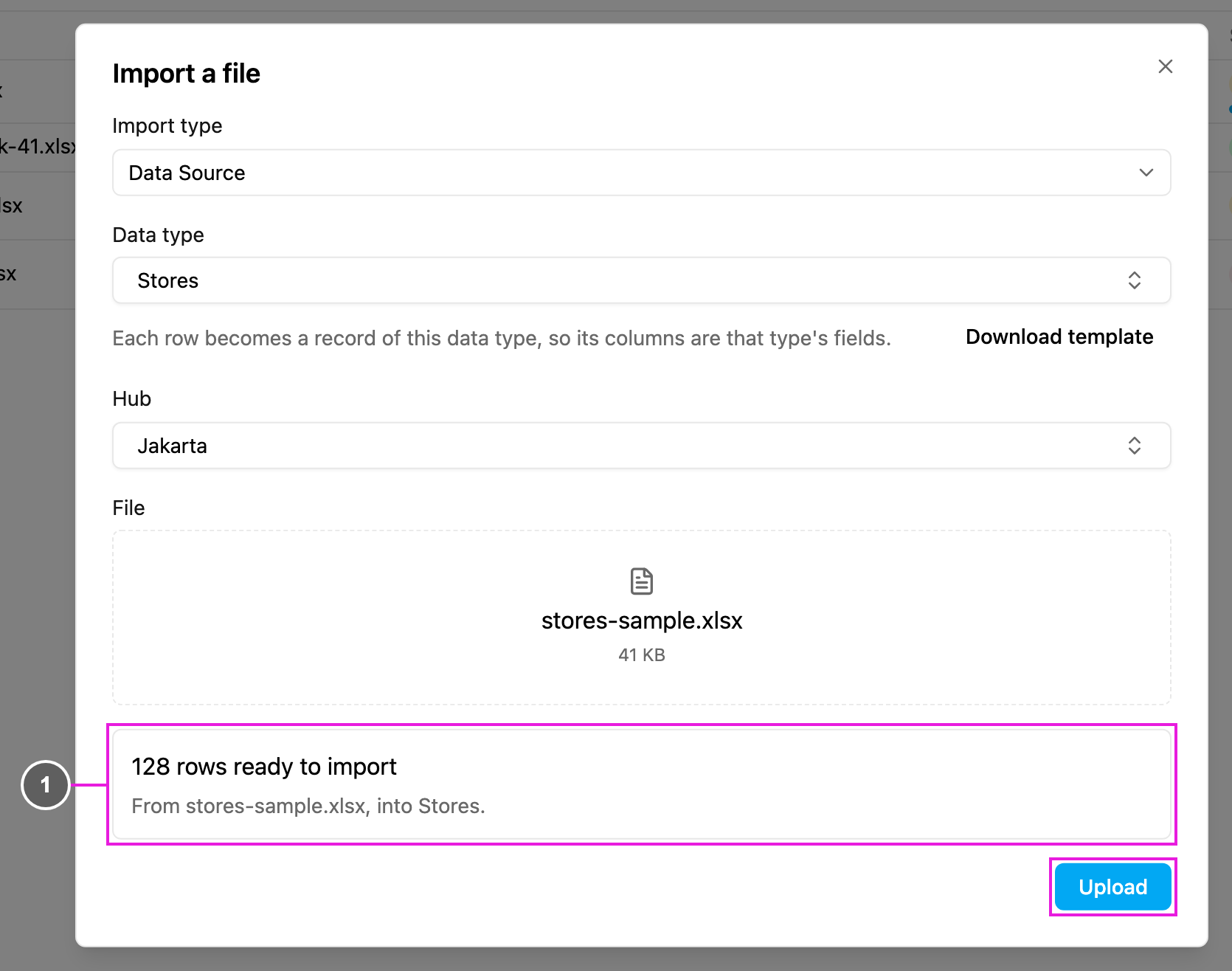
While the file is read, the dialog shows **Processing data...**. Then a summary appears above **Upload**.
1. **Rows ready to import**: how many rows the file holds, such as **128 rows ready to import**, and where they go: **From stores-sample.xlsx, into Stores.**
Each row becomes one record of the data type. The file's column headings are matched to the data type's fields by name, so the headings must be the field names, as they are in the template from **Download template**. Required fields are marked with `*` in the template.
## Field requirements and outdated templates
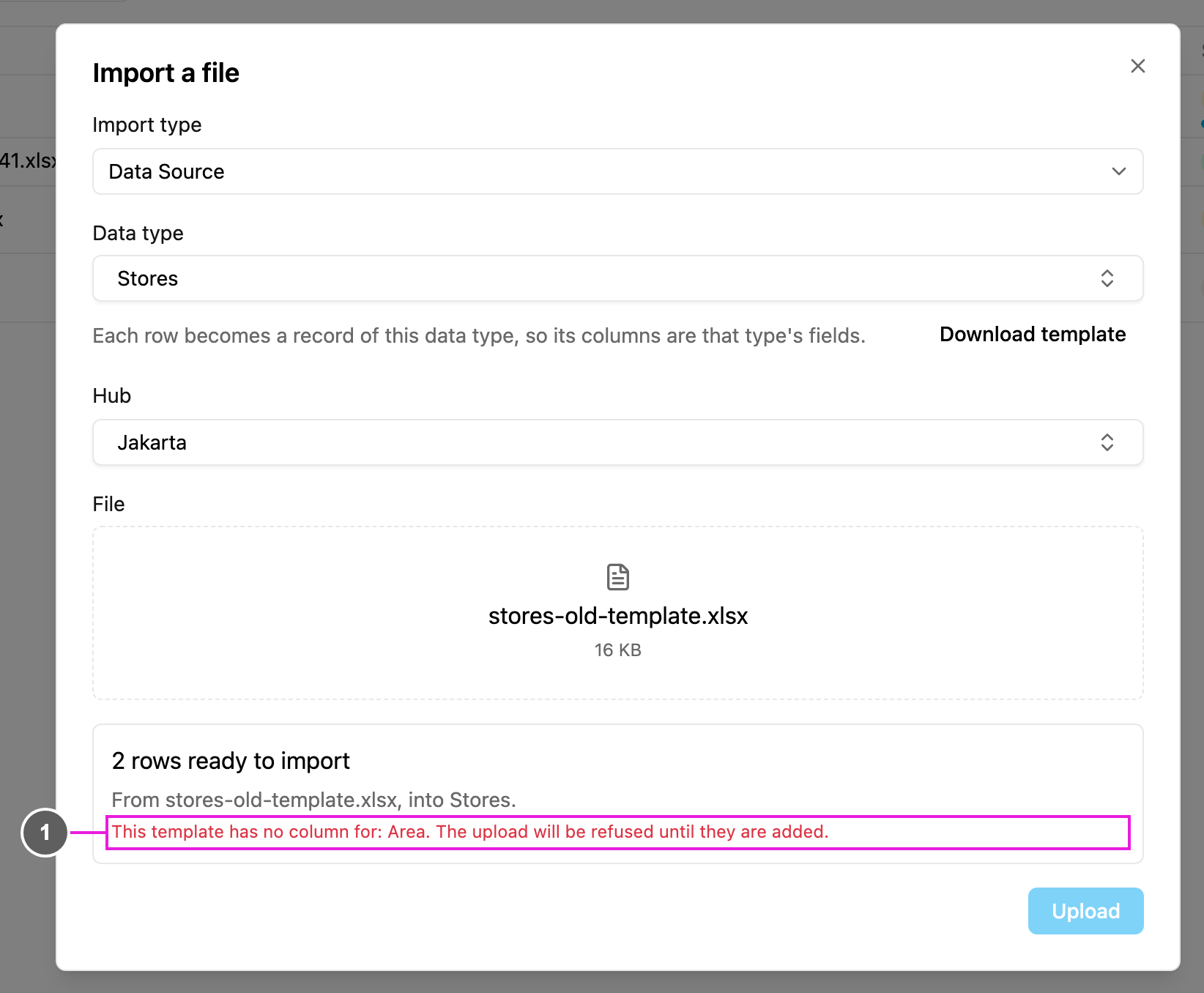
If the file has no column for one of the data type's fields, a red warning appears under the summary and **Upload** stays disabled.
1. **This template has no column for: ...**: lists the missing fields, for example **Area**. The upload is refused until the columns are added.
This usually means the data type gained a field after the template was downloaded. Click **Download template** again, copy your rows into the new template, and choose the file again.
The file is also refused, with a message under **File**, when:
* One of the column headings is blank, so its rows cannot be matched to a field.
* The file has headings but no rows to import.
* The file cannot be read as a spreadsheet.
* The file is not an .xlsx or .xls file, or is over 20 MB.
## Step 2: Confirm and upload
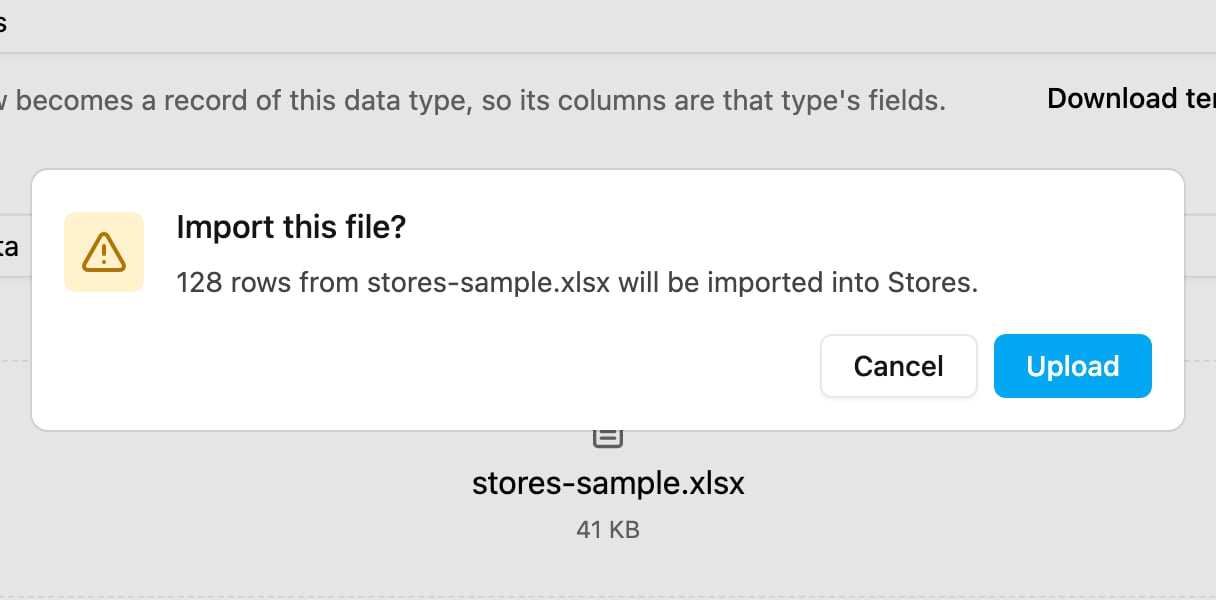
Click **Upload**. A confirmation opens.
**Import this file?** repeats what will happen, such as **128 rows from stores-sample.xlsx will be imported into Stores.** Click **Upload** to start, or **Cancel** to go back to the dialog.
While the file is sent, the button shows **Uploading** with a percentage. When it is done, the dialog closes and a message says **The file is uploaded and the rows are being imported.**
If you close the dialog after choosing a file, **Discard your changes?** asks first. **Keep editing** returns to the dialog.
## Step 3: Follow the import in the background
The rows are imported in the background, so you can keep working. The new import appears at the top of the [import list](/pages/export-import/import#the-import-list):
* **Rows** counts the rows imported so far out of the total, with the failed rows in red below, such as **38 failed**.
* **Status** shows **Importing** with a progress bar, then **Done**, **Partly done** or **Failed**.
The list refreshes on its own while an import is still running.
## Step 4: Download the failed rows
When an import is **Partly done** or **Failed**, click **Download the rows that did not import** in the **Actions** column. The file holds only the failed rows, with a **validationMessage** column that says why each row failed. Fix those rows and import that file again.
**No file** shows instead when the import failed before any row was read. Hover over it to see why. **Download the uploaded file** gives back the file as it was uploaded.
Import records are kept for 30 days.
## Column mapping and preview for tasks
Tasks are not imported from this page. They are imported from **Activities › Task**, with **Bulk** under the arrow beside **New**. That is where you get the steps a task file needs:
* **View requirements**: which task type fields are required, the format each accepts, and the extra sheets for bills, lists and subpages.
* **Map your columns**: pick which column of your file holds each field, with a preview of its first values. Columns with the same name as a field are matched for you.
* **Saved mappings**: the mapping is remembered for the task type under the uploaded file's name. The next file with the same headings opens with that mapping, so you do not map it again.
* **Review**: check every row before the tasks are created.
See [Creating Tasks in Bulk](/pages/activities/task/bulk-create). Task imports still appear in the import list here, as **Task -** and the task type.
This documentation is built and hosted on [Mintlify](https://mintlify.com), a developer documentation platform.