> ## Documentation Index
> Fetch the complete documentation index at: https://docsv4.mile.app/llms.txt
> Use this file to discover all available pages before exploring further.
# List
> Show a list of items as text, checkboxes or quantities, picked from a master list or typed in.
**List** shows a list of items on a task, as plain **text**, **checkboxes** to tick, or items with a **quantity** to count. Use it for a packing checklist, the items to collect, or the stock counted on a visit.
Like a bill, a list keeps **master data**: the items it can hold. The field worker picks from this list instead of typing.
## How a list is set up
A list usually appears twice in a task type:
1. **On the Initial page**: where the list is filled when the task is created, and where you define the master items.
2. **On a field app page**: where the field worker works with the list. It reads its items from the Initial page list with **Use List from**.
A list can also sit inside a [Subpage](/pages/workflow/task-type/components/subpage), where each entry has its own list.
## Properties on the Initial page
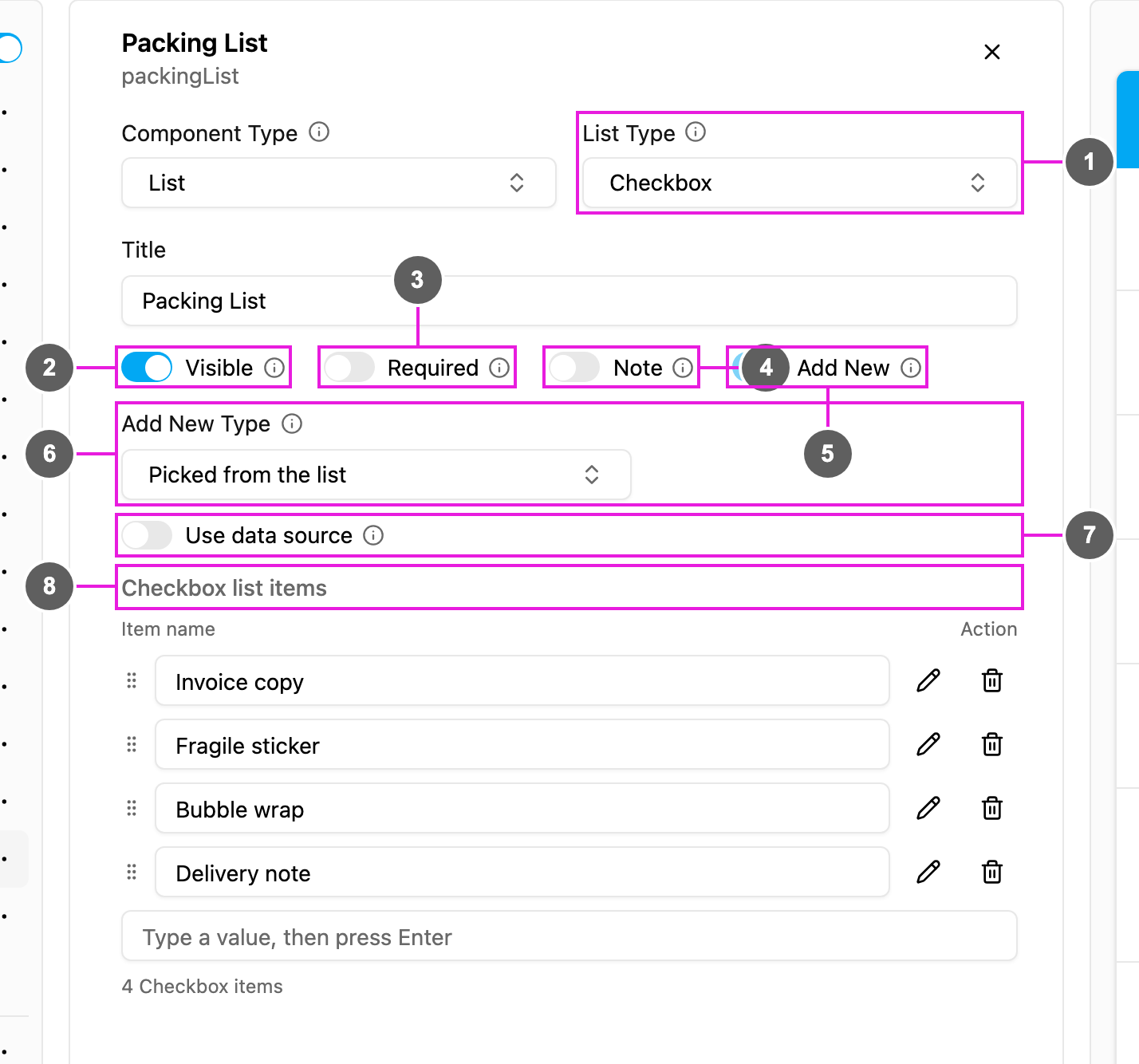
1. **List Type**: how items are shown:
* **Text**: item names only.
* **Checkbox**: each item with a box to tick.
* **Quantity**: each item with a number to fill in.
2. **Visible**: when off, the list is hidden on the web and the field app; its data is still kept and exported.
3. **Required**: the task cannot be saved or finished until the list is filled.
4. **Note**: show a note field on every item, so the field worker can explain a result (for example why an item was not delivered).
5. **Add New**: on the Initial page this is always on.
6. **Add New Type**: how a new item is added:
* **Picked from the list**: the user picks from the master items below.
* **Typed in**: the user types the item. A **Validation Type** then limits what can be typed.
7. **Use data source**: take the items from a [data source](/pages/workflow/data-source/introduction). You map which data fields hold the item **title** and **quantity**; both are needed.
8. **Checkbox list items** (or **Text** / **Quantity list items**): the master items, with how many there are. Type a name and click **+** (or press Enter) to add one; each row can be moved, edited or removed.
In the example, *Packing List* is a **Checkbox** list picked from four master items: Invoice copy, Fragile sticker, Bubble wrap and Delivery note.
## Properties on a field app page
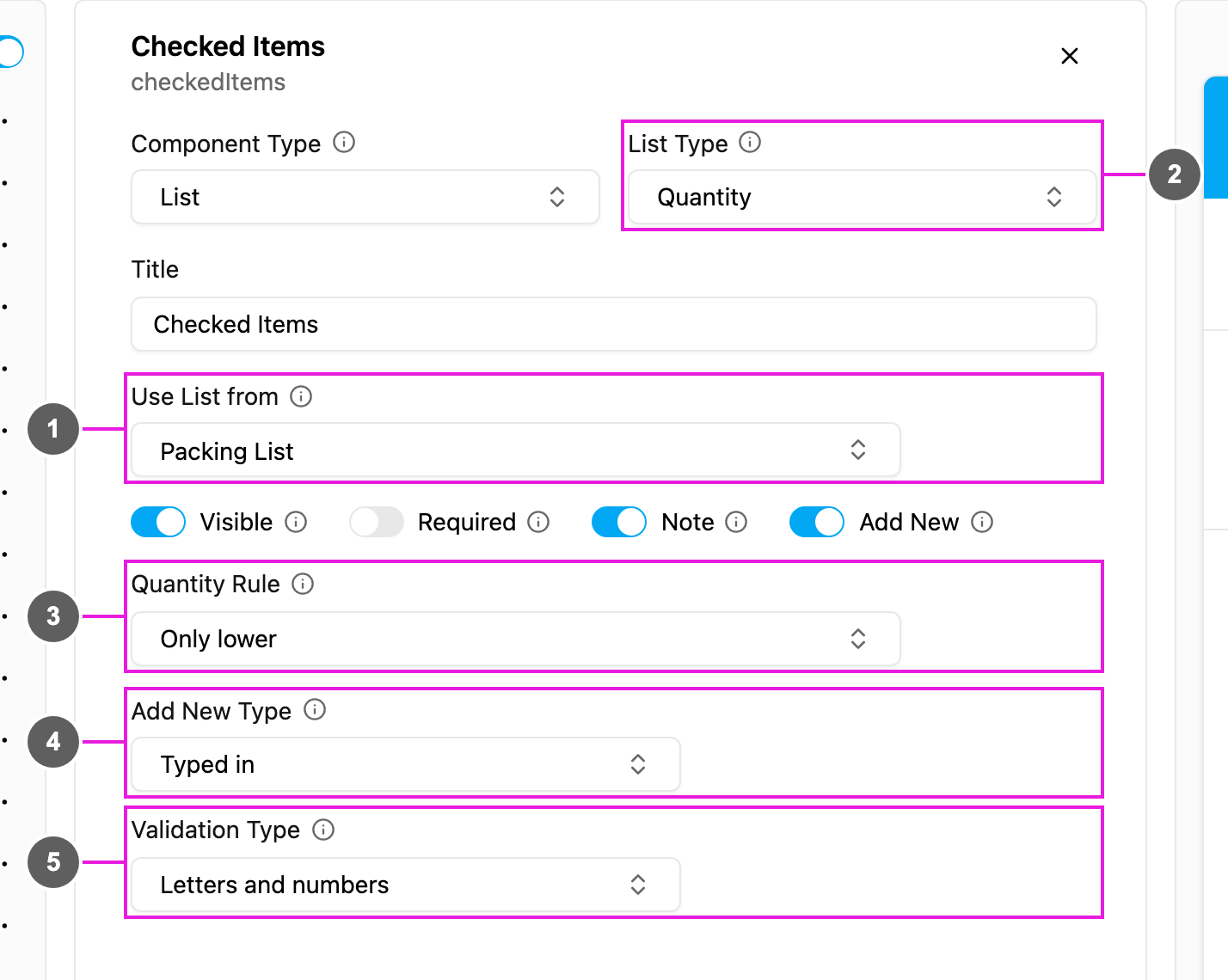
1. **Use List from**: the list this one reads its items from, usually the Initial page list.
2. **List Type**: Text, Checkbox or Quantity.
3. **Quantity Rule** (Quantity lists only): **Raise or lower**, **Only raise** or **Only lower**.
4. **Add New Type**: **Picked from the list** or **Typed in**. **Add New** must be on for the worker to add items.
5. **Validation Type** (Typed in only): what a typed item may contain:
* **Anything**: no check.
* **Letters only**
* **Numbers only**
* **Letters and numbers**
* **Custom**: a pattern you write in **Custom Validation**. Use it only if you know regular expressions.
## On the field app
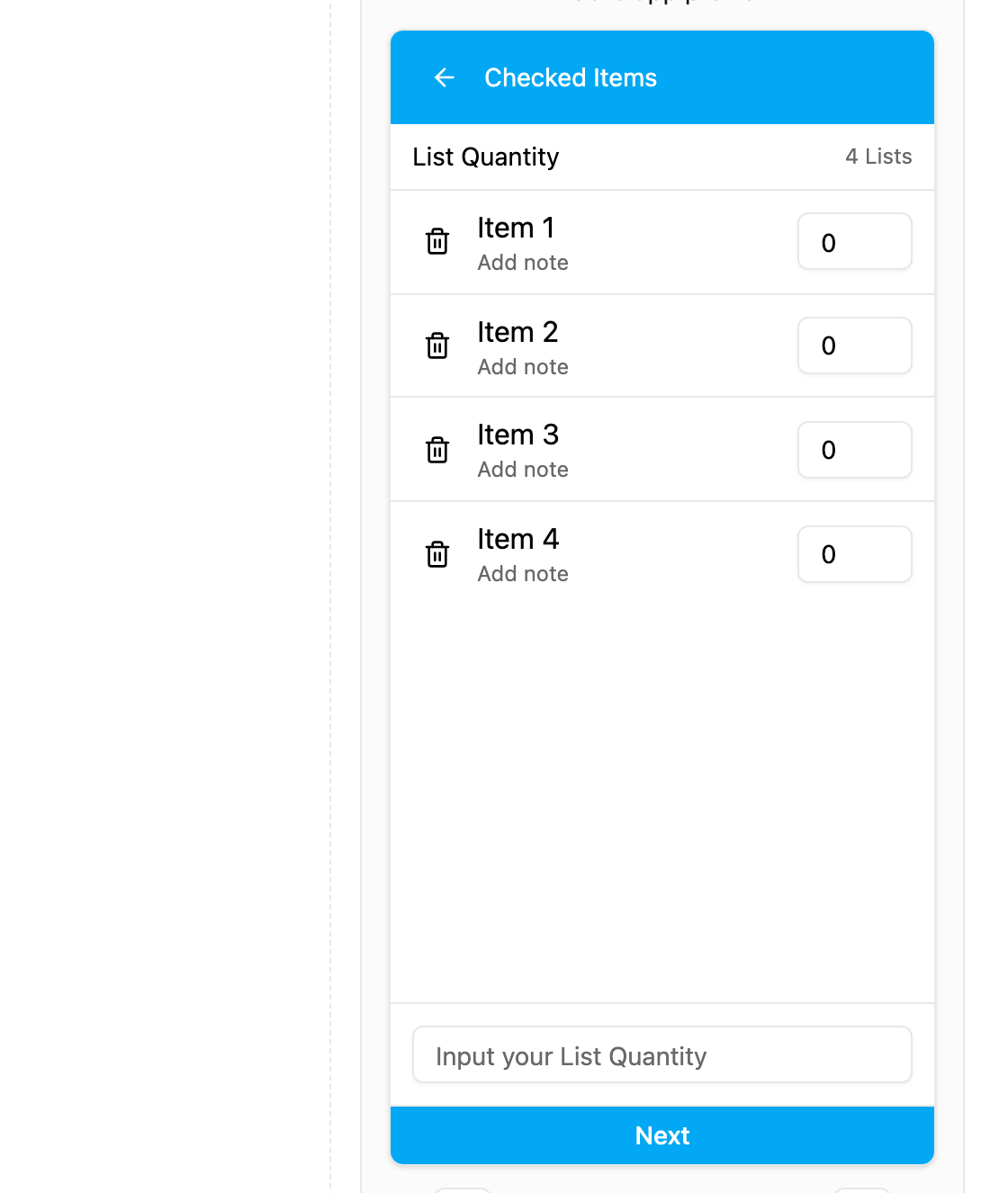
Tap **Open** on the list. The page header shows the list type and how many items it has.
A Quantity list with notes: each item has a quantity box and Add note. The box at the bottom adds a typed item.
| List Type | Each item shows | The worker |
| - | - | - |
| **Text** | The item name | Reads it, and with Add New adds items |
| **Checkbox** | The name and a tick box | Ticks what was done; the list shows how many are checked |
| **Quantity** | The name and a quantity box | Fills in the count, within the Quantity Rule |
With **Note** on, each item has **Add note**. With **Add New** on, the worker adds items by picking from the master list or by typing, depending on **Add New Type**.
## Next
* [Creating a List](/pages/workflow/task-type/components/list/creating-a-list)
This documentation is built and hosted on [Mintlify](https://mintlify.com), a developer documentation platform.