> ## Documentation Index
> Fetch the complete documentation index at: https://docsv4.mile.app/llms.txt
> Use this file to discover all available pages before exploring further.
# Alert
> Review every alert raised for your field team in a period, see each one in detail, and mark it as resolved.
**Monitoring › Alert** lists every alert raised for your field workers: geofence entries and exits, idle stops, route deviations, predicted lateness and panic button presses. Use it to review a period, follow up the alerts nobody has handled yet, and record what was done.
Required permission:
* View alert
* Resolve alert (to mark an alert as resolved)
* View tracking (for the **View in Tracking** button)
Choose which alerts are raised, and whether they also send a notification, in [Alert Setting](/pages/settings/alert-setting).
## The alert list
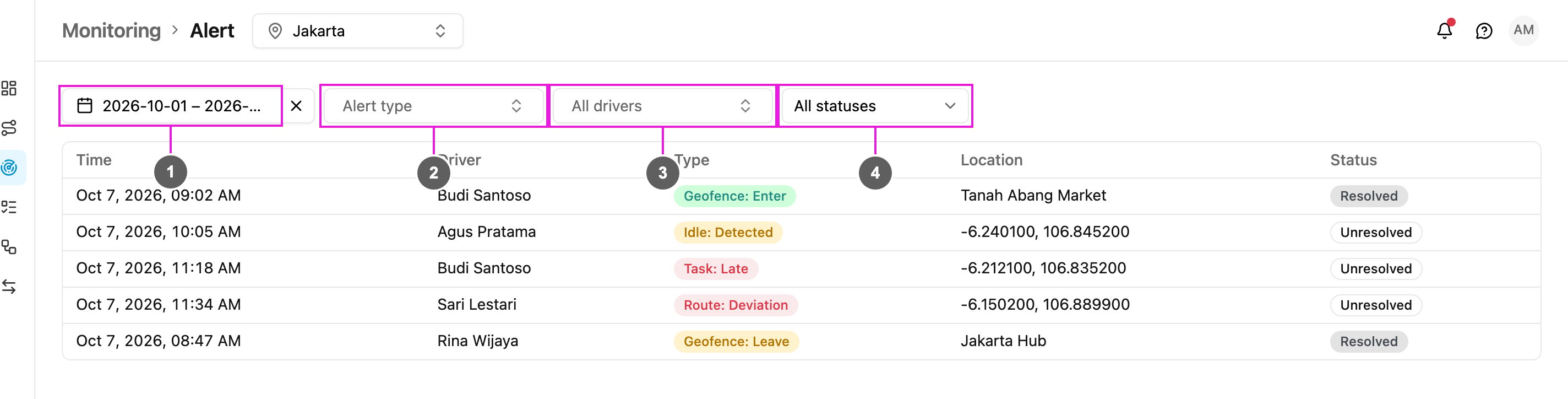
1. **Date range**: the period to show. The last 7 days are shown by default. The **X** beside it resets the range.
2. **Alert type**: show only some types. You can pick more than one.
3. **All drivers**: show only one field worker's alerts.
4. **All statuses**: show every alert, or only **Unresolved** or **Resolved** ones.
On a phone the filters are behind a **Filter** button, with a **Reset** that clears them all.
The table shows 20 alerts per page:
| Column | What it shows |
| - | - |
| **Time** | When the alert was raised, for example *Oct 6, 2026, 09:02 AM*. |
| **Driver** | The field worker the alert is about. |
| **Type** | The alert type, coloured by how serious it is (see below). |
| **Location** | The place the alert is about, such as the geofence name, or the GPS coordinates if there is no place name. |
| **Status** | **Unresolved** or **Resolved**. |
If nothing matches, the page says *No alert in this period* and suggests a wider date range or fewer filters.
### Alert types
| Type | Raised when |
| - | - |
| **Geofence: Enter** | The field worker entered a geofence. |
| **Geofence: Leave** | The field worker left a geofence. |
| **Geofence: Idle** | The field worker stayed too long inside a geofence. |
| **Idle: Detected** | The field worker stopped too long outside a task location. |
| **Idle: Still idle** | The field worker is still stopped after the first idle alert. |
| **Route: Deviation** | The field worker left the planned route. |
| **Task: Late** | A task is predicted to be reached late. |
| **SOS: Panic** | The field worker pressed the panic button. See [Emergency Alerts](/pages/monitoring/tracking/emergency-alerts). |
## Alert detail
Click a row to open the alert.
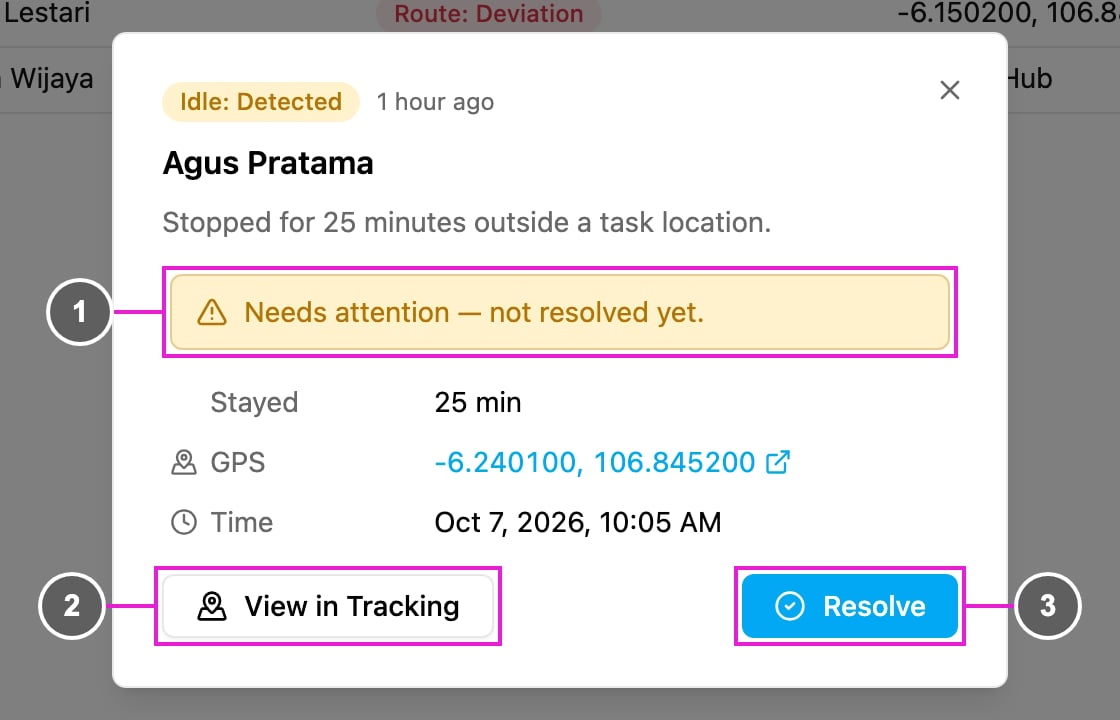
The top shows the alert type, how long ago it was raised, the field worker and the alert's message, for example *Stopped for 25 minutes outside a task location.* Below it are the details that apply to the alert type, such as **Location**, **Group** (the geofence group), **Stayed** (how long the field worker stopped), **GPS** and **Time**. Click the GPS coordinates to open the place in Google Maps.
1. **Needs attention — not resolved yet.**: the alert has not been handled.
2. **View in Tracking**: open the Tracking page on this field worker and day, with the alert selected. See [User Details](/pages/monitoring/tracking/user-details#alert).
3. **Resolve**: record that the alert was handled.
## Resolve an alert
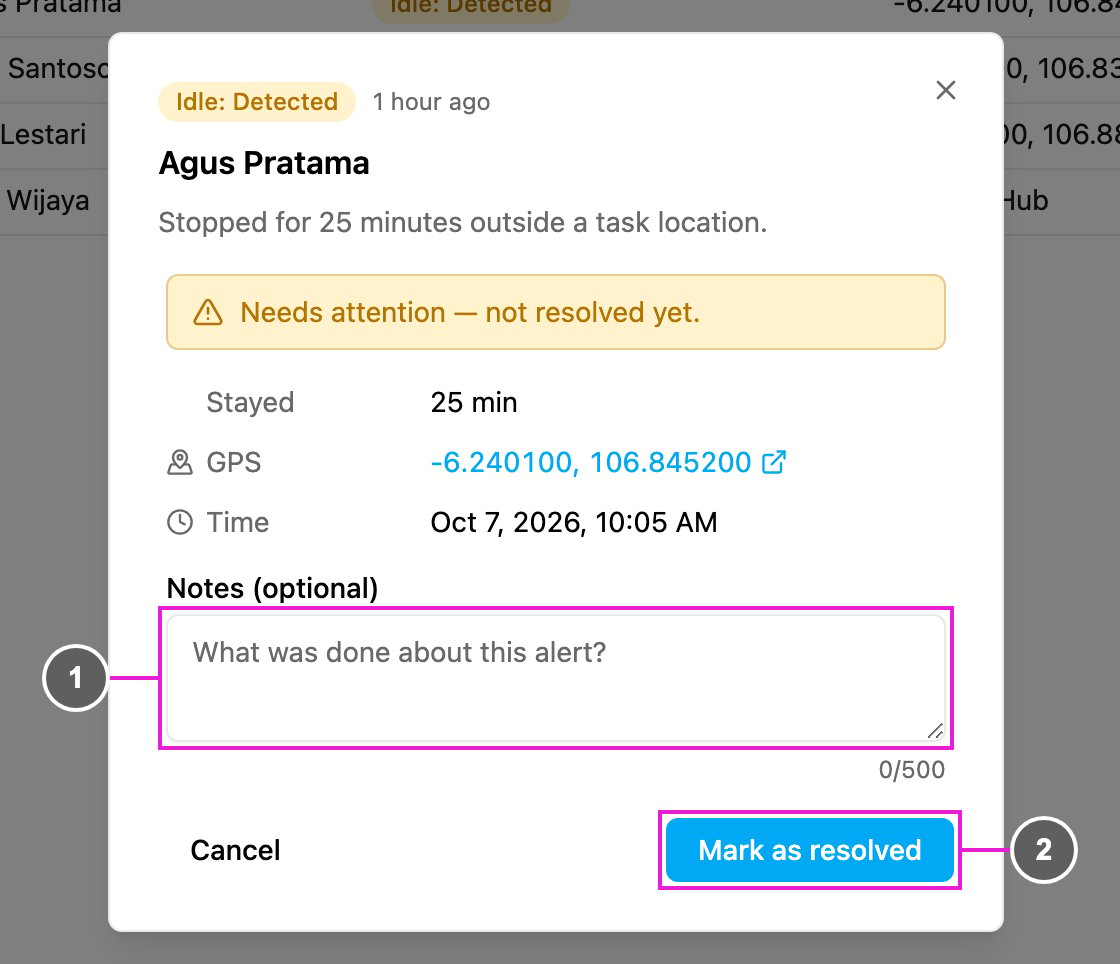
Click **Resolve** in the alert detail.
1. **Notes (optional)**: what was done about the alert, up to 500 characters.
2. **Mark as resolved**: save. The app says *Alert resolved.* and the row's status changes to **Resolved**. Click **Cancel** to go back without resolving.
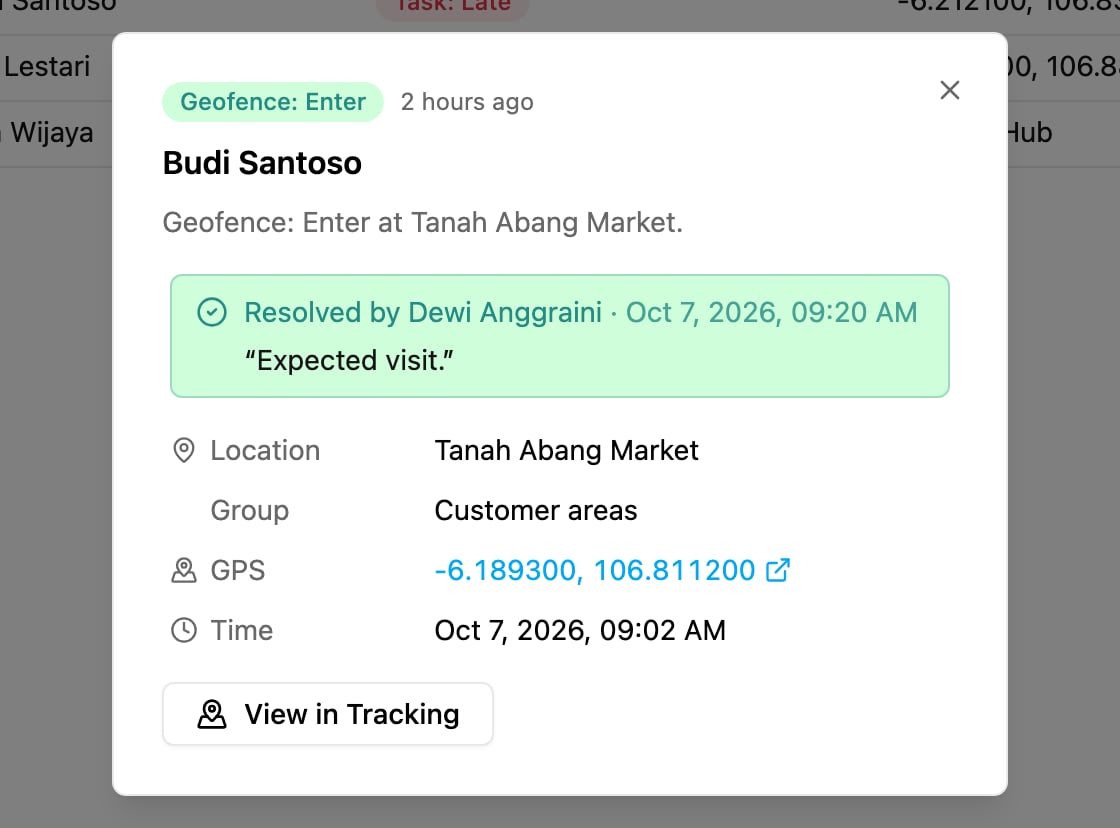
A resolved alert shows who resolved it, when, and their notes:
Resolving is for everyone: the alert shows as resolved for every user, here and in the **Alert** tab on the Tracking page. You can also resolve alerts from that tab.
## Related pages
* [Alert Setting](/pages/settings/alert-setting)
* [User Details](/pages/monitoring/tracking/user-details)
* [Emergency Alerts](/pages/monitoring/tracking/emergency-alerts)
This documentation is built and hosted on [Mintlify](https://mintlify.com), a developer documentation platform.