> ## Documentation Index
> Fetch the complete documentation index at: https://docsv4.mile.app/llms.txt
> Use this file to discover all available pages before exploring further.
# Emergency Alerts
> When a field worker presses the panic button in the field app, everyone allowed is told at once, with who pressed it and where.
When a field worker runs into trouble on the road, such as an accident, a breakdown in an unfamiliar area, or a threat to their safety, they can press the panic button in the field app. Everyone in your organization who may receive emergency alerts is told straight away in the web app, so the right person can reach the field worker and act.
Required permission:
* View panic alert (to receive emergency alerts)
* Trigger panic button (for the field worker who presses the button)
* View tracking (to open the alert on the Tracking page)
* View alert and Resolve alert (to mark the emergency as handled)
## An example: Budi's breakdown
Budi is a courier delivering in Senayan. His motorbike breaks down on Jl. Asia Afrika and a stranger starts pressuring him to hand over his parcels. He presses the panic button in the field app. Dewi, the planner on duty at the Jakarta hub, sees the alert. The rest of this page follows what Dewi sees and does.
## 1. The emergency alert appears
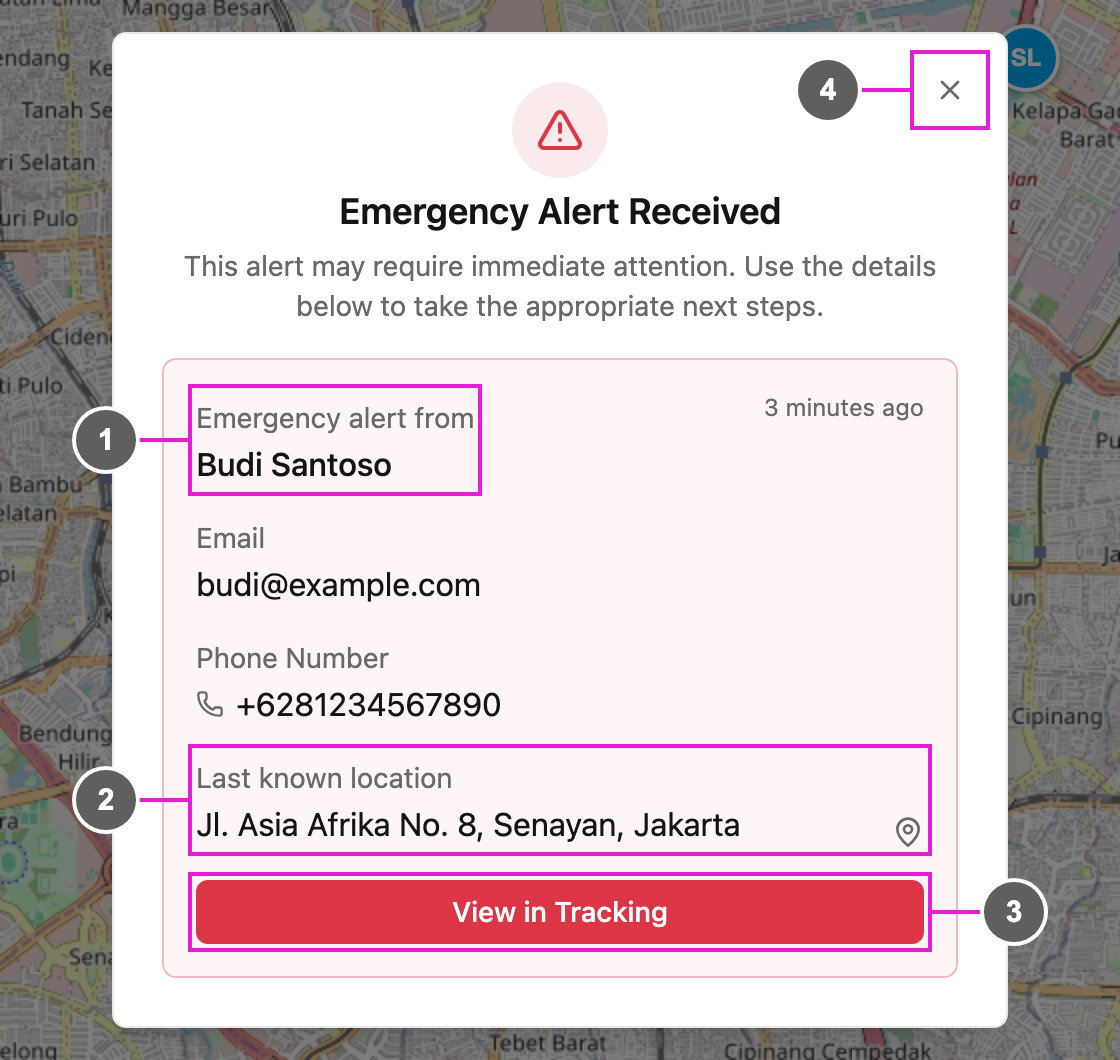
Within a few seconds, an **Emergency Alert Received** window opens over whatever page Dewi has open. Clicking outside it or pressing Esc does not close it, so an emergency is never missed.
1. **Emergency alert from**: the field worker who pressed the button, taken from their own account. The top right corner shows how long ago it happened.
2. **Last known location**: the address where the button was pressed. If the phone had no location at that moment, it says *Location unavailable*. The pin icon opens the place in Google Maps.
3. **View in Tracking**: open the Tracking page on this field worker and the day of the alert.
4. **Close (X)**: close the window.
The card also shows the field worker's **Email** and, when their account has one, their **Phone Number**.
If several field workers press the button, the title says how many alerts there are, and each one has its own card, newest first.
## 2. See the field worker on the map
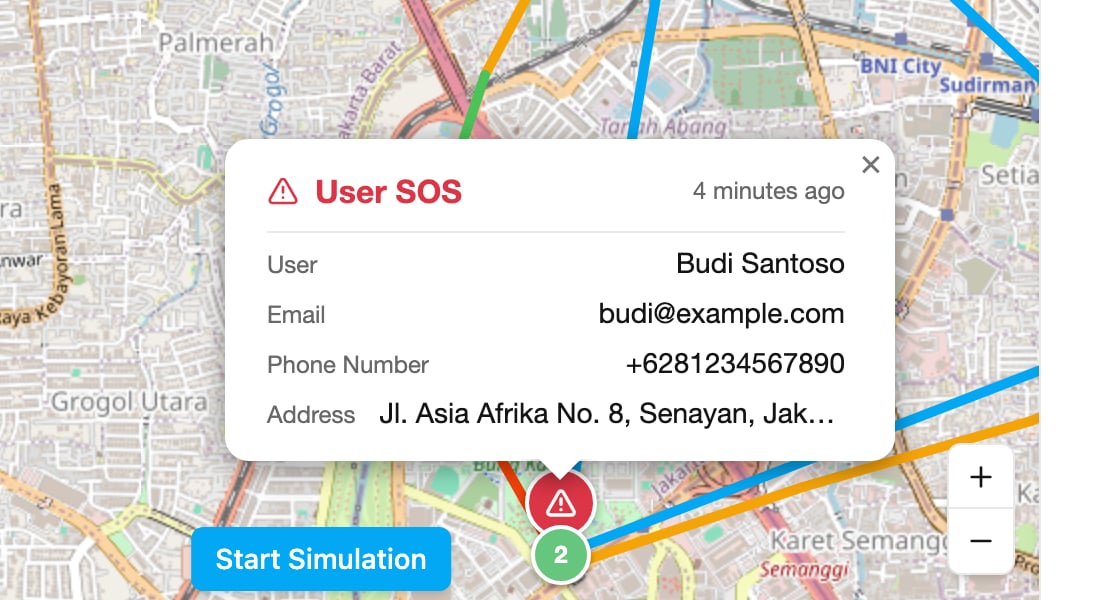
Dewi clicks **View in Tracking**. The Tracking page opens on Budi, with a red pin at the place he pressed the button and a card with the details.
The **User SOS** card shows the **User**, **Email**, **Phone Number** and **Address**, and how long ago the alert was raised. The pin is drawn above every other icon, so it is never hidden by a task.
From here Dewi can see Budi's route and tasks and message him in the **Chat** tab. See [User Details](/pages/monitoring/tracking/user-details).
## 3. Mark the emergency as handled
Dewi sends the nearest team to Budi. Once he is safe, she opens the alert in the **Alert** tab on the Tracking page, or on **Monitoring › Alert**, where it shows as *SOS: Panic*. She clicks **Resolve**, writes what was done, and confirms. The alert shows who resolved it and when, for everyone in the organization. See [Alert](/pages/monitoring/alert).
## Closing the window
The window closes when you click **View in Tracking** or the **X**. Either way, every alert in it is marked as read: it does not open again, on this page or after a reload, but it stays in your notifications. A new emergency opens the window again.
Closing the window does not resolve the emergency. Only **Resolve** records that it was handled.
## Emergency alerts in your notifications
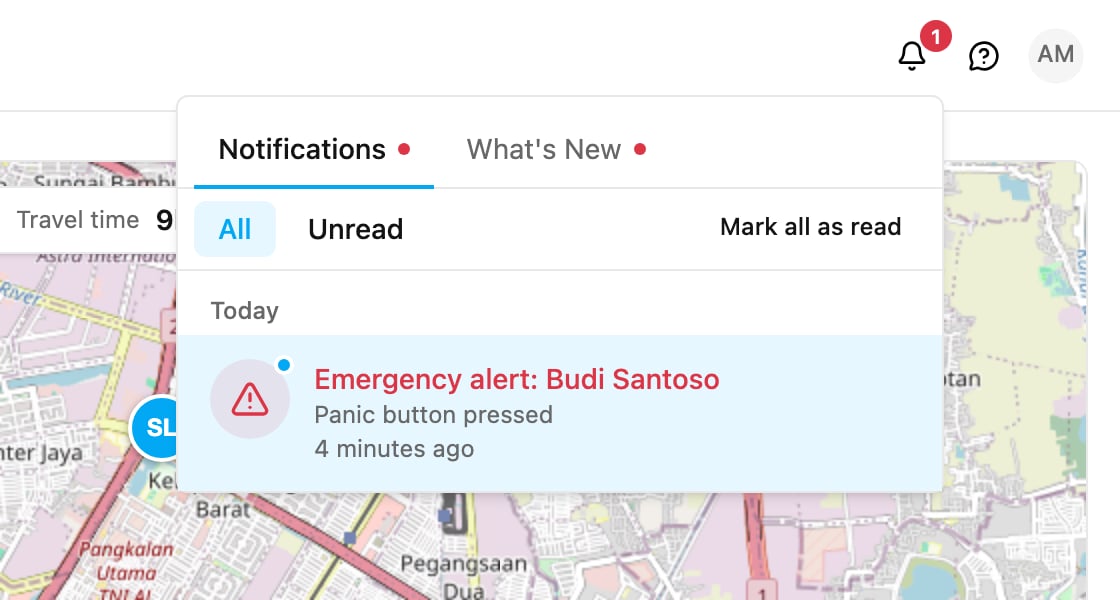
Every emergency alert is also added to the notification bell at the top of the page, so you have a record after the window is closed. Click an entry to open the field worker on the Tracking page.
## Related pages
* [Tracking](/pages/monitoring/tracking/introduction)
* [User Details](/pages/monitoring/tracking/user-details)
* [Alert](/pages/monitoring/alert)
This documentation is built and hosted on [Mintlify](https://mintlify.com), a developer documentation platform.