> ## Documentation Index
> Fetch the complete documentation index at: https://docsv4.mile.app/llms.txt
> Use this file to discover all available pages before exploring further.
# Filter and History
> Look back at an earlier day on the Tracking page, choose which task time puts a task on that day, and filter by location source.
The Tracking page shows one day at a time for the hub selected in the top bar. When you open it, it shows today. Use the date, the filter and the user list to find the part of the history you need.
Required permission:
* View tracking
## Filter by date
Click the **Date** button above the user list and pick a day in the calendar. The page shows that day's field workers, tasks, routes and totals.
* **Today**: the map updates live as field workers move and finish tasks, and refreshes every 5 minutes if the live connection drops.
* **An earlier day**: a finished record. It is not refreshed.
To see another hub, change the hub in the top bar.
## Filter by task time and location source
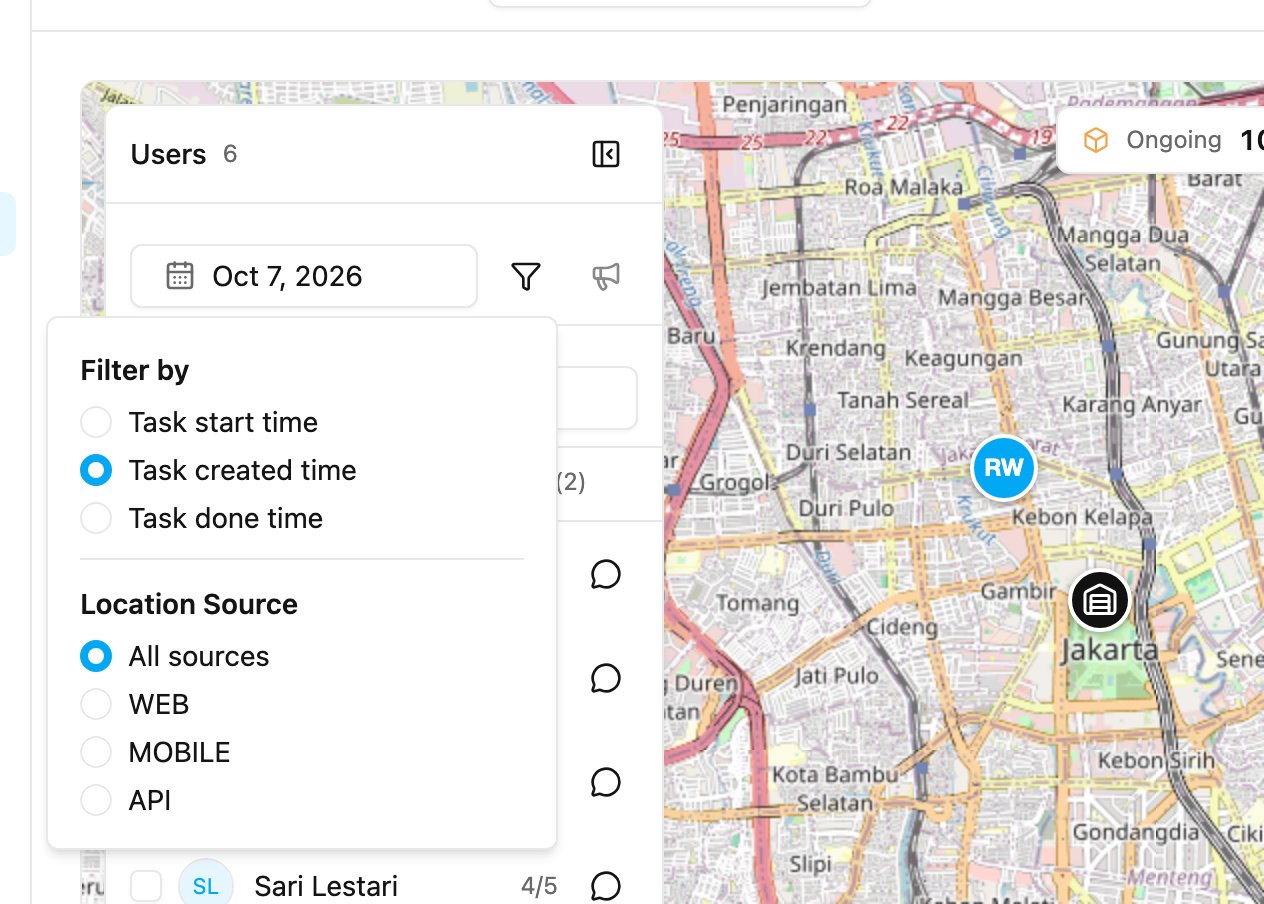
Click the **Filter** button beside the date.
**Filter by** decides which time of a task places it on the chosen day:
* **Task start time**: tasks that start on that day.
* **Task created time**: tasks created on that day. This is the default.
* **Task done time**: tasks finished on that day.
**Location Source** shows only tasks created from one place, for example **WEB**, **MOBILE** or **API**. Choose **All sources** to show everything. The list holds only the sources that the hub's tasks of that day actually came from.
The totals, the user lists and the map all follow the filter.
## History of all active users
Click the **Active** tab to see every active user on the chosen day. The map shows each one at their latest position on that day. If a field worker is selected, clicking **Active** again goes back to everyone.
Use **Search** to find a field worker by name.
## History of one field worker
Click a name in the **Active** list to see that person's day in detail: their route, their tasks in order, their alerts and their chat. See [User Details](/pages/monitoring/tracking/user-details).
## Related pages
* [Tracking](/pages/monitoring/tracking/introduction)
* [Map Icons and Routes](/pages/monitoring/tracking/map-icons-and-routes)
* [User Details](/pages/monitoring/tracking/user-details)
This documentation is built and hosted on [Mintlify](https://mintlify.com), a developer documentation platform.