> ## Documentation Index
> Fetch the complete documentation index at: https://docsv4.mile.app/llms.txt
> Use this file to discover all available pages before exploring further.
# Configuration
> Set the vehicles, speed, capacity and optimization rules routing follows, and keep them as profiles.
The configuration holds the parameters and inputs the optimization uses to calculate the routes. Setting it up carefully makes the result fit the way you work.
Open **Planning › Routing › Configuration**. Every configuration belongs to the hub picked at the top of the page, so each hub can work differently.
Required permission:
* View configuration
* Create configuration (Save as Profile)
* Edit configuration (change any setting)
* Edit constraint (add, change or delete capacity constraints)
* Delete configuration (delete a profile)
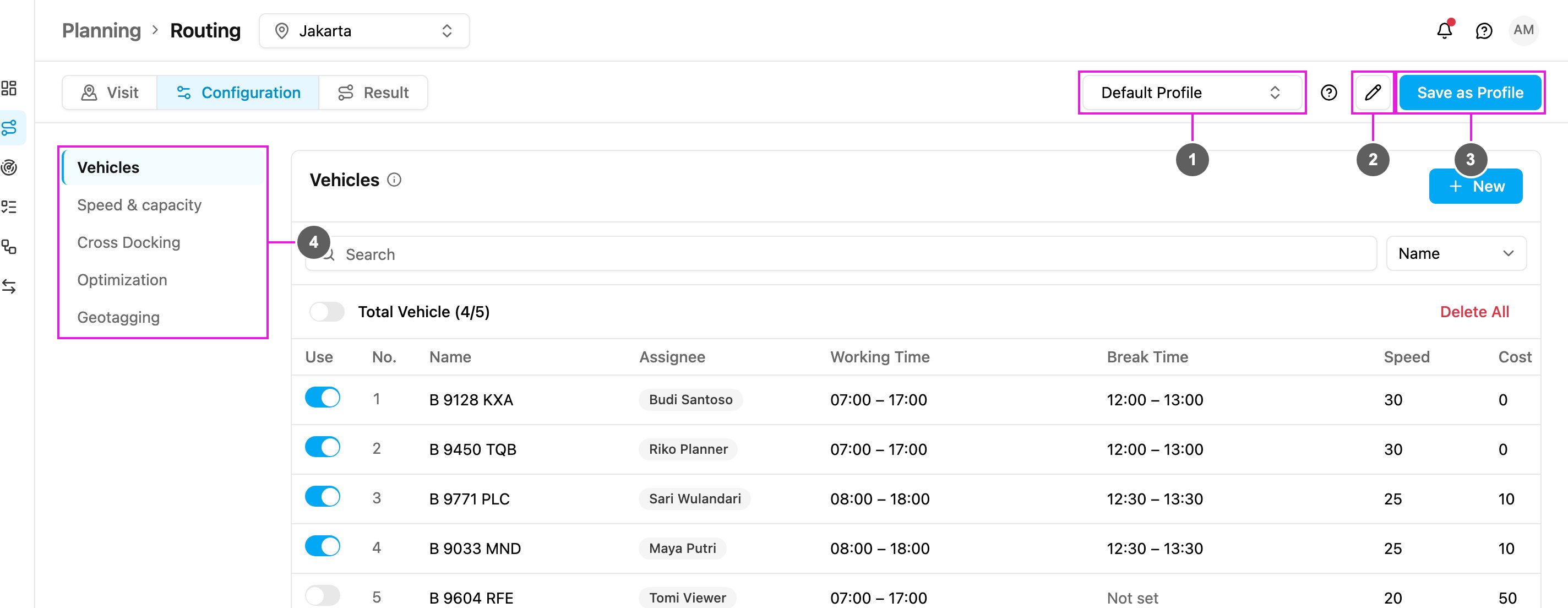
1. **Profile**: the configuration profile you are looking at. Pick another one to make it the hub's active profile.
2. **Profile Manager**: rename or delete profiles.
3. **Save as Profile**: save the current settings as a new profile.
4. **Sections**: jump to **Vehicles**, **Speed & capacity**, **Cross Docking**, **Optimization** or **Geotagging**.
The question-mark icon next to the profile opens this documentation.
## Saving
There is no Save button. Every change is saved to the profile as soon as you make it: a switch, checkbox or option the moment you click it, and a typed value (a speed, a visit time, a constraint name) when you leave the field. A value that isn't valid, such as a speed below 5 or a negative visit time, is not saved; the field shows what to fix and the profile keeps its last valid value.
If a change can't be saved, for example because you don't have the **Edit configuration** permission, a message says so and the setting goes back to what it was.
Each section title has an info icon. Hover it to read what the section is for.
## Sections
| Section | What you set there |
| - | - |
| **Vehicles** | The hub's vehicles and which of them this profile uses. See [Vehicle](/pages/planning/routing/vehicle). |
| **Speed & capacity** | **Vehicle Speed** (**Manual Speed** or **Auto Speed**), **Default Visit Time** with [Dynamic Visit Time](/pages/planning/routing/configuration/dynamic-visit-time), and [Capacity Constraints](/pages/planning/routing/configuration/capacity-constraint). |
| **Cross Docking** | Routing through sub hubs. See [Cross Docking](/pages/planning/routing/configuration/cross-docking). |
| **Optimization** | The optimization options listed below. |
| **Geotagging** | Areas drawn on the map that tie visits to vehicles. See [Geotagging](/pages/planning/routing/configuration/geotagging). |
## Speed & capacity
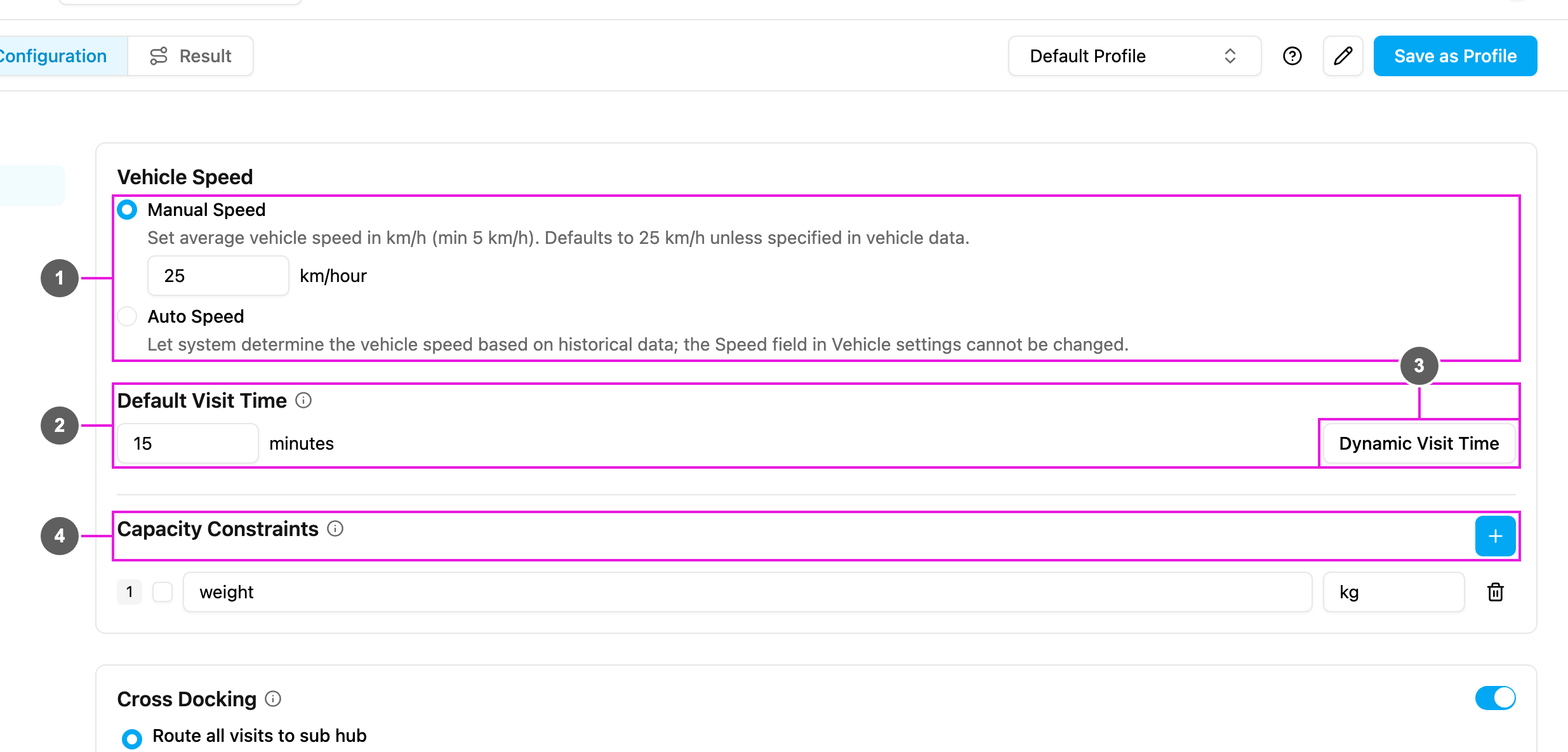
1. **Vehicle Speed**:
* **Manual Speed**: set the average vehicle speed in km/h (at least 5 km/h: **Speed must be at least 5 km/h.**). It is 25 km/h unless a vehicle has its own speed.
* **Auto Speed**: the system works out each vehicle's speed from historical trips in that area. The **Speed** field of the vehicles is then locked.
2. **Default Visit Time**: how many minutes a visit takes when the visit itself does not say. A whole number of 0 or more.
3. **Dynamic Visit Time**: make the visit time depend on the load. See [Dynamic Visit Time](/pages/planning/routing/configuration/dynamic-visit-time).
4. **Capacity Constraints**: the capacities this profile checks, such as weight or volume. See [Capacity Constraint](/pages/planning/routing/configuration/capacity-constraint).
## Optimization options
| Option | What it does |
| - | - |
| [Use All Vehicle](/pages/planning/routing/configuration/use-all-vehicle) | Every selected vehicle gets at least one trip. |
| [Multi Trip](/pages/planning/routing/configuration/multi-trip) | A vehicle may go back to the hub to reload before its next trip. |
| [Return to Hub](/pages/planning/routing/configuration/return-to-hub) | Every trip ends at the hub. |
| [Auto Merge](/pages/planning/routing/configuration/auto-merge) | Visits at the same coordinate become one visit, so one vehicle serves them all. |
| [Auto Split](/pages/planning/routing/configuration/auto-split) | A visit larger than the vehicles' capacity is split into several visits. |
| [Clustering](/pages/planning/routing/configuration/clustering) | Reduces the overlap between the areas of different vehicles. |
| [Avoid Toll Roads](/pages/planning/routing/configuration/avoid-toll-roads) | Routes avoid toll roads where possible. |
| [Odd Even](/pages/planning/routing/configuration/odd-even) | Respects odd-even plate restrictions during the hours you set. |
Visits can also be kept together with [Visit Group](/pages/planning/routing/configuration/visit-group).
## Profiles
A profile is a saved set of configuration. A hub can have as many profiles as you need, so you can keep a setup for each situation, for example one for weekdays and one for weekends, without changing the settings every time.
Profiles are optional: when you have not made any, the hub uses **Default Profile**, and **Optimize** on the Visit page uses whatever profile is selected here.
### Creating a profile
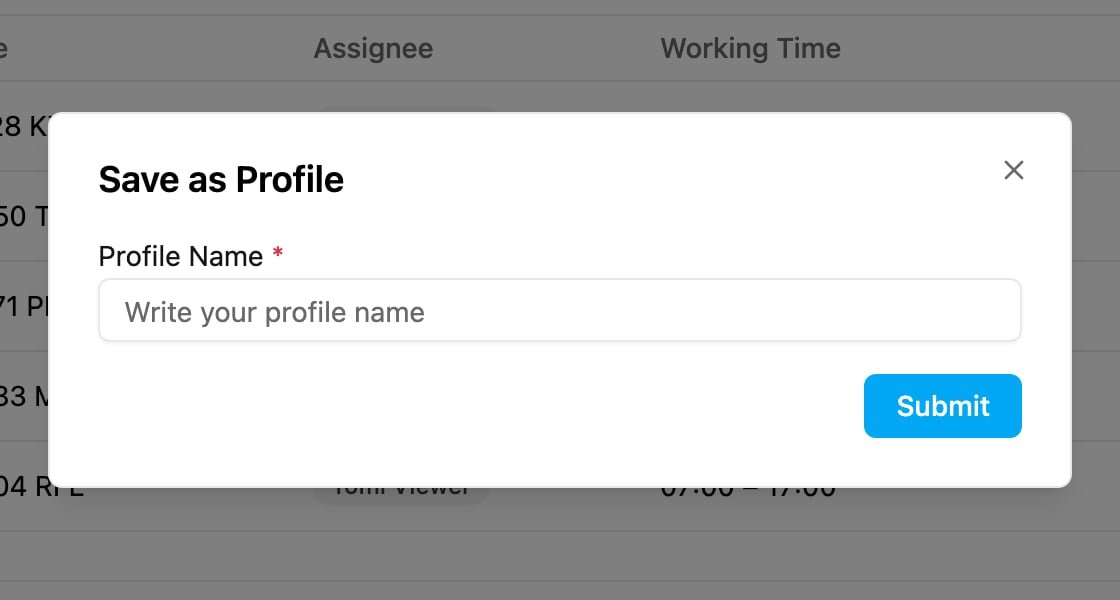
Click **Save as Profile**, type a **Profile name** and click **Submit**. The new profile starts with the current settings: **Configuration is successfully saved as a new profile**.
### Renaming and deleting a profile
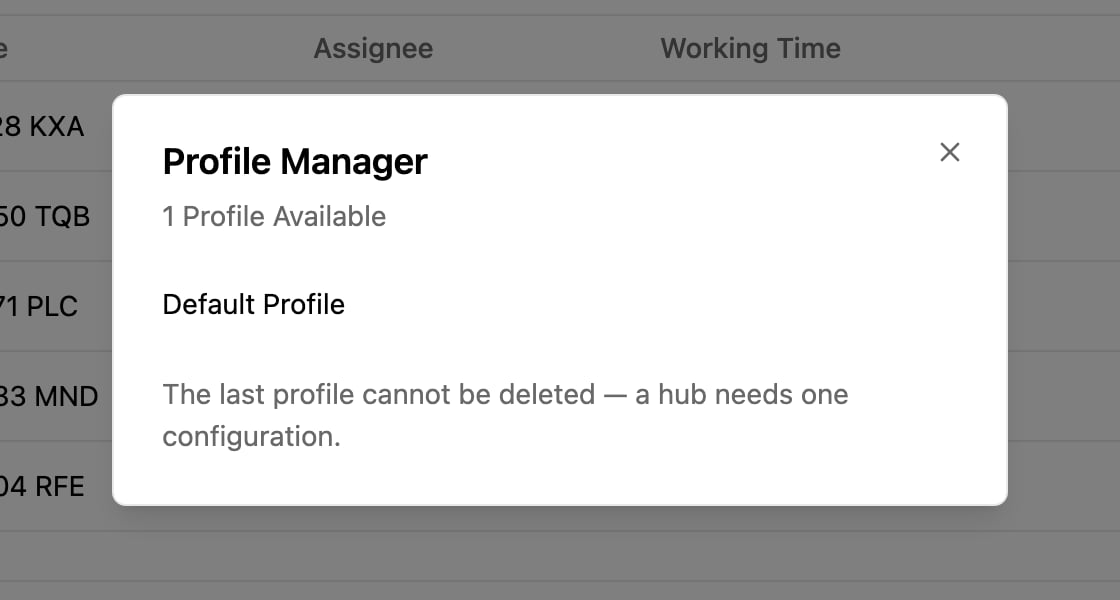
Click **Profile Manager**. It lists the hub's profiles with a rename icon and a delete icon on each. A profile name can't be empty, can't contain special characters, and can't be one the hub already uses.
To delete a profile, click its delete icon and confirm **Delete Profile Configuration?**. This cannot be undone. The last profile of a hub cannot be deleted: **The last profile cannot be deleted — a hub needs one configuration.**
### Choosing a profile
Pick a profile from the **Profile** list to load its settings. It becomes the hub's active profile right away (**Profile is successfully changed**), so **Optimize** on the Visit page uses it. A [routing schedule](/pages/planning/schedule/routing-schedule/introduction) always runs with the profile chosen in the schedule. The vehicles stay the same for every profile of the hub; each profile only keeps its own choice of which vehicles to use, its own capacity constraints and its own geotags.
## Optimize
When your visits and configuration are ready, go to the [Visit](/pages/planning/routing/visit) tab and click **Optimize**. If the hub has no vehicles yet, the button reads **Input Vehicle** and brings you back here.
This documentation is built and hosted on [Mintlify](https://mintlify.com), a developer documentation platform.