> ## Documentation Index
> Fetch the complete documentation index at: https://docsv4.mile.app/llms.txt
> Use this file to discover all available pages before exploring further.
# Result
> See the planned routes, adjust them and dispatch them to your field users.
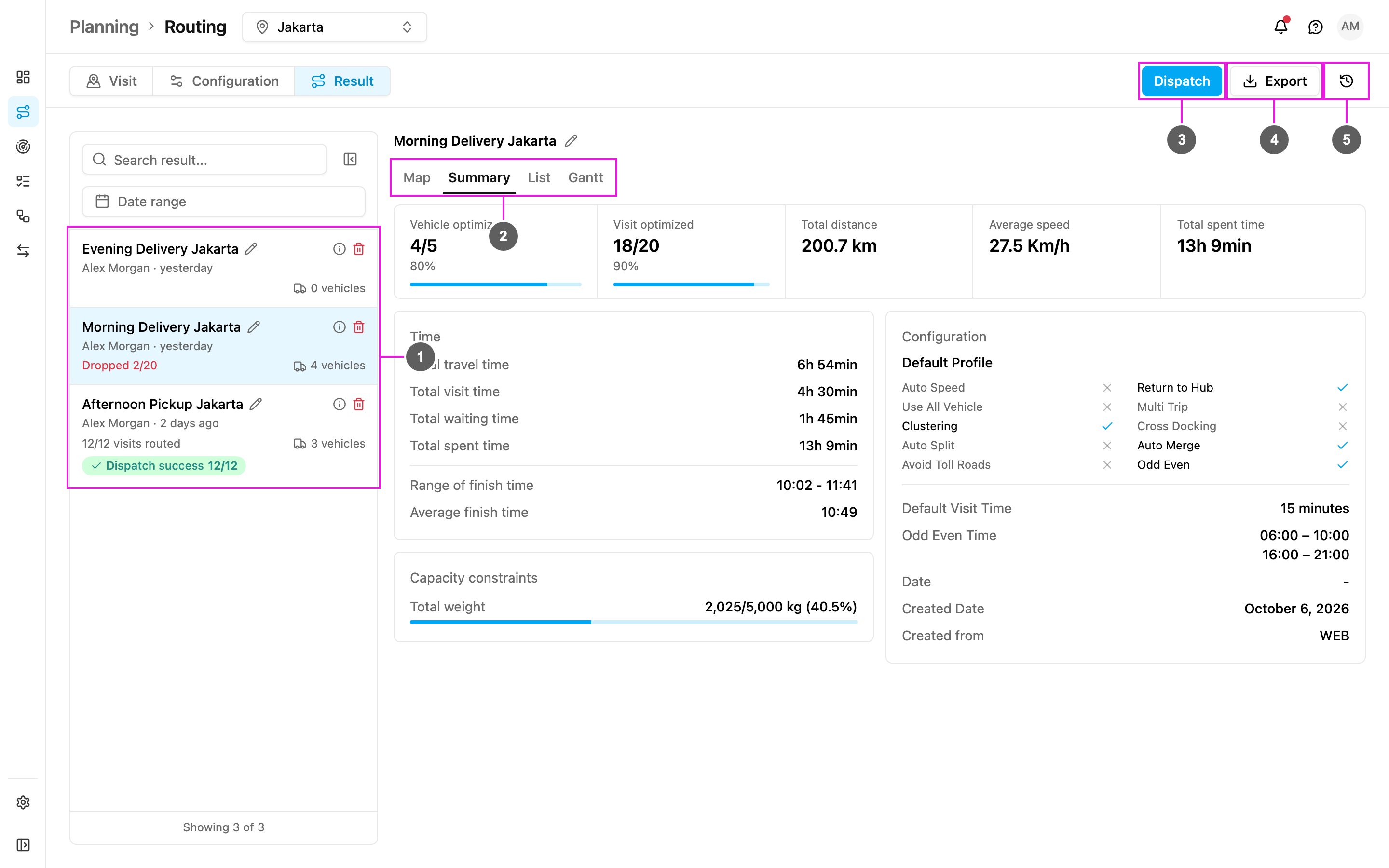
The **Result** tab shows the outcome of each optimization: the trips, the vehicles and the visits. Each result depends on the visit data, the vehicles and the configuration used when you clicked **Optimize**.
Open **Planning › Routing › Result**.
Required permission:
* View result
* Edit result (move visits, switch vehicles, change assignees, rename, restore)
* Delete result
* Dispatch result
1. **Result list**: every optimization adds a new result at the top. Each card shows the result name, who created it and when, how many vehicles it uses and its status. See [Search, Filter, Delete](/pages/planning/routing/result/search-filter-delete).
2. **Views**: look at the open result as **Map**, **Summary**, **List** or **Gantt**.
3. **Dispatch**: send the result to your field users as tasks. See [Dispatch](/pages/planning/routing/result/dispatch).
4. **Export**: download the result as an Excel file.
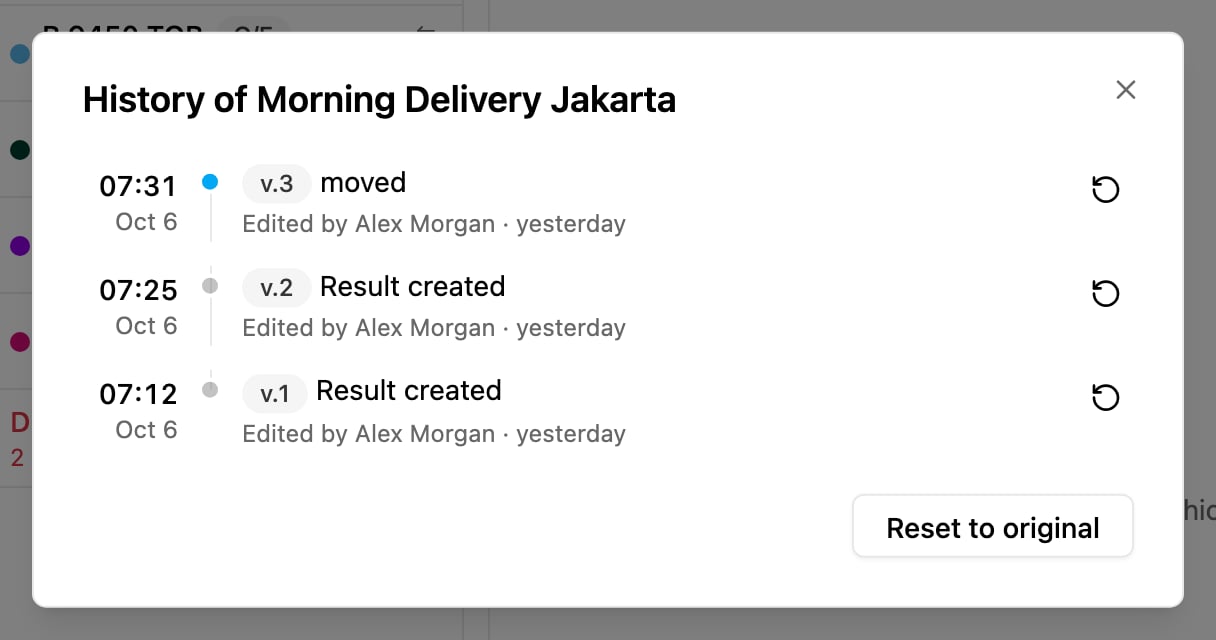
5. **History**: see the changes made to this result and restore an earlier version. See [History](#history).
Click the pencil next to the result name to rename it.
## Views
| View | What it shows |
| - | - |
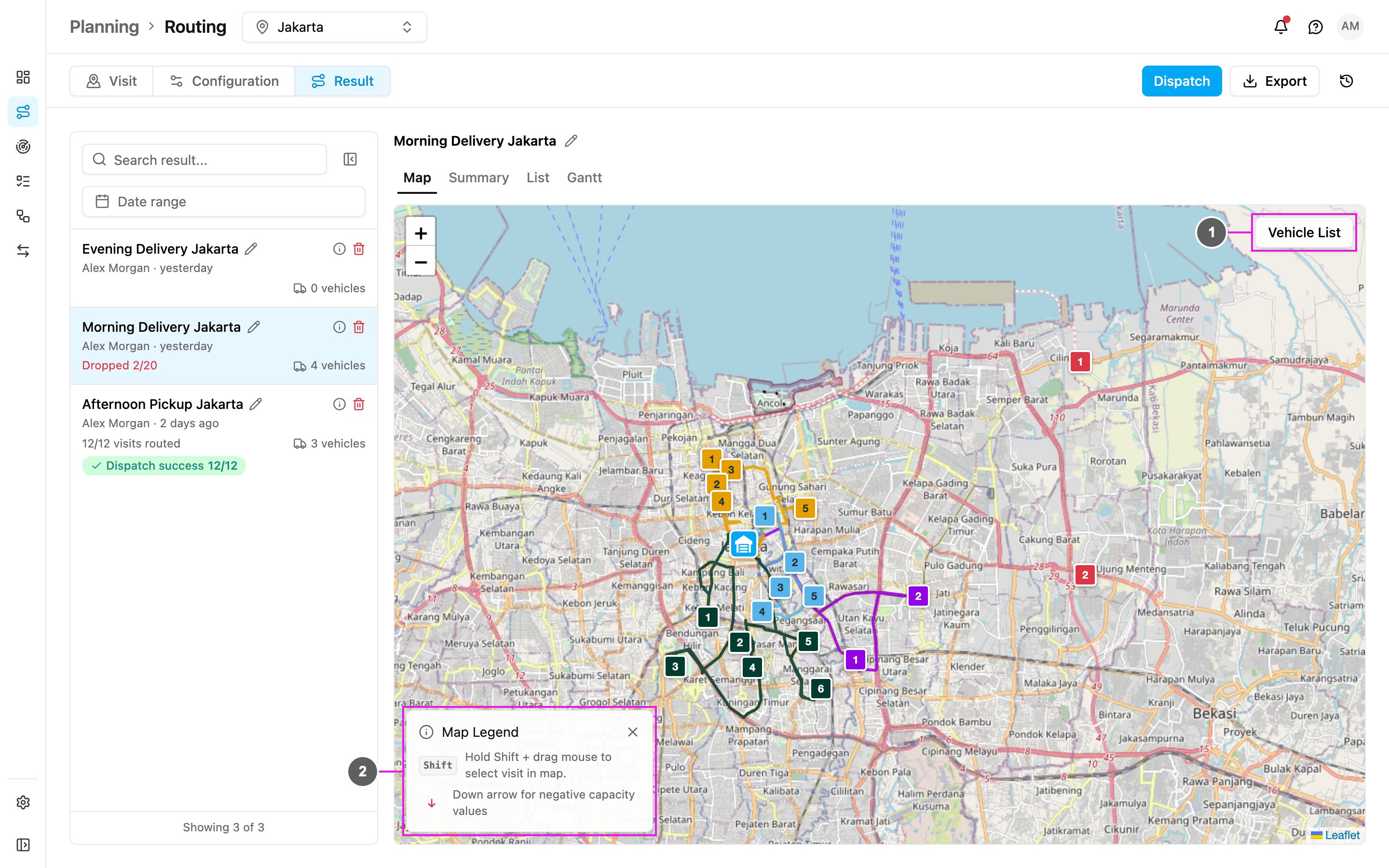
| **Map** | The routes on the map, one color per vehicle, with the hub, the visits in order and the dropped visits. See [Map](#map). |
| **Summary** | Totals for the whole result: vehicles, visits, distance, time, capacity and the configuration used. See [Summary](/pages/planning/routing/result/summary). |
| **List** | The vehicles on the left; pick one to see its details and its visits in order. See [Vehicle Detail](/pages/planning/routing/result/vehicle-detail) and [Visit Detail](/pages/planning/routing/result/visit-detail). |
| **Gantt** | Each vehicle's visits on a timeline. See [Gantt](#gantt). |
### Map
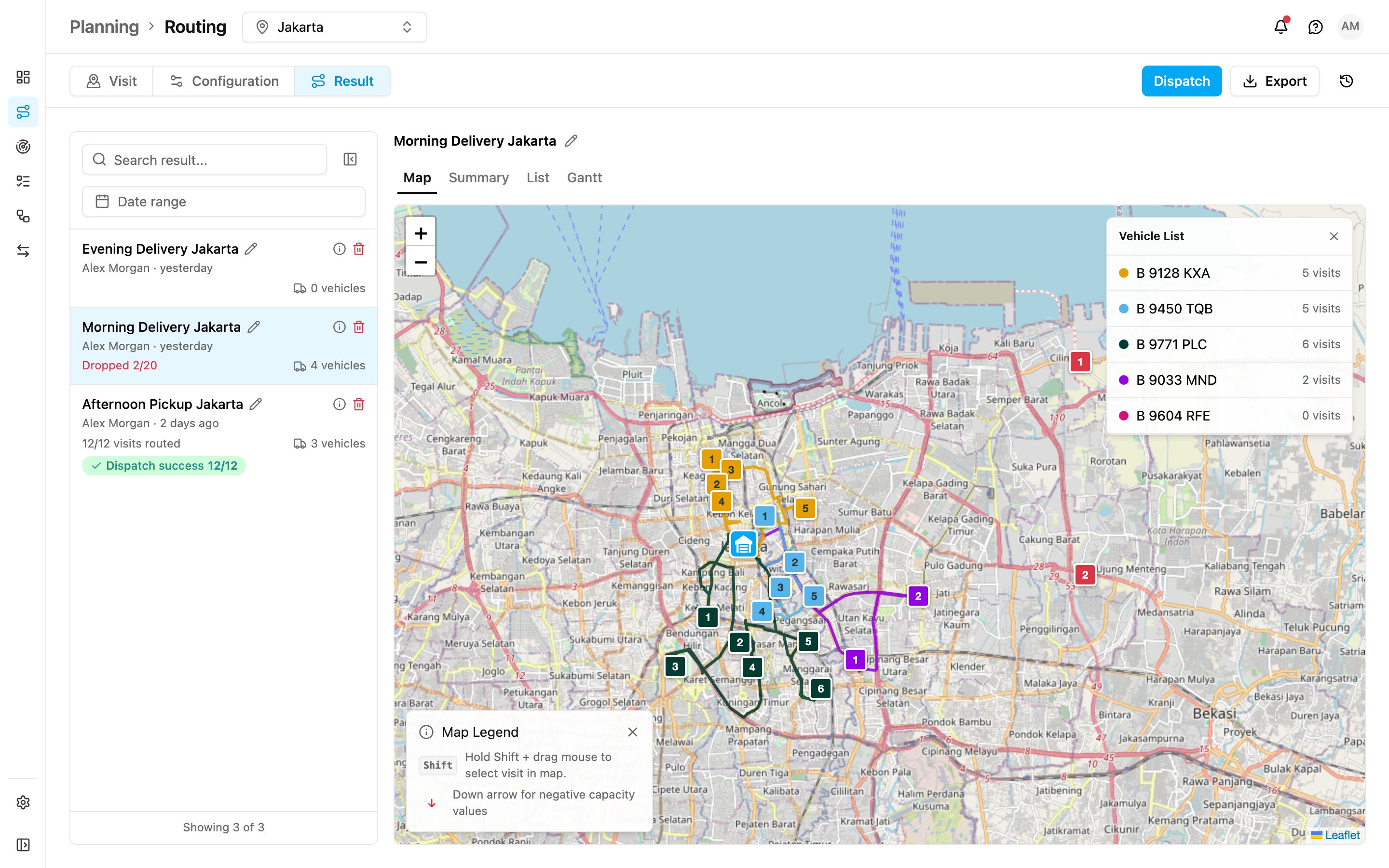
1. **Vehicle List**: open the list of vehicles with the number of visits of each. Click a vehicle to show only its route.
2. **Map Legend**: **Hold Shift + drag mouse to select visit in map** (to move several visits at once, see [Editing](/pages/planning/routing/result/editing#moving-several-visits)), and **Down arrow for negative capacity values**.
Click a visit pin to see its ETA, ETD, travel, waiting and visit times and its capacity, and step to the previous or next visit.
### Gantt
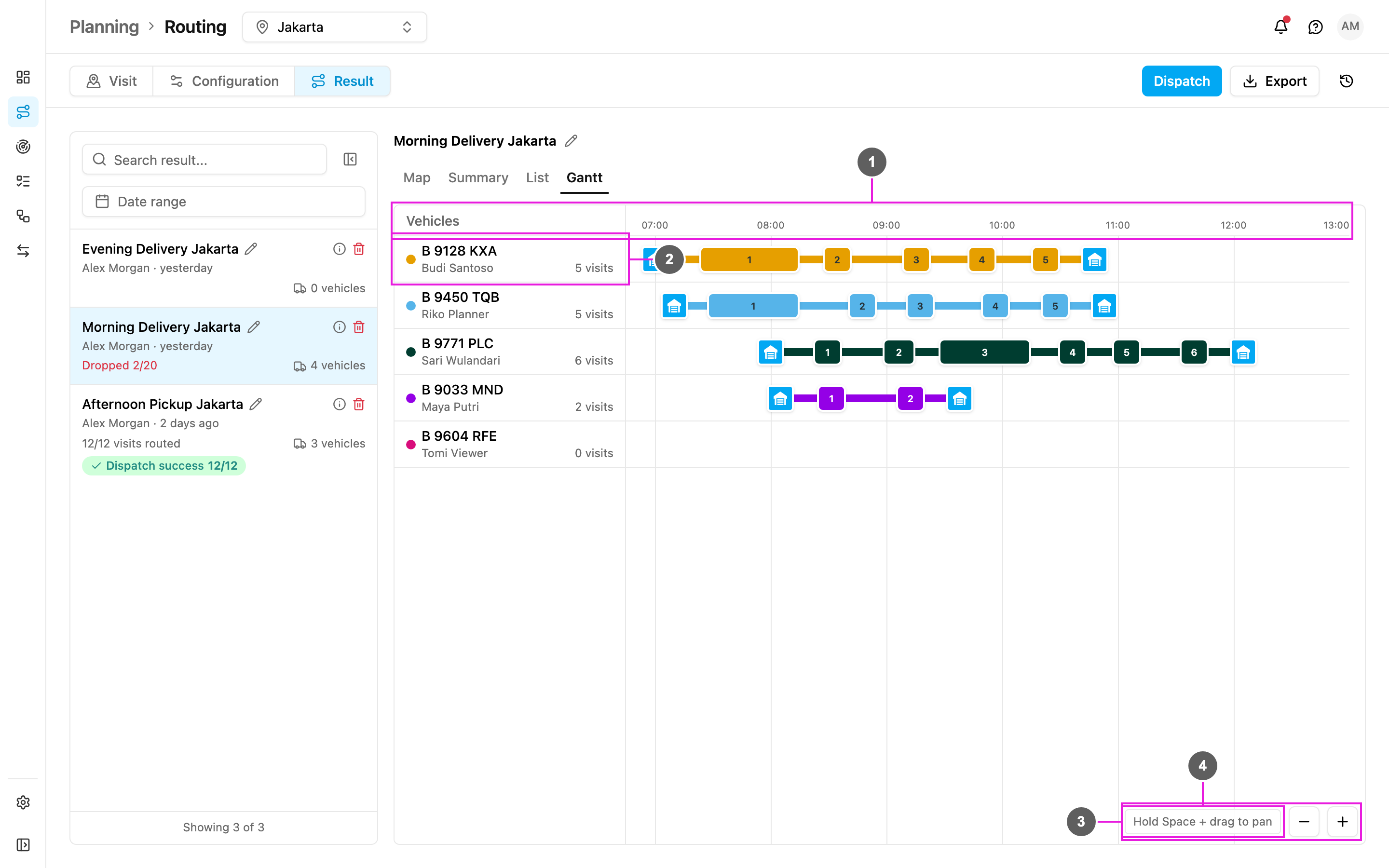
The Gantt view shows every vehicle's visits as blocks on a timeline, so you see at a glance when each vehicle works and how the work is shared.
1. **Timeline**: the hours of the day. Multi-day routes show **Day 1**, **Day 2** and so on.
2. **Vehicles**: each row is a vehicle, with its assignee and its number of visits under the name, the same way as in the List view. The hub icon marks the start and the return to the hub; each numbered block is a visit, as long as the visit time.
3. **Hold Space + drag to pan**: hold the Space key and drag to scroll the timeline sideways.
4. **Zoom out / Zoom in**: the **-** and **+** buttons change the scale.
Click a vehicle to open its detail panel: speed, fixed cost, total distance, the number of **Trips** (when the vehicle has more than one), the total times, the working and break time, and its capacity. Click a block to see the visit's details, and **Edit visit** from there. You can also drag a block to another place or another vehicle to change the order or move the visit.
## History
Click **History** to see every change made to the result, newest first, for example **v.3 moved**, with who made it and when.
* **Restore**: click the restore icon on a version and confirm **Restore this version?**. The result goes back to that version. Later edits stay in the history.
* **Reset to original**: confirm **Reset this result?** to remove all edits and bring back the original optimization result. The reset also appears in the history.
**Example**: the history has two entries, **2 visits moved to vehicle B** (the current version) and **Visit Place A moved to vehicle A**. Restoring the second entry cancels the latest change: the result goes back to how it was right after Place A moved to vehicle A.
## Data retention
Routing results, their history and dispatch results are kept for 1 year from when they are created, then deleted automatically. Export the results you need to keep longer.
This documentation is built and hosted on [Mintlify](https://mintlify.com), a developer documentation platform.