> ## Documentation Index
> Fetch the complete documentation index at: https://docsv4.mile.app/llms.txt
> Use this file to discover all available pages before exploring further.
# Creating a Task Schedule
> Set up one task schedule: task type, starting values, assignee, repeat cycle and active period.
Required permission:
* View schedule
* Create schedule
There are two ways to create task schedules:
* Click **New** to create one schedule, as described on this page.
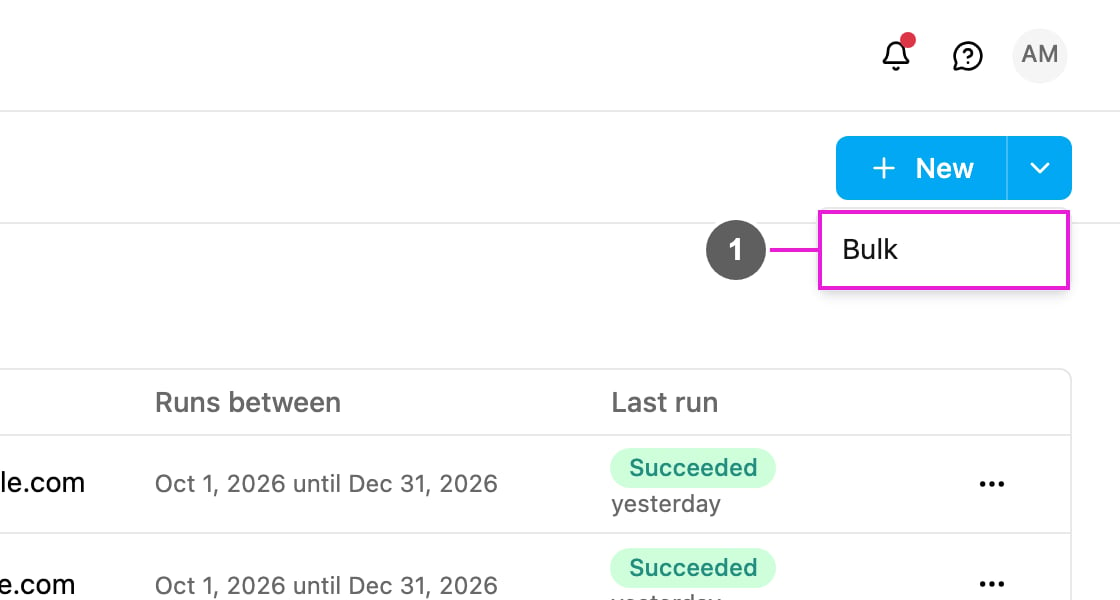
* Click the arrow beside **New** and choose **Bulk** to create many at once from a spreadsheet. See [Bulk Create Task Schedules](/pages/planning/schedule/bulk-create-task-schedules).
1. **Bulk**: create many schedules from a spreadsheet.
## The New task schedule form
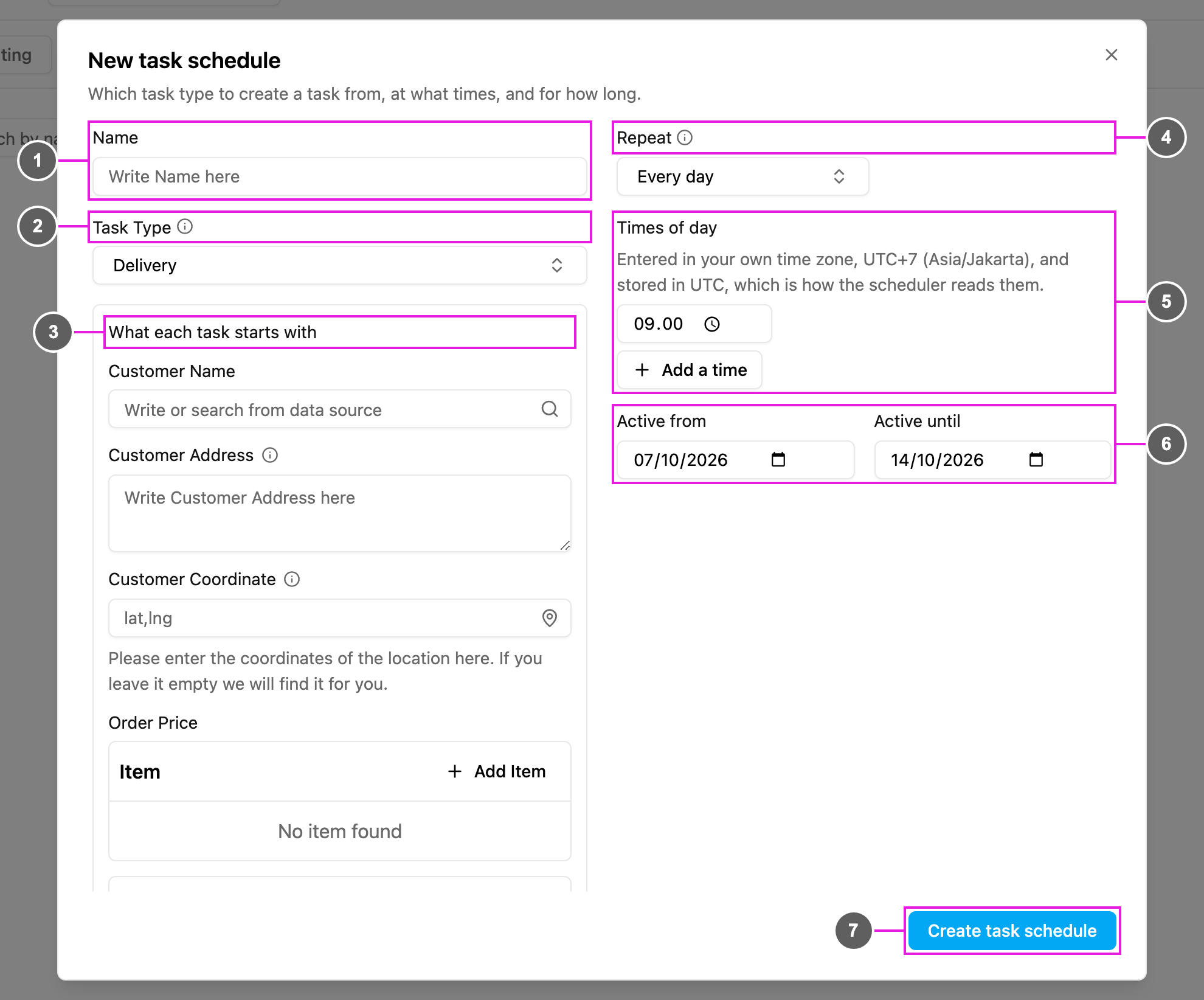
Click **New**. Pick a **Task Type** first: the fields of that task type's initial page appear in the form.
1. **Name**: a name that tells this schedule apart from your other schedules, for example "Daily Store Restock".
2. **Task Type**: the task type every run creates a task from, for example Pickup or Delivery. Every run creates one task.
3. **What each task starts with**: the fields of the task type's initial page. What you fill in here is copied into every task the schedule creates, for example the customer, address and order items. Fields left empty stay empty on each task. Data source fields let you search and pick a record, and coordinates are found from the address when you leave them empty. If the task type has its initial page turned off, the form says so and the tasks start empty.
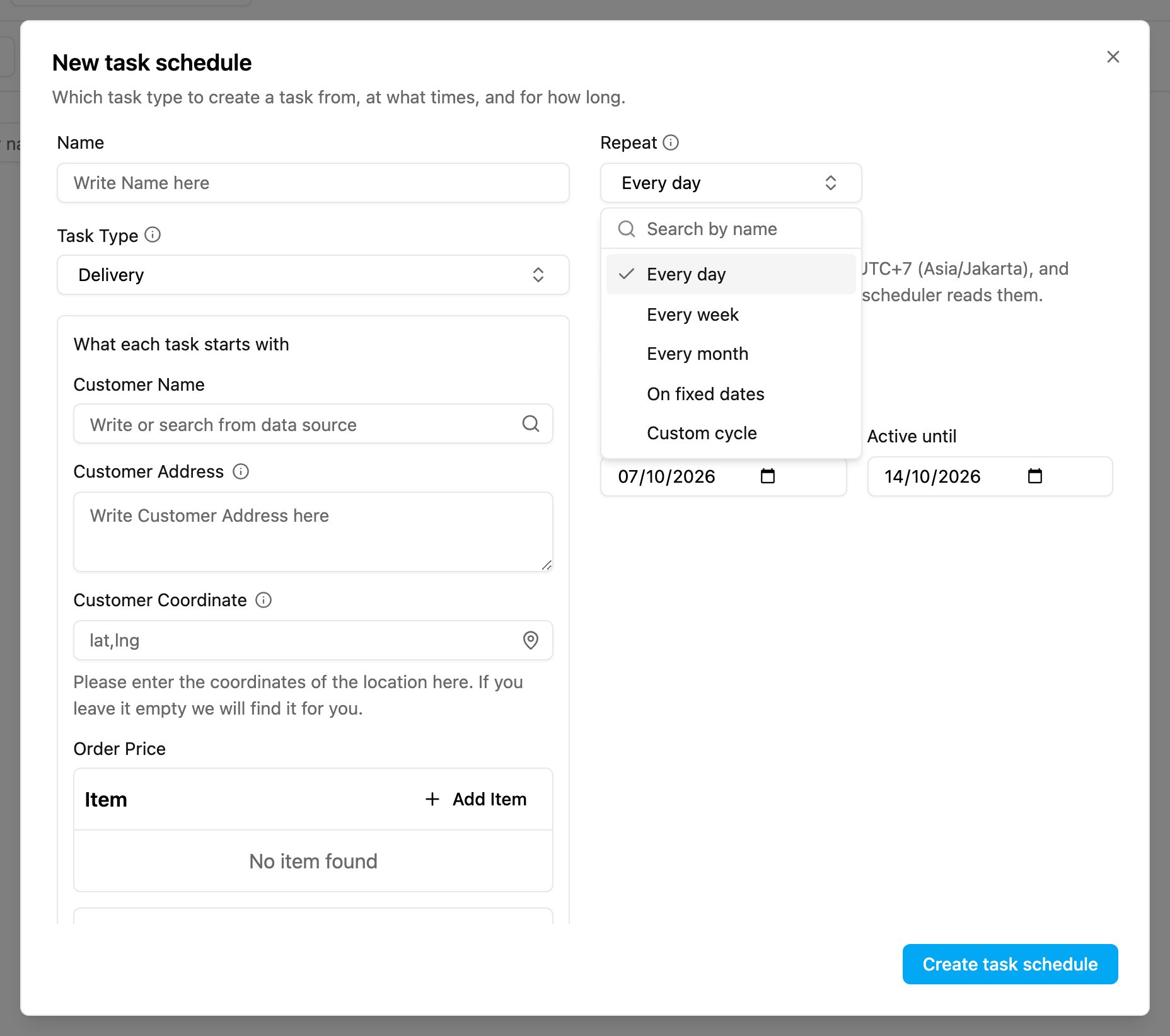
4. **Repeat**: how often the schedule creates a task. See [Repeat cycles](#repeat-cycles) below.
5. **Times of day**: the time the task is created. Click **Add a time** to add more times. Times are entered in your own time zone (the form shows it, for example UTC+7 Asia/Jakarta) and stored in UTC.
6. **Active from / Active until**: the period in which the schedule runs. Before **Active from** and after **Active until**, no tasks are created. The end has to be at least a day after the start.
7. **Create task schedule**: save the schedule. The message "Task schedule created." confirms it.
## Assignee
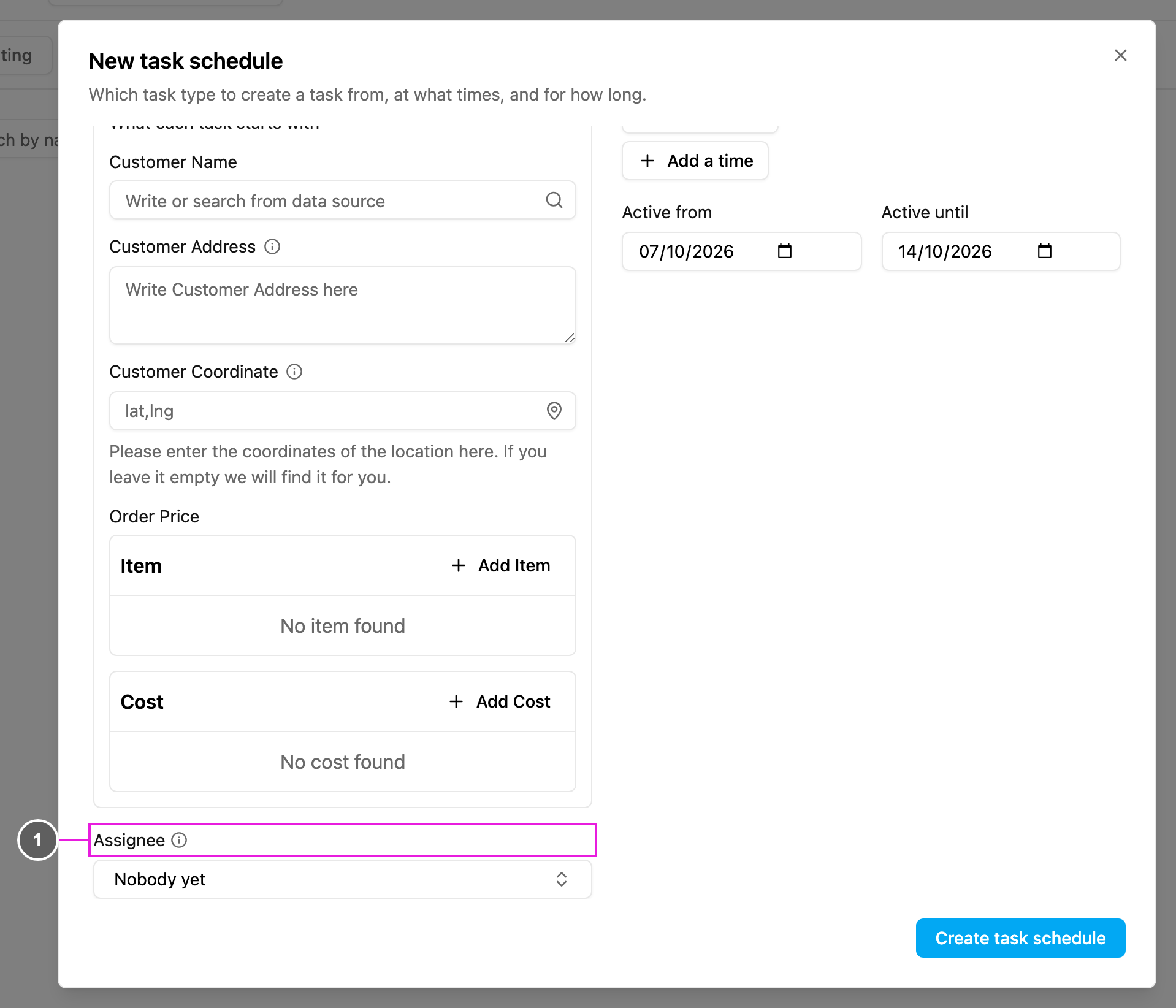
Scroll down to the **Assignee** field, below the task type fields.
1. **Assignee**: who each created task is assigned to. Pick one or more people from the **User** and **Team** sections. The list comes from the hub selected at the top of the page. Leave it on **Nobody yet** to create unassigned tasks.
If a required field is missing, the form stays open and shows what is needed, for example "Give the schedule a name." or "Pick the task type to create tasks from." If you close the form after filling it in, you're asked whether to discard the details.
## Repeat cycles
| Repeat | Details |
| - | - |
| **Every day** | [Repeat daily](/pages/planning/schedule/repeat-cycle/daily) |
| **Every week** | [Repeat weekly](/pages/planning/schedule/repeat-cycle/weekly) |
| **Every month** | [Repeat monthly](/pages/planning/schedule/repeat-cycle/monthly) |
| **On fixed dates** | [Repeat on fixed dates](/pages/planning/schedule/repeat-cycle/by-date) |
| **Custom cycle** | [Custom cycle](/pages/planning/schedule/repeat-cycle/custom) |
This documentation is built and hosted on [Mintlify](https://mintlify.com), a developer documentation platform.