> ## Documentation Index
> Fetch the complete documentation index at: https://docsv4.mile.app/llms.txt
> Use this file to discover all available pages before exploring further.
# Inviting Users
> Invite people by email, choose their role and hubs, and resend invitations.
Required permission:
* View user
* Invite user
* View role
## Invite users
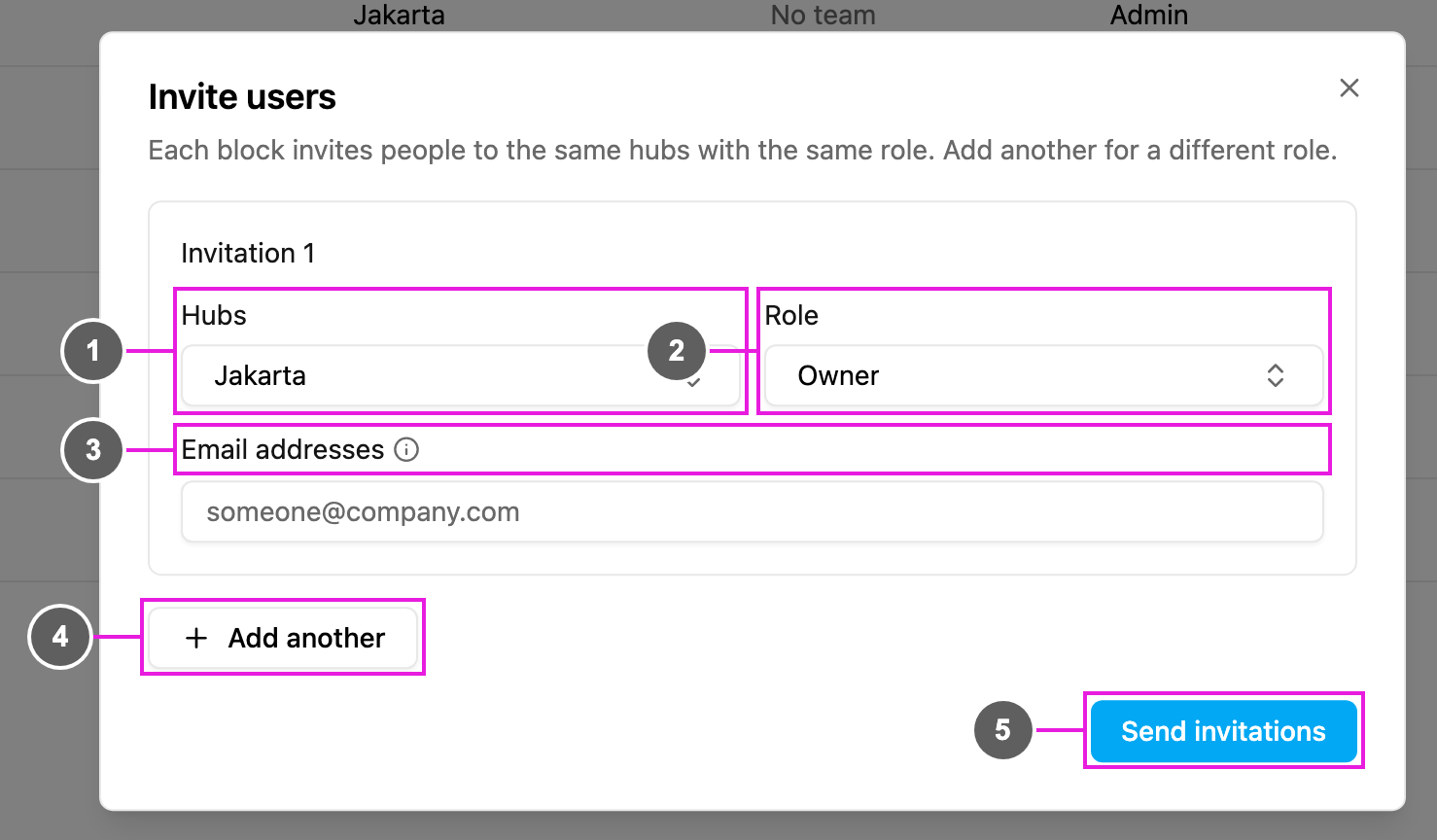
Open **Settings › User** and click **Invite**.
1. **Hubs**: the hubs these people will work in. Choose at least one, or **All hubs**.
2. **Role**: the role they get, which decides what they can see and do. See [Permission](/pages/settings/permission/introduction).
3. **Email addresses**: type one or more addresses. Press Enter, a comma or a semicolon after each one. Click the cross on an address to remove it.
4. **Add another**: add a second invitation block, for people who need a different role or different hubs. Use **Remove this invitation** to drop a block.
Click **Send invitations**. The app confirms how many invitations were sent, and the new users appear in the list as **Invited**.
The form won't send until every block has at least one email address, a role and a hub. An address that isn't valid is reported by name, for example *x\@y is not an email address*, and isn't sent.
## What the invited person does
Each person receives an email with an activation link. To join, they:
1. Open the invitation email and click the activation link.
2. Set their name and password on the page that opens.
3. Continue to sign in.
Once they've done this, their status changes from **Invited** to **Active**. Field workers then sign in on the field app with the same email and password.
## Resend an invitation
If someone didn't receive the email or lost it, open the **...** menu on their row and choose **Resend invitation**. The app confirms *Invitation resent to …*. This option is only shown while the invitation hasn't been accepted.
This documentation is built and hosted on [Mintlify](https://mintlify.com), a developer documentation platform.