> ## Documentation Index
> Fetch the complete documentation index at: https://docsv4.mile.app/llms.txt
> Use this file to discover all available pages before exploring further.
# Deleting Your Organization
> Permanently remove your organization and all of its data.
Deleting an organization is **permanent** and can't be undone. Export anything you need to keep before you start.
Required permission:
* Delete organization
Only the **Owner** can delete the organization.
## Delete the organization
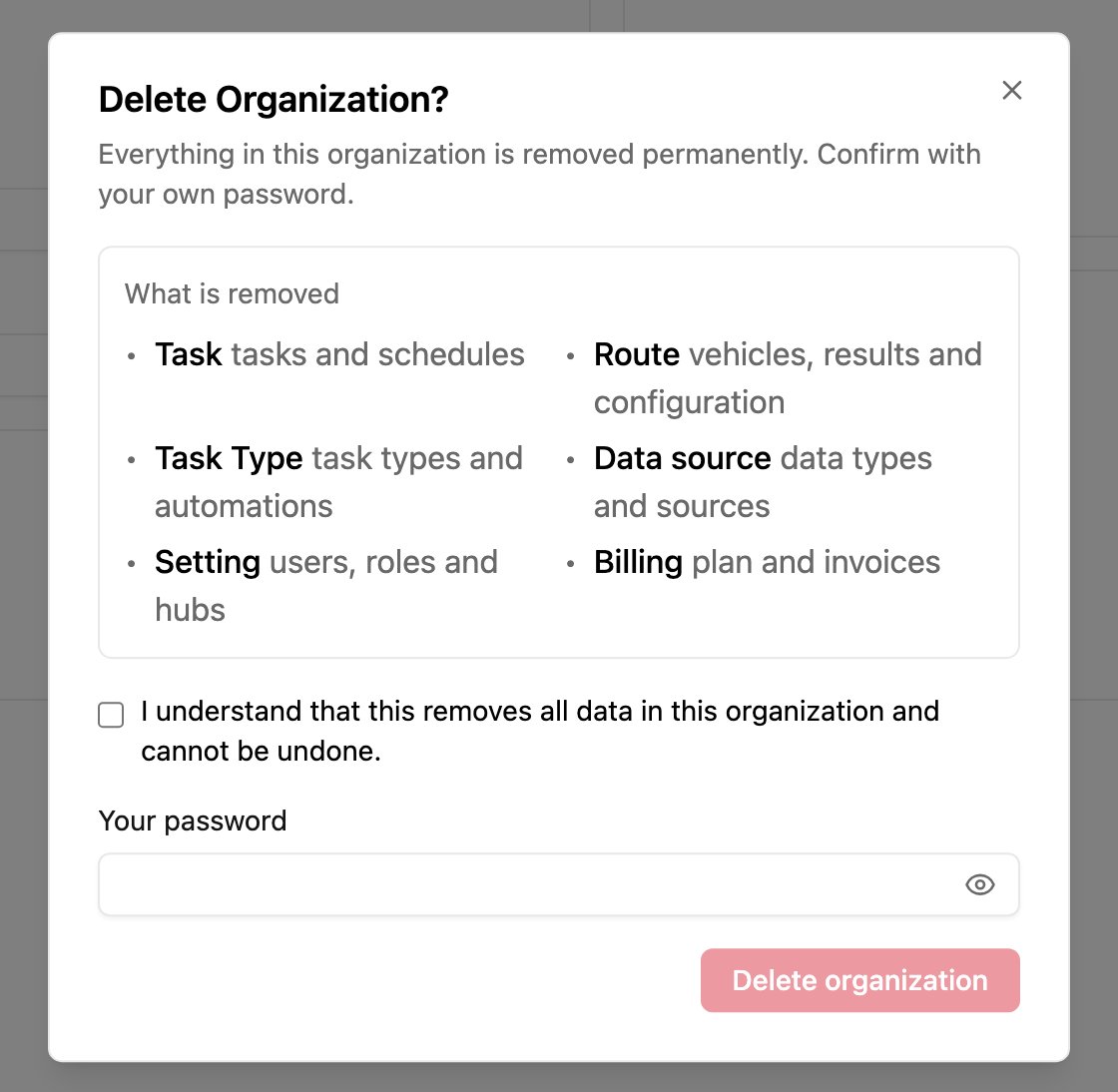
1. Open **Settings › Organization**.
2. In **Delete organization**, click **Delete organization**.
3. Read the list of what is removed.
4. Tick *I understand that this removes all data in this organization and cannot be undone.*
5. Type **Your password**.
6. Click **Delete organization**.
## What is removed
| Area | Data removed |
| - | - |
| **Task** | Tasks and schedules. |
| **Route** | Vehicles, routing results and configuration. |
| **Task Type** | Task types and automations. |
| **Data source** | Data types and their records. |
| **Setting** | Users, roles and hubs. |
| **Billing** | The plan and invoices. |
The owner and every member receive an email confirming the organization was deleted.
## After deletion
* **If you belong to other organizations**, you can sign in and keep working in them. Your account stays active.
* **If it was your only organization**, you're signed out. You can create a new organization or accept an invitation to join one.
This documentation is built and hosted on [Mintlify](https://mintlify.com), a developer documentation platform.