> ## Documentation Index
> Fetch the complete documentation index at: https://docsv4.mile.app/llms.txt
> Use this file to discover all available pages before exploring further.
# Organization
> Your organization's name, country, language and currency, password policy, and deleting the organization.
**Settings › Organization** holds the details that apply to everyone in your organization.
Required permission:
* View organization
* Edit organization (to make changes)
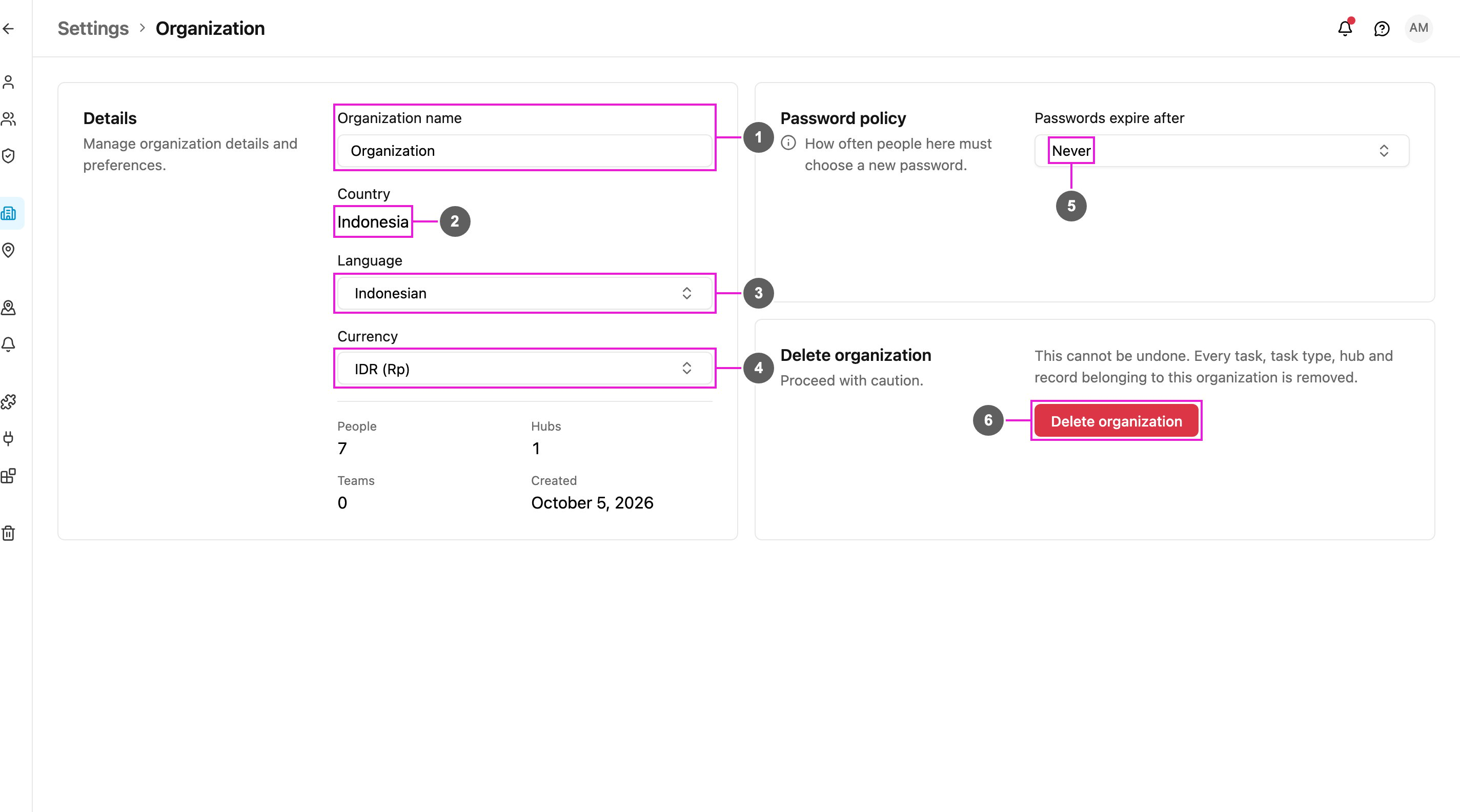
1. **Organization name**: shown across the app, in emails and notifications, in public tracking, and wherever an automation message uses the organization name. It can't be empty: *An organization needs a name.*
2. **Country**: the country your organization works in. It sets regional defaults such as the phone code. It's set when the organization is created and can't be changed here.
3. **Language**: the default language of the app and of notifications, for everyone who hasn't chosen their own language in their profile.
4. **Currency**: the currency used by bills, exports and totals. See [Currency and Language](/pages/settings/organization/currency-and-language).
5. **Passwords expire after**: how often everyone must choose a new password. See [Password Policy](/pages/settings/organization/password-policy).
6. **Delete organization**: removes the organization and everything in it. See [Deleting Your Organization](/pages/settings/organization/deleting-your-organization).
The card also shows how many **People**, **Hubs** and **Teams** the organization has, and when it was **Created**.
Change a value, then click **Save**; **Discard** undoes your changes. If you can view the settings but not change them, the page says so.
## Belonging to more than one organization
You can belong to several organizations with the same email. Switch between them, or create a new one, from your profile menu: see [Profile](/pages/account/profile#switch-organization).
This documentation is built and hosted on [Mintlify](https://mintlify.com), a developer documentation platform.