> ## Documentation Index
> Fetch the complete documentation index at: https://docsv4.mile.app/llms.txt
> Use this file to discover all available pages before exploring further.
# Managing Users
> Edit a user's details, role, hubs and teams; turn access on or off; reset passwords and unlock accounts; delete users.
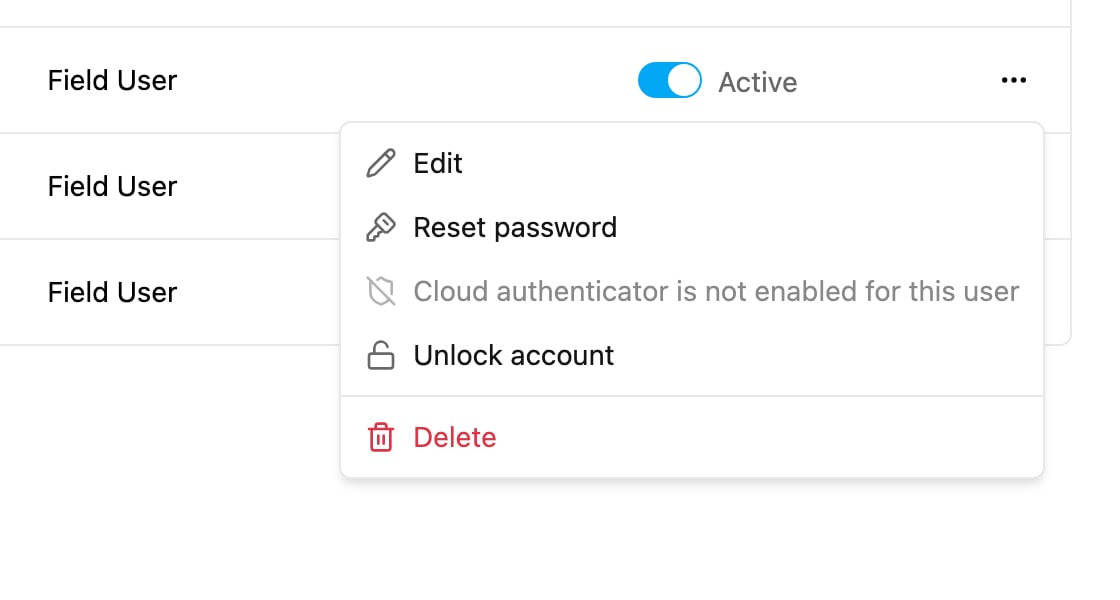
Open the **...** (More actions) menu at the end of a user's row.
The menu offers **Edit**, **Reset password**, **Reset cloud authenticator**, **Unlock account** and **Delete**. Options you don't have permission for, or that don't apply to the user, are greyed out with the reason, for example *Cloud authenticator is not enabled for this user*.
## Edit a user
Required permission:
* View user
* Edit user
* View role
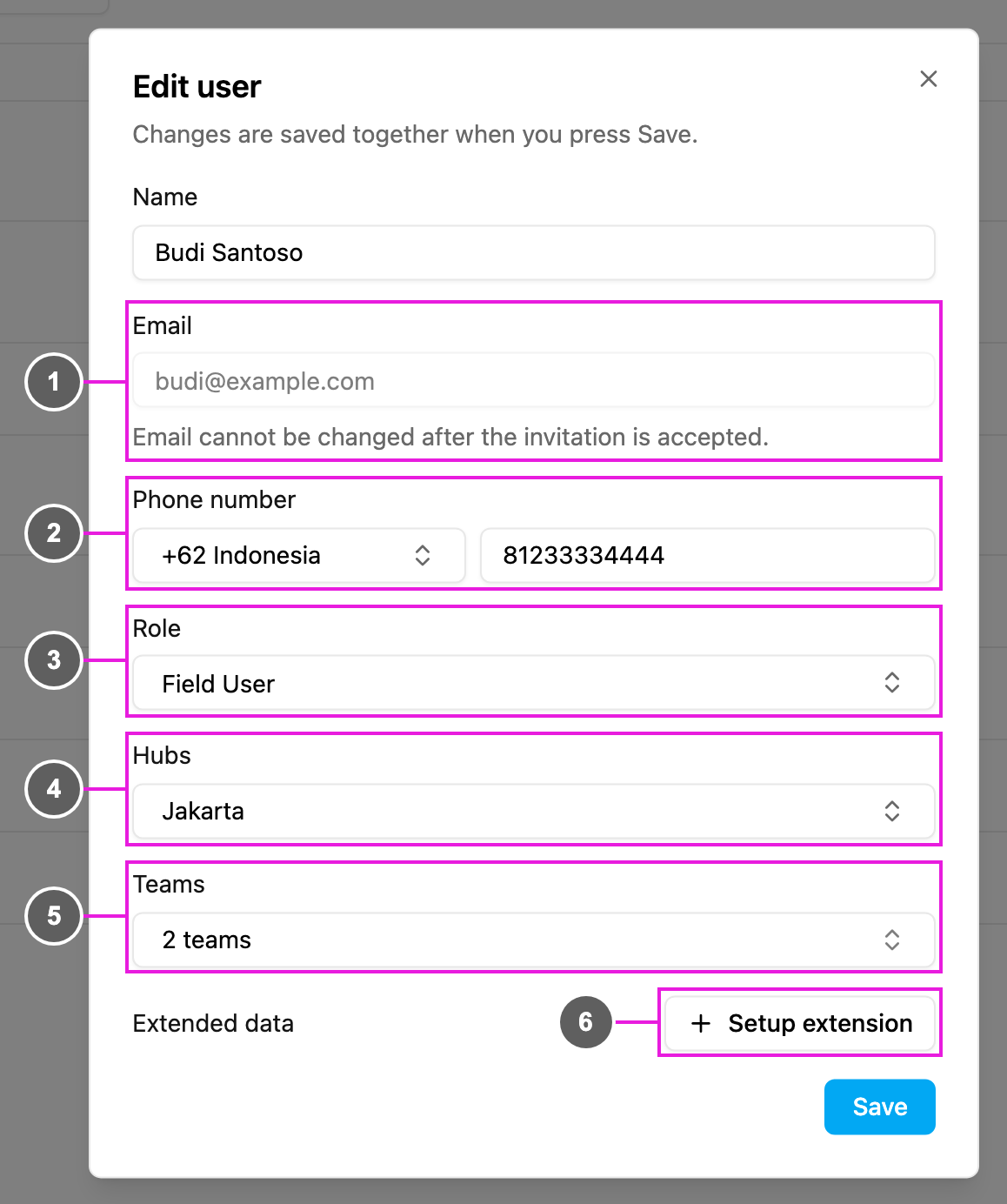
Choose **Edit**. Changes are saved together when you click **Save**.
1. **Email**: shown for reference. It can't be changed after the invitation is accepted.
2. **Phone number**: choose the country code and type the number. Once saved, a WhatsApp icon appears next to the number in the user list, so you can message the user directly.
3. **Role**: what the user can see and do. Only an owner can change the role of another owner.
4. **Hubs**: the hubs the user can work in. The hub picker in the top bar offers only these hubs, and lists such as tasks and visits show only their data. For example, a user given Hub A and Hub B can't see or pick Hub C.
5. **Teams**: the teams the user belongs to. An owner reaches every team, so there is nothing to choose. See [Team](/pages/settings/team).
6. **Extended data**: extra fields your organization keeps for users, such as an employee number. Click **Setup extension** to add fields. See [Linked Records](/pages/workflow/data-source/linked-records).
You can also change the user's **Name**. The new name shows on their profile and everywhere their name appears.
## Activate or deactivate a user
Required permission:
* View user
* Edit user
Use the switch in the **Status** column.
* **On (Active)**: the user can sign in on the web app and the field app.
* **Off (Inactive)**: the user can't sign in on either. A user who is signed in when you turn them off is signed out at once. Data that hadn't synced yet stays on their device and syncs if you turn them back on.
The switch is locked, with the reason shown, for:
* your own account: *You cannot deactivate your own account*;
* an owner: change their role first, or transfer ownership;
* an invitation that hasn't been accepted yet.
## Reset a password
Required permission:
* View user
* Reset password
1. Choose **Reset password**.
2. Type a new password, or click **Generate** for a strong one. A meter shows its strength and checks it has at least 8 characters, an uppercase letter, a lowercase letter and a number. A symbol is optional.
3. Click **Copy** to copy the password, then **Set password**.
The user is **not** emailed: give them the new password yourself. Only an owner can reset another owner's password.
## Reset cloud authenticator
Required permission:
* View user
* Reset Cloud-based Authenticator
If a user has lost access to their authenticator app, choose **Reset cloud authenticator** and confirm. They're asked to set it up again the next time they sign in. The option is greyed out for users who haven't set one up.
## Unlock an account
Required permission:
* View user
* Unlock user
After repeated failed sign-ins, an account is locked for 30 minutes and shows **Locked**. To let the user in sooner, choose **Unlock account**. The app confirms the account is unlocked.
## Delete a user
Required permission:
* View user
* Delete user
Choose **Delete** and confirm. The user loses access to the organization immediately. This can't be undone.
If the user had ongoing tasks, those tasks become **Unassigned**, so they can be given to someone else.
This documentation is built and hosted on [Mintlify](https://mintlify.com), a developer documentation platform.