> ## Documentation Index
> Fetch the complete documentation index at: https://docsv4.mile.app/llms.txt
> Use this file to discover all available pages before exploring further.
# Gallery
> Browse the photos and videos taken on done tasks, by day, and open them full size.
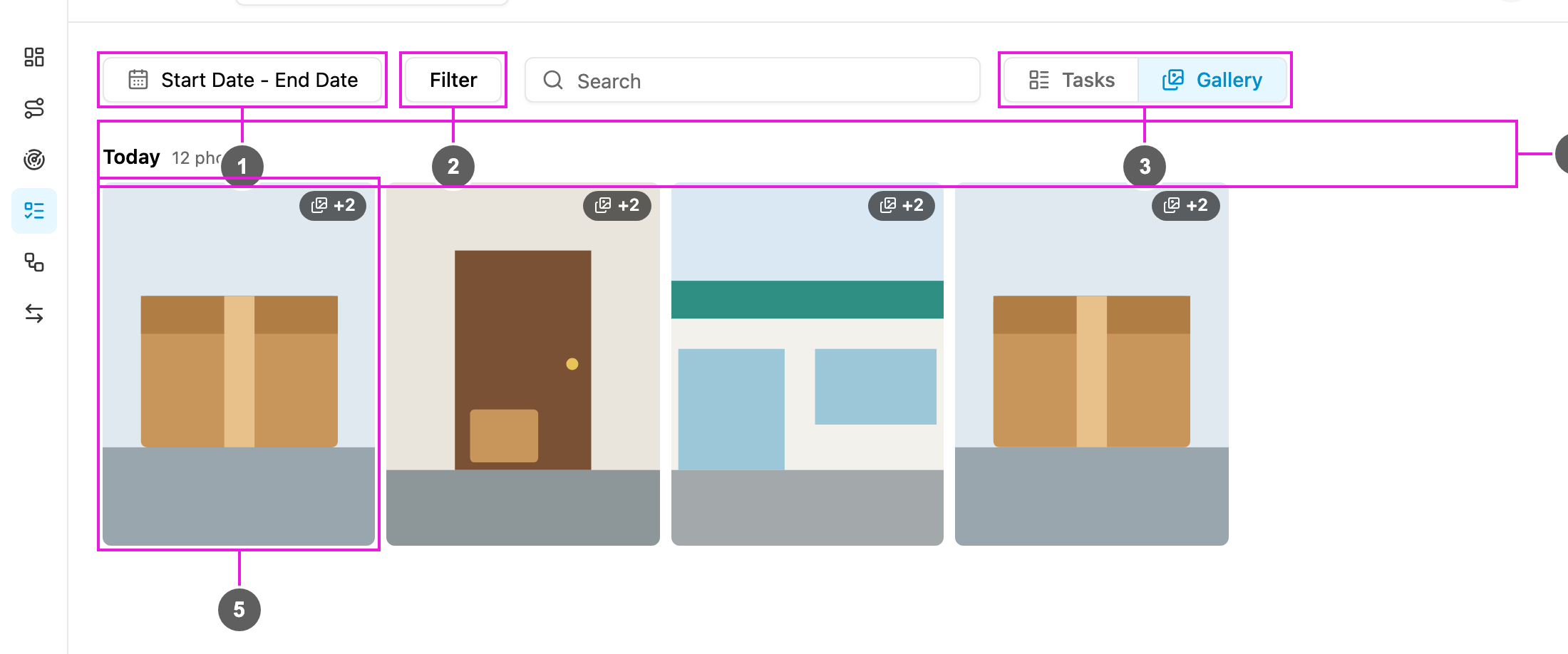
The **Gallery** shows the photos, signatures and videos of tasks that are **Done**. Tasks that are not finished yet do not appear here.
Open **Activities › Task** and click **Gallery** beside **Search tasks**.
Required permission:
* View gallery
1. **Start Date - End Date**: the days the tasks were done. Pick **Today**, **7 days** or **30 days**, or choose the days on the calendar. A range spans up to 30 days, and future dates cannot be picked.
2. **Filter**: show the media of one **User**, or of one or more task types (**Task Type**). **Reset all** clears them, and each active filter shows as a chip.
3. **Tasks / Gallery**: go back to the task list.
4. **Day**: the media is grouped by the day it was done, with the number of photos that day.
5. **Card**: one card per task. All the media of a task is on one card: the first is shown, and a **+N** badge says how many more there are. Below it are the task's title, the time it was done and who did it.
More media loads as you scroll. When nothing matches, the gallery says "No photos match these filters": widen the date range, pick another user or clear the filters.
## Open media full size
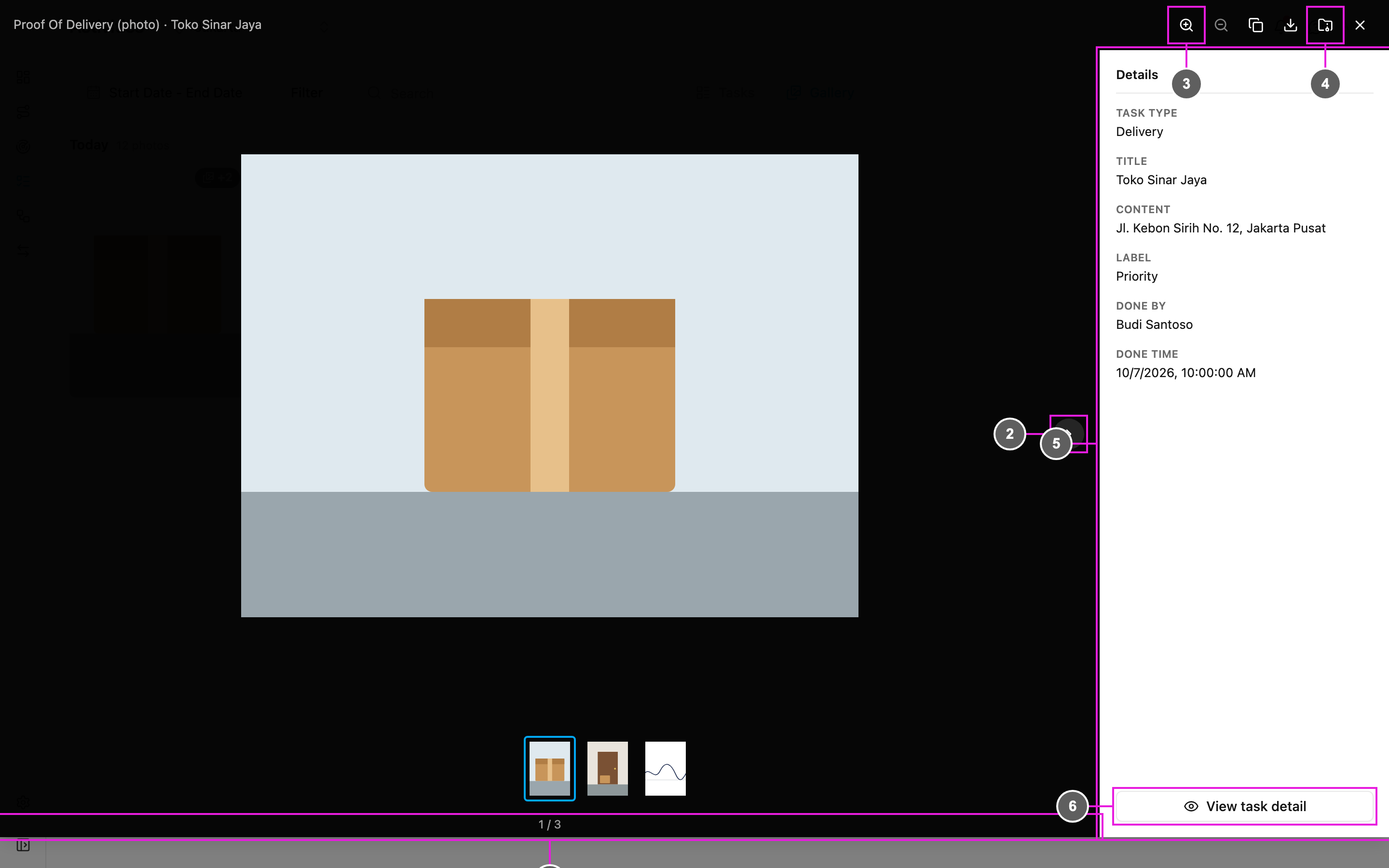
Click a card to open the media viewer.
1. **Title**: the field the media comes from and the task's title, with the position of the item, such as *1 / 3*.
2. **Media**: the photo or video. Use **Previous** and **Next**, or the thumbnails, to move between all the media of the task.
3. **Zoom in / Zoom out**: look closer at a photo.
4. **Copy link**, **Download this file** and **Download all as ZIP**: share or save the current item, or every item of the task in one zip file.
5. **Details**: the task's **Task Type**, **Title**, **Content**, **Label**, **Done by** and **Done time**.
6. **View task detail**: open the task the media belongs to.
## Open an image from a link
The **Image Viewer** opens a task image, such as a photo or a signature, from its link. Use it when someone shares the link of a stored image with you.
* Open `/viewer?url=` followed by the image link in the web app, for example `https:///viewer?url=https://…/photo.png`. The image opens right away.
* Or open `/viewer`, paste the link into **Write image url here** and click **Show**. The page address then carries the link, so you can share it.
You must be signed in to see the image. If you aren't, the web app asks you to sign in first and then brings you back to the image. If the link isn't a web address, the page says *Invalid image URL*. If the image can't be found, it says *Image file not found*.
This documentation is built and hosted on [Mintlify](https://mintlify.com), a developer documentation platform.