> ## Documentation Index
> Fetch the complete documentation index at: https://docsv4.mile.app/llms.txt
> Use this file to discover all available pages before exploring further.
# Exporting Records
> Download the records of a data type as a spreadsheet.
Required permission:
* View data source
* Export Data Source
## Export from Data Source
1. Open **Workflow › Data Source** and pick the data type.
2. Click **Export**.
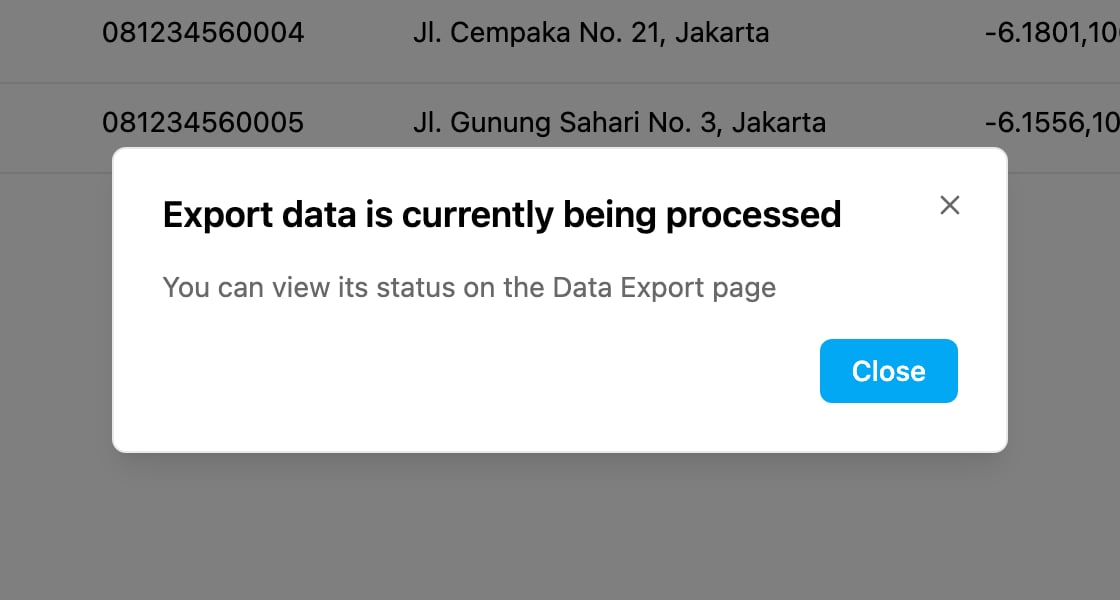
The export runs in the background, so instead of downloading the file straight away the app shows **Export data is currently being processed**: *You can view its status on the Data Export page*.
Click **Data Export page** in the message to open **Export & Import › Export**. Your export appears there, and you download the file when it's ready. See [Export](/pages/export-import/export).
## What the file contains
* **Columns:** the fields marked **Show on table** on the data type, the same columns you see in the list.
* **Records:** every record of the data type, whatever is typed in the search box. For a data type limited by hub, only the records of the hub you are working in are included.
* **Format:** an Excel (XLSX) file.
To choose the columns yourself, or to filter more precisely, start the export from **Export & Import › Export** and choose **Data Source** there.
**Export** is greyed out when you don't have the **Export Data Source** permission, when no data type is selected, or while the data type is being [prepared after an import from V3](/pages/workflow/data-type/import-from-v3#while-the-data-type-is-being-prepared).
This documentation is built and hosted on [Mintlify](https://mintlify.com), a developer documentation platform.