> ## Documentation Index
> Fetch the complete documentation index at: https://docsv4.mile.app/llms.txt
> Use this file to discover all available pages before exploring further.
# Import from V3
> Move a data type from the previous version of the web app into this one, or copy it and keep both.
Data types made in the previous version of the web app (V3) aren't listed on **Workflow › Data Type** until you bring them in. **Import from V3** moves one into this version, or copies it so both versions keep their own.
Required permission:
* View data type
* Edit data type (to move a data type)
* Create data type (to copy a data type)
## Open Import from V3
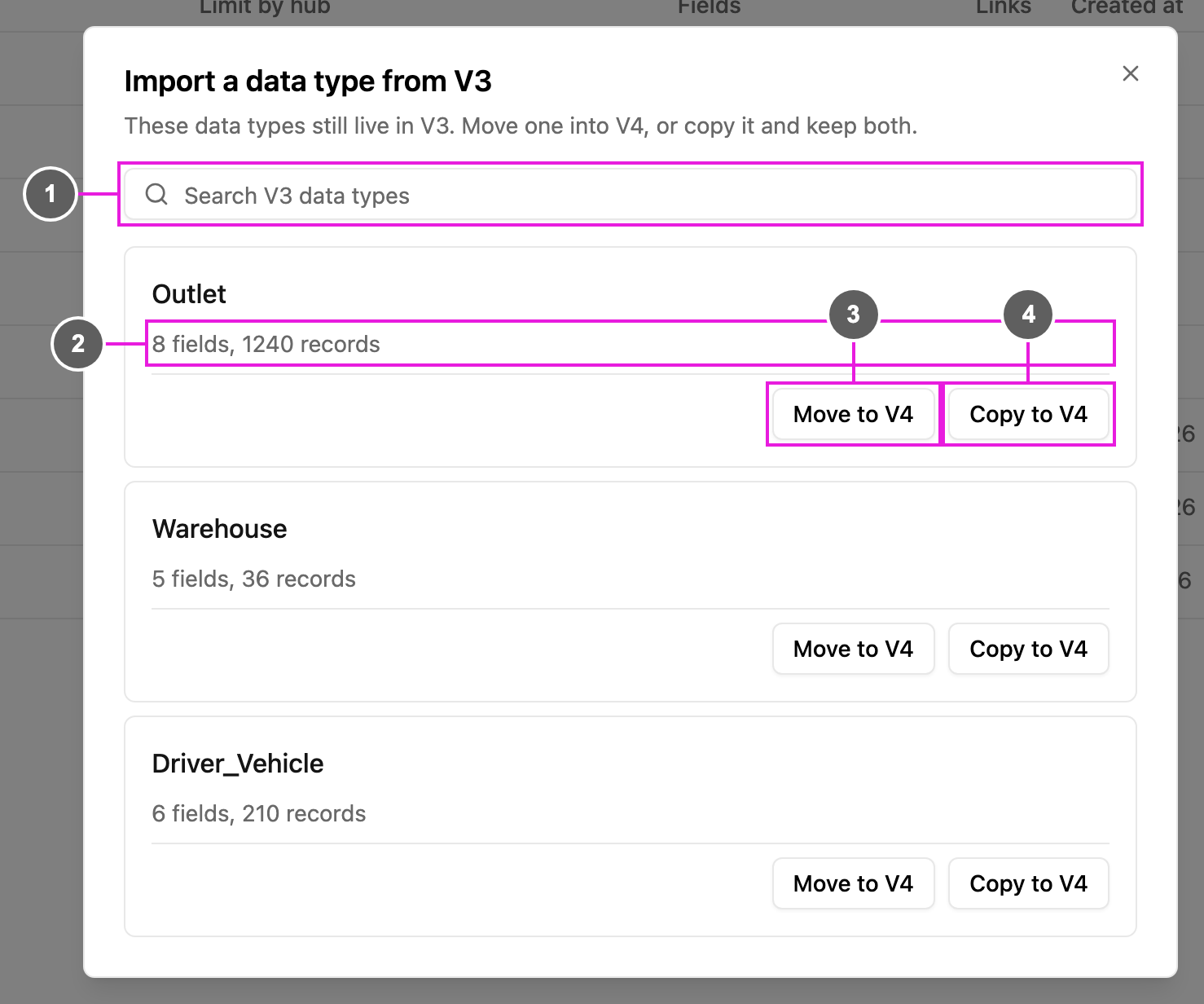
Open **Workflow › Data Type** and click **Import from V3**, next to **New**.
1. **Search V3 data types**: find a V3 data type by name.
2. Each V3 data type shows how many fields and records it has, for example *8 fields, 1240 records*.
3. **Move to V4**: move the data type into this version.
4. **Copy to V4**: create a new data type here with the same fields, and keep the V3 one.
You see **Move to V4** only with **Edit data type**, and **Copy to V4** only with **Create data type**.
When every V3 data type has been brought in, the dialog says *No V3 data types left*. If the search finds nothing, it says *No matching V3 data types*.
## Move a data type
Move when the data type should live only in this version.
1. Click **Move to V4** on the data type.
2. The app asks *Move … to V4?*: the data type moves to this version, and V3 and the mobile app stop seeing it. Its records are prepared for search in the background, and the data type stays locked until that finishes.
3. Click **Move**. The app says *Moving "…" to V4. Follow its progress on the Data Source page.*
A data type can't be moved while a V3 task type or automation still uses it. The dialog then says *This data type is still used by:* and lists the **Flows** and **Automations** to change first.
## Copy a data type
Copy when V3 should keep working with its own data type.
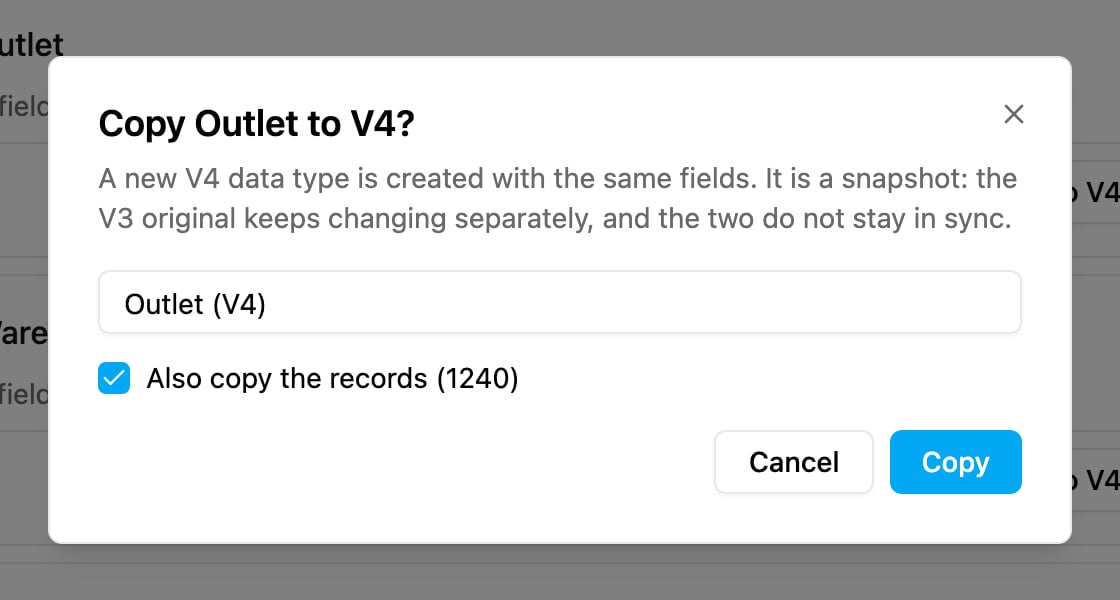
1. Click **Copy to V4** on the data type.
2. Type the **New data type name**. It starts as the V3 name followed by *(V4)*.
3. Leave **Also copy the records** on to copy the records too; it shows how many, for example *Also copy the records (1240)*. Turned off, the app asks *Copy without records?*: only the fields are copied and the records stay in V3. Click **Copy without records** to go ahead.
4. Click **Copy**. The app says *Copying "…" to V4. Follow its progress on the Data Source page.*
The copy is a snapshot. Changes made later to the V3 data type don't reach the copy, and changes to the copy don't reach V3.
## While the data type is being prepared
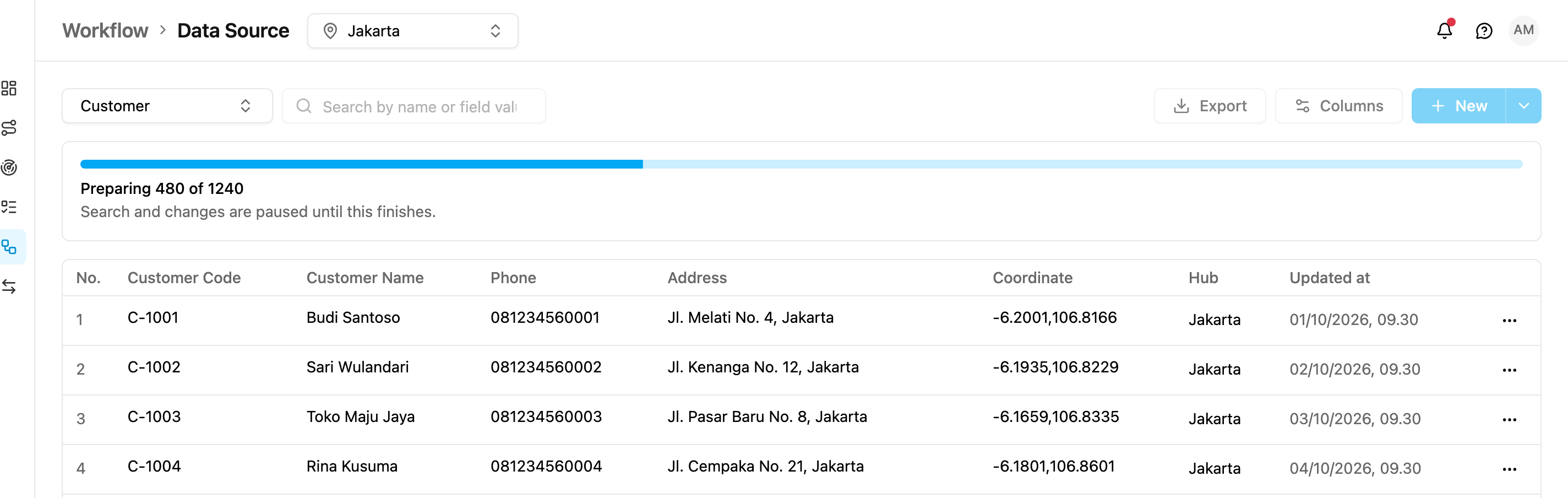
A moved data type, or a copy with records, is prepared in the background before you can work with it.
* On **Workflow › Data Type**, its row has a **Preparing** badge, and **Edit** and **Delete** are disabled: *This data type is being prepared. It can be edited or deleted when it finishes.*
* On **Workflow › Data Source**, the records already show, with a progress bar such as *Preparing 480 of 1240*. Search, **Export**, **Columns**, **New** and every row action are disabled until it finishes: *Search and changes are paused until this finishes.*
The page checks the progress every 3 seconds and reloads the records when the data type is ready. If the progress stops for more than 5 minutes, the bar says *This is taking longer than expected.* and shows **Resume**. Click it to continue where it stopped. Hovering a disabled button says *Not available while this data type is being prepared.*
Changes made elsewhere while the data type is being prepared, for example through an automation or the API, are refused with *This data type is being prepared. Try again when it finishes.*
This documentation is built and hosted on [Mintlify](https://mintlify.com), a developer documentation platform.