> ## Documentation Index
> Fetch the complete documentation index at: https://docsv4.mile.app/llms.txt
> Use this file to discover all available pages before exploring further.
# Build with AI
> Describe your work in your own words and get a ready-made task type.
**Build with AI** creates a task type from a short description of your work. It picks the pages and components for you, so you get a working starting point without adding every field by hand. You can change anything afterwards.
Required permission:
* View flow
* Create flow
The **Build with AI** button is next to **New** at the top right of **Workflow › Task Type**. It only shows to users who can create task types.
## Generate a task type
1. Click **Build with AI**.
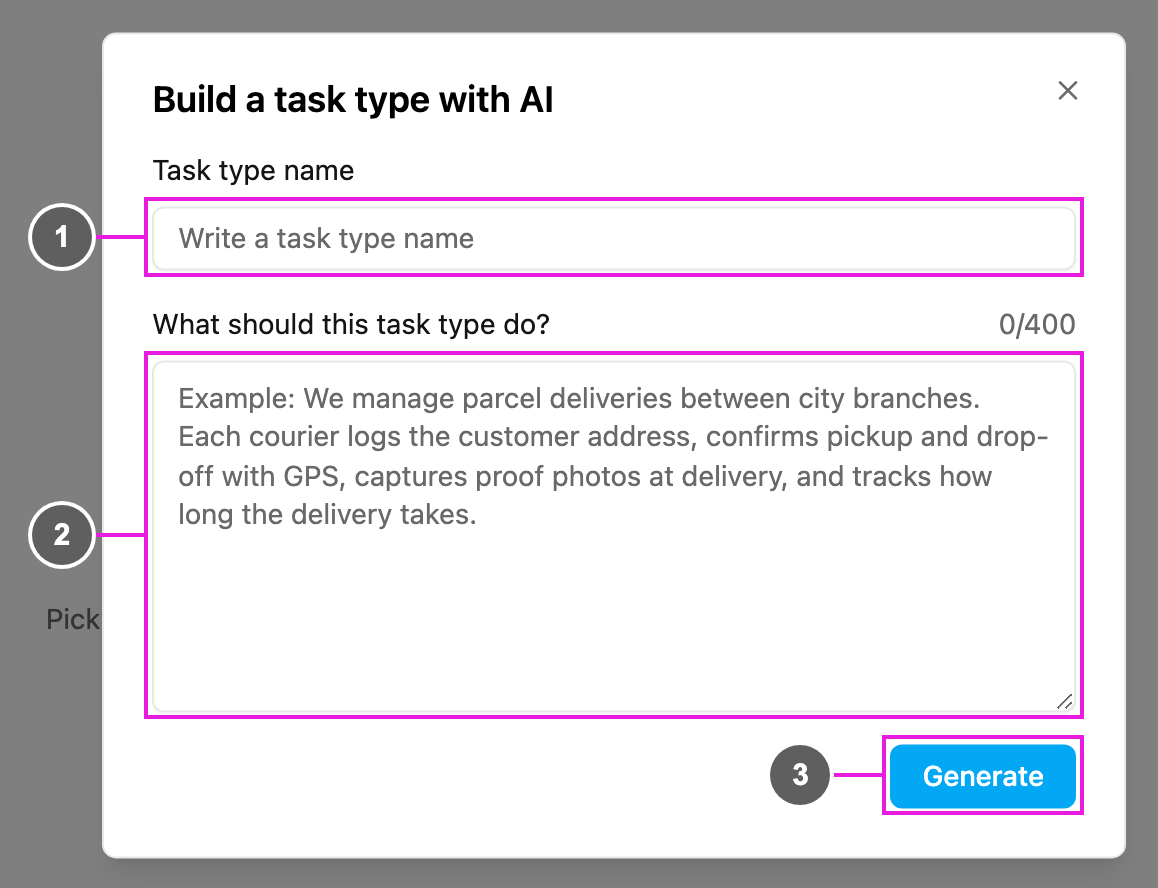
2. Fill in the dialog and click **Generate**.
1. **Task type name**: the name of the new task type. It cannot be empty, can only use letters, numbers and spaces, and must not already be used by another task type in your organization.
2. **What should this task type do?**: describe your process. The AI reads this to decide the pages and components. It needs at least 20 characters and takes up to 400; the counter on the right shows how many you have used.
3. **Generate**: start building. Close the dialog with **×** to cancel instead.
While it works, the dialog shows **Generating your task type. This takes a few moments.**
**Write a good description**
* Describe each step of the work, in order.
* Say what information needs to be captured at each step: addresses, photos, signatures, payments, times.
For example:
> We manage parcel deliveries between city branches. Each courier logs the customer address, confirms pickup and drop-off with GPS, captures proof photos at delivery, and tracks how long the delivery takes.
Avoid vague or meaningless sentences. If the AI cannot understand the description, it says **Your description is unclear or invalid** and asks you to add more detail and try again.
## After it is generated
* The message **Task type generated successfully!** appears and the dialog closes.
* The new task type opens in the [builder](/pages/workflow/task-type/builder).
* Check every page in the [mobile app preview](/pages/workflow/task-type/mobile-preview), change the components you need, set the [configuration](/pages/workflow/task-type/configuration) and click **Save**.
## Related
* [Templates](/pages/workflow/task-type/templates)
* [Managing Task Types](/pages/workflow/task-type/managing-task-types)
* [Components](/pages/workflow/task-type/components/introduction)
This documentation is built and hosted on [Mintlify](https://mintlify.com), a developer documentation platform.