> ## Documentation Index
> Fetch the complete documentation index at: https://docsv4.mile.app/llms.txt
> Use this file to discover all available pages before exploring further.
# Components
> Every component you can add to a task type, what it captures, and which pages it can go on.
A task type is built from **components**: the fields, buttons and blocks your team fills in when a task is created or done. Each component has a **Component Type** that decides what it captures, and a set of properties that decide how it behaves.
In the previous version a task type was called a Flow. The components and their properties carry over unchanged unless a component page says otherwise.
## Adding a component
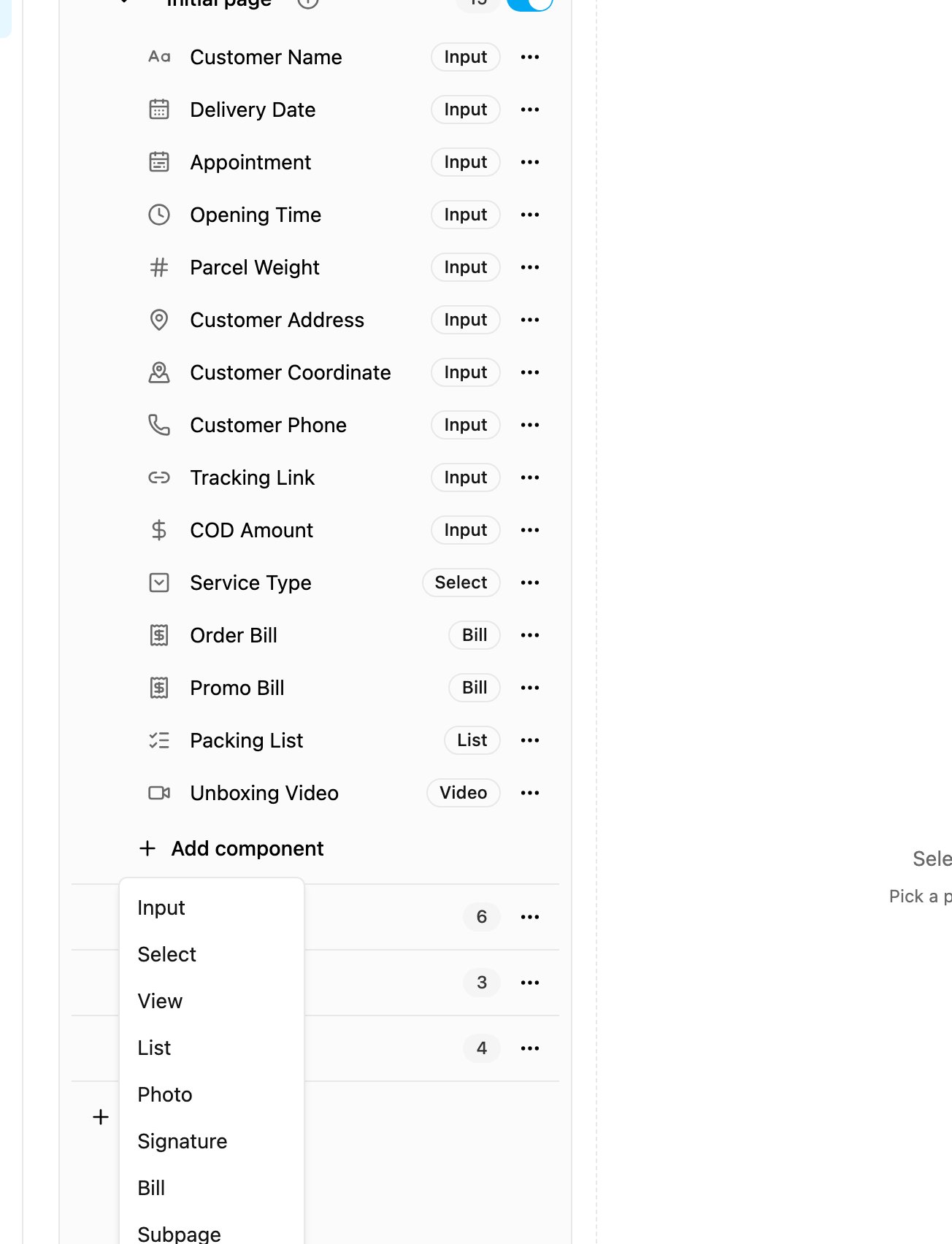
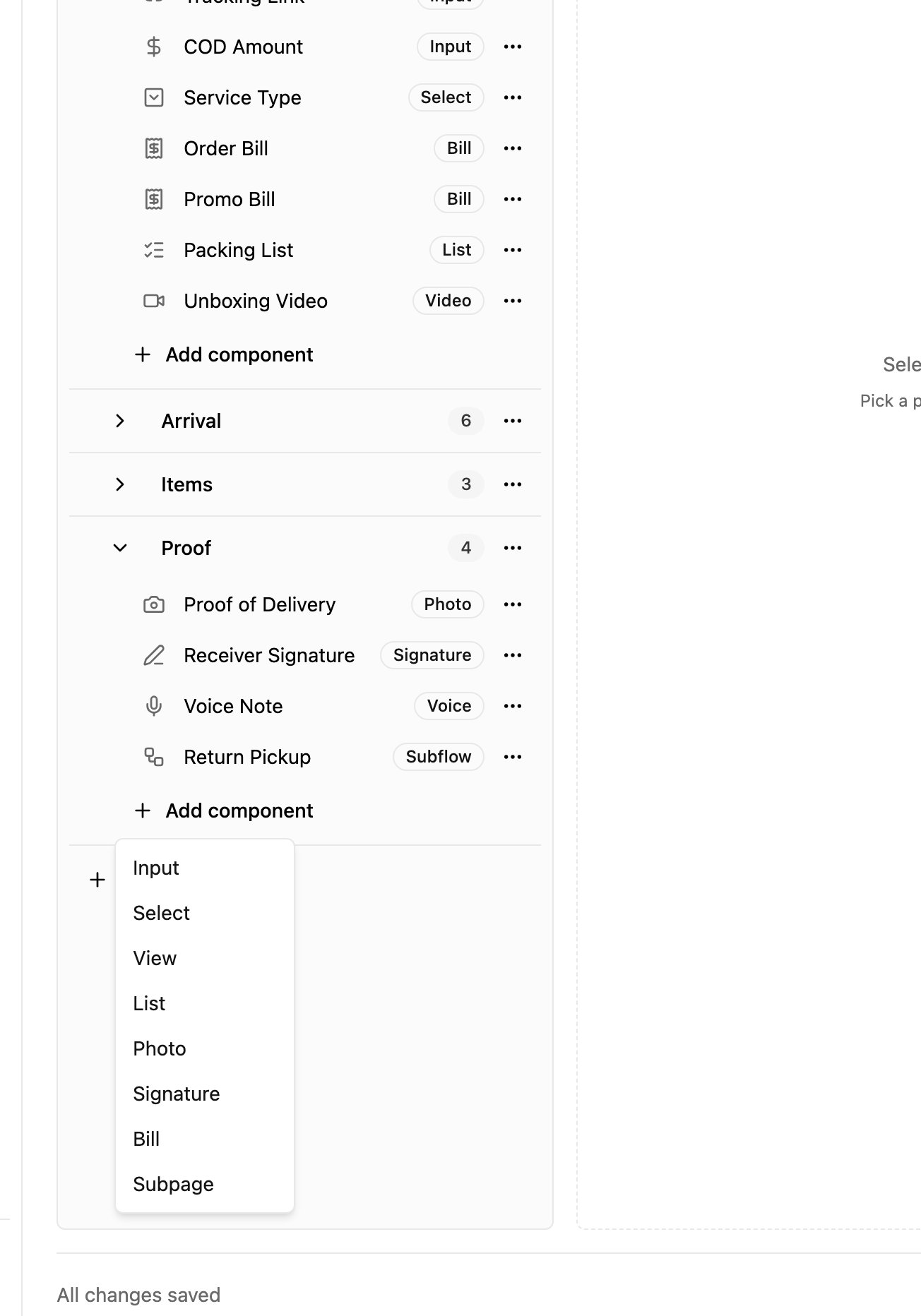
Open a task type in **Workflow › Task Type** and click **Add component** at the end of a page. The menu shows the components that page allows.
On the Initial page: Input, Select, View, List, Photo, Signature, Bill and Subpage.
On a field app page (Page 1, 2, 3…): Timer, Voice, Capture and Subflow are added to the list.
Click a component in the page tree to open its properties in the middle of the screen. The **Mobile app preview** on the right shows how the page looks on the field app, and updates as you change properties. Changes are used only after you click **Save**.
## All components
| Component | What it does | Initial page | Field app pages | Inside a Subpage |
| - | - | :-: | :-: | :-: |
| [Input](/pages/workflow/task-type/components/input/introduction) | Captures text, a date, a time, a number, an address, a coordinate, a phone number, a link or a currency amount | Yes | Yes | Yes |
| [Select](/pages/workflow/task-type/components/select) | A choice from a list, shown as a dropdown, checkboxes or buttons, that can show, hide or fill other components | Yes | Yes | Yes |
| [View](/pages/workflow/task-type/components/view) | Shows a value to the field worker without letting them change it | Yes | Yes | Yes |
| [List](/pages/workflow/task-type/components/list/introduction) | A list of items as text, checkboxes or quantities | Yes | Yes | Yes |
| [Photo](/pages/workflow/task-type/components/photo) | One or more photos from the camera or the gallery | Yes | Yes | Yes |
| [Signature](/pages/workflow/task-type/components/signature) | A signature drawn on the screen | Yes | Yes | Yes |
| [Bill](/pages/workflow/task-type/components/bill/introduction) | Items, quantities, prices, costs, discounts and a total | Yes | Yes | Yes, internal accounts only |
| [Video](/pages/workflow/task-type/components/video) | A short video recorded or picked from the gallery | Yes | Yes | No |
| [Subpage](/pages/workflow/task-type/components/subpage) | A group of components that can be filled in several times, once per entry | Yes | Yes | No |
| [Timer](/pages/workflow/task-type/components/timer) | A stopwatch that measures how long a step takes | No | Yes, one per page | No |
| [Voice](/pages/workflow/task-type/components/voice-note) | An audio recording | No | Yes | No |
| [Capture](/pages/workflow/task-type/components/capture) | Stamps the date and time the moment a button is tapped | No | Yes | No |
| [Subflow](/pages/workflow/task-type/components/subflow) | Creates a linked subtask of another task type | No | Yes | No |
## Properties every component shares
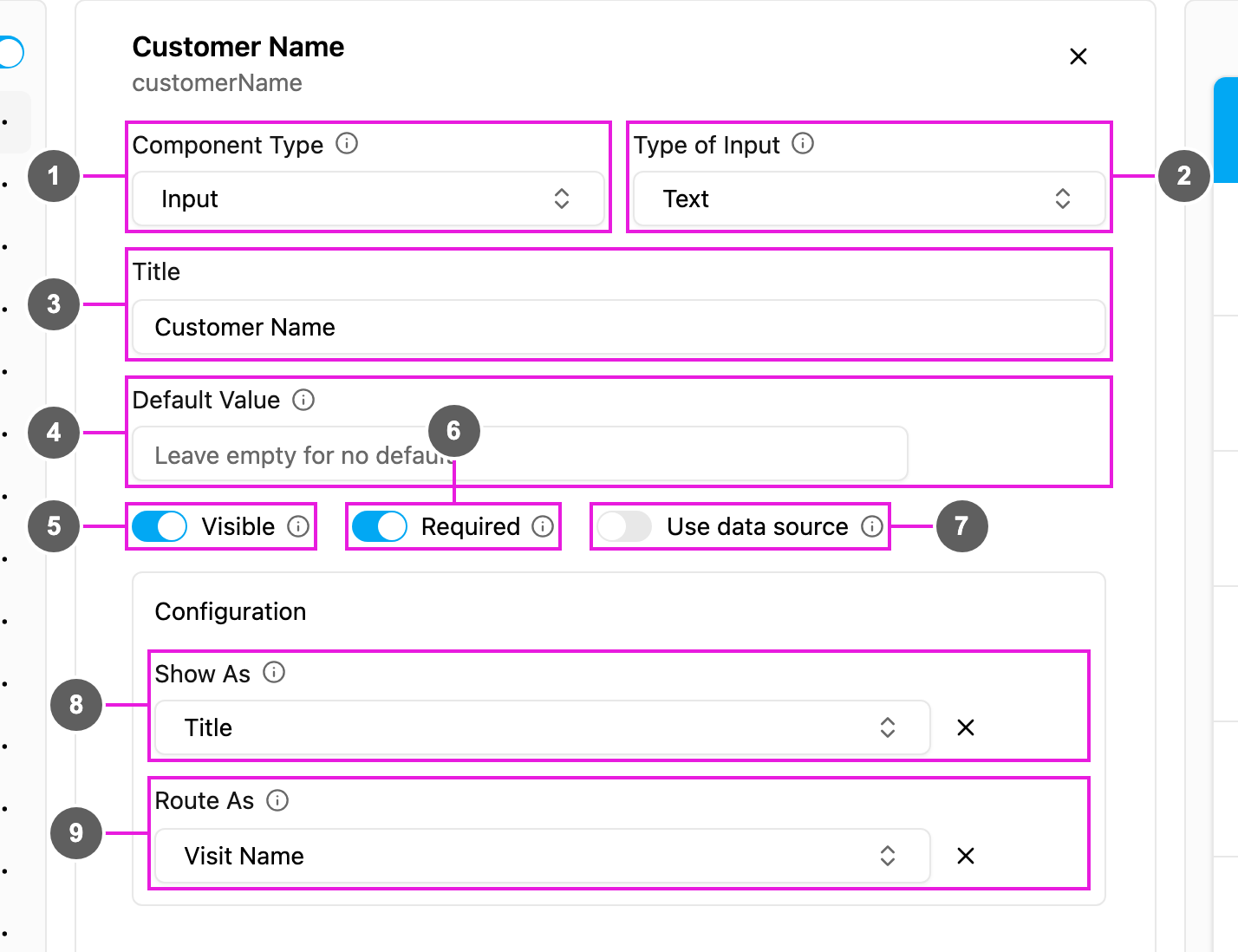
1. **Component Type**: the kind of component. Changing it rebuilds the component with the new type's properties; its title and ID are kept.
2. **Type of …**: for Input, Select, View, List and Capture, the variant of the component (for example **Type of Input**: Text).
3. **Title**: the label shown above the component. The ID under the component name is created from the title and is how other components, imports and the API refer to it.
4. **Default Value**: a value filled in for every new task. Leave it empty for no default.
5. **Visible**: when off, the component is hidden on the web and the field app, but its data is still kept and exported. A [Select](/pages/workflow/task-type/components/select) on-select action can show it again.
6. **Required**: the task cannot be saved or finished until the component is filled in.
7. **Use data source**: fill the component from your [data source](/pages/workflow/data-source/introduction) records instead of typing.
8. **Show As**: show the value in the task list as the task's **Title**, **Content** or **Label**. Each option can be used by one component per task type; picking one that another component uses asks you to confirm before it moves.
9. **Route As**: on the Initial page, pass the value to route planning as a visit property, such as **Visit Name** or **Coordinate**. See [Routing](/pages/planning/routing/introduction).
## Limits
* Your plan sets how many components a task type can hold. Components inside a Subpage do not count toward the limit. When you reach it, **Add component** and **Save** tell you so.
* Each field app page can have one Timer.
* A Subflow cannot go on the Initial page.
* A Subpage cannot hold another Subpage, a Timer, a Voice, a Capture, a Video or a Subflow.
This documentation is built and hosted on [Mintlify](https://mintlify.com), a developer documentation platform.