> ## Documentation Index
> Fetch the complete documentation index at: https://docsv4.mile.app/llms.txt
> Use this file to discover all available pages before exploring further.
# Introduction
> What a task type is, why it matters, and what it is made of.
A **task type** defines one kind of work your field team does, such as a delivery, a pickup or a store visit. It decides how information is shown to field workers and what they need to fill in or update on the field app while they do a task. Setting up your task types well is what lets your field team work quickly and capture complete data.
In the previous version a task type was called a **Flow**. Every flow you had is now a task type, with the same pages, components and configuration.
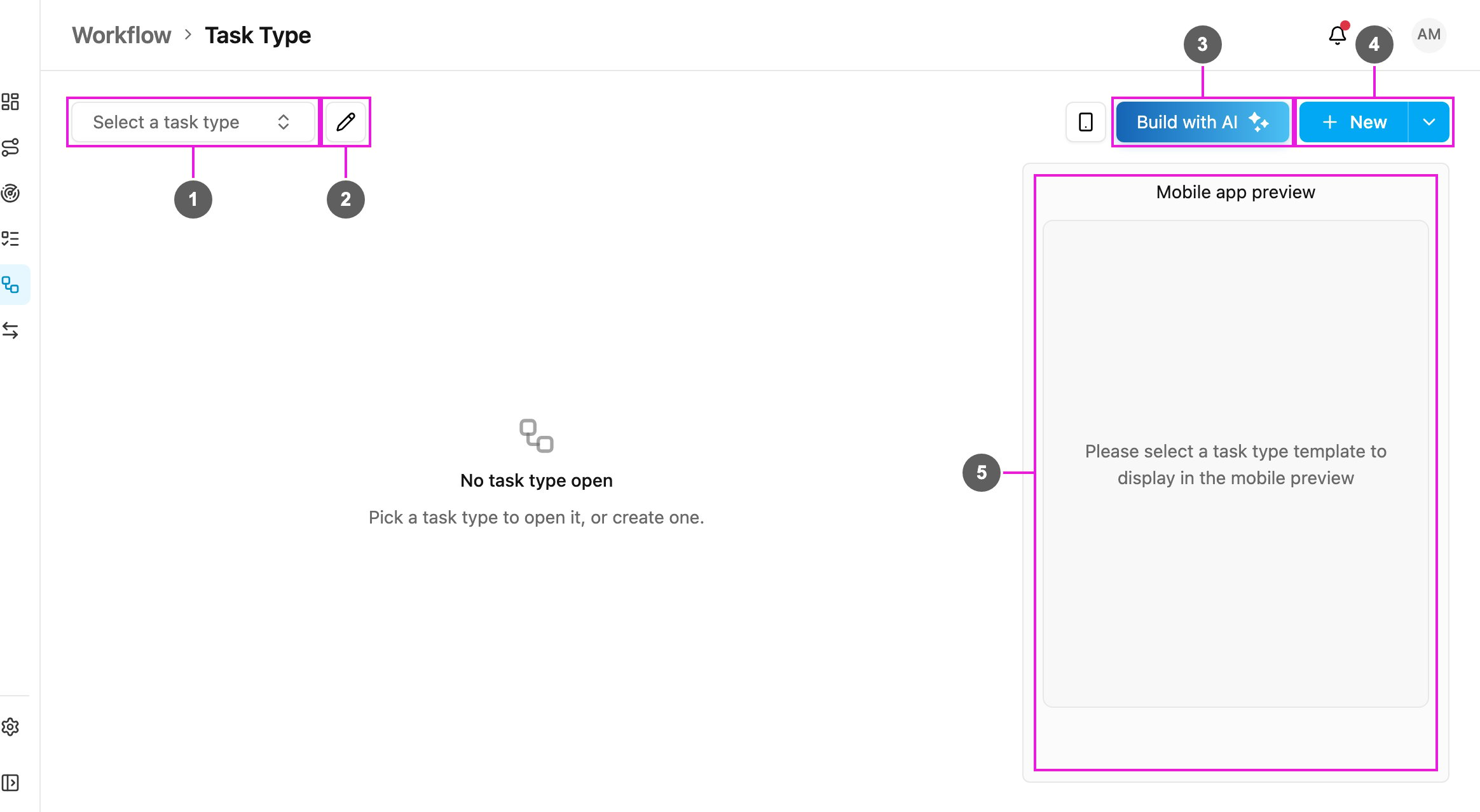
Open **Workflow › Task Type**.
Required permission:
* View flow
1. **Task type picker**: open an existing task type to view or edit it.
2. **Task Type Manager**: rename, reorder, duplicate or delete task types. See [Managing Task Types](/pages/workflow/task-type/managing-task-types).
3. **Build with AI**: describe your work in your own words and get a ready-made task type. See [Build with AI](/pages/workflow/task-type/build-with-ai).
4. **New**: create an empty task type. The arrow beside it offers **From a template**. See [Managing Task Types](/pages/workflow/task-type/managing-task-types#create-a-task-type) and [Templates](/pages/workflow/task-type/templates).
5. **Mobile app preview**: shows how the open task type looks on the field app. The phone button beside **Build with AI** hides or shows it. See [Mobile App Preview](/pages/workflow/task-type/mobile-preview).
Task types are built on a desktop or tablet browser. On a phone-sized screen the page asks you to use a bigger screen.
## Why task types matter
A task type connects the office and the field:
* **For the office**: it decides which fields appear when a task is created, so every task starts with the right information.
* **For field workers**: it decides the screens they see on the field app, what they must capture (photos, signatures, notes) and in what order.
* **For the business**: a well-designed task type keeps data consistent and complete, which makes reports, exports and integrations reliable.
The same task type is used by every task created from it, and an organization can have different task types for different operations, for example separate task types for pickup, delivery and field sales.
## Limits per plan
An organization can create an **unlimited number of task types** on every plan. Each task type has a limit on the number of components:
| Plan | Component limit per task type |
| - | - |
| Free | 50 components |
| Pro | 200 components |
| Enterprise | As needed |
Every component placed on a page (View, Input, Photo and so on) counts toward the limit, on the Initial page and on every field app page together. The fields inside a Subpage do not count. When a task type reaches the limit, **Add component** and **Save** tell you to remove a component or upgrade your plan.
## What a task type is made of
A task type is made of **pages**, and each page holds **components** that show or capture information.
### Pages
* **Initial page**: the screen shown when a task is created, on the web and on the field app. There is only one Initial page per task type. It usually holds the customer and delivery details the person creating the task already knows. See [Pages](/pages/workflow/task-type/pages).
* **Field app pages (Page 1, Page 2, …)**: the screens the field worker goes through while doing the task. Add as many as you need with **Add page** to break the work into clear steps, for example *Delivery Info → Order & Proof → Receiver Confirmation*.
### Components
| Component | What it does |
| - | - |
| [View](/pages/workflow/task-type/components/view) | Shows information to the field worker: text, image, link, date, coordinate and more. |
| [Input](/pages/workflow/task-type/components/input/introduction) | Captures typed data such as text, number, date, time, phone number, link, currency, address or coordinate. |
| [Select](/pages/workflow/task-type/components/select) | Lets the field worker pick from options: a dropdown, checkboxes or a group of buttons. |
| [Photo](/pages/workflow/task-type/components/photo) | Takes photos with the device camera. |
| [Video](/pages/workflow/task-type/components/video) | Records a short video with the device camera. |
| [Signature](/pages/workflow/task-type/components/signature) | Captures a hand-drawn signature. |
| [Bill](/pages/workflow/task-type/components/bill/introduction) | Lists billable items with quantity, price, costs, discounts and a total. |
| [List](/pages/workflow/task-type/components/list/introduction) | Lists items with a quantity, such as a checklist or an order list. |
| [Subpage](/pages/workflow/task-type/components/subpage) | Groups fields that can be filled in more than once, such as one entry per parcel. |
| [Subflow](/pages/workflow/task-type/components/subflow) | Creates a linked task of another task type from inside this one, with fields carried across. |
| [Timer](/pages/workflow/task-type/components/timer) | Measures how long a step takes. |
| [Voice Note](/pages/workflow/task-type/components/voice-note) | Records audio from the device microphone. |
| [Capture](/pages/workflow/task-type/components/capture) | Records the date and time a step happened. |
Input, Select, View, List, Photo, Signature, Bill and Subpage can be placed on any page. Timer, Voice Note, Capture, Subflow and Video can only be placed on field app pages.
## How a task type is used
A task type goes through four stages, from the web app to the field app and back.
1. **Build it**: open **Workflow › Task Type**, then create a task type empty, from a template or with AI. Add pages and components, set the [configuration](/pages/workflow/task-type/configuration) and click **Save**.
2. **Create tasks with it**: in **Activities › Task**, click **New** and pick the task type. The form shows the components of its Initial page. See [Create Task](/pages/activities/task/create-task).
3. **Field workers do the task**: the assigned field worker opens the task on the field app. The pages, fields and their order come from the task type. Every photo, signature and answer is saved back to the task and shows on the web app.
4. **Review the results**: open the task on the web app, or export the tasks. See [Export](/pages/export-import/export).
If you import tasks from a spreadsheet, download the import template again after you change a task type, so its columns match the new fields.
Beyond the ready-made templates, task types fit many other field operations:
* **Installation and repair**: before and after photos, technician notes, parts used (Bill) and the customer's signature.
* **Site survey**: coordinates, building photos, measurements and conditions.
* **Asset audit or stocktake**: an asset code (Input or Capture), the quantity (Number) and the condition (Select).
* **Quality control visit**: an inspection checklist (List), photos and a pass or fail answer (Select).
* **After-sales visit**: customer feedback (Text or Select), product condition (Photo) and a rating (Number).
If no template fits, start from the closest one and change its pages, or build from an empty task type.
## What's next
* [Managing Task Types](/pages/workflow/task-type/managing-task-types): create, open, rename, reorder, duplicate and delete task types.
* [Templates](/pages/workflow/task-type/templates): start from a ready-made task type, with a description of each default template.
* [Build with AI](/pages/workflow/task-type/build-with-ai): describe your work and get a task type.
* [Task Type Builder](/pages/workflow/task-type/builder): every part of the builder screen.
* [Pages](/pages/workflow/task-type/pages): the Initial page and the field app pages.
* [Mobile App Preview](/pages/workflow/task-type/mobile-preview): check what field workers will see.
* [Configuration](/pages/workflow/task-type/configuration): task list, route, time, data source, extended data and the API example.
* [Version History](/pages/workflow/task-type/version-history): see what changed and restore an earlier version.
* [Workflow](/pages/workflow/task-type/workflow): chain several task types into one multi-step process.
* [Components](/pages/workflow/task-type/components/introduction): the reference for every component.
This documentation is built and hosted on [Mintlify](https://mintlify.com), a developer documentation platform.