> ## Documentation Index
> Fetch the complete documentation index at: https://docsv4.mile.app/llms.txt
> Use this file to discover all available pages before exploring further.
# Version History
> See what changed in a task type, preview an earlier version and restore it.
Every save of a task type is kept as a **version**. The **History** lets you see who changed what and when, preview how an earlier version looked on the field app, and roll back an accidental change.
Required permission:
* View flow
* Edit flow
Open a task type and click the **History** button (the clock) next to the task type picker.
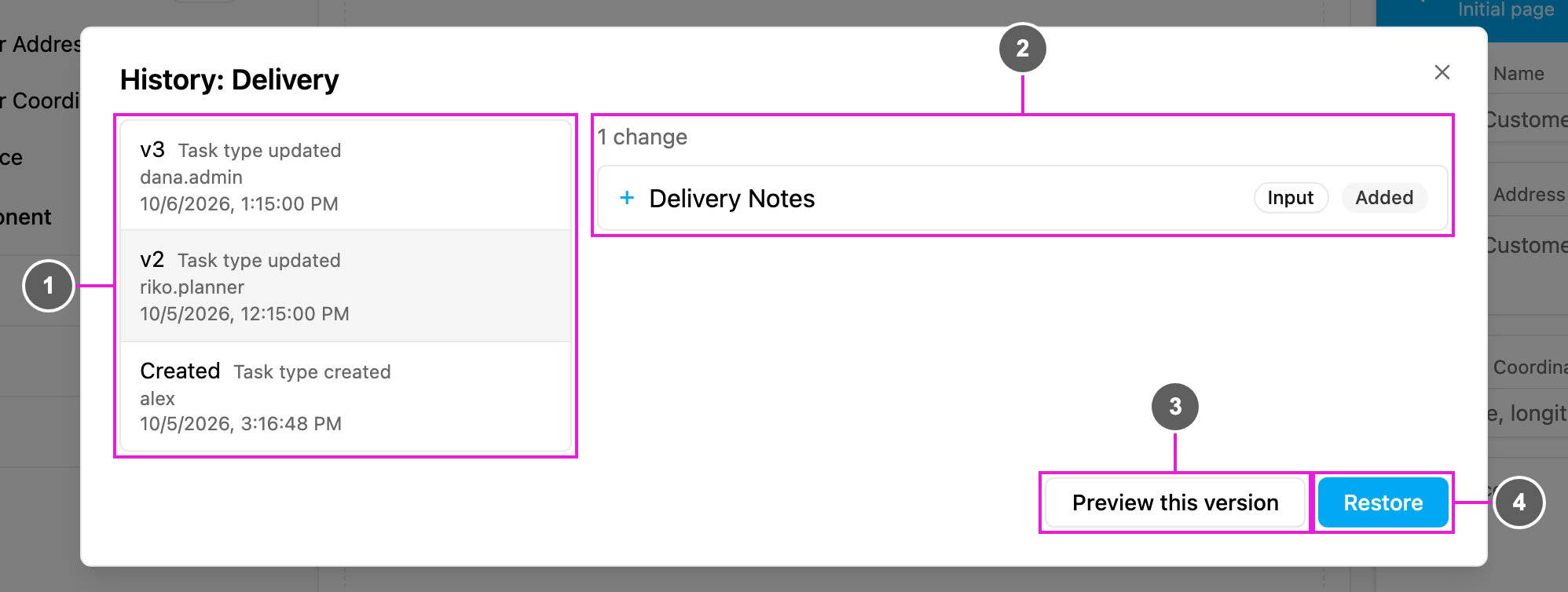
1. **Version list**: every version, newest first. Each row shows the version number (**v3**, **v2**, …, with **Created** for the first one), what happened (**Task type created**, **Task type updated**, **Task type restored** or **Task type reordered**), who did it and when. Click a version to see what changed in it.
2. **Changes**: what this version changed compared with the one before it, such as **1 change**. Each line names the page, component or configuration setting and whether it was **Added**, **Changed** or **Removed**, or that it moved from one position to another. A version with no differences says **Nothing changed in this version.**
3. **Preview this version**: show the version in the mobile app preview.
4. **Restore**: bring the task type back to this version. The first (**Created**) version and the version that is already current have no Restore.
## Preview a version
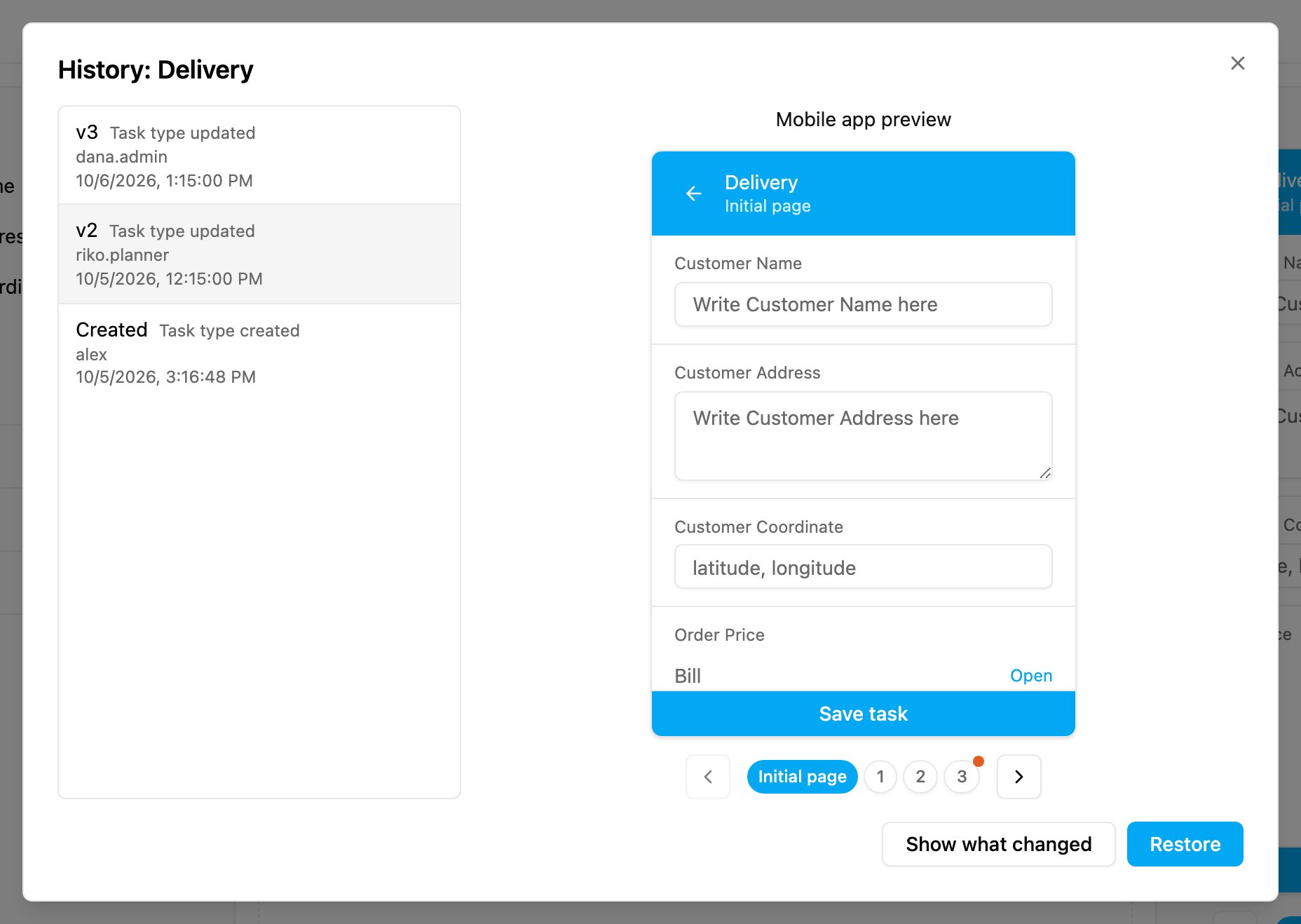
**Preview this version** shows the selected version on the simulated phone, page by page.
* Components that this version **added or changed** are tinted green, and components it **removed** are tinted red.
* Pages with changes have a red dot on their page number, so you can find them quickly.
* **Show what changed** goes back to the list of changes.
## Restore a version
1. Click **History** and pick the version to go back to.
2. Optionally click **Preview this version** to check it.
3. Click **Restore** and confirm.
The task type goes back to how it was at that version, and the message **Restored to v…** appears. Restoring does not delete anything: the version you had before is kept in the list, so a restore can itself be undone.
If you import tasks from a spreadsheet, download the import template again after a restore, so its columns match the restored fields.
## Related
* [Task Type Builder](/pages/workflow/task-type/builder)
* [Mobile App Preview](/pages/workflow/task-type/mobile-preview)
* [Managing Task Types](/pages/workflow/task-type/managing-task-types)
This documentation is built and hosted on [Mintlify](https://mintlify.com), a developer documentation platform.