

Required permission:
- View task (to use Chat and delete your conversations)
- View AI Insight (to open Report and Context Settings)
- Edit AI Insight (to change Context Settings)
- Delete AI Insight (to delete a report)
Chat
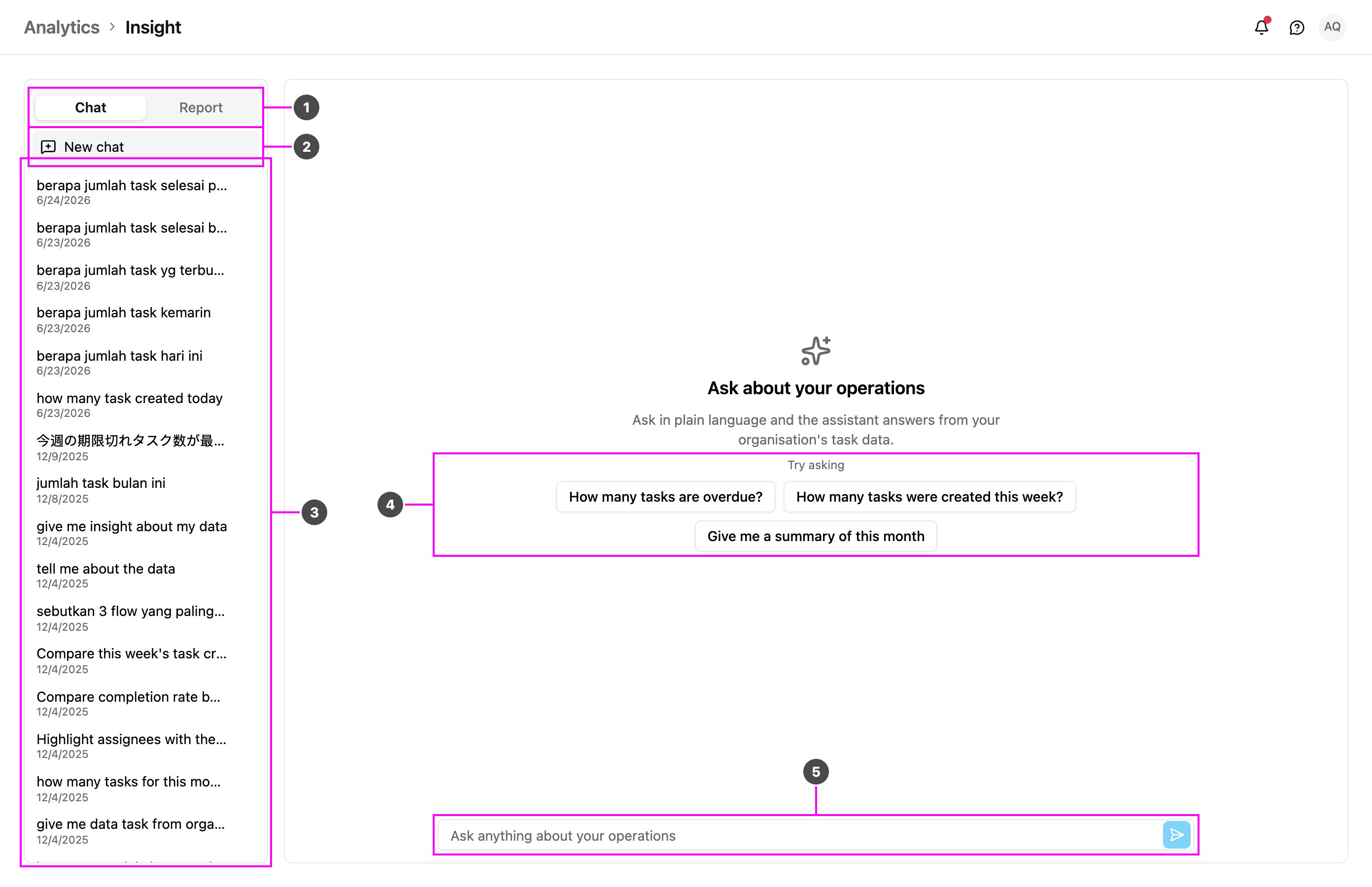
- Chat | Report: switch between the two modes. The switch sits at the top of the left panel in both modes.
- New chat: start a fresh conversation. It is highlighted while the chat is empty and clears the screen to show the suggested questions again.
- History: your earlier conversations, newest first, with the date of each. Before your first question it says No conversation yet.
- Try asking: suggested questions to get started. Click one to ask it straight away:
- How many tasks are overdue?
- How many tasks were created this week?
- Give me a summary of this month
- Ask anything about your operations: type your own question and press Enter or click Send.
A conversation
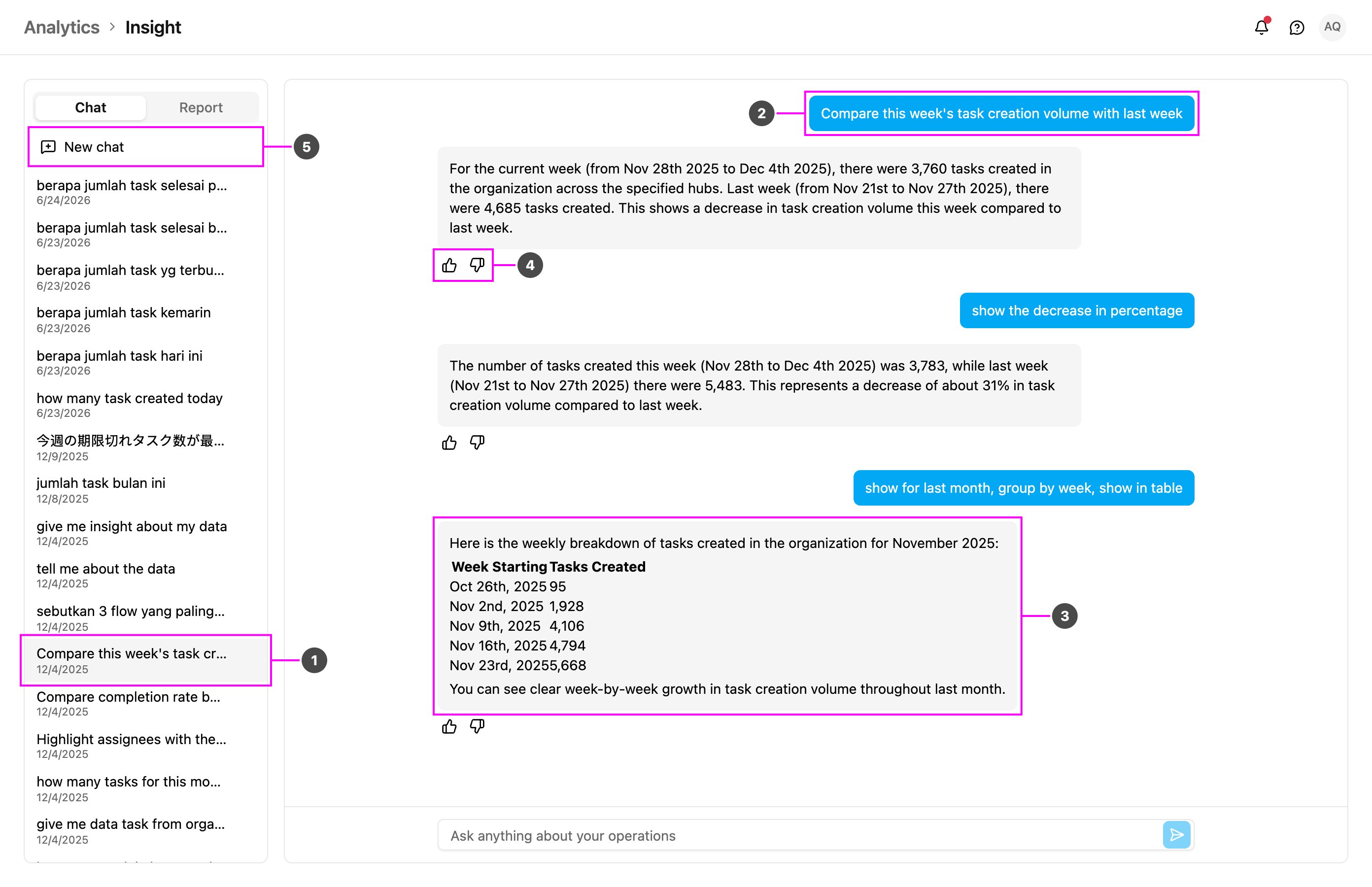
- Conversation: each conversation is saved automatically under a title taken from its first question. Click it to open it again and carry on.
- Your question: on the right.
- Answer: on the left, with figures in bold, lists and tables.
- Helpful / Not helpful: rate the answer with a thumbs up or down. The app says Thanks for the feedback. Your ratings help improve the answers.
- New chat: start another conversation.
Delete a conversation
- Point at the conversation in the history.
- Click the trash icon that appears next to it.
- Confirm with Delete. The conversation is removed for good.
Tips for good answers
- Name the time range: this week, this month, last 7 days.
- Ask about numbers and trends: counts, completion rates and comparisons between hubs, task types or people work best.
- Keep questions short and clear.
- Try the suggested questions to see what Insight can do.
- Ask follow-ups in the same conversation.
Report
Click Report in the switch. Insight opens Context Settings straight away, so you can choose what the reports cover. The reports themselves are listed in the left panel.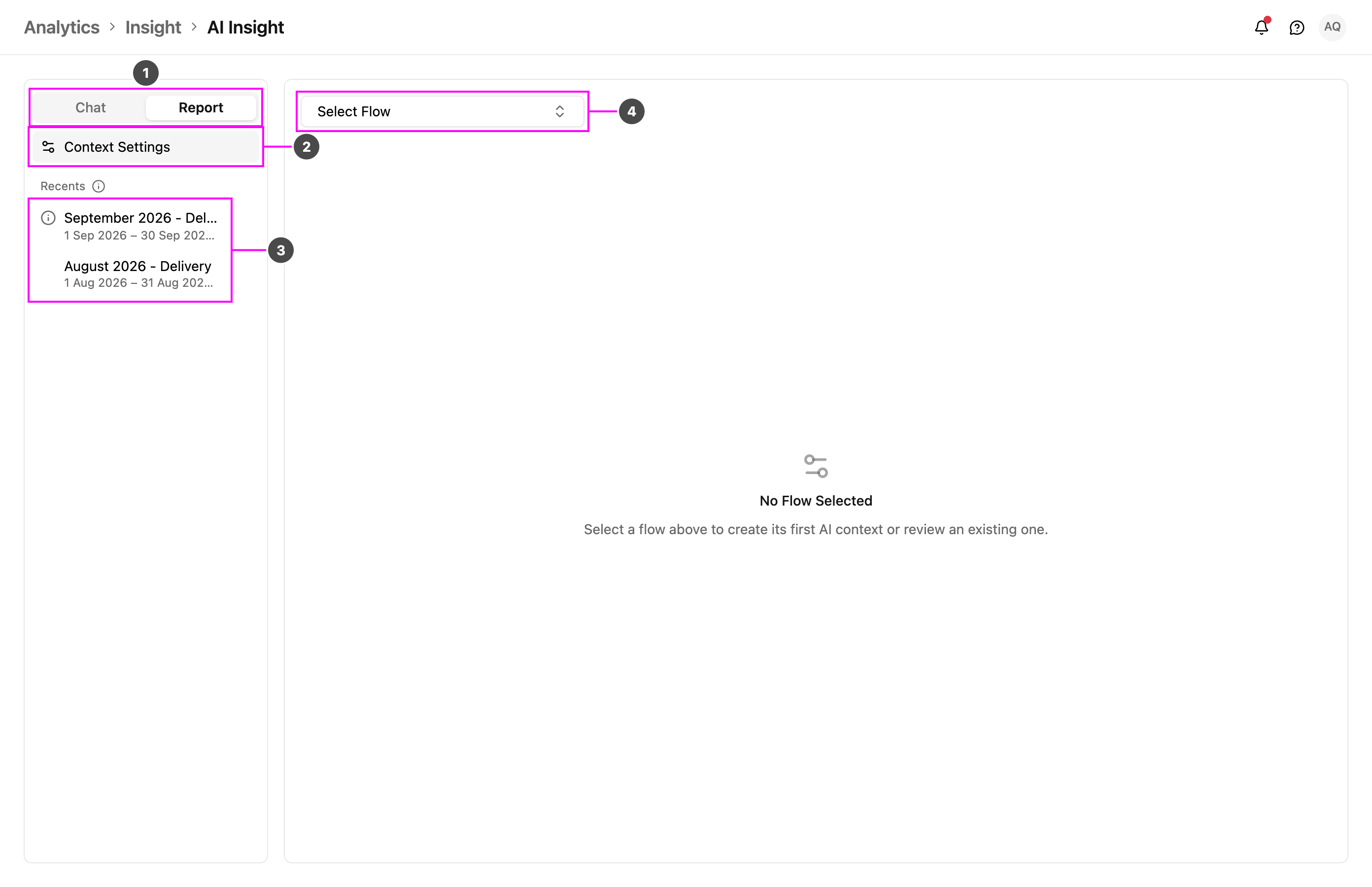
- Chat | Report: go back to Chat at any time.
- Context Settings: describe a flow for AI Insight and choose how often it writes a report. It is highlighted while you are on it. See Context Settings.
- Recents: the reports written for your organization, newest first. Each one shows its name, the period it covers, and Scheduled or the email of the person who asked for it. Click a report to open it. Click Load more at the bottom to see older reports.
- Select Flow: pick the flow to set up. Until you pick one, the page says No Flow Selected.
If there are no reports yet, the panel says No AI Insight report found. Reports appear on their schedule once a flow is set up in Context Settings.
Reading a report
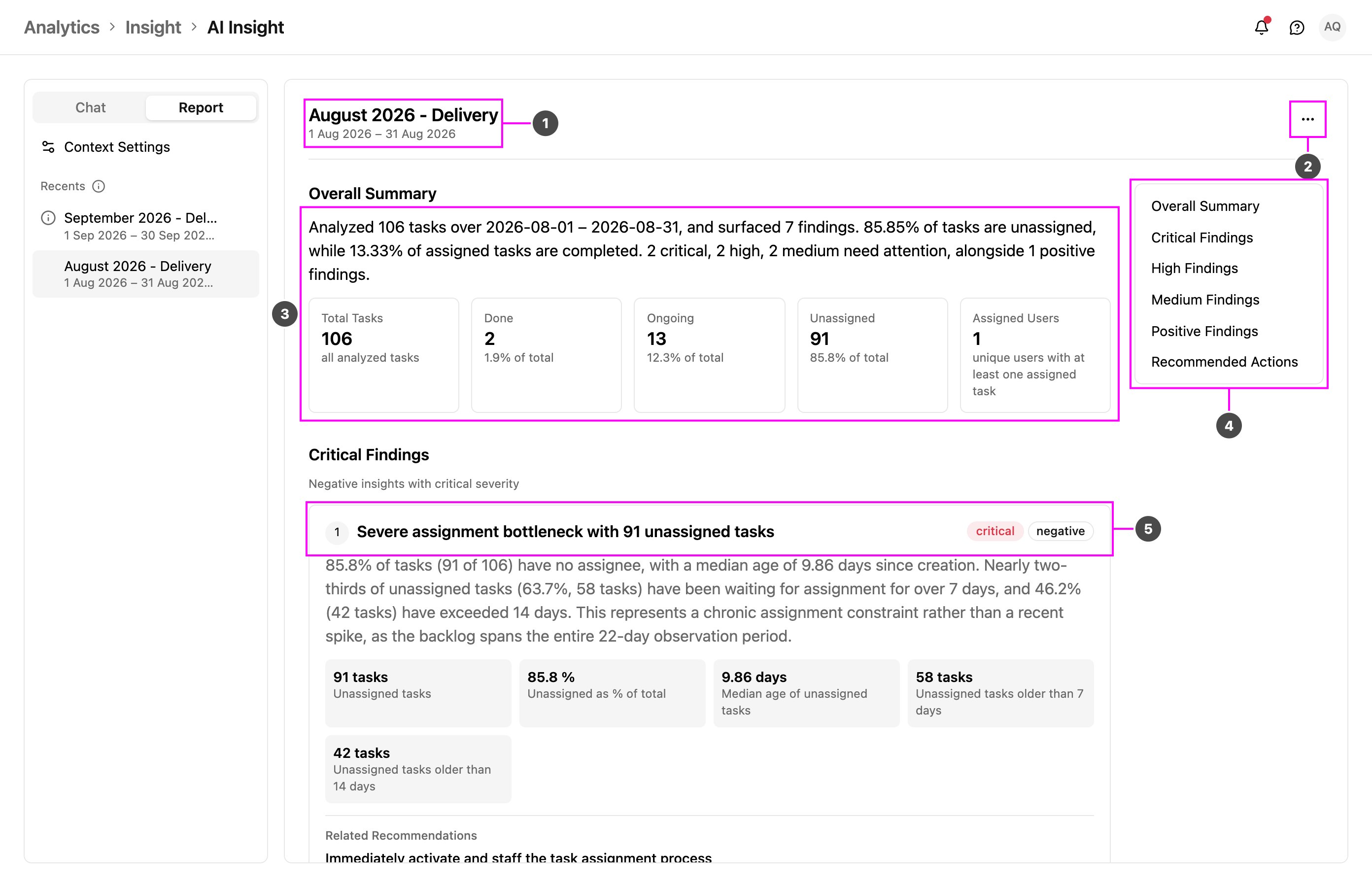
- Report name and period: the flow and the dates the report covers.
- ⋯: the report actions, Export PDF and Delete. See Report actions.
- Overall Summary: a short written summary followed by the key numbers, such as total tasks, done, ongoing, unassigned and assigned users.
- Report sections: jump to any part of the report. On a wide screen this card stays in view while you scroll.
- Findings: each finding has a title, a severity tag and a short explanation backed by numbers.
- Critical Findings
- High Findings
- Medium Findings
- Low Findings
- Positive Findings: where the operation is doing well.
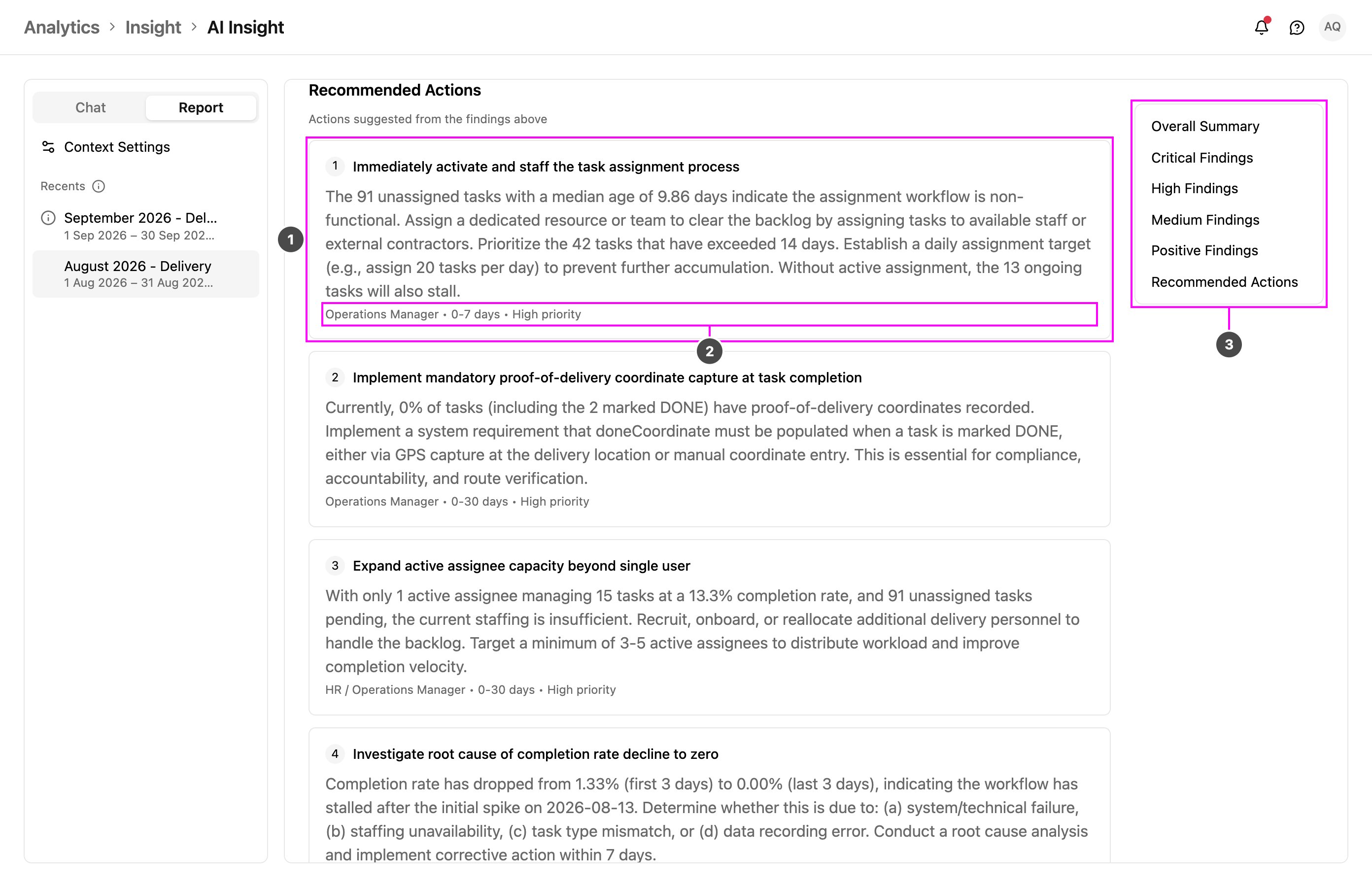
- Recommended Actions: what to do about the findings, at the end of the report. The actions that belong to a finding are also listed under that finding as Related Recommendations.
- Who, when and how urgent: the team the action is meant for, the time frame and the priority.
- Report sections: still in view after scrolling, so you can jump back up.
When a report is not ready
- Being written: the report shows Building this report. It can take up to 20 minutes. You can leave the page and come back; the page updates by itself.
- Failed: the report shows This report could not be generated with the reason. Click Retry to try again.
- Not enough data: the report shows Not enough data for this period. At least 50 tasks are needed. Trying again would give the same result, so there is no Retry.
- Not found: a report that was deleted, or a link that is wrong, shows Report not found. Click Back to reports.
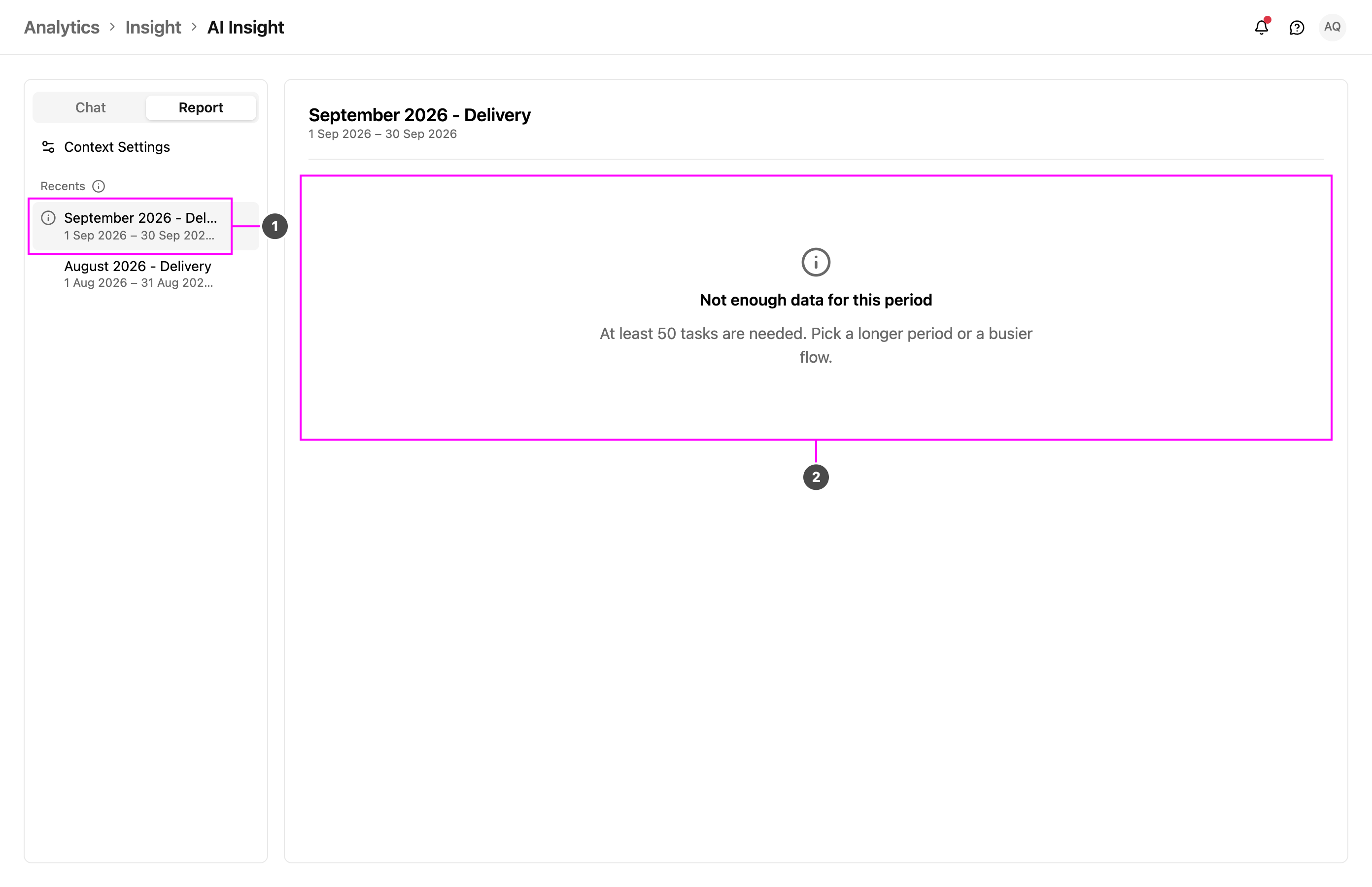
- Report in the list: the info icon marks a report without enough data.
- Message: why the report could not be written.
Report actions
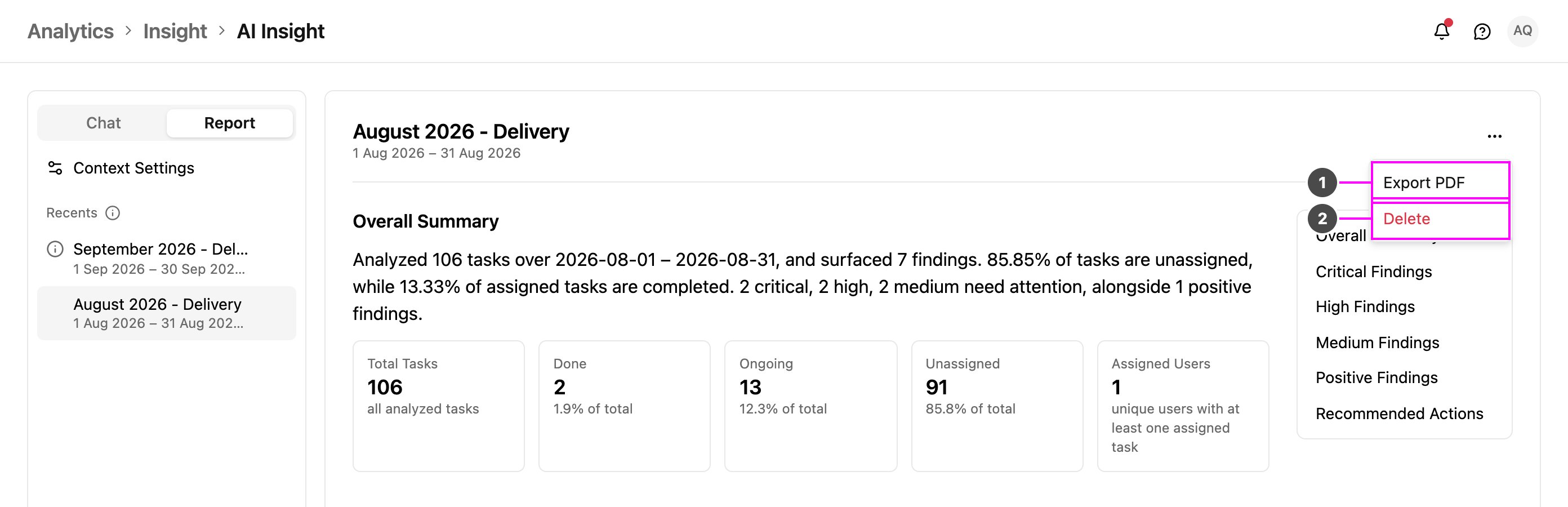
- Export PDF: opens your browser’s print window. Choose Save as PDF to keep a copy. The menus and side panels are left out, so only the report is printed.
- Delete: remove the report for everyone. Confirm with Delete. This can’t be undone. You can also delete a report from the trash icon that appears when you point at it in the list.
Reports on the Free plan
On the Free plan, a report shows the summary, the total task count and the first finding. The other numbers are blurred, the other sections show a padlock with how many items are hidden, and the section list greys them out. An Upgrade to Pro card under the first finding opens the billing page. Export PDF also takes you to the billing page instead of printing.Context Settings
Context Settings tells AI Insight what a flow is about, so its reports use the right words and look at the right fields. You set it up once per flow.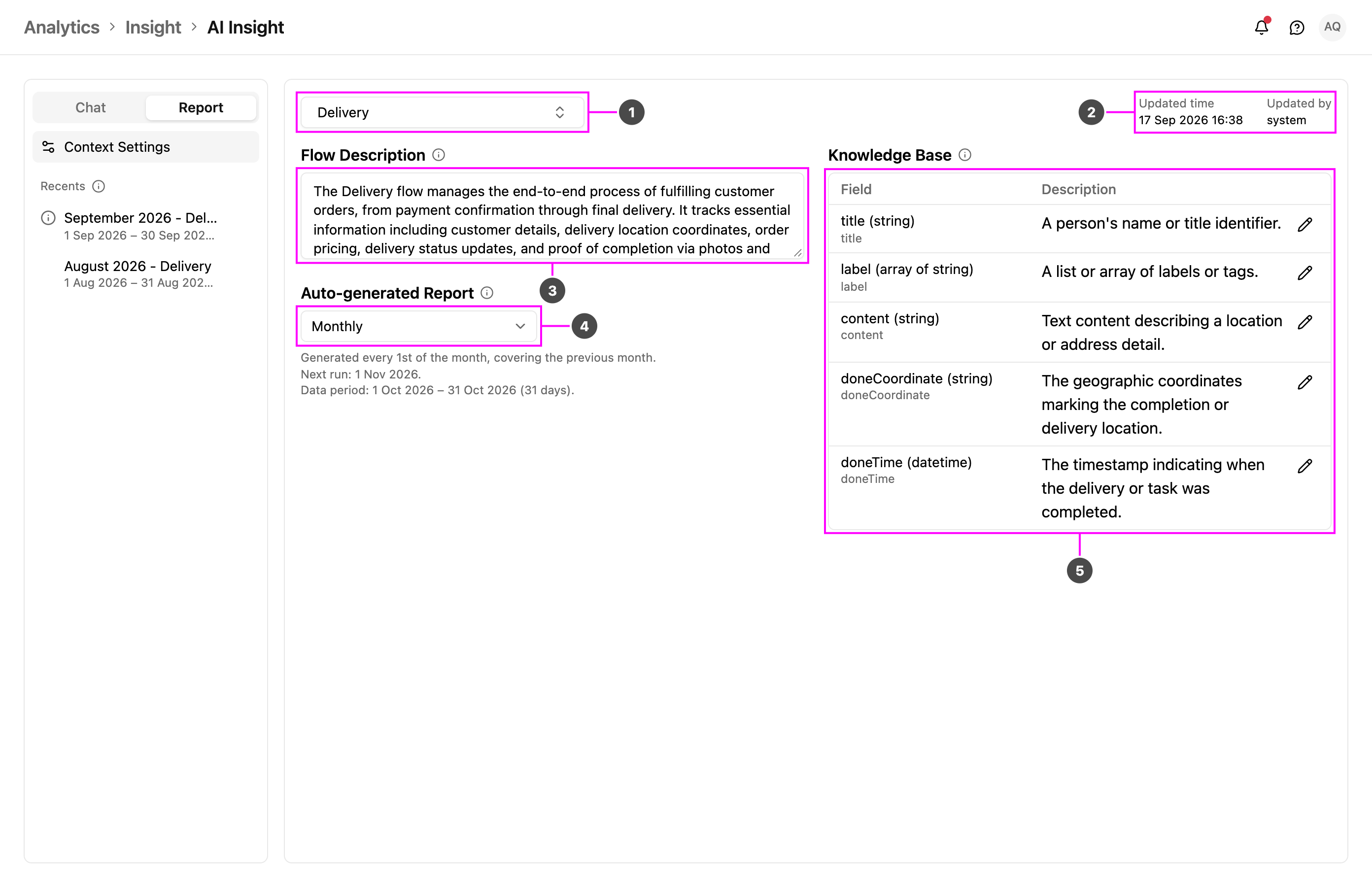
- Flow: the flow you are setting up. The first time you open a flow, AI Insight writes a draft description of it. This takes a moment, and the page says Preparing the AI context for this flow.
- Updated time / Updated by: when the context was last changed and by whom. system means the change was made by AI Insight, not a person.
- Flow Description: what the flow is for, in plain words. Review the draft and correct anything that is wrong; a clear description gives better reports.
- Auto-generated Report: how often a report is written for this flow:
- Monthly: a report on the 1st of every month, covering the previous month. The next run and the period it covers are shown underneath.
- Off: no reports for this flow.
- Daily and Weekly: available on request. Choosing one opens Talk to Sales and leaves the frequency unchanged.
- Knowledge Base: the fields of the flow with a description of each. Click the pencil next to a field to edit its description.
Without the Edit AI Insight permission, you can open Context Settings but not change anything.