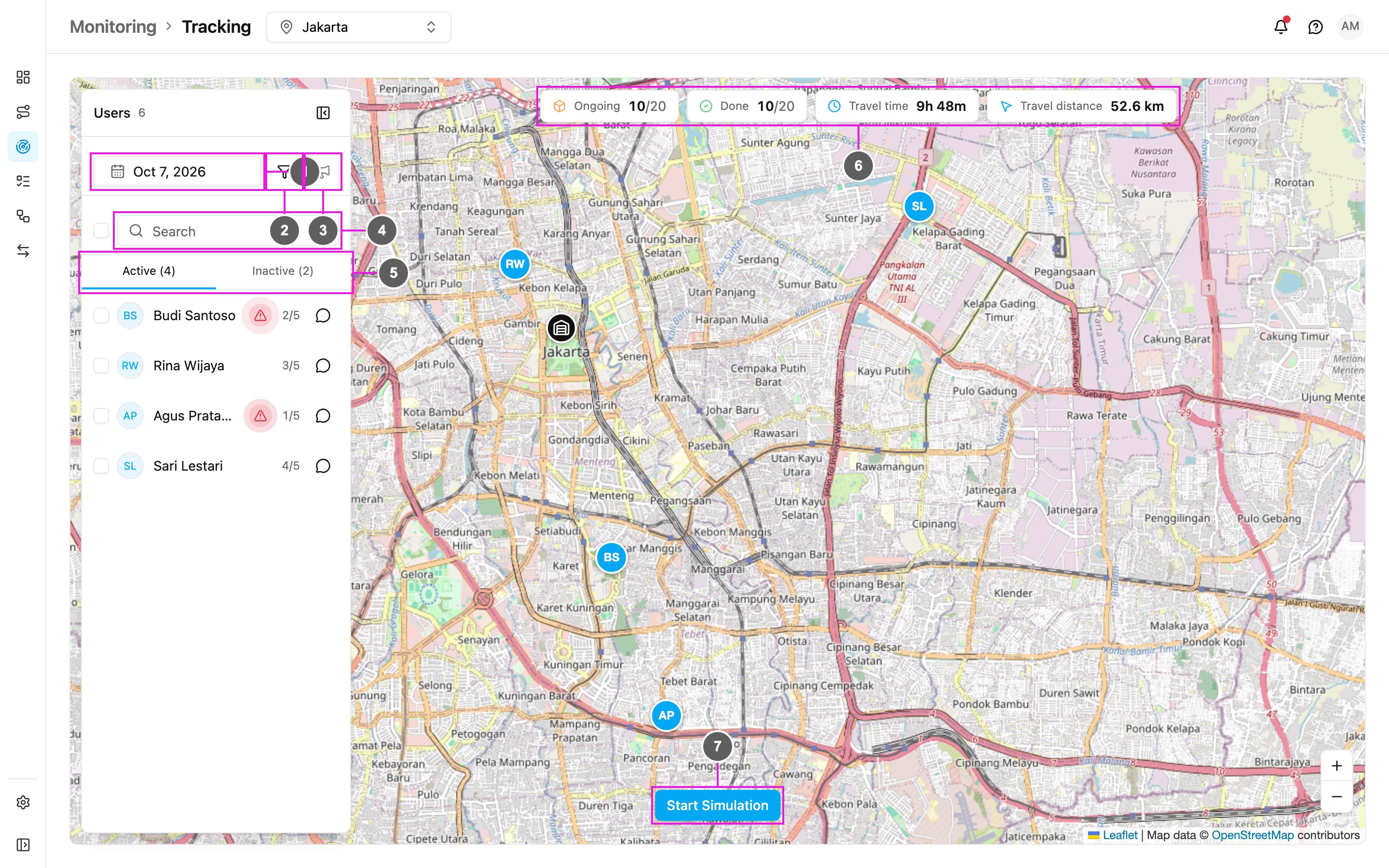
The Tracking page shows where your field workers are and how their day is going. It shows the hub selected in the top bar and one day at a time. When you open it, it shows today. For today, the map updates live as field workers move and finish tasks. If the live connection drops, the page still refreshes every 5 minutes. An earlier day is a finished record, so it is not refreshed. Open Monitoring › Tracking.
Required permission:
  • View tracking
Tracking page
  1. Date: the day to show. See Filter and History.
  2. Filter: which task time puts a task on that day, and which location source to show.
  3. Broadcast: send one message to the field workers you ticked. See Broadcast.
  4. Search: find a field worker by name.
  5. Active / Inactive: the two user lists. The number beside each tab is how many people are in it.
  6. Totals: a summary of the day for everyone shown on the map (see below).
  7. Start Simulation: play a demo of tracking with sample cities, so you can see how the page behaves before your team is on the road.
The Users header shows how many users are in this hub. The button on its right hides the user list to give the map more room.

Totals

The four counters at the top of the map summarise the day:
  • Ongoing: ongoing tasks out of all tasks, for example 10/20. 0/20 means every task of the day is done.
  • Done: done tasks out of all tasks. 20/20 means every task of the day is done.
  • Travel time: the total time your field workers spent travelling that day. Only active users count.
  • Travel distance: the total distance they travelled that day. Only active users count.
When you select a field worker, the counters show that person’s figures instead.

Active users

The Active tab lists field workers who have a task on that day. With nobody selected, the map shows every active user at their latest position, each as a disc with their initials. Click a name to see that person’s day: their trail, their tasks, their alerts and their chat. See User Details. Click the Active tab again to go back to everyone.

Inactive users

The Inactive tab lists field workers in the hub who have no task on that day. Because they have no task, there is no route or task to draw for them.