

Required permission:
- View Data Import
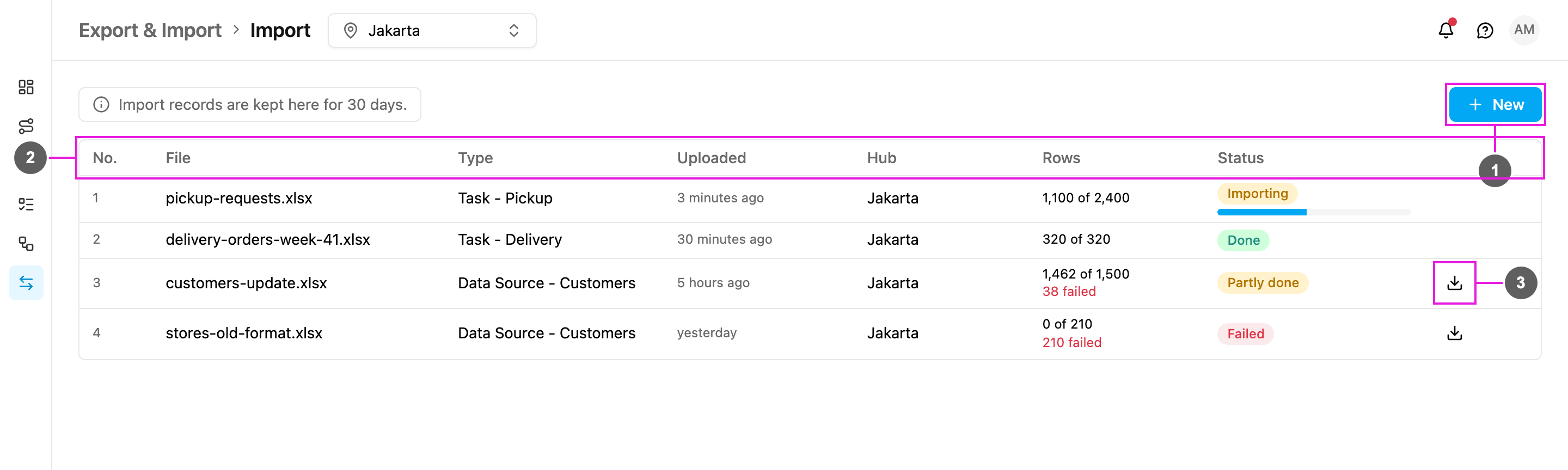
- New: import a file. See Import a file.
- The import list: one row per uploaded file, newest first. The list refreshes on its own while an import is still running.
- Download the rows that did not import: a spreadsheet of the failed rows only.
The import list
Under Actions:
- Download the rows that did not import: on a Partly done or Failed import. The file holds only the failed rows, with a validationMessage column that says why each row failed. Fix the rows and import the file again.
- Download the uploaded file: the file as it was uploaded.
- No file: shows when the import failed before any row was read. Hover over it to see why.
Import a file
Click New. The Import a file dialog opens.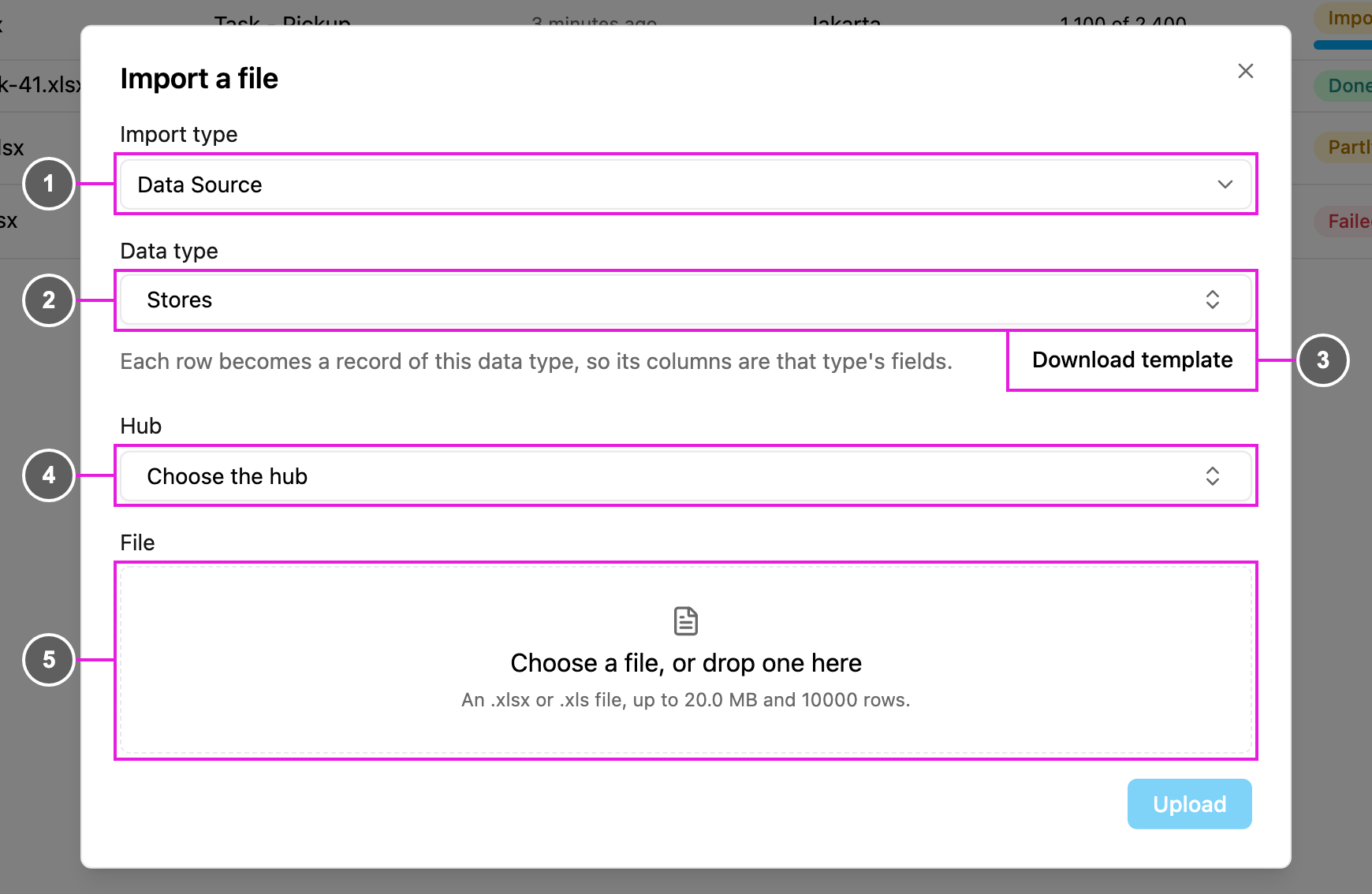
- Import type: Data Source.
- Data type: each row becomes a record of this data type, so the file’s columns are that type’s fields. Types marked Common are shared by every hub.
- Download template: a spreadsheet with one column for each of the data type’s fields, ready to fill in. Required columns are marked with
*. - Hub: the hub the records belong to. It only appears for a data type that is not Common.
- File: click Choose a file, or drop one here, or drag the file onto it. It takes an .xlsx or .xls file of up to 20 MB and 10,000 rows.
The file is refused if it is not an .xlsx or .xls file, is over 20 MB, cannot be read as a spreadsheet, has a blank column heading, or has headings but no rows.