Notifications
Click the bell in the top bar. A red dot on the bell means there is something you have not read.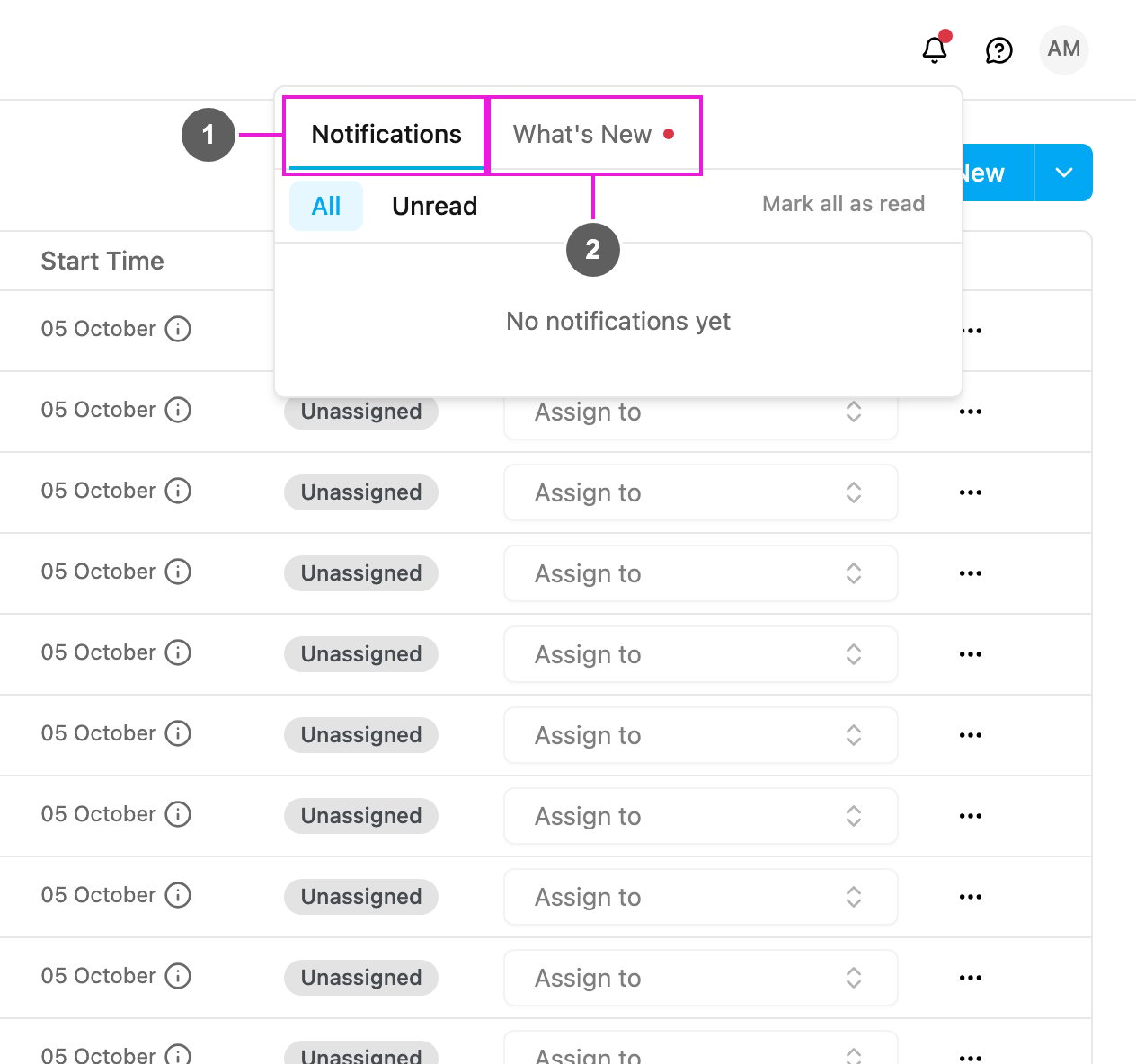
- Notifications: alerts and messages meant for you, such as an emergency alert (SOS) sent by a field user.
- All and Unread switch between every notification and only the ones you have not read.
- Notifications are grouped under Today and Earlier. Click Load more at the bottom to see older ones.
- Click a notification to mark it as read. A notification about a field user opens Monitoring › Tracking on that user and that day.
- Mark all as read clears the red dot.
- What’s New: the release notes of the app, newest first. Each release lists its changes; click More details to read the full note. A red dot on the tab means there is a release you have not seen.
Help
Click the ? button in the top bar.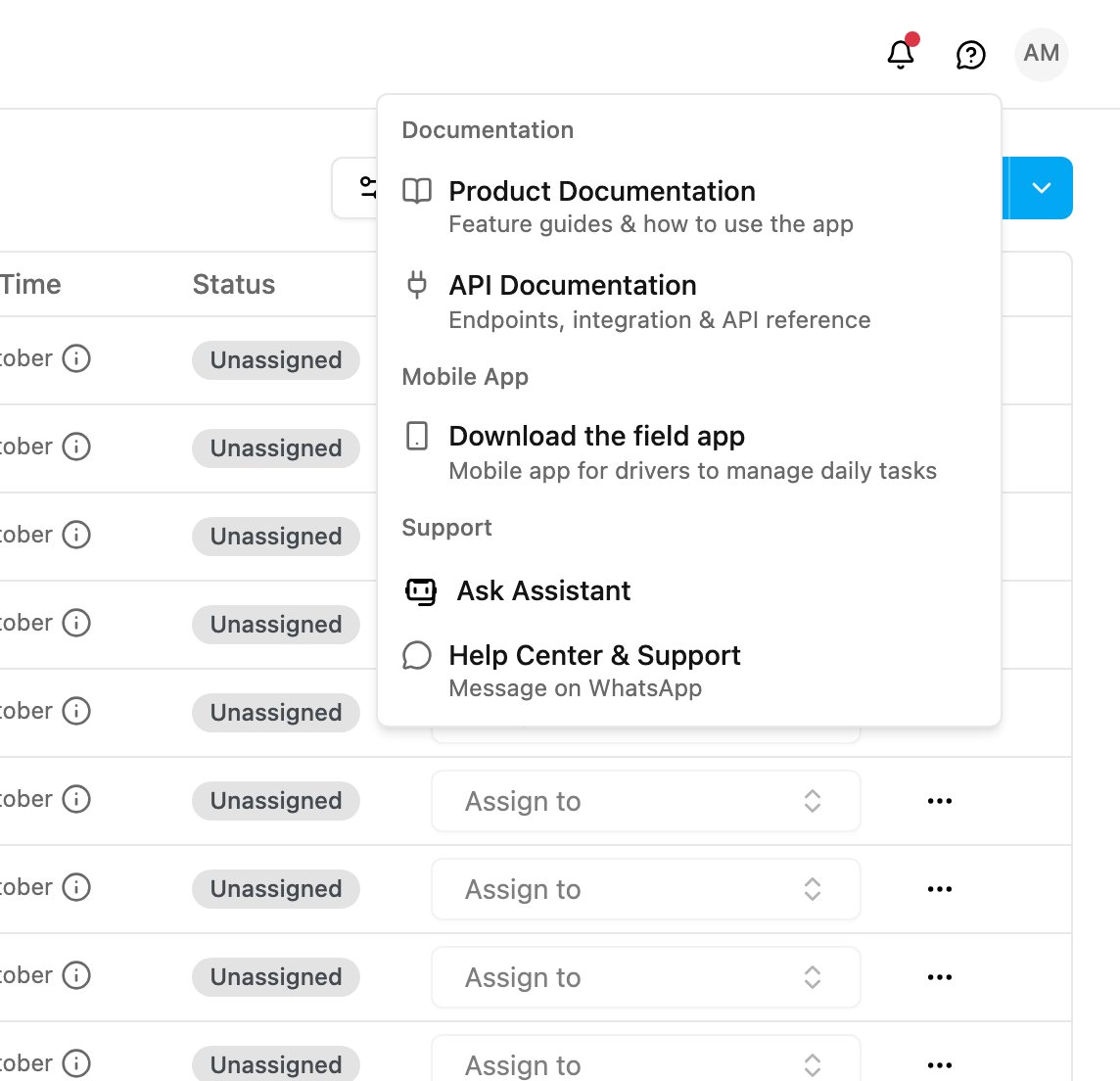
Ask Assistant
The assistant answers questions about how to use the app, any time of day. Click the ? button, then Ask Assistant.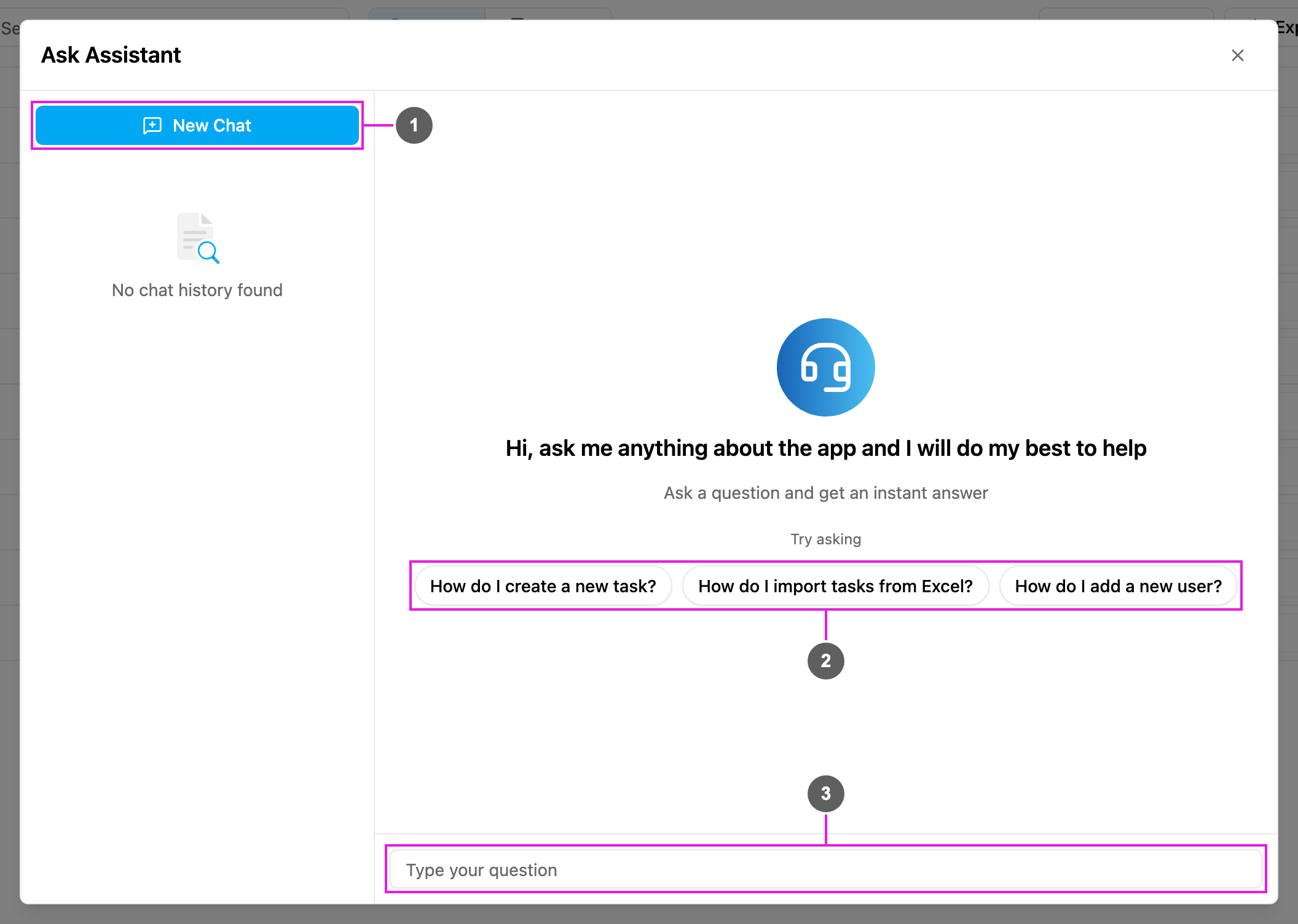
- New Chat: start a new conversation. Your earlier conversations are listed under it, newest first. Click one to read it again, or delete it.
- Try asking: sample questions such as How do I create a new task? Click one to ask it.
- Type your question: write your own question, up to 500 characters, and press Enter or click Send.
- The assistant replies in a few seconds. While it works you see Analyzing your request…, then Generating results.
- If the assistant can’t help, the support team can take over the same conversation. Their replies are marked Support team; the assistant’s are marked with the assistant’s name.
- Rate each conversation as Helpful or Not helpful to help improve the answers.
- A conversation closes automatically after 30 minutes without activity, or when the support team marks it Resolved. Click New Chat to ask something else.
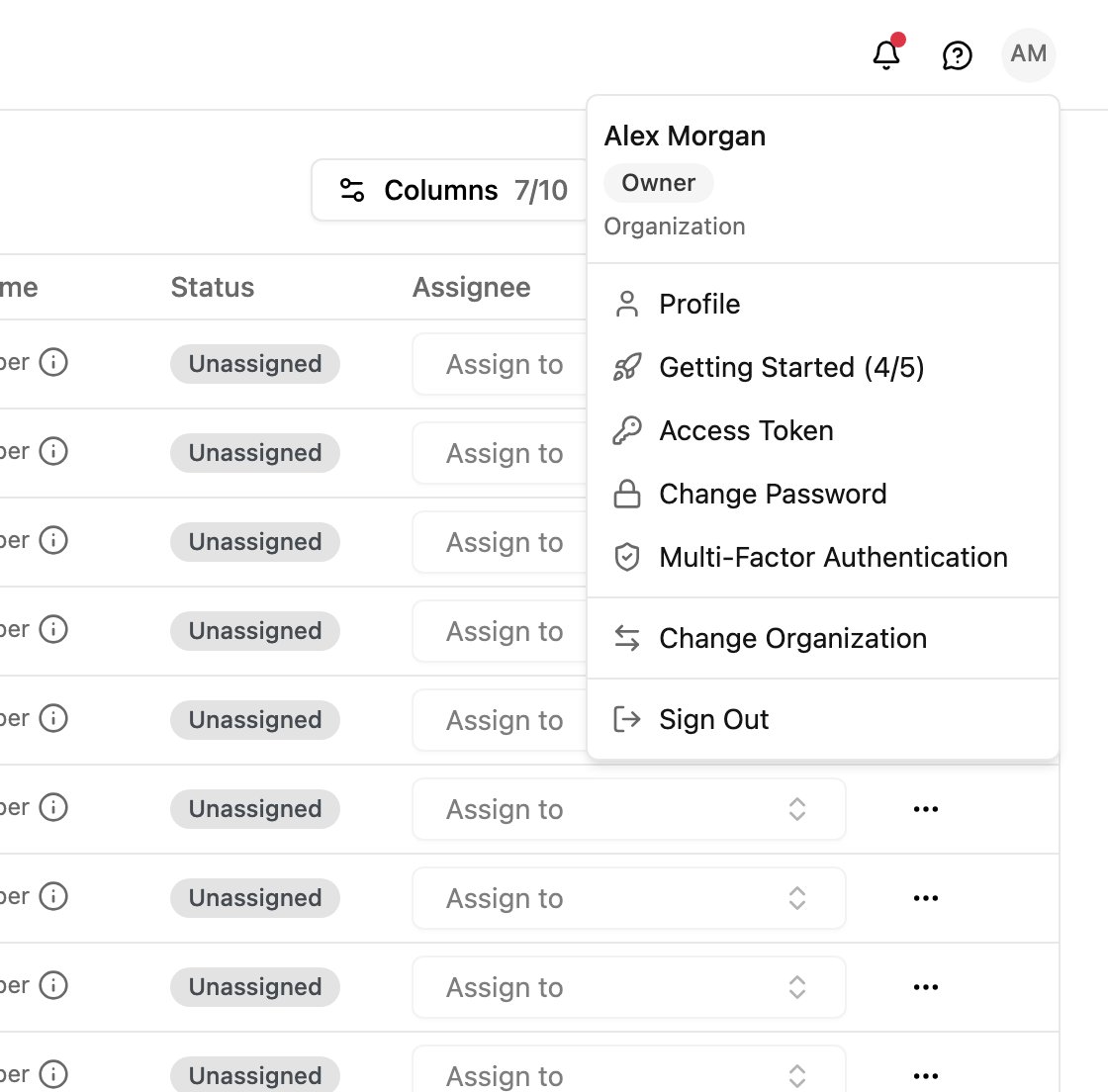
Your profile menu
Click your initials in the top right corner. The top of the menu shows your name, your role and your organization.