Broadcast sends the same message to several field workers at once, for example a shift reminder, a weather warning or a change of pickup point, without opening each conversation one by one. Every recipient gets it as an ordinary chat message and can reply in their own conversation.
Required permission:
  • View Chat on Web
Recipients read the message in the field app, so their role needs View Chat on Mobile, the same permission that lets them chat at all. See Chat.

Choose the recipients

On Monitoring › Chat, tick the field workers you want to include.
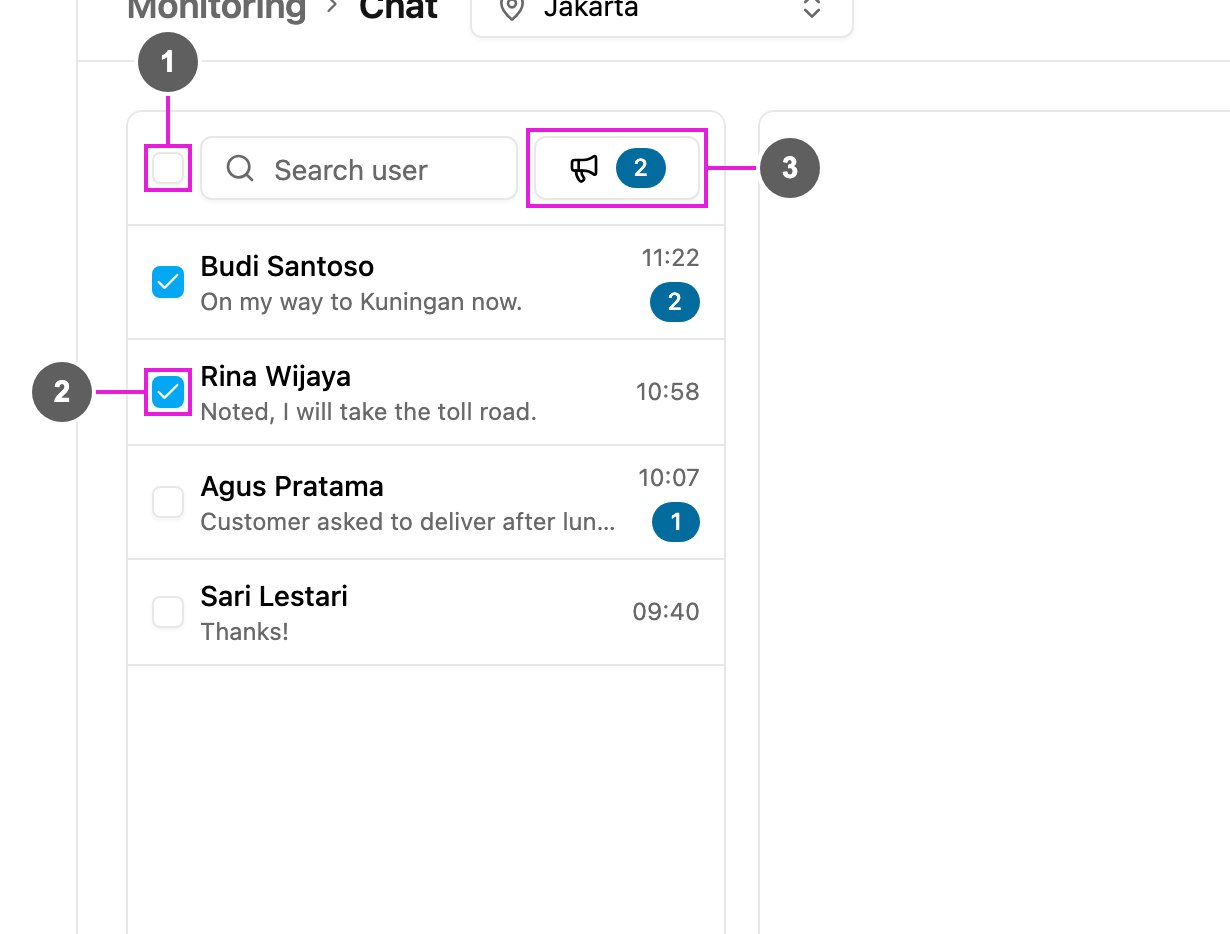
Choosing broadcast recipients
  1. Select all: tick everyone in the list. Click again to clear them all.
  2. Checkbox: tick one field worker. Ticking a row does not open the conversation.
  3. Broadcast: open the message window. The number on it is how many recipients are ticked. It is greyed out until you tick someone.
The list holds the field workers of the hub selected in the top bar. Use Search user first to narrow it down. You can also broadcast from Monitoring › Tracking: tick field workers in the user list and click the Broadcast button beside the date.

Send the message

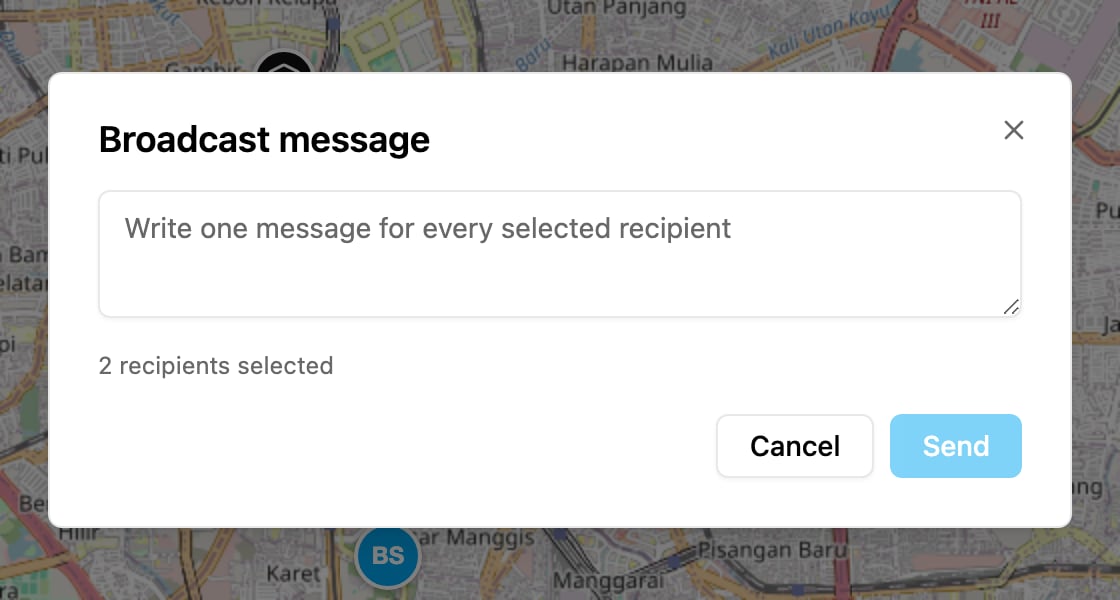
Broadcast message
Write the message (up to 2,000 characters) in Broadcast message. The window shows how many recipients are selected. Click Send, or Cancel to close without sending. Each recipient gets the message in their own conversation, exactly as if you had typed it there, including the push notification if their app is closed. The conversation list then shows the broadcast as the newest message on each of their rows. The message is sent to each recipient separately. The app then says how many it reached, for example Sent to 2 of 2 recipients. If some could not be reached, the message is shown as an error so you can try again for the rest.