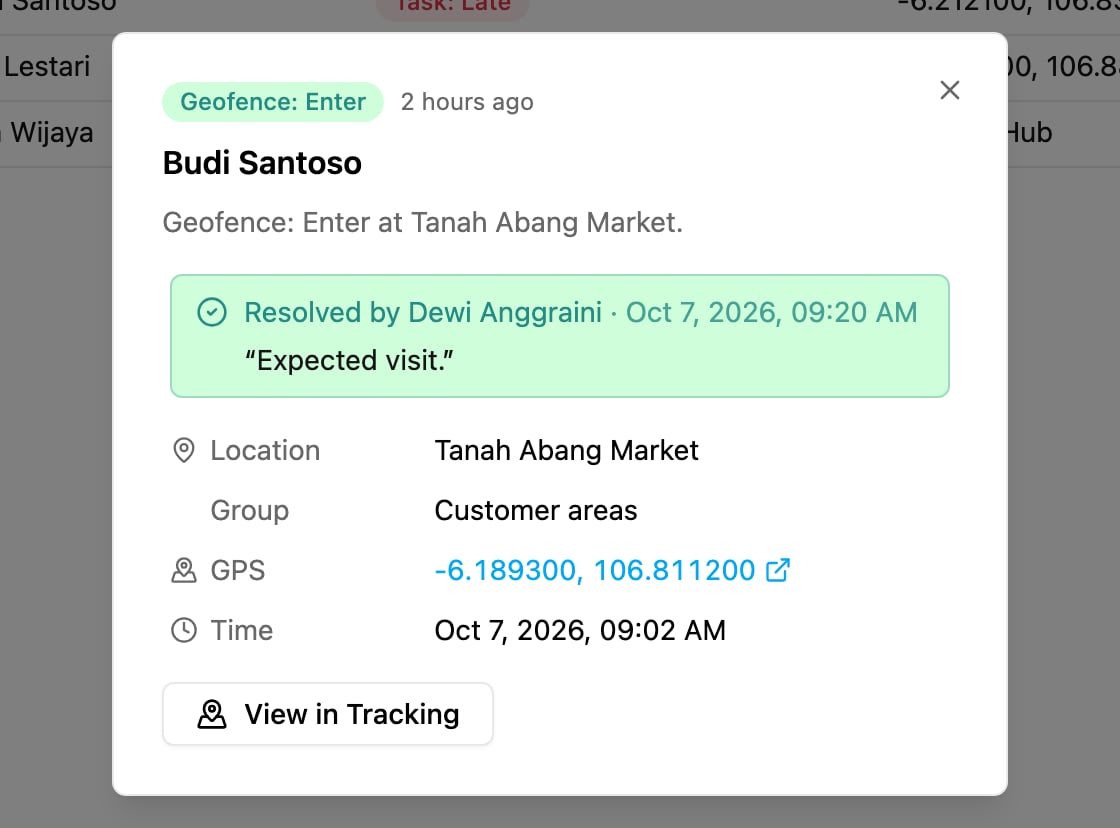
Required permission:
- View alert
- Resolve alert (to mark an alert as resolved)
- View tracking (for the View in Tracking button)
The alert list
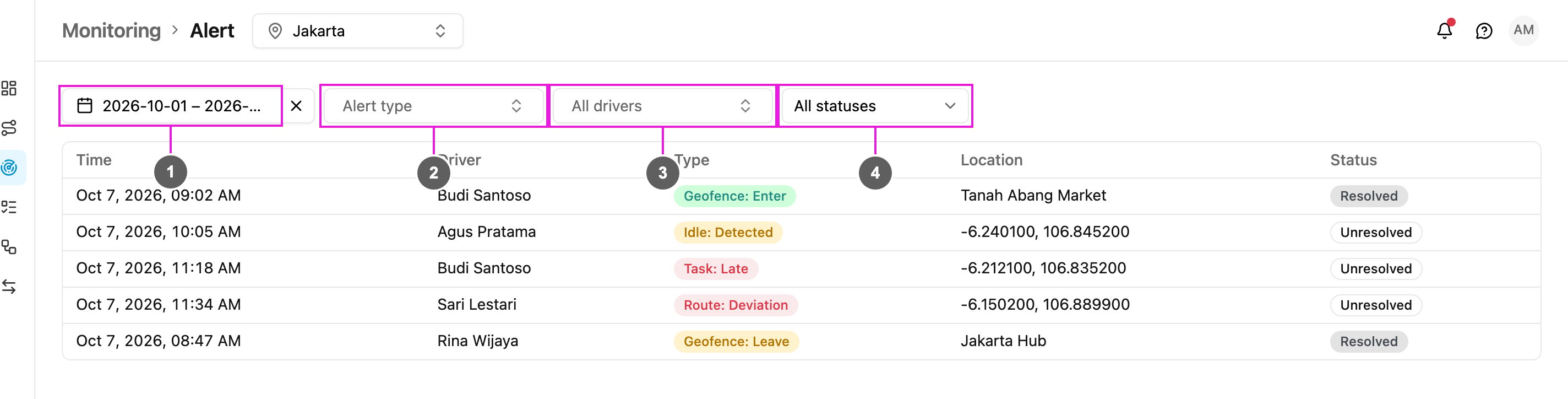
- Date range: the period to show. The last 7 days are shown by default. The X beside it resets the range.
- Alert type: show only some types. You can pick more than one.
- All drivers: show only one field worker’s alerts.
- All statuses: show every alert, or only Unresolved or Resolved ones.
If nothing matches, the page says No alert in this period and suggests a wider date range or fewer filters.
Alert types
Alert detail
Click a row to open the alert.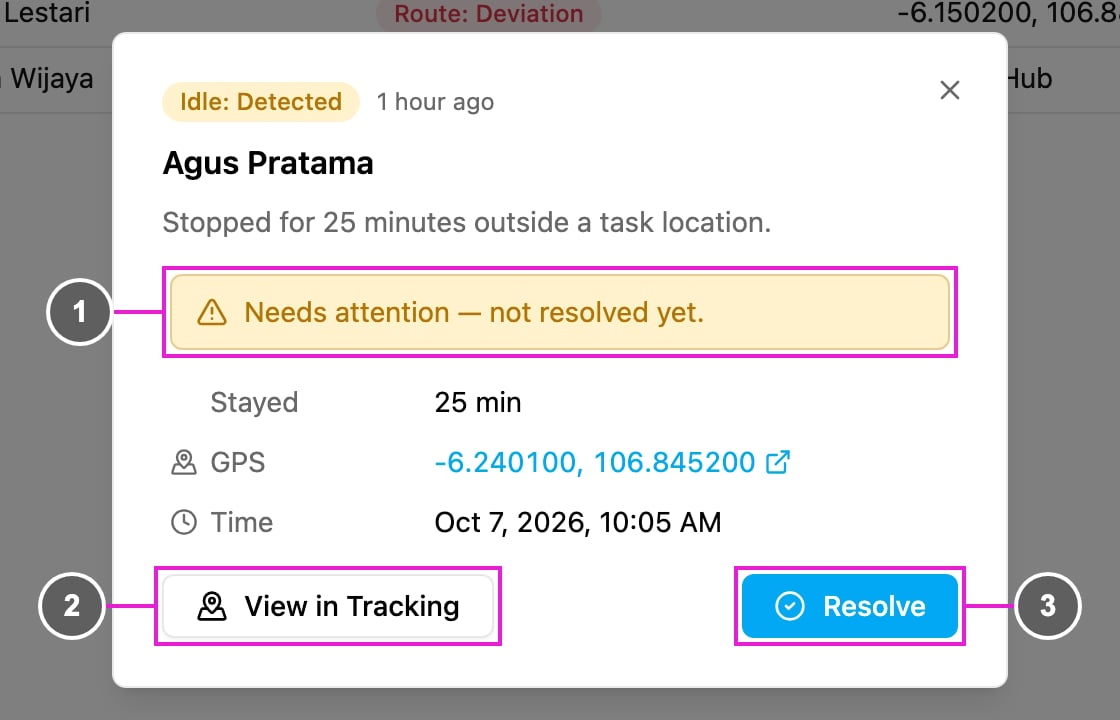
- Needs attention — not resolved yet.: the alert has not been handled.
- View in Tracking: open the Tracking page on this field worker and day, with the alert selected. See User Details.
- Resolve: record that the alert was handled.
Resolve an alert
Click Resolve in the alert detail.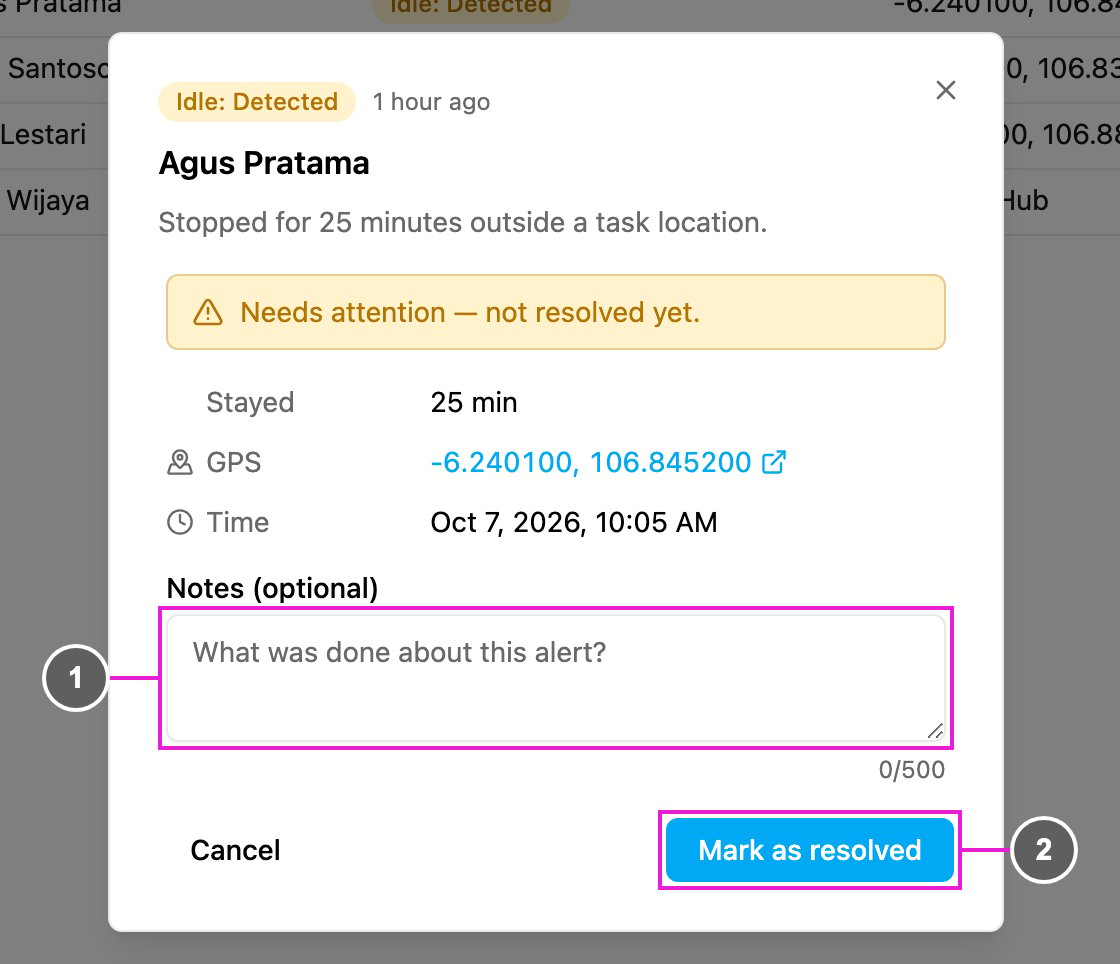
- Notes (optional): what was done about the alert, up to 500 characters.
- Mark as resolved: save. The app says Alert resolved. and the row’s status changes to Resolved. Click Cancel to go back without resolving.