

Change your password
Click your initials, then Change Password.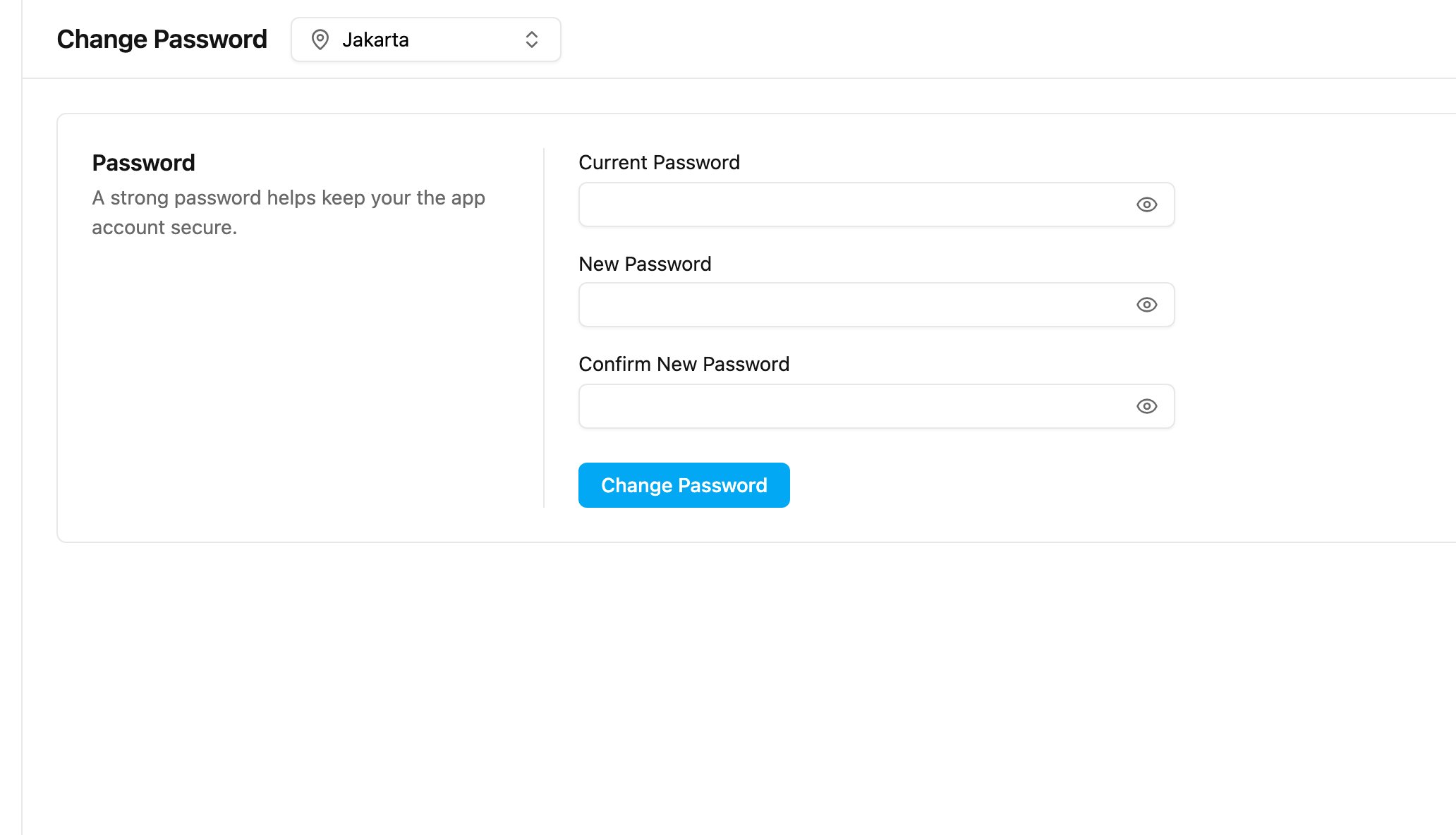
- Type your Current Password.
- Type the New Password. A meter under the field shows how strong it is: Weak, Medium or Strong. Hover the information icon to see the Password security requirements.
- Type it again in Confirm New Password.
- Click Change Password.
- be at least 8 characters and at most 256 characters;
- contain at least 3 of these 4: one lowercase letter, one uppercase letter, one number, one symbol;
- not contain spaces;
- not be your name or your email.
If you have not verified your account yet, Change Password is greyed out. Verify your account from the email you received when you signed up first.
Multi-factor authentication
Multi-factor authentication (MFA) adds a second step after your password, so a stolen password alone isn’t enough to get into your account. There are four methods. Each is a separate permission on the role, and an admin turns on the ones your role needs.
The second step applies to the web app and the field app, and also when you switch to an organization where your role requires it.
Authenticator app
An authenticator app, such as Google Authenticator, Microsoft Authenticator or Authy, shows a new 6-digit code every few seconds. To use it, your role needs Multi-factor authentication by Cloud-based Authenticator; otherwise Multi-Factor Authentication doesn’t appear in your profile menu.Required permission:
- Multi-factor authentication by Cloud-based Authenticator
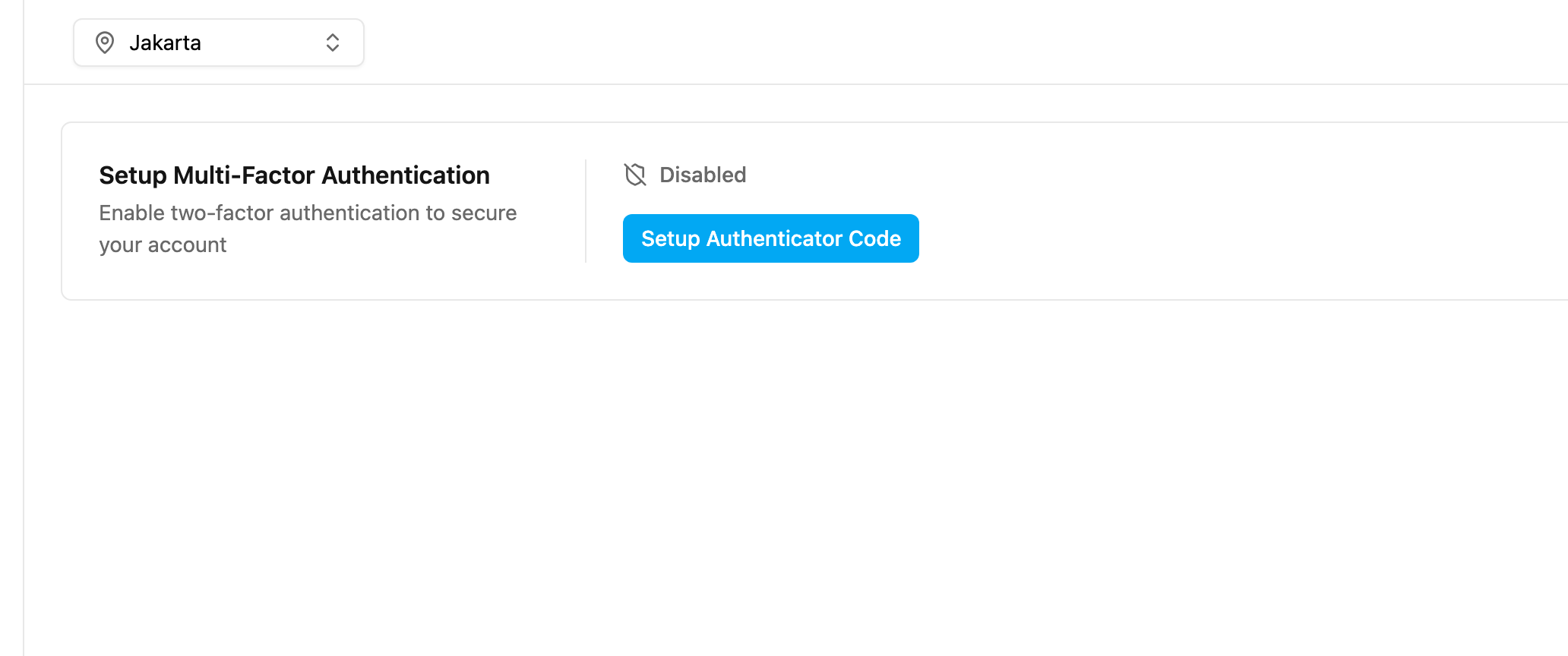
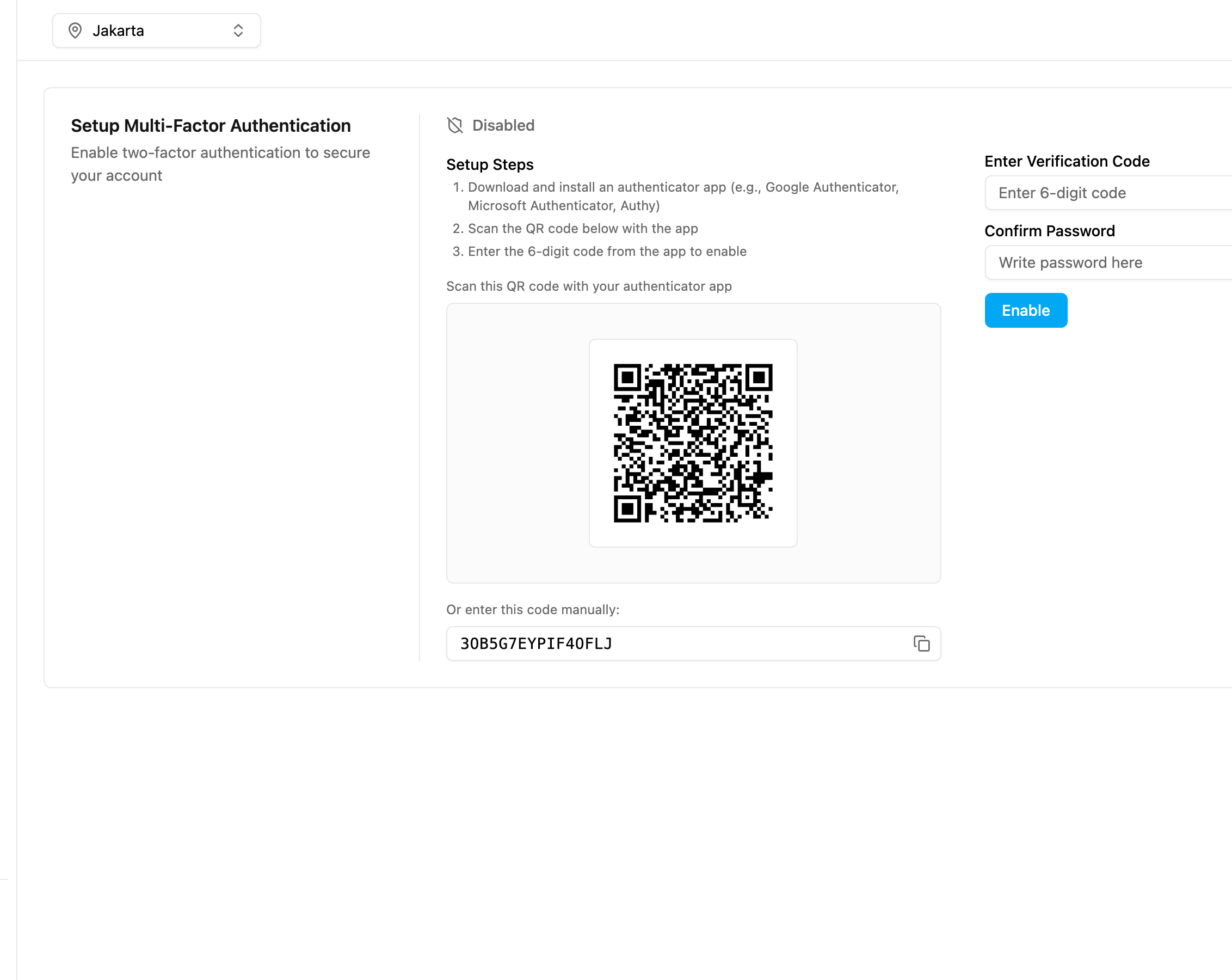
- Install an authenticator app on your phone.
- In the app, add an account and scan the QR code. If you can’t scan it, copy the code under Or enter this code manually and type it into the app.
- Type the 6-digit code the app shows into Enter Verification Code.
- Type your account password in Confirm Password.
- Click Enable.
Signing in with a second step
- On the sign-in page, enter your email and password and click Sign in.
- The Multi-Factor Authentication page opens.
- Authenticator app: open the app, find the code for your account and type it in Authenticator Code. If the code is refused, wait for the next code and try again.
- One-time code (email, WhatsApp or SMS): check your email or phone and type the 6-digit code in OTP Code. The code is valid for 3 minutes; a countdown shows the time left. When it runs out, click Resend OTP? to get a new code. If the email doesn’t arrive, check your spam folder.
- Click Submit.
Related
- Access and Sign-in: turn MFA, Single Login and Mobile App Access Only on for a role.
- Password Policy: password rules for the organization.
- Access Token: tokens for connecting other systems.