

- Fields: the data every order carries, for example customer name, phone number and delivery address.
- Statuses: the stages an order can be in, for example New, Picked up, Delivered.
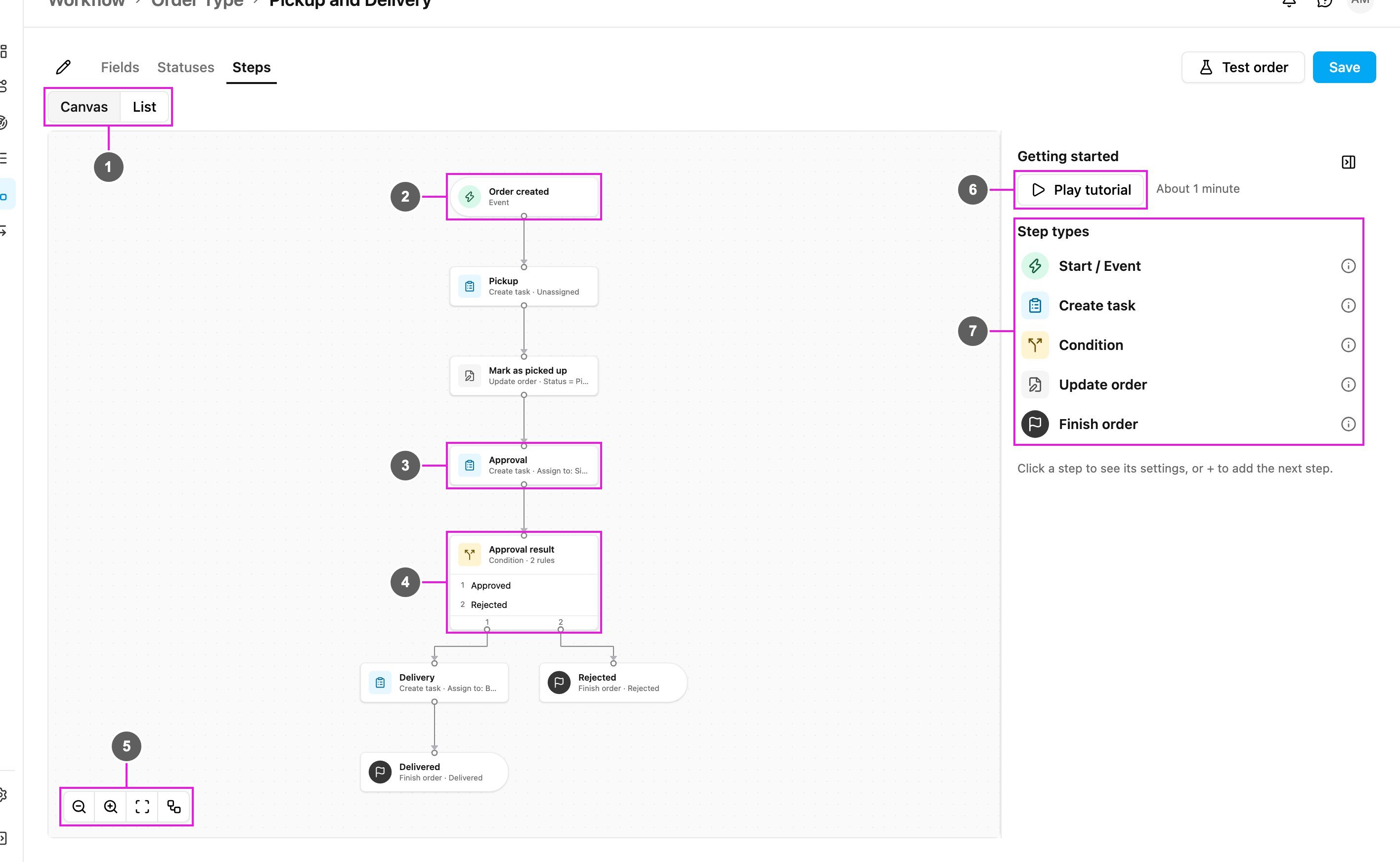
- Steps: what happens automatically once an order exists: which tasks are created, who they go to, which path the order takes and when it ends.
Order types are part of Order Management, which is listed as an add-on in Settings › Add-ons. The Workflow › Order Type and Activities › Order menus are built into the web app: a role needs View Order Type to open this page, and the add, edit and delete permissions to change order types.
Required permission:
- View Order Type
- Add Order Type
- Edit Order Type
- Delete Order Type
How an order moves
The Steps of an order type form a path from top to bottom:- A trigger starts the order: an order is created, the order reaches a status, or a task of a chosen task type is finished.
- Create task steps create a task for the field team and wait until it is done.
- Condition steps send the order down a different path depending on rules, for example Approved or Rejected.
- Update order steps change order fields or the status along the way.
- A Finish order step sets the final status and ends the order. Every path must end at one.
The Order Types list
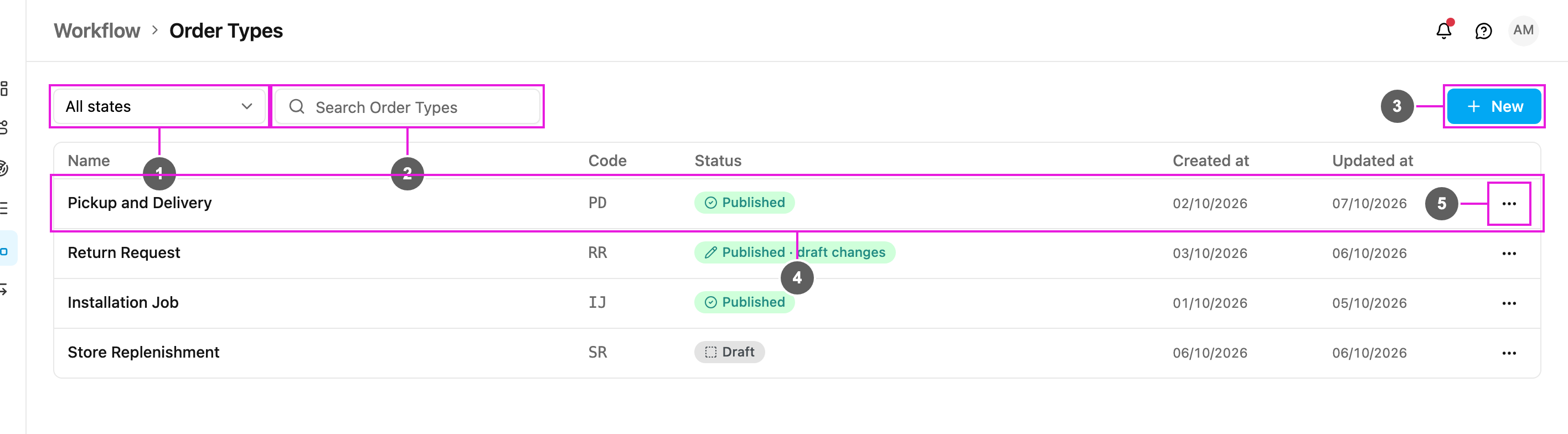
- State filter
- Search Order Types
- New
- Order type row
- Row menu (⋯)
Columns
The list shows 20 order types per page. When there are none yet, the page shows No Order Types yet.
Order types are shared by the whole organization, so the hub picker in the header does not filter this page.
Next steps
- Building an Order Type: fields, statuses, steps and saving.
- Getting Started Tutorial: watch a Pickup → Approval → Delivery example being built.
- Managing Order Types: create, rename, duplicate, test and delete.