

Create a role
Required permission:
- View role
- Create role
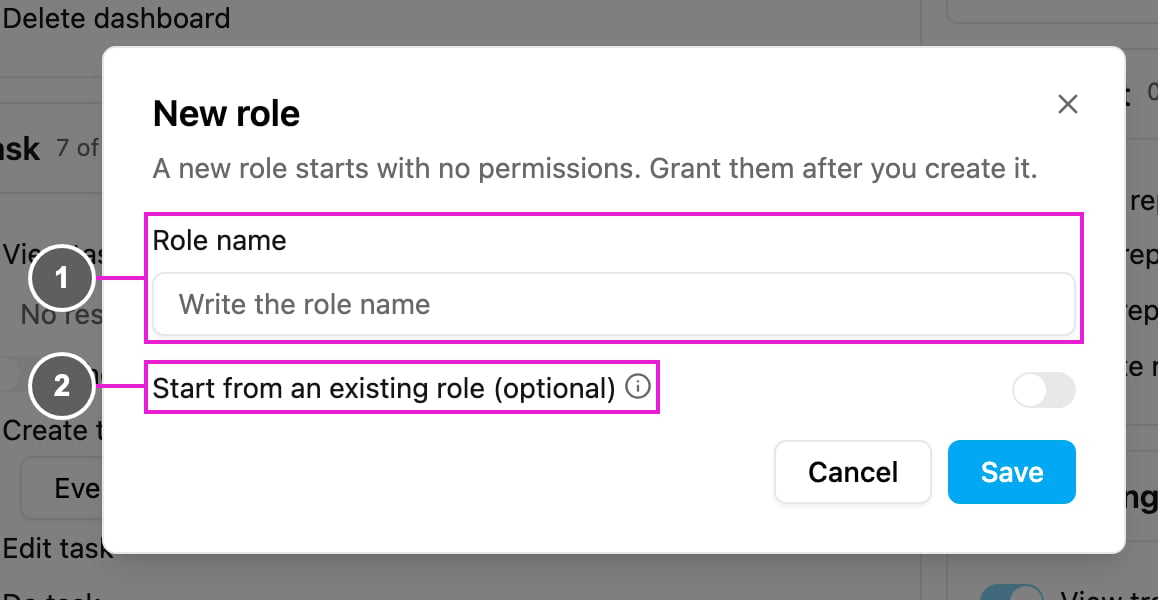
- Role name: a name that is unique in your organization. A duplicate is refused with A role with that name already exists.
- Start from an existing role (optional): turn this on and pick a role to copy its permissions into the new one, then adjust them. Leave it off and the new role starts with no permissions.
Rename a role
Required permission:
- View role
- Edit role
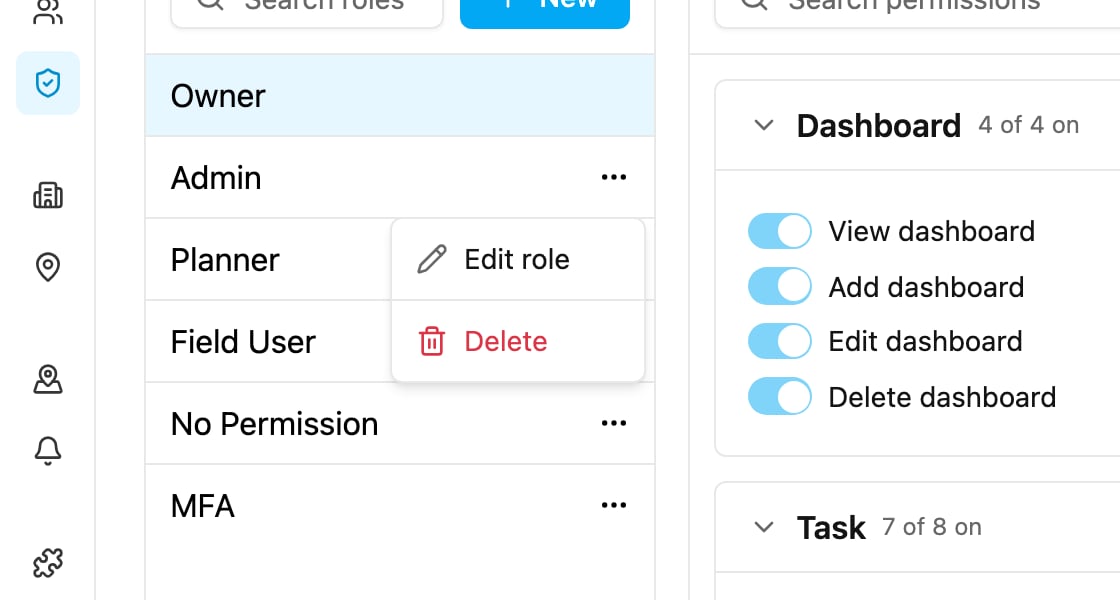
Delete a role
Required permission:
- View role
- Delete role
Rules for roles
These rules apply in the app and in the API:- A role’s name must be unique in your organization.
- A role that is assigned to one or more users can’t be deleted. Give those users another role first, then delete it.
- The Owner role can’t be renamed or deleted, and there is always exactly one owner.