

Import orders
Required permission:
- View Order
- Add Order
- Open Activities › Order and click Import.
- Choose the Order Type, download its template and fill it in.
- Upload the file and click Next to check it.
- Review the preview and start the import.
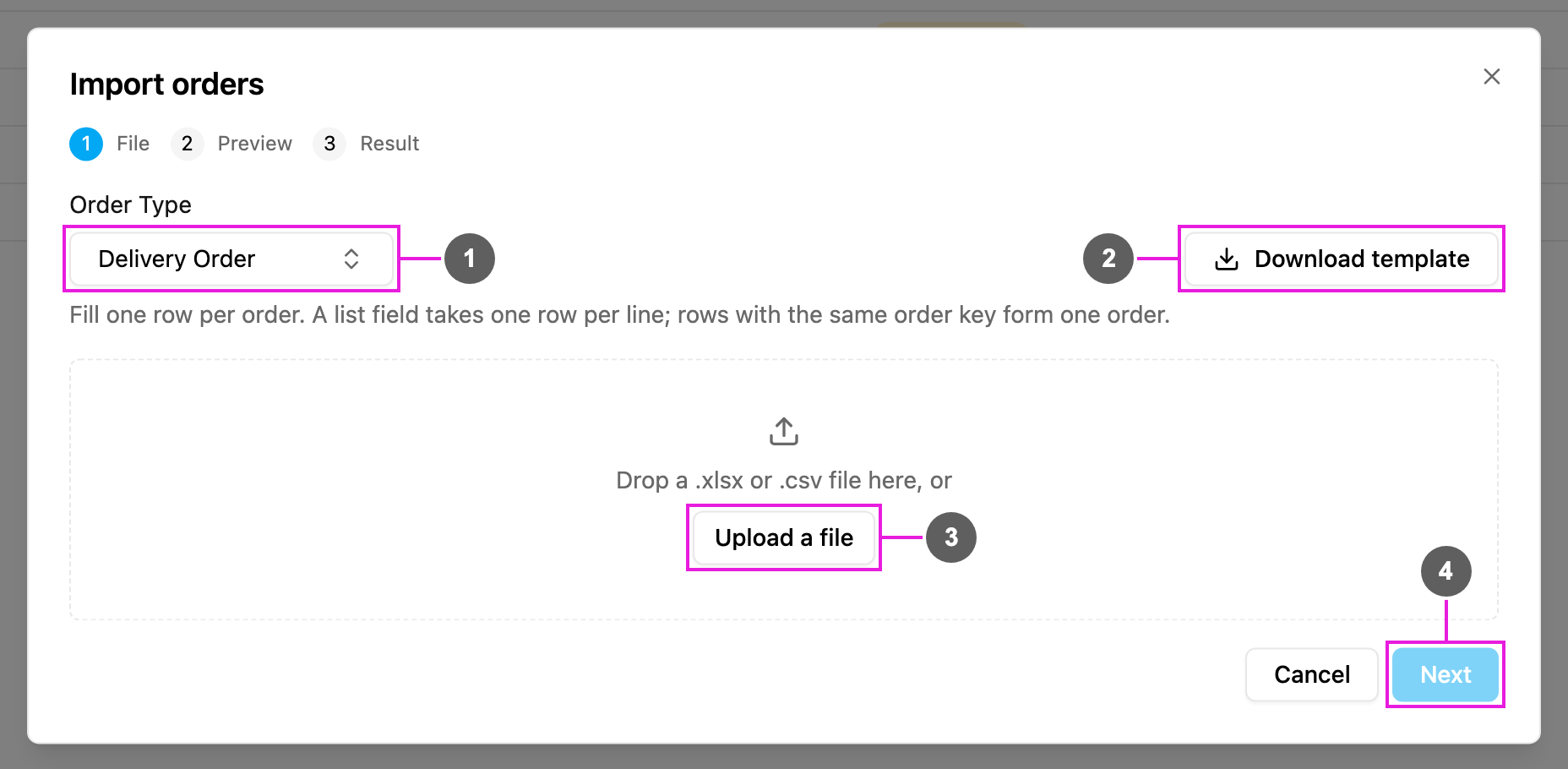
- Order Type
- Download template
.xlsx file whose columns are that Order Type’s fields. Fill one row per order. A list (line items) field takes one row per line: rows with the same order key form one order.
- Upload a file
.xlsx or .csv file, or drop it on the box. A file of another type is refused (“Choose a .xlsx or .csv file.”), as is a file over 10 MB. Click the bin icon to remove the file and choose another.
- Next
Step 2: Preview
The dialog moves through three steps, File, Preview and Result, shown at the top. The preview lists every row with what will happen to it:- New: a new order will be created.
- Updates …: an order that already exists (matched by the Order Type’s unique value) will be updated. An order that has already finished is not updated.
- Replaced: a later row in the same file has the same order, so this row is skipped (“Replaced by row …”).
- Error: the row is wrong, for example a required value is missing or a number is below its minimum. The error is shown on the row.
The preview expires after a while. If it does, you see “The preview expired. Upload the file again.”
Step 3: Result
The import runs in the background (“Importing… 12 of 40”). You can close the dialog; the import keeps running and the new orders appear in the list. When it finishes, you see how many orders were created, updated and refused, for example “37 created · 2 updated · 1 refused”. If any row was refused, Download refused rows downloads a file with those rows and the reason for each, so you can fix and import them again. Open orders shows the Orders list. Each imported order starts its Order Type’s steps the same way as an order created from the web app, and its History shows how it was created.Export orders
Required permission:
- View Order
- You see “Export started. The file downloads when it is ready.”
- When the file is ready, it downloads as an
.xlsxfile and you see “Export ready: … orders.”