

Required permission:
- View report
- View task (to view a task report) or View data source (to view a data report)
- Export task (to export a task report)
Choose the run filters
A task report asks for its filters each time you view or export it. A data report has no run filters: it opens or exports straight away.- Open Analytics › Report.
- Click ⋯ on a task report, then View or Export. A dialog titled with the report name opens.
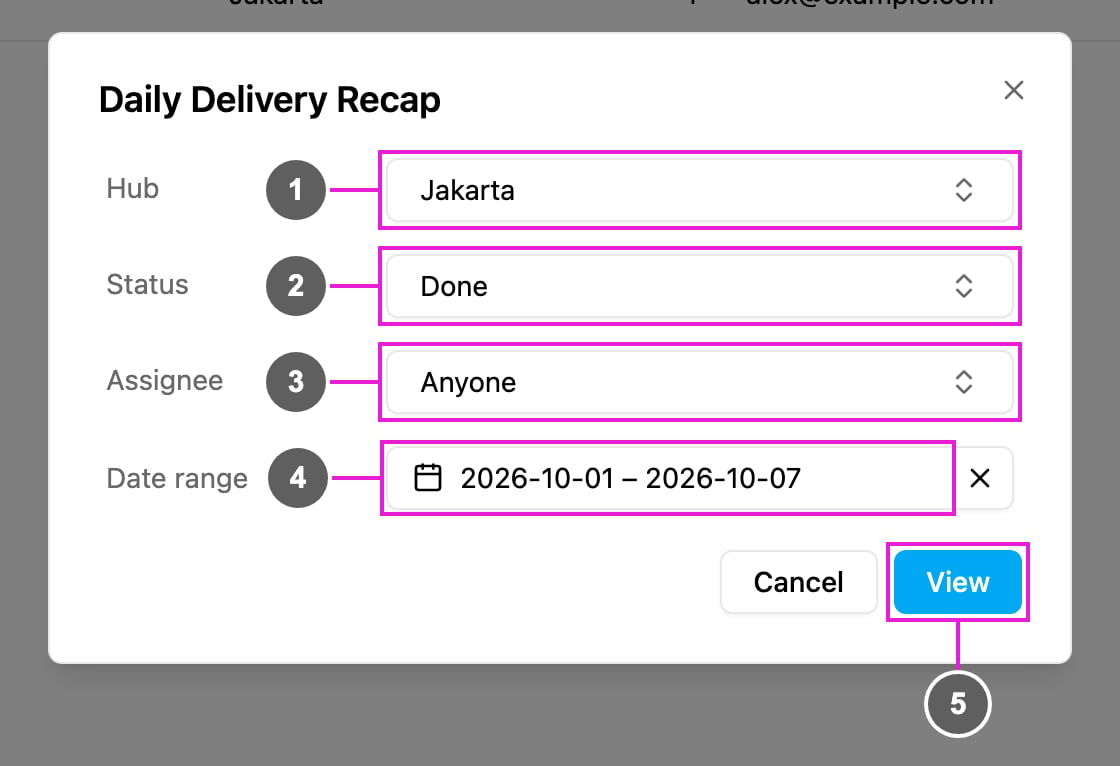
- Hub: the hubs to include in this run. It starts with the report’s hubs.
- Status: the statuses to include. It starts with the report’s default status.
- Assignee: the people to include. Anyone includes every task.
- Date range: the days to include. It starts with the report’s default range (daily, weekly or monthly, ending today). Tasks are filtered by start time, up to 31 days. Click × to clear the range and pick another.
- View (or Export): run the report with these filters.
View a report
After View, the report opens on its own page.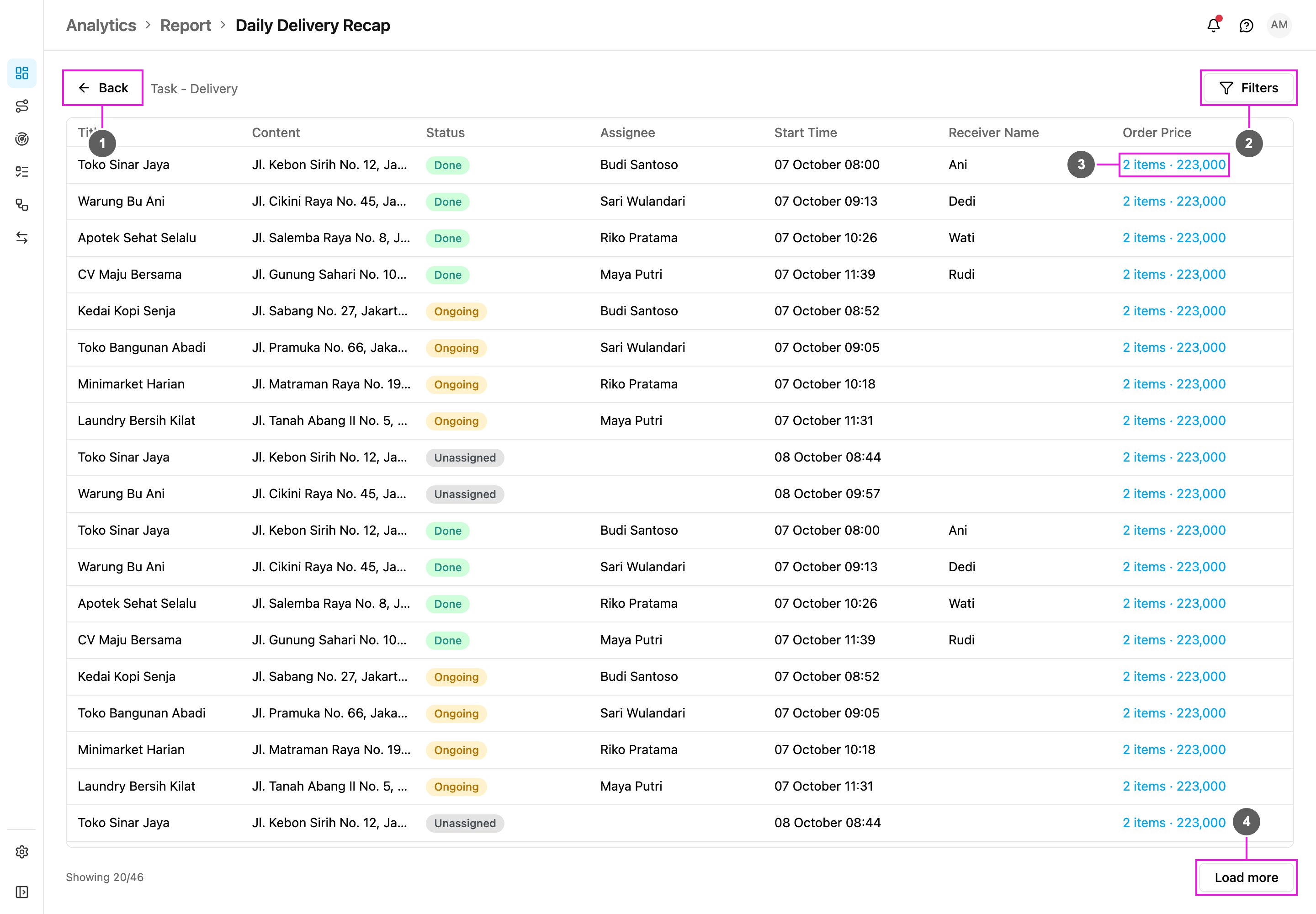
- Back: return to the report list.
- Filters (task reports only): open the same dialog to change the hub, status, assignee or date range. The rows reload when you click View.
- Bill and list cells: click the summary to open the full answer.
- Load more: load the next 100 rows. Showing 20/46 under the table tells you how many rows are loaded out of the total.
Bill and list details
Click a bill or list cell to open its details in a side panel. A bill shows every item with its quantity and price, then its cost items. A list shows every item and whether it was checked.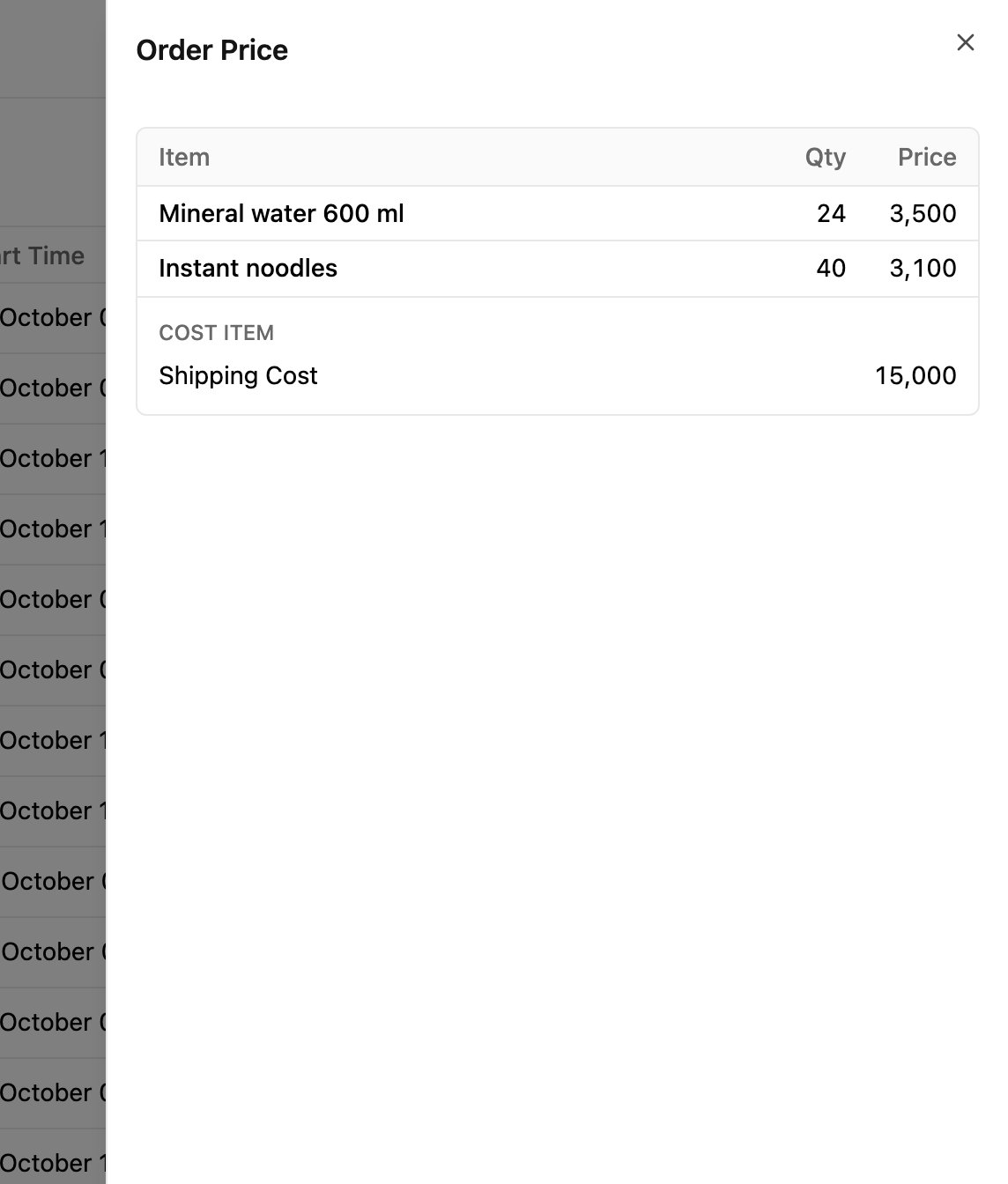
Export a report
- Click ⋯ on the report, then Export.
- For a task report, check the filters in the dialog and click Export. A data report starts its export right away.
- The app says Export data is currently being processed, with a link View its status on Data Export.