

Geofence is still rolling out and is only turned on for selected organizations. If yours is not included, the Geofence menu doesn’t appear. Contact support to have your organization included.
The geofence list
Open Settings › Geofence.Required permission:
- View geofence
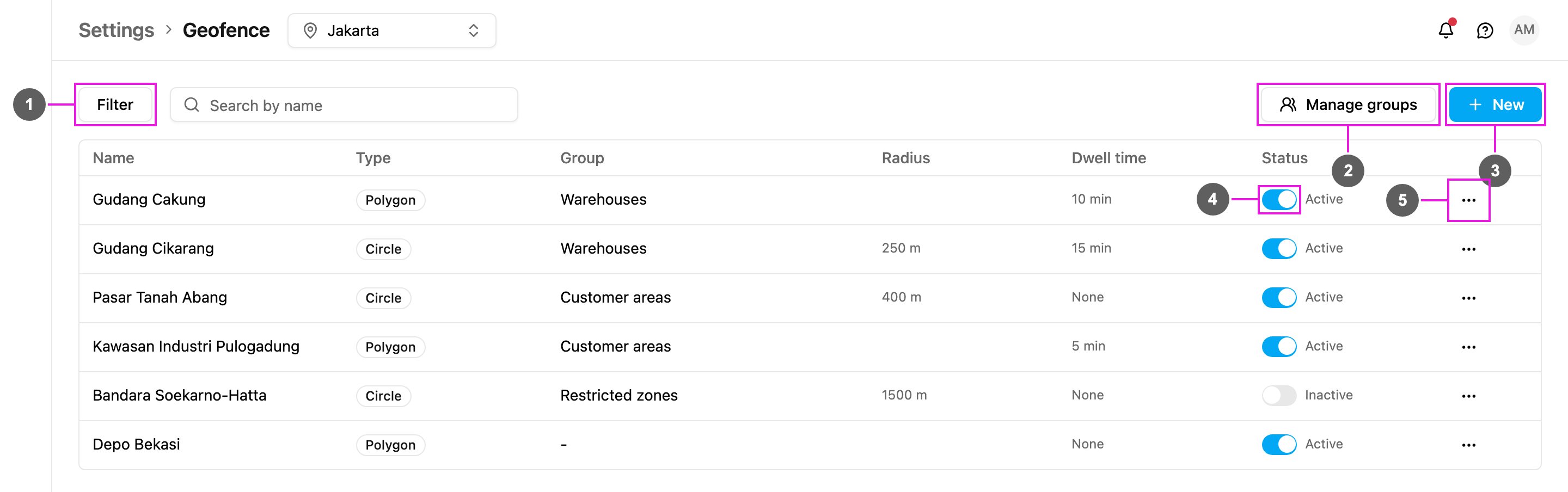
- Filter: show only geofences of one Group (or Ungrouped) and one Type (Polygon or Circle). Each active filter appears as a chip you can remove; Reset all clears them. Next to it, Search by name finds a geofence by its name.
- Manage groups: create, rename and delete geofence groups.
- New: draw a new geofence.
- Status switch: turn a geofence on or off straight from the list.
- Geofence actions: Edit or Delete the geofence.
The count above the table shows how many geofences there are, or how many match your filters.
Manage groups
Required permission:
- View geofence
- Create geofence, Edit geofence or Delete geofence
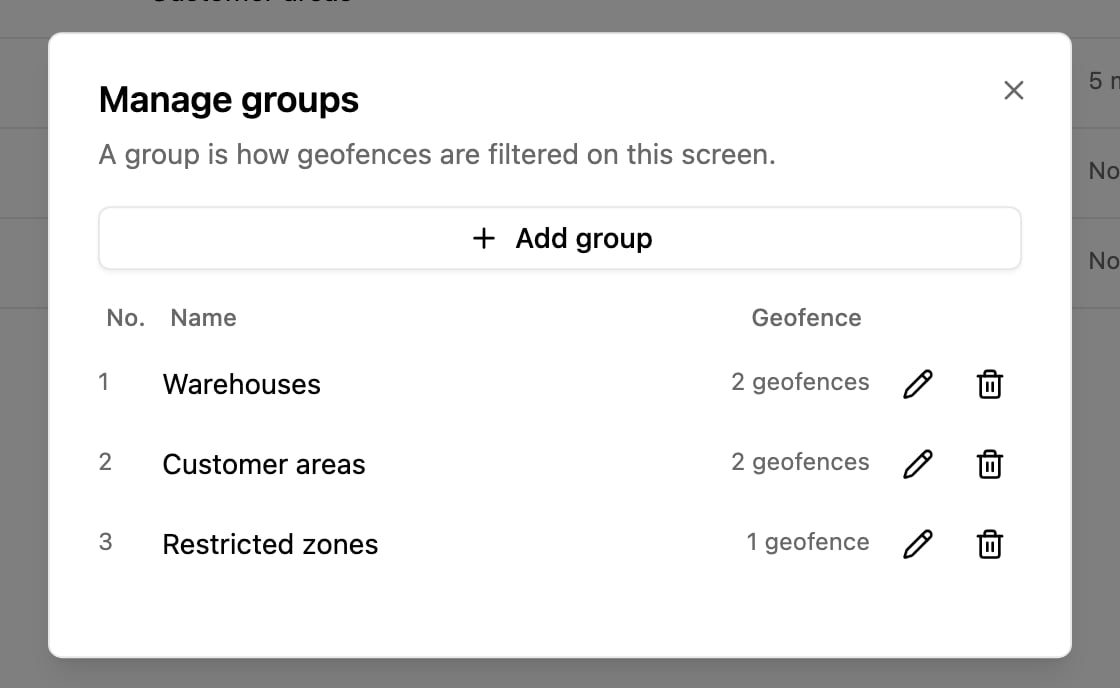
- Add group: write the Group name and save it.
- Pencil: rename the group.
- Trash can: delete the group, then confirm. This cannot be undone.
Draw a geofence
Required permission:
- View geofence
- Create geofence
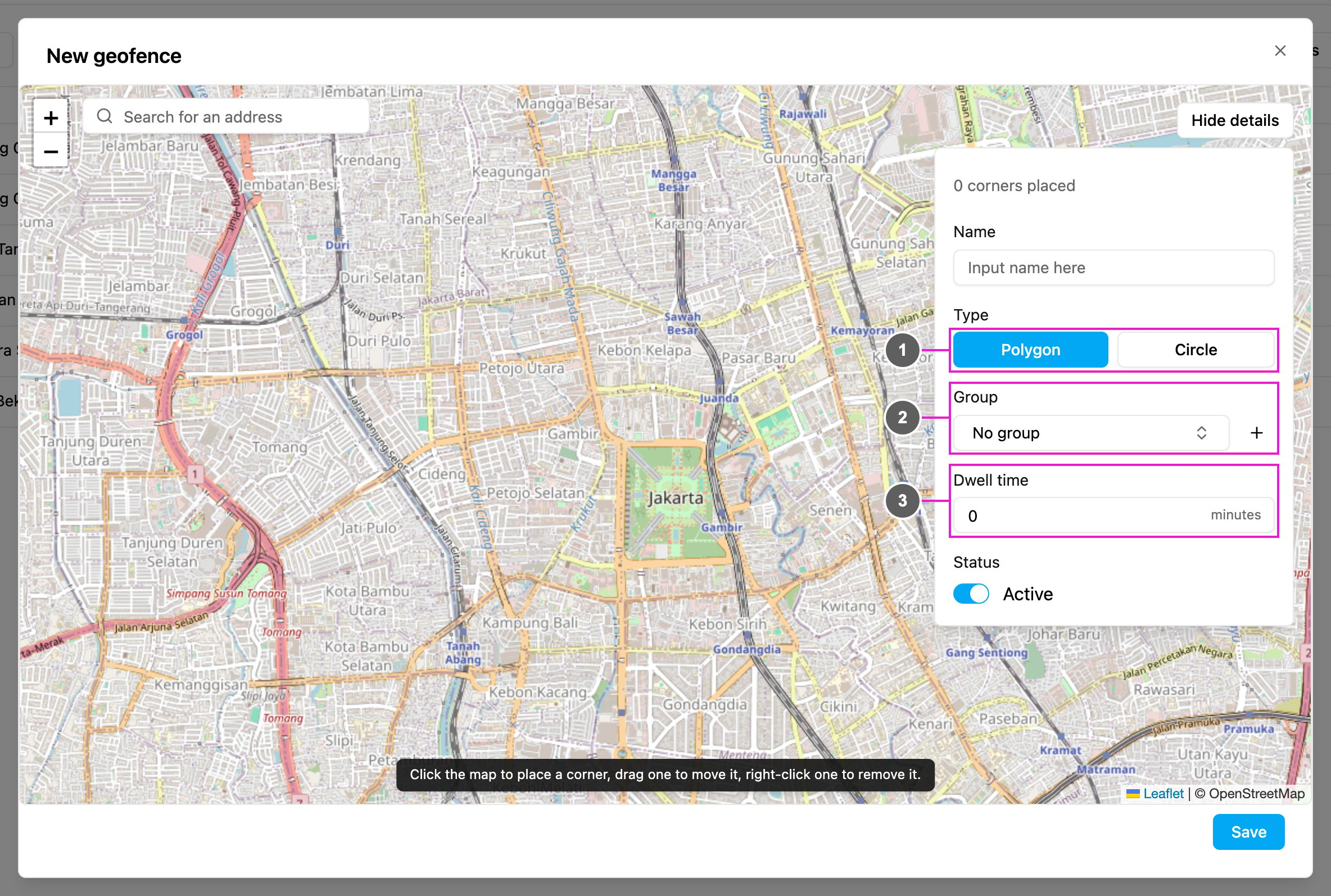
- Type: choose the shape.
- Polygon: click the map to place each corner, drag a corner to move it, and right-click a corner to remove it. Place at least three corners. A corner that would cross an edge you already drew is refused. Undo removes the last corner and Start over clears the shape. The panel counts the corners placed.
- Circle: click the map or drag the pin to move the centre, and set the Radius in meters beside it. The radius must be more than zero. A new circle is sized to fit the map you’re looking at, and picking an address from the search moves the circle there. Switching between Polygon and Circle keeps the map where it is.
- Group: the geofence group it belongs to, or No group. Click + to create a group here.
- Dwell time: how many minutes a worker must stay inside before it counts. 0 means on entry. It must be a whole number between 0 and 1440.
Edit a geofence
Required permission:
- View geofence
- Edit geofence
Delete a geofence
Required permission:
- View geofence
- Delete geofence
Related
- Alert Setting: turn the Geofence alert and its notification on or off.
- Alert: see the geofence alerts that were raised.
- Tracking: show geofences on the tracking map.