

Required permission:
- View automation
- Create automation
- View geofence
Availability
Geofence is still rolling out and is only turned on for selected organizations. If yours is not included, the geofence menus don’t appear and On Geofence Entry is not offered in the Event list. Contact support to have your organization included.Constraints
- Webhook only. Webhook is the only automation type this event allows.
- A geofence group is required. The automation watches exactly one Geofence Group. It runs only for geofences in that group, so different groups can feed different systems. One automation can’t watch more than one group.
- No rules. The geofence group is the automation’s only scope.
When it runs
- The field app reports a GPS position.
- The position is checked against your active geofences.
- If the worker has just entered a geofence, they are recorded as inside and the dwell clock starts.
- Once the worker has been inside for at least the geofence’s dwell time, the entry runs and the webhook is sent.
Set it up
- In Geofence, draw the geofences to watch, put them in a geofence group, set each one’s dwell time and make sure they’re active. Inactive geofences are ignored.
- On Workflow › Automation, click New.
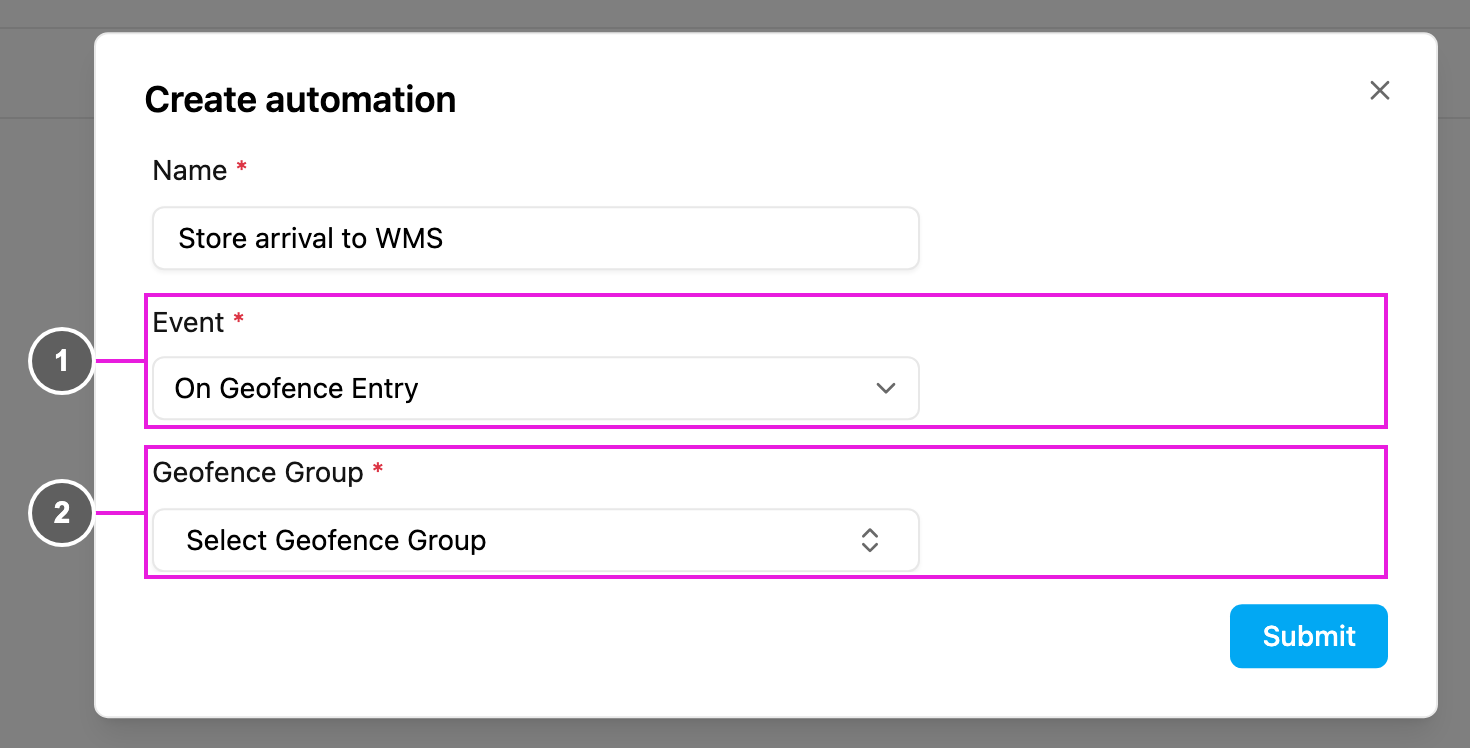
- Event: On Geofence Entry.
- Geofence Group: required. The group to watch.
https://api.example.com/webhook/geofence-entry) and an Authorization header if your endpoint needs one, and click Submit. Test it by having a field worker enter a geofence of the group and stay for the dwell time.
Webhook payload
The request body is the location record with the geofence details added:Geofence fields
Location fields
Your endpoint must answer with HTTP 200, for example
{ "status": "received" }.
Tracking markers
When an entry matches one of your automations, a marker is also added to the worker’s tracking timeline on the Tracking page, so the crossing is visible in the web app. Markers appear only when an automation matched: geofences without an On Geofence Entry automation on their group show no markers.Troubleshooting
The event never runs.- Check that the automation and the geofence are both active.
- The worker may not have stayed for the dwell time. Lower it and test again; a drive-through doesn’t count.
- The worker was already inside, so the entry was already sent. They must leave completely and come back.
- Check that the geofence is in the group chosen on the automation.
- Your organization may not be in the geofence rollout.
Questions
Can one automation watch several geofence groups? No. Create one automation per group. Does the worker need a task? No. The event comes from the GPS position;taskId is null when no task is in progress.
Can I use Create Task or Notification with this event? No. Webhook is the only automation type allowed.