

Required permission:
- View flow
- Create flow
Create a task type from a template
- Open Workflow › Task Type.
- Click the arrow beside New and choose From a template.
- Pick a template, check the name and click Create.
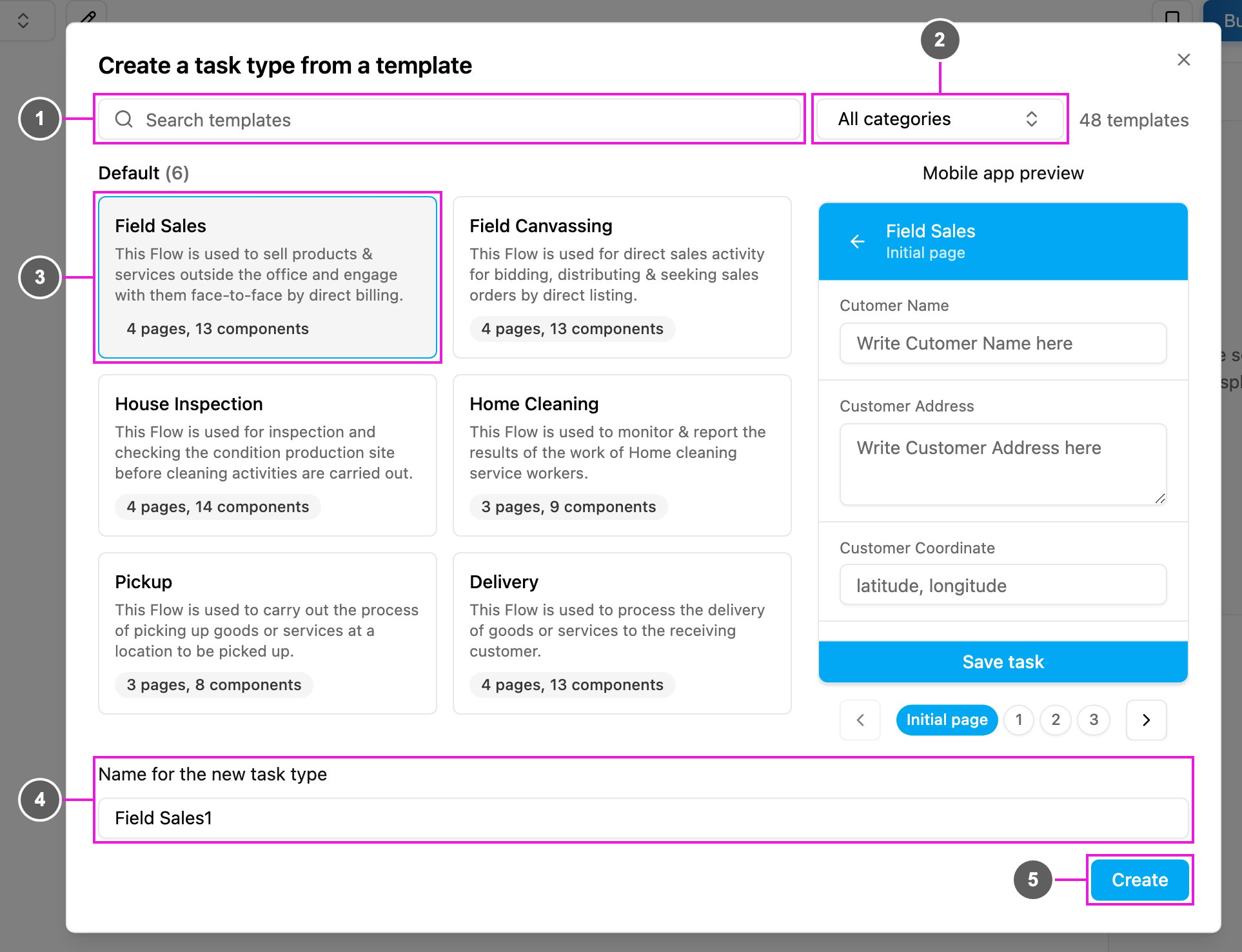
- Search templates: find a template by its name or description.
- Category: show the templates of one category, such as Default, Retail or Transport and Logistics, or All categories. The count beside it shows how many templates are listed.
- Template card: the template’s name, what it is for, and how many pages and components it has. Click a card to pick it. Hover over a card to see it in the Mobile app preview on the right, and use the page buttons under the preview to look through its pages.
- Name for the new task type: filled in from the template’s name with a number added, such as Field Sales1. Change it if you like. The name rules apply.
- Create: create the task type and open it in the builder.
Default templates
The Default category holds the six task types most field teams start with. New organizations also get them as ready-to-use task types when they sign up.Pickup
Picks up goods from a location. The courier opens the task, goes to the requester, takes proof of pickup and closes the task.- Initial page: Requester Name, Requester Address, Pickup Coordinate.
- Page 1: a read-only summary of the requester for the courier.
- Page 2: Pickup Picture (photo) and Signature.
Delivery
Delivers goods to a customer, including cash-on-delivery payment and proof of delivery. Supports both a Success and a Failed delivery, with fields that appear only when needed.- Initial page: Customer Name, Customer Address, Customer Coordinate and Order Price (a Bill with items and costs).
- Page 1: Confirm Payment (COD or NON COD) and Delivery Status (Success or Failed). If Failed, a Reason field appears.
- Page 2: the final Order Price (Bill).
- Page 3: Receiver Name, Proof Of Delivery (photo) and Signature.
Field Sales
For sales agents who visit customers and sell on the spot, with billing and payment captured during the visit.- Initial page: Customer Name, Address, Coordinate and Bill Item (products and prices).
- Page 1: Sales Status (Success to Buy or Failed to Buy), which decides the next pages.
- Page 2: Bill Item, to confirm the quantity and price.
- Page 3: Payment Method (Cash, Credit Card, QRIS and so on), Proof of Sales (photo), Signature and an optional Note.
Field Canvassing
For agents who visit prospects to take orders and survey demand. Like Field Sales, but built around an item List instead of a Bill, so it suits order-taking without payment on the spot.- Initial page: Customer Name, Address, Coordinate and List Item (a quantity per item).
- Page 1: Status Canvassing (Success to Order or Failed to Order).
- Page 2: List Item, to confirm the order.
- Page 3: Payment Method, Proof of Canvassing (photo), Signature and an optional Note.
Home Cleaning
For home or office cleaning crews, to record what was done and where.- Initial page: Customer Name, Customer Address, Customer Coordinate.
- Page 1: read-only customer details and an Additional Service choice (Air Freshener, Disinfectant, Deep Cleaning and so on).
- Page 2: Room Photo (after cleaning) and Signature.
House Inspection
Inspects a property before a cleaning or service job, capturing the area, the number of floors and photos of the condition so the team can plan the work.- Initial page: Customer Name, Address, Coordinate.
- Page 1: read-only customer details.
- Page 2: Building Area (m²), Number of Floors, Area Cleaning option and Current Building Conditions (photos).
- Page 3: Total Workers, Tools Used (multiple choice), Signature and an optional Note.