

Required permission:
- View flow
- Edit flow
Builder layout
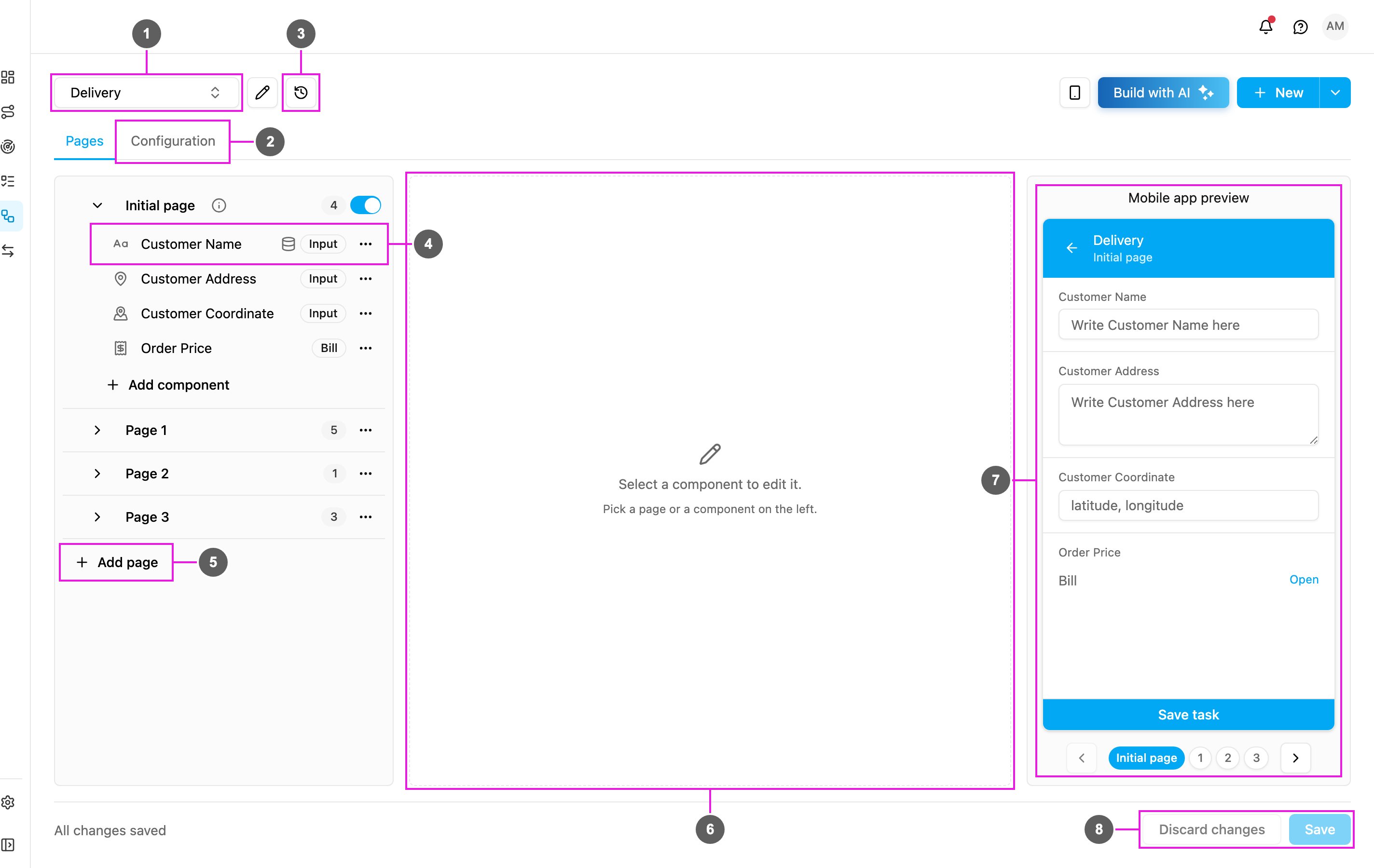
- Task type picker: the task type that is open. Pick another one to switch. The pencil next to it opens the Task Type Manager.
- Pages / Configuration tabs: Pages is where you build the screens. Configuration connects the task type to the task list, routing, task times and the API. See Configuration.
- History: every saved version of the task type, with what changed. See Version History.
- Page list: the Initial page at the top, then the field app pages. Each page lists its components; click one to edit it. See Pages.
- Add page: add a field app page at the end of the list.
- Component properties: the settings of the page or component you clicked. When nothing is selected it says Select a component to edit it.
- Mobile app preview: the open page as it looks on the field app. It updates as you edit. The phone button at the top right hides or shows it. See Mobile App Preview.
- Discard changes / Save: Save stores every change; Discard changes goes back to the last saved version. Both are disabled until you change something. The text on the left says Unsaved changes or All changes saved.
Pages
A task type is made of pages, and each page is one screen on the field app.- Initial page: always at the top and cannot be deleted, renamed or moved. It is shown when a task is created, on the web app and on the field app, and holds what the person creating the task already knows, such as the customer’s name and address.
- Field app pages (Page 1, Page 2, …): the screens the field worker goes through while doing the task. Add as many as you need with Add page, rename them, and drag them into order.
Components
Components are the building blocks of a page. Click Add component at the bottom of a page, pick the type, then set it up in the properties panel.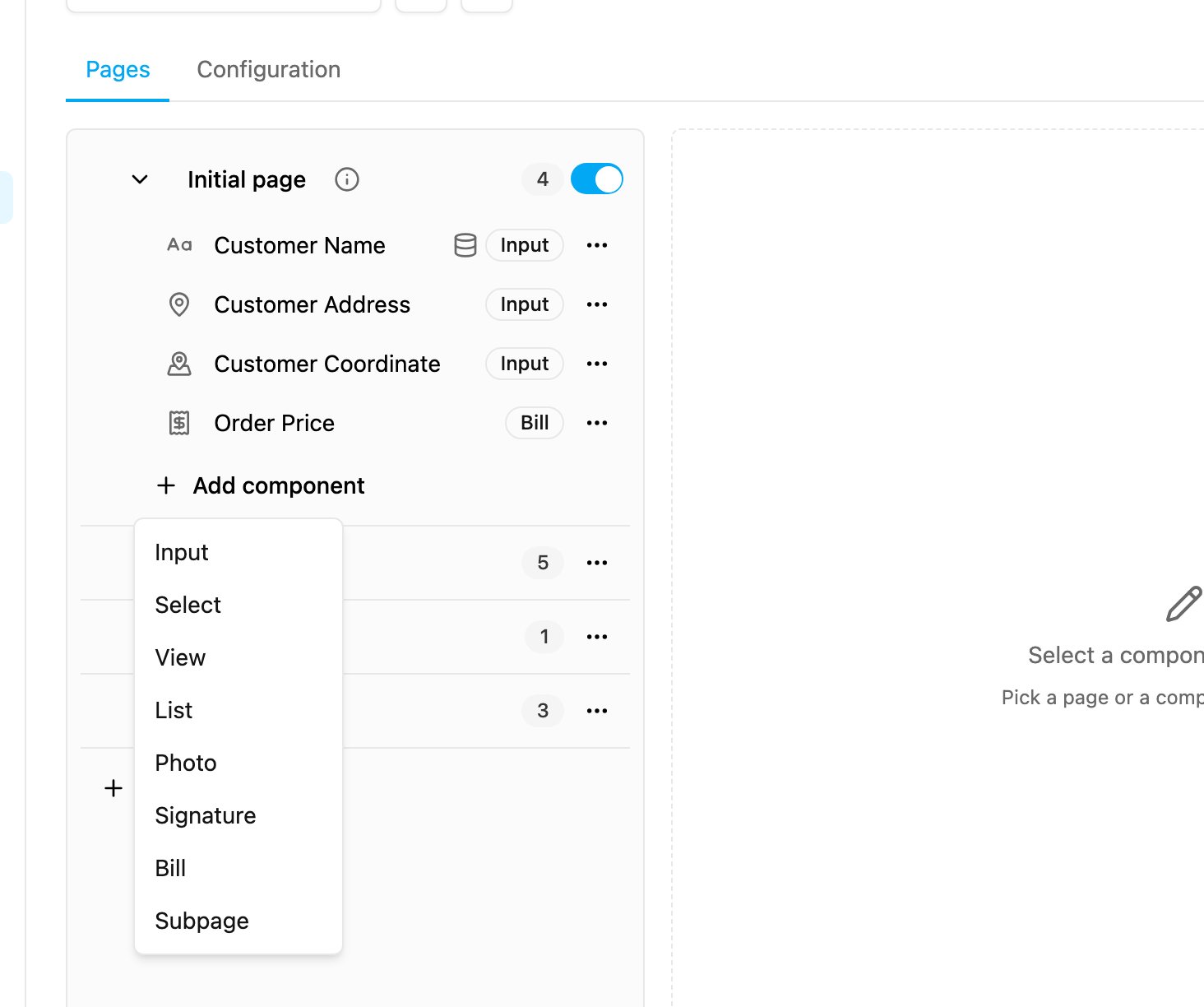
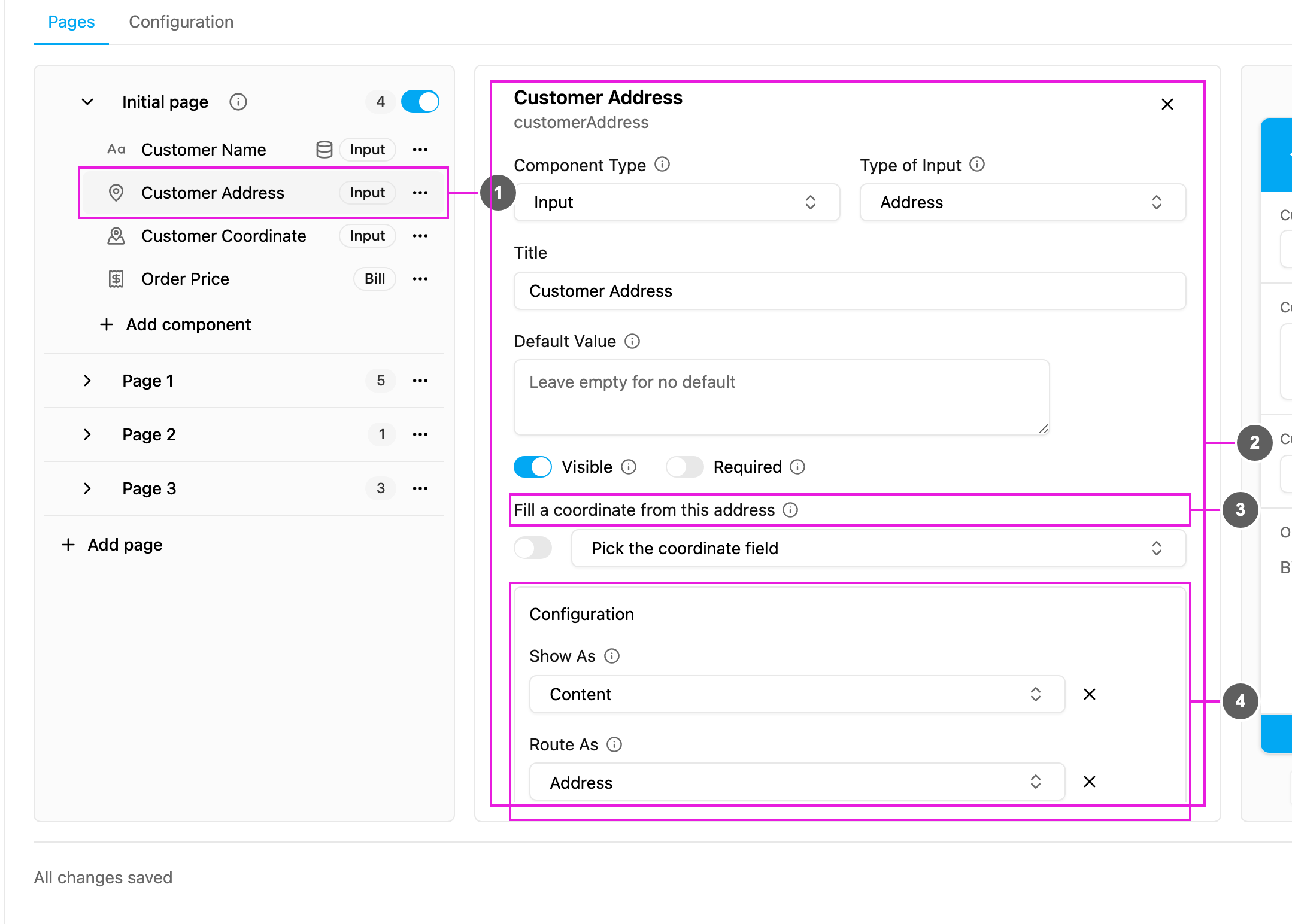
- Selected component: highlighted in the page list. Drag its handle, or use the arrow keys on it, to move it within the page.
- Basic settings: Component Type, its type (here Type of Input), Title, Default Value, and the Visible and Required switches. Every component type has its own set; see Components.
- Type-specific settings: settings that only this type has, such as filling a coordinate from an address.
- Configuration: Show As puts the component’s value on the task list, and Route As sends it to routing. You can set the same from the Configuration tab.
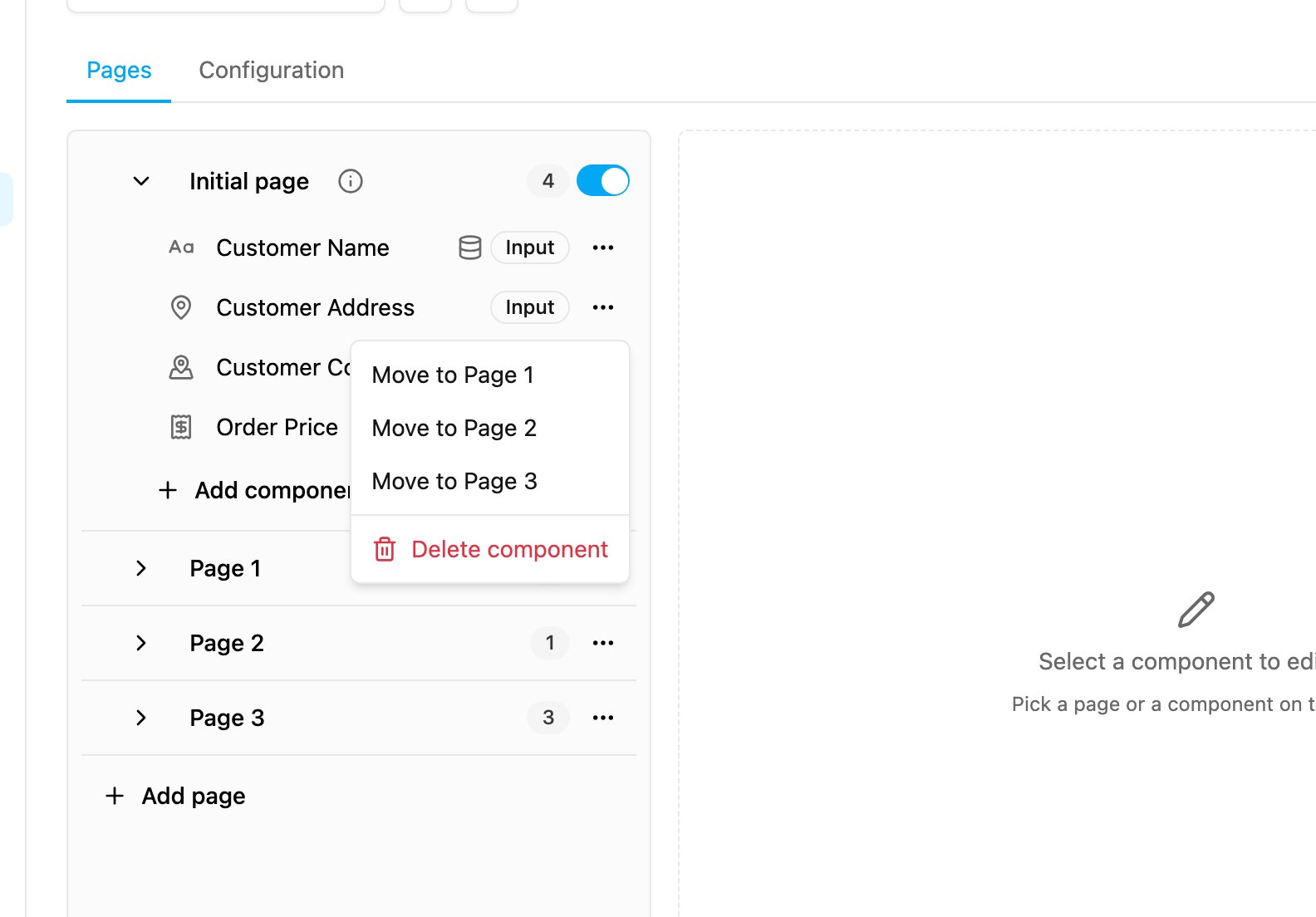
- Move to Page …: move the component to another page. A component that only field app pages can hold, such as a Timer, cannot be moved to the Initial page; the app tells you if a move is not allowed.
- Delete component: remove it when you save.
Before you save
When you click Save, the app checks the task type. A page with a problem shows a warning icon (Please re-check the components on this page before saving the task type), and the component that needs fixing is marked. Two settings get a reminder if they are empty, because tasks still work without them but look incomplete:- Task Title Mapping Not Configured: no component is set as the task list Title, so task titles may be blank.
- Routing Address Mapping Not Configured: no component is set as the route Address, so routing visits will have no address.