

Required permission:
- View result
- Edit result (move visits, switch vehicles, change assignees, rename, restore)
- Delete result
- Dispatch result
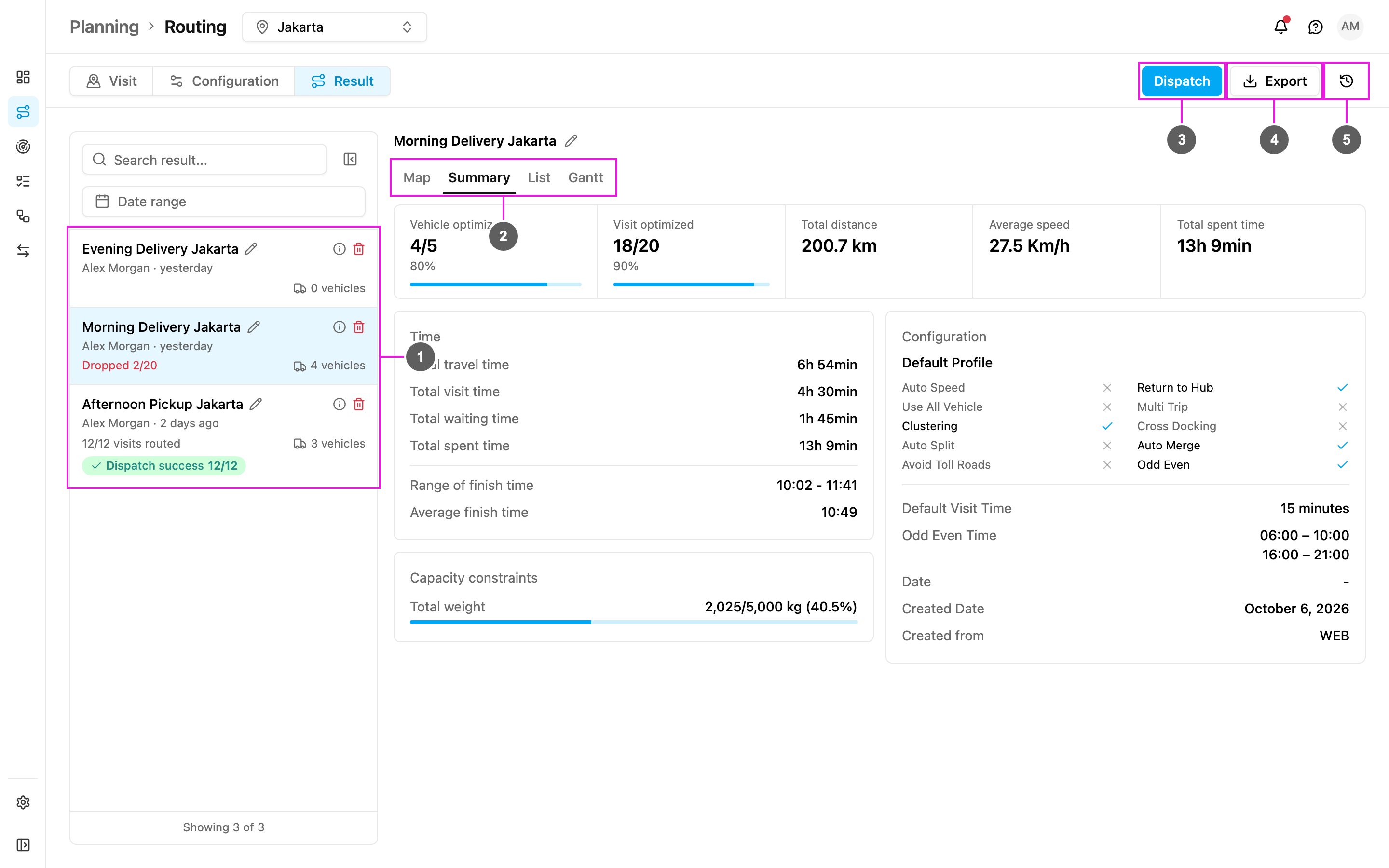
- Result list: every optimization adds a new result at the top. Each card shows the result name, who created it and when, how many vehicles it uses and its status. See Search, Filter, Delete.
- Views: look at the open result as Map, Summary, List or Gantt.
- Dispatch: send the result to your field users as tasks. See Dispatch.
- Export: download the result as an Excel file.
- History: see the changes made to this result and restore an earlier version. See History.
Views
Map
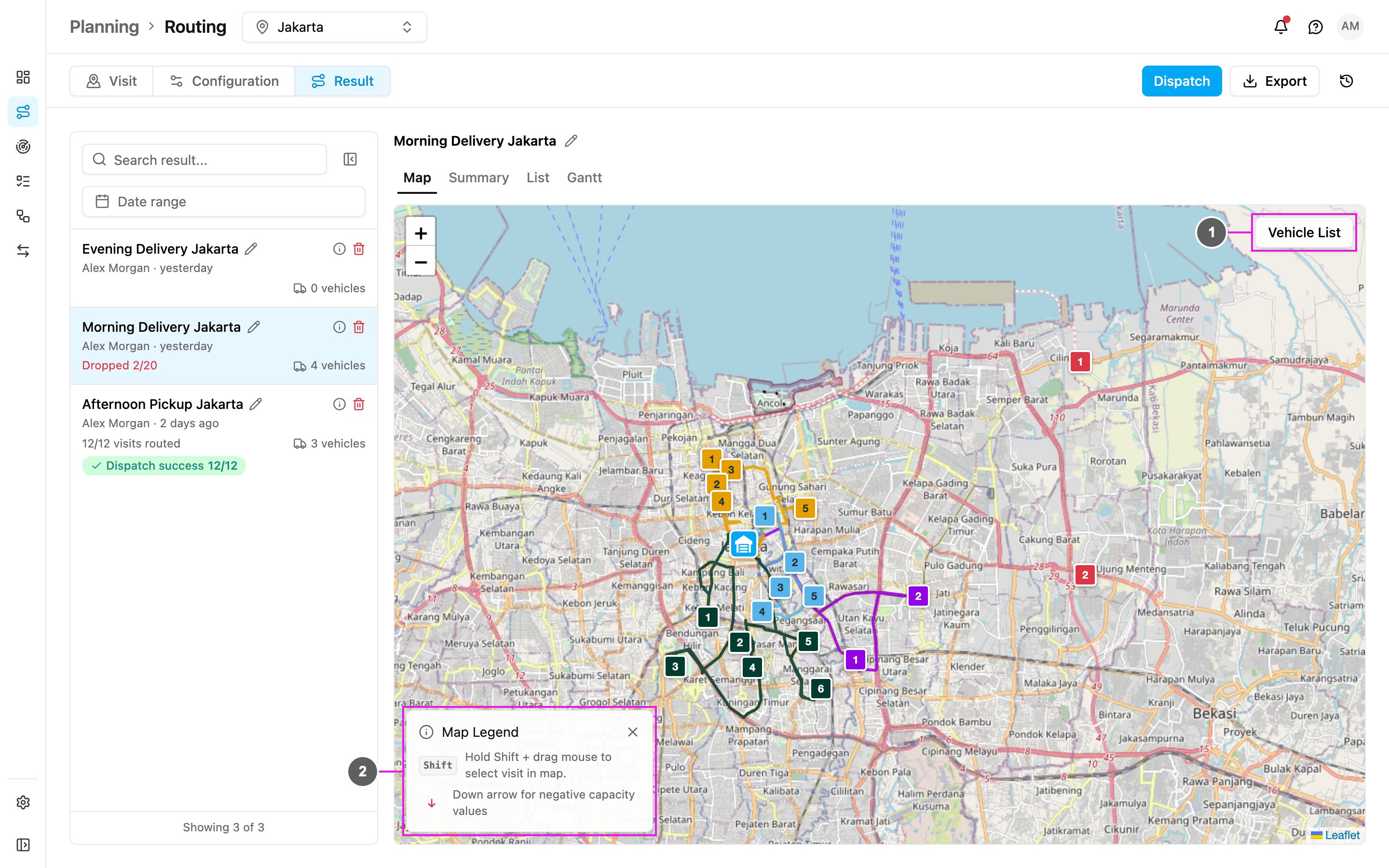
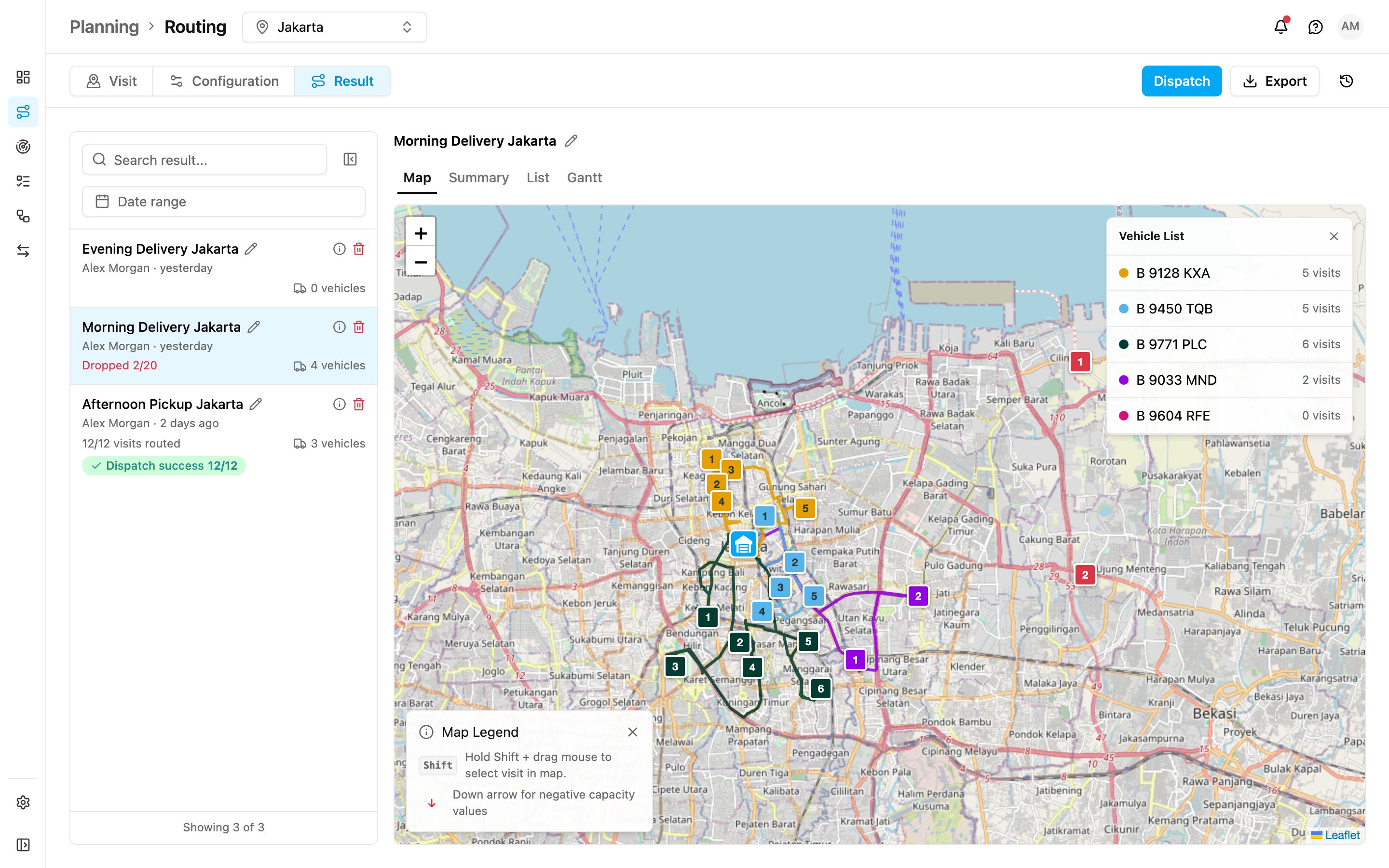
- Vehicle List: open the list of vehicles with the number of visits of each. Click a vehicle to show only its route.
- Map Legend: Hold Shift + drag mouse to select visit in map (to move several visits at once, see Editing), and Down arrow for negative capacity values.
Gantt
The Gantt view shows every vehicle’s visits as blocks on a timeline, so you see at a glance when each vehicle works and how the work is shared.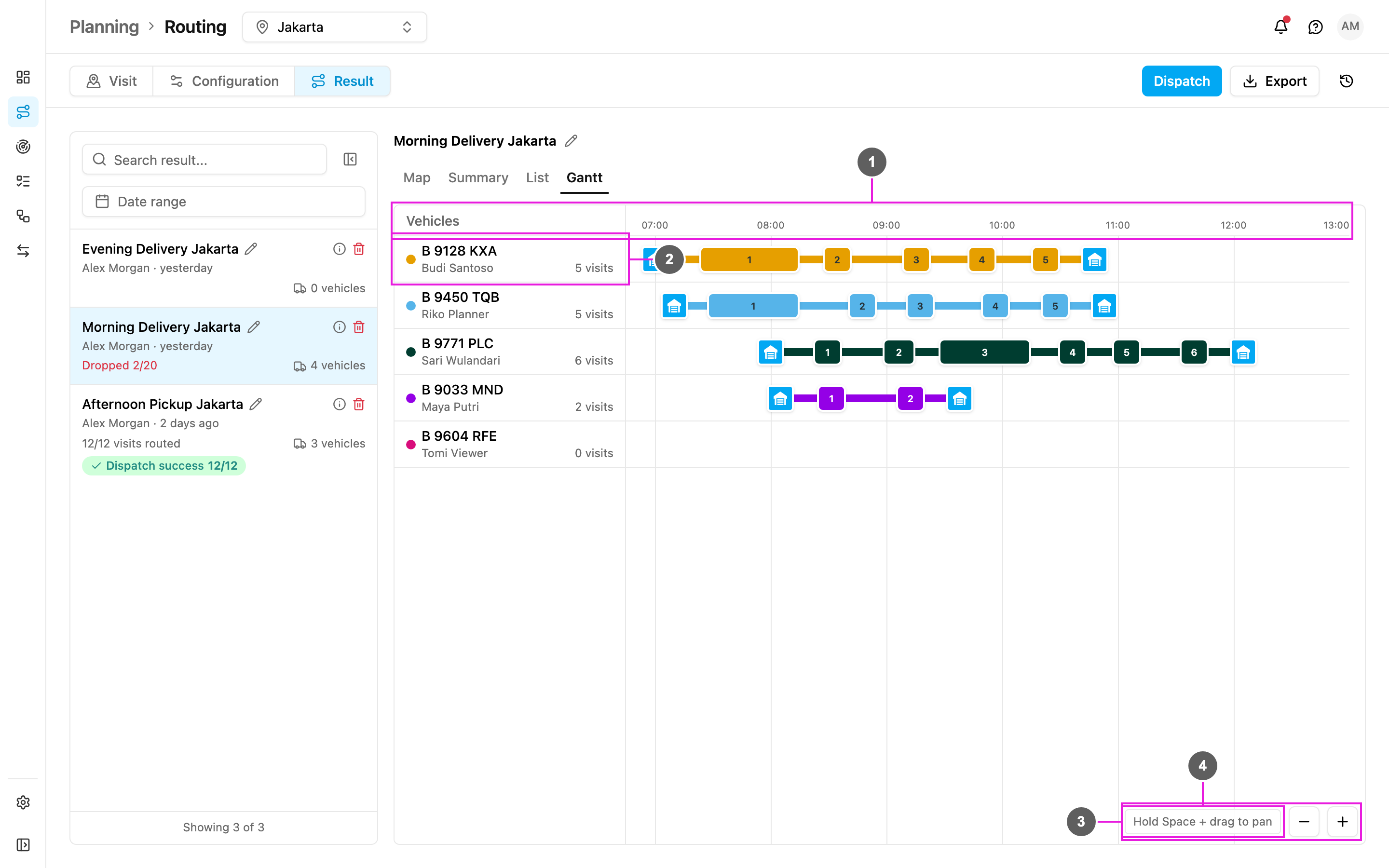
- Timeline: the hours of the day. Multi-day routes show Day 1, Day 2 and so on.
- Vehicles: each row is a vehicle, with its assignee and its number of visits under the name, the same way as in the List view. The hub icon marks the start and the return to the hub; each numbered block is a visit, as long as the visit time.
- Hold Space + drag to pan: hold the Space key and drag to scroll the timeline sideways.
- Zoom out / Zoom in: the - and + buttons change the scale.
History
Click History to see every change made to the result, newest first, for example v.3 moved, with who made it and when.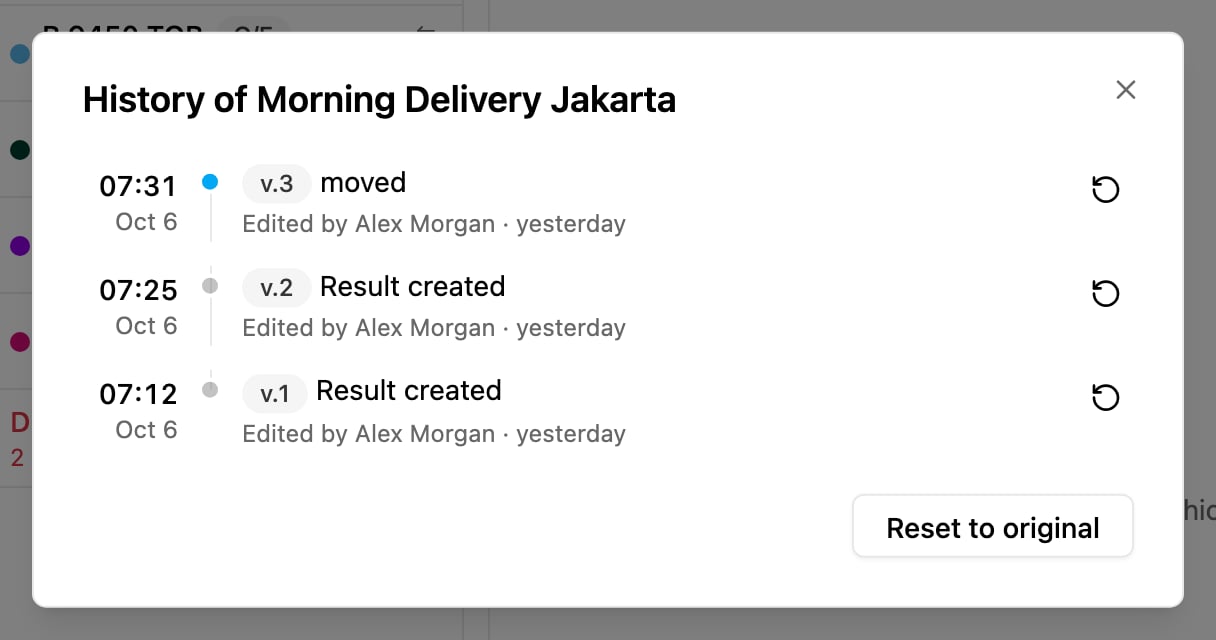
- Restore: click the restore icon on a version and confirm Restore this version?. The result goes back to that version. Later edits stay in the history.
- Reset to original: confirm Reset this result? to remove all edits and bring back the original optimization result. The reset also appears in the history.