

Required permission:
- View data source
- Edit data source to edit, Delete data source to delete
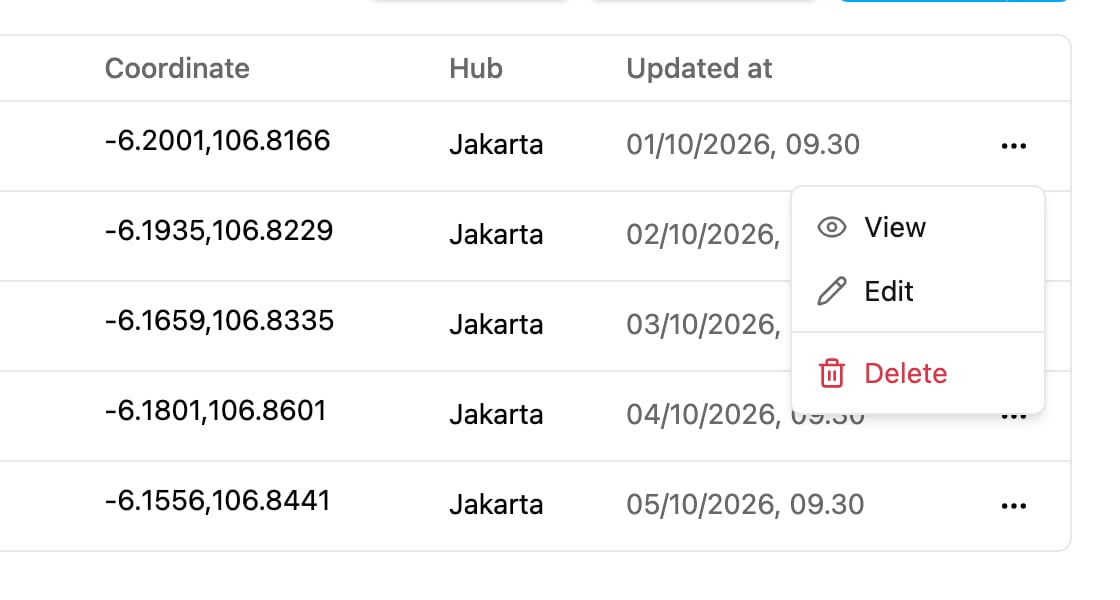
- View: open the record read-only.
- Edit: open the record in the Edit <data type> dialog.
- Delete: delete the record.
View a record
Click View. The View <data type> dialog shows every field of the record, including the ones that aren’t shown on the table.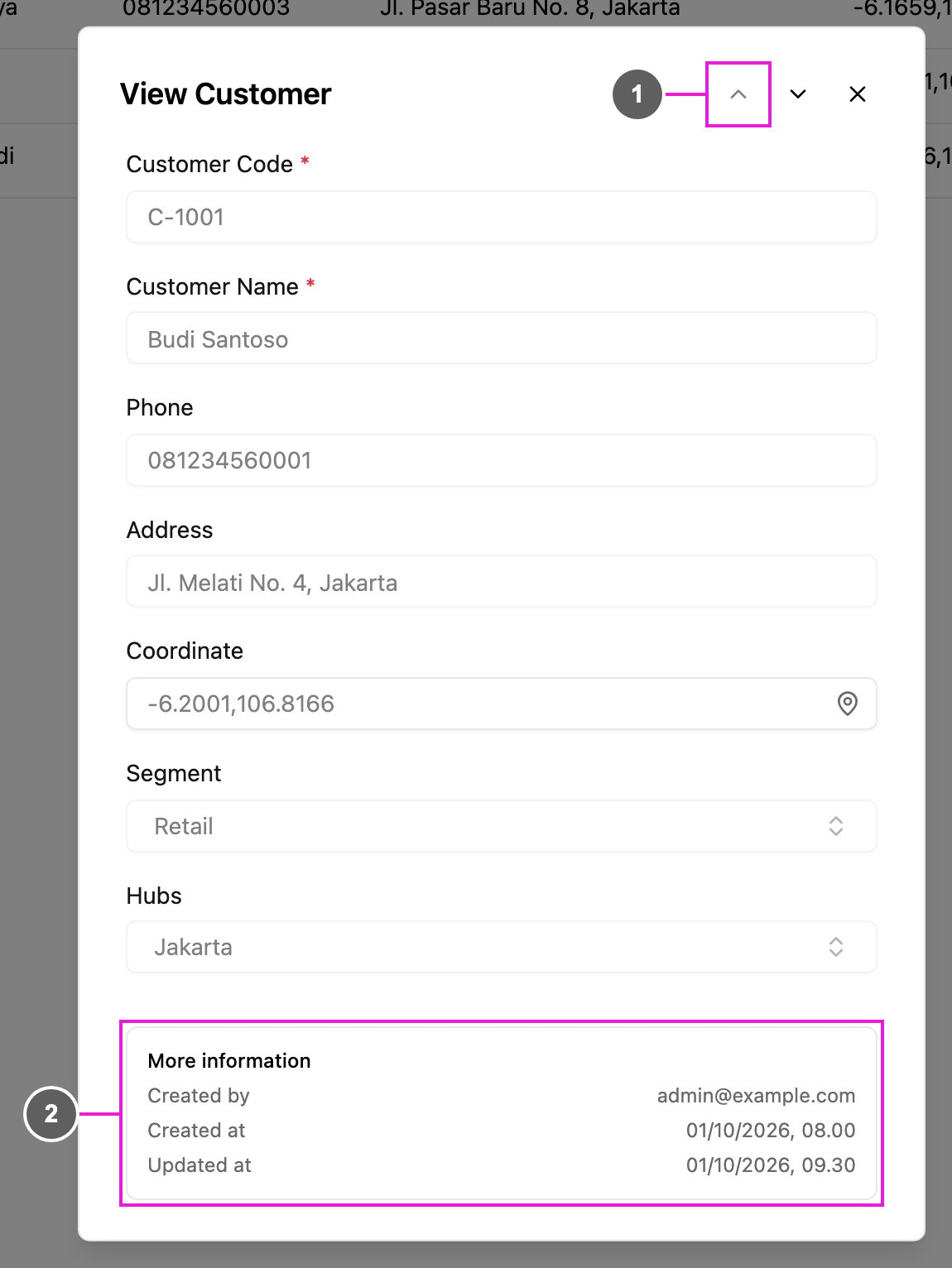
- Previous record and Next record: step through the records of the list without closing the dialog.
- More information: who created the record (Created by), and when it was created (Created at) and last changed (Updated at).
Edit a record
Click Edit, change the fields, and click Save. The web app says Record updated. The dialog is the same as when you add a record: the same fields, Hubs and Limit Data by User. If you close it with unsaved changes, the web app asks Discard unsaved changes?; click Discard or Keep editing.Edit a cell in the table
You can also change one value without opening the dialog. Click a cell in the table, type the new value, and press Enter or click elsewhere to save it. Press Escape to cancel. Multi option and Relation cells can only be changed in the Edit dialog. To change many records at once, upload them again with Bulk add and edit: rows whose Title matches an existing record update it.Delete a record
Click Delete in the record’s menu. The web app asks Delete this record?; click Delete. The record is removed permanently.Delete several records
Tick the records to delete. To select every record on the page, tick the box in the table header. The number selected shows above the table, for example 2 selected.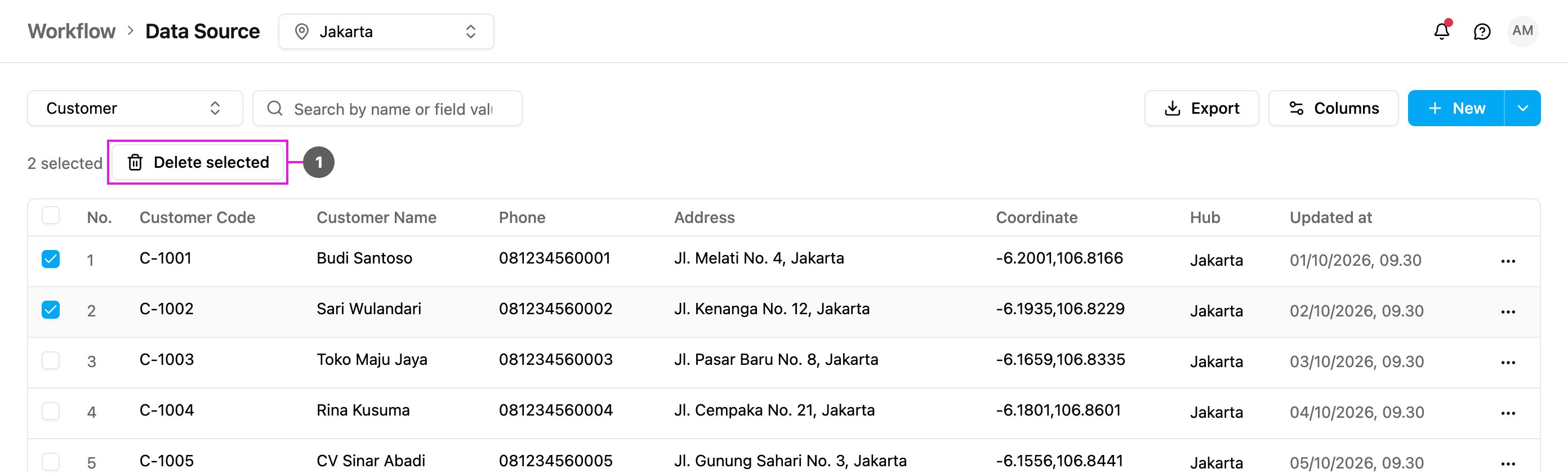
- Delete selected: the web app asks Delete 2 records? (with the number selected); click Delete.