

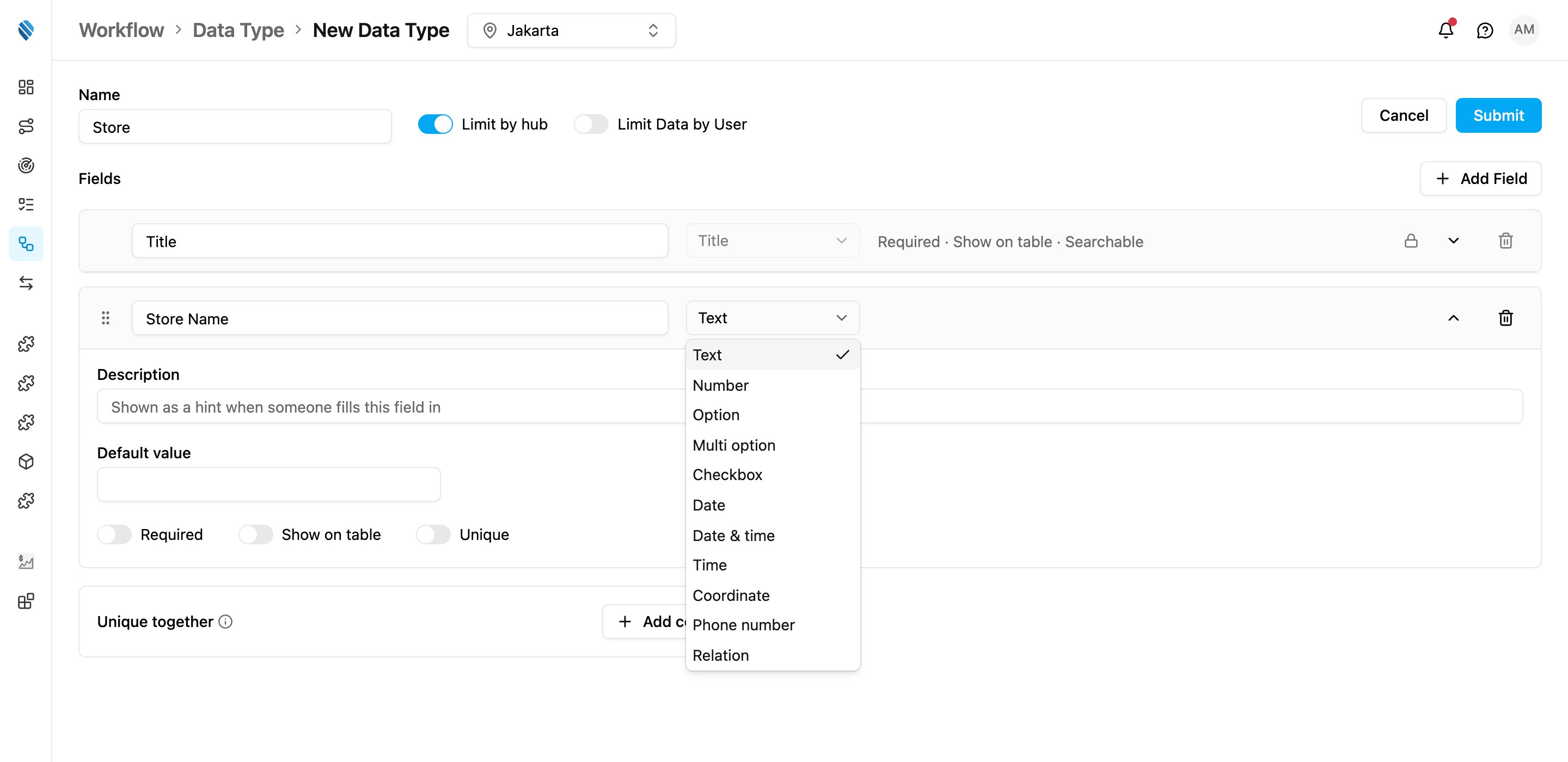
Options
For Option and Multi option, type each choice in Options and press Enter. A field needs at least one option. The same choice can’t be listed twice.Minimum and maximum
- For a Number, the lowest and highest value allowed, and the number of Decimal places.
- For a Multi option, how many choices must be picked at least and at most.
- For Date, Date & time and Time, the earliest and latest value allowed. Each bound is either A fixed value or another date field of the same data type, so an End Date can be required to be after the Start Date. Choose Same or later / Later only for the minimum, and Same or earlier / Earlier only for the maximum.
Relation
A Relation field links each record to another record.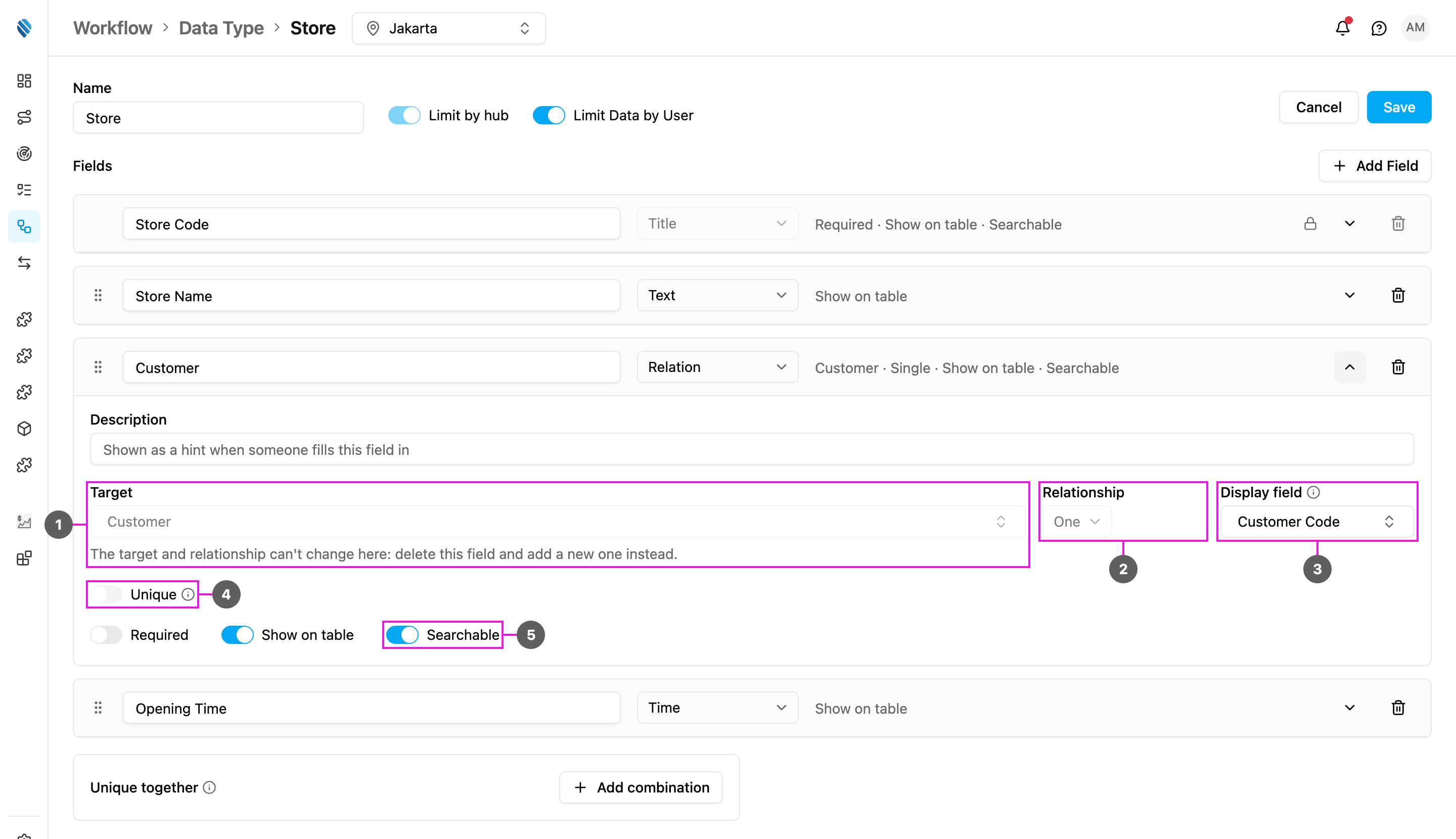
- Target: what the field links to. Choose another of your data types under Data source, or a User, Hub, Vehicle, Role or Task Type under MileApp data.
- Relationship: One links each record to a single target record; Many links it to several. The collapsed row shows this as Single or Multiple.
- Display field: for a link to another data type, which field of the target to show instead of its Title, for example the customer name instead of the customer code.
- Unique: for a One relationship, only one record may point at the same target, which makes the link one-to-one.
- Searchable: the Data Source search also matches the title of the linked record, so searching a customer’s name finds every store linked to that customer. Only Relation fields have this setting, and at most 5 per data type; once 5 are on, the switch on the others is greyed out.
Related records on the target
When another data type links to this one, a Related records box appears on this data type’s page, beside Unique together. It lists every field that points here, for example Store, via its “Customer” field. Turn one on to show the linked records on this data type’s records too: a customer then shows all of its stores. See Linked records.Range types from earlier versions, such as a number range or a date range, can’t be added to a new field.