Required permission:
- View data type
- Edit data type (to move a data type)
- Create data type (to copy a data type)
Open Import from V3
Open Workflow › Data Type and click Import from V3, next to New.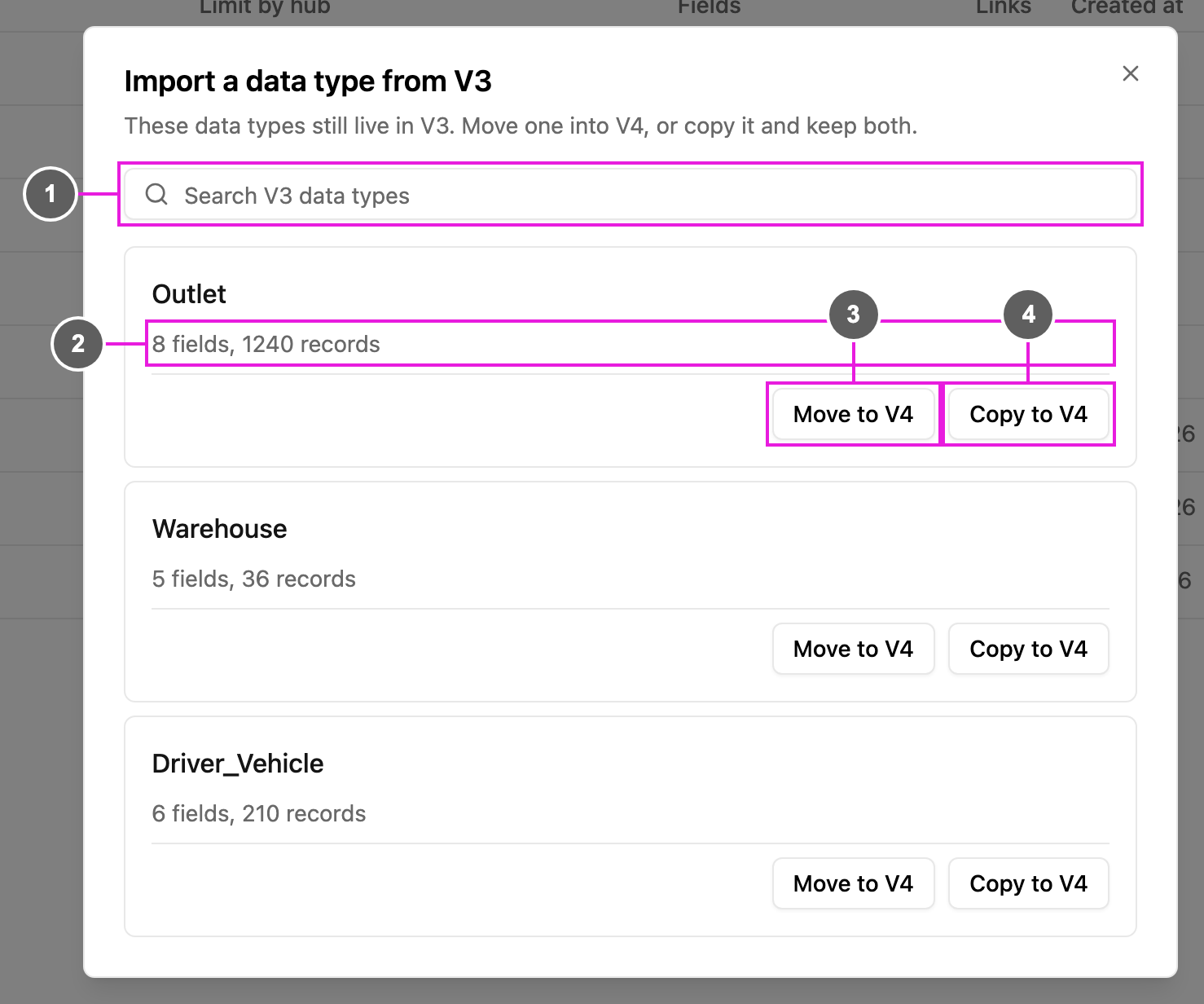
- Search V3 data types: find a V3 data type by name.
- Each V3 data type shows how many fields and records it has, for example 8 fields, 1240 records.
- Move to V4: move the data type into this version.
- Copy to V4: create a new data type here with the same fields, and keep the V3 one.
Move a data type
Move when the data type should live only in this version.- Click Move to V4 on the data type.
- The app asks Move … to V4?: the data type moves to this version, and V3 and the field app stop seeing it. Its records are prepared for search in the background, and the data type stays locked until that finishes.
- Click Move. The app says Moving ”…” to V4. Follow its progress on the Data Source page.
Copy a data type
Copy when V3 should keep working with its own data type.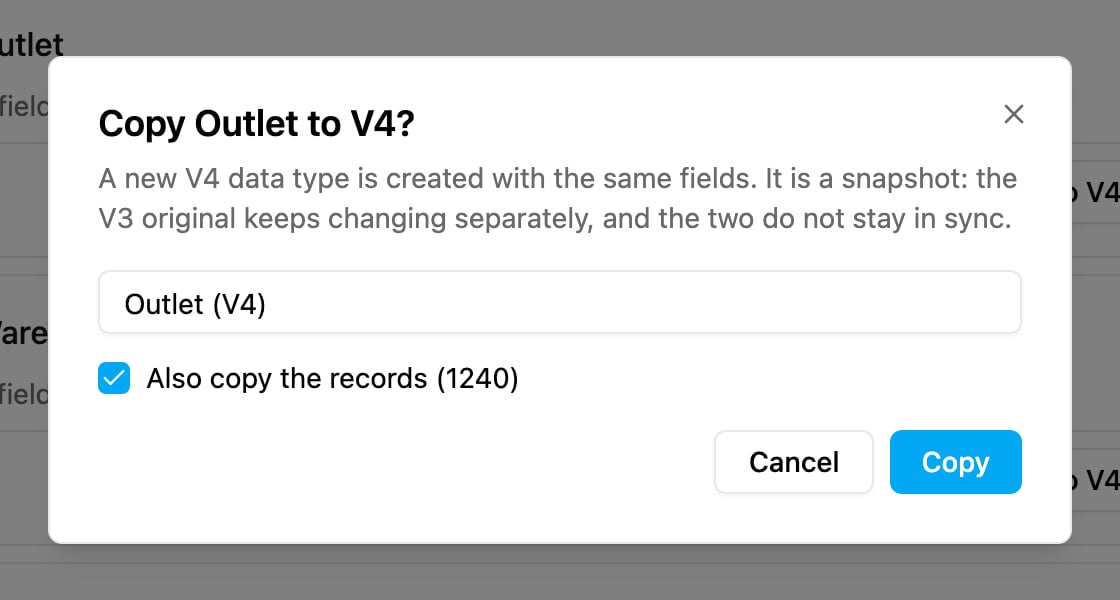
- Click Copy to V4 on the data type.
- Type the New data type name. It starts as the V3 name followed by (V4).
- Leave Also copy the records on to copy the records too. Turned off, the app asks Copy without records?: only the fields are copied and the records stay in V3.
- Click Copy. The app says Copying ”…” to V4. Follow its progress on the Data Source page.
While the data type is being prepared
A moved data type, or a copy with records, is prepared in the background before you can work with it.- On Workflow › Data Type, its row has a Preparing badge, and Edit and Delete are disabled: This data type is being prepared. It can be edited or deleted when it finishes.
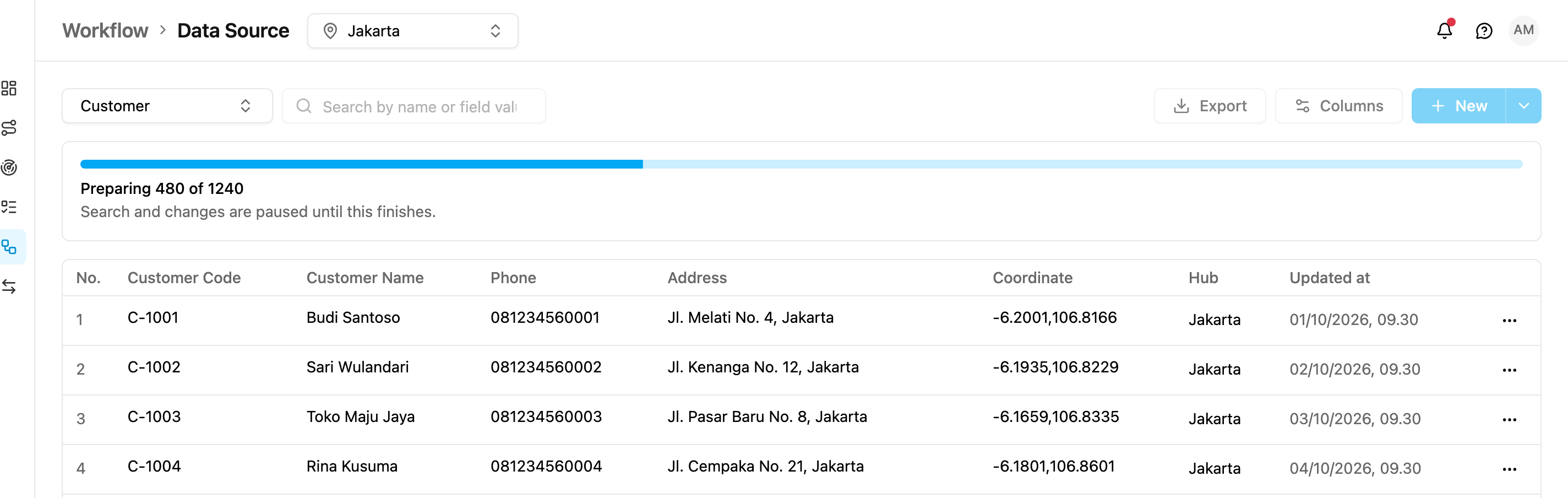
- On Workflow › Data Source, the records already show, with a progress bar such as Preparing 480 of 1240. Search, Export, Columns, New and every row action are disabled until it finishes: Search and changes are paused until this finishes.