

Required permission:
- View task
- Create task, Assign task, Move task, Edit task and Delete task, for the matching actions
Main tasks and subtasks
- Main task: the task created from a task type that has a Subflow component.
- Subtask: a task created automatically for every Subflow component of the main task’s task type.
- Field mapping: when the main task is created, its values are copied into the matching fields of each subtask, following the mapping set in the task type builder.
How subtasks are created
When you create a task from a task type with Subflow components:- The main task is created like any other task.
- For each Subflow component, a subtask is created from the task type the component points to.
- Mapped fields are copied from the main task into every subtask.
- Each subtask is linked to the main task, so you can see which tasks belong together.
- Subtasks take the main task’s assignee, hub, start time and end time. If the main task already has an assignee, the subtasks start as Ongoing.
Subtasks cannot be assigned, moved or scheduled on their own. Make these changes on the main task: they are applied to every subtask.
In the task list
A main task appears as a group: its task type, with the number of tasks below it. Click the arrow (Show the tasks in this group) to show the subtasks under it, and click again to hide them.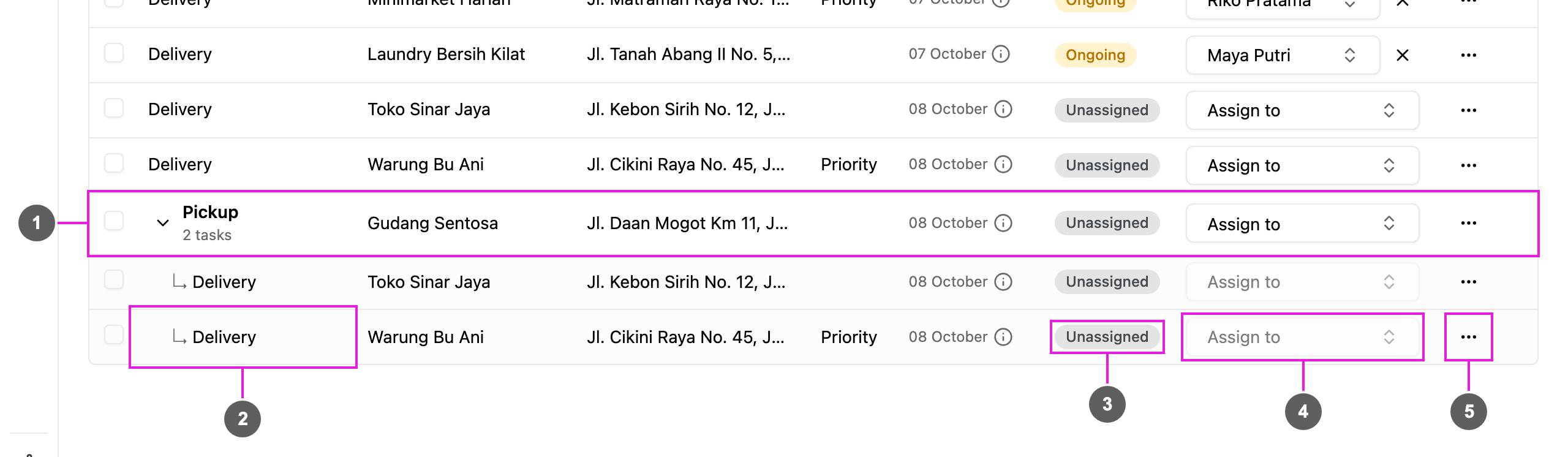
- Main task: the main task’s task type and the number of subtasks. Click the arrow to show or hide them. Ticking its box includes all its subtasks in any bulk action.
- Subtasks: each subtask with its own task type, shown under the main task with the ↳ marker.
- Status: each task’s own status.
- Assignee: locked on subtask rows; assign the main task instead.
- Task actions: the actions offered depend on whether the row is a main task or a subtask.
Bulk actions
Ticking a main task includes every subtask in the action. The bar above the list offers Edit time, Assign, Unassign, Move and Delete: the action runs on the main task first and is then applied to its subtasks. The rules for each are below.Main task details
Open a main task to see its own data and its subtasks.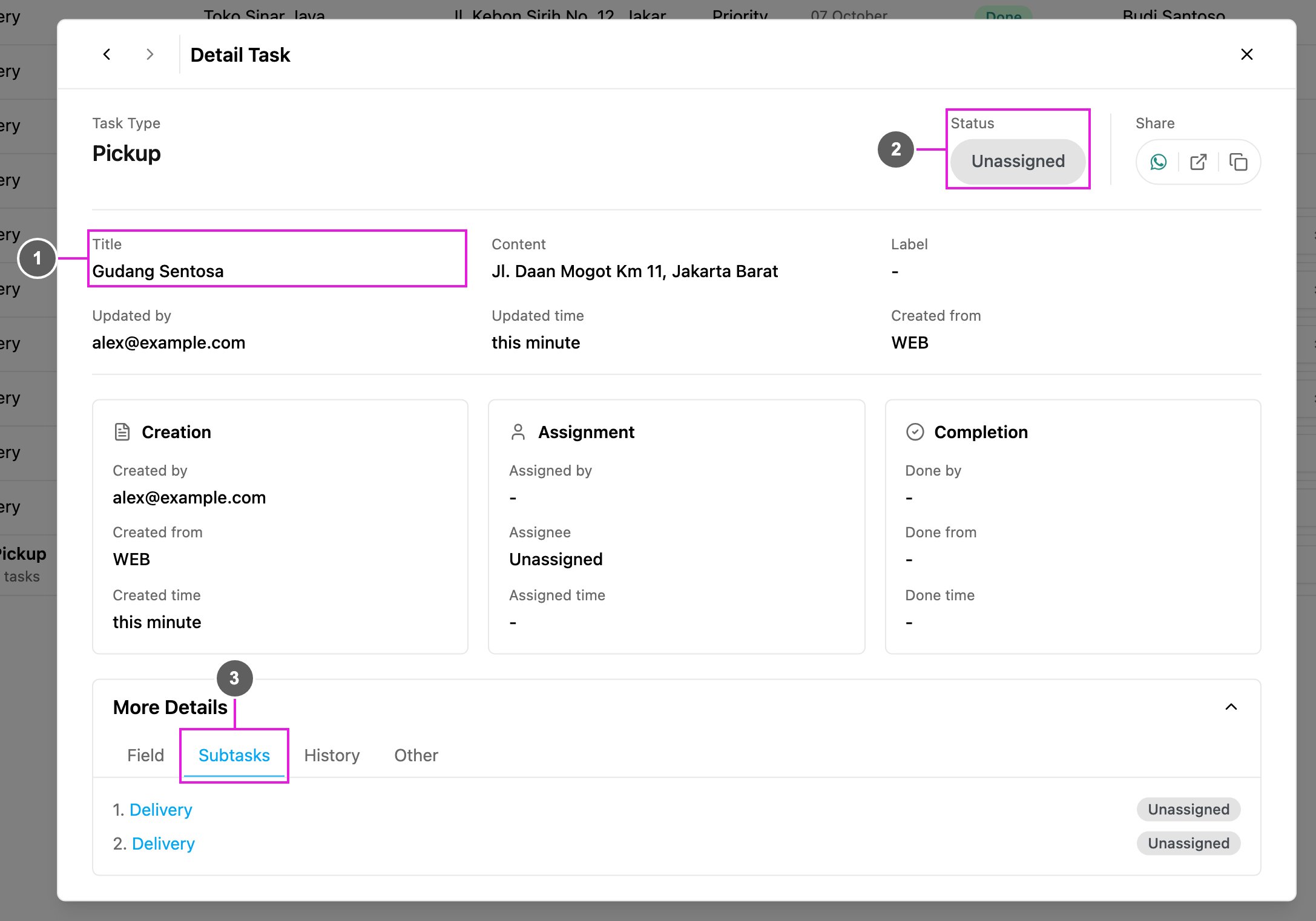
- Overview: the main task’s title, content, label and other values.
- Status: the main task’s own status.
- Subtasks: in More Details, the Subtasks tab lists every subtask of the main task. Click one to open its details.
Assigning a main task
Assigning a main task assigns every subtask too. A subtask cannot be assigned on its own: its Assignee cell is locked. If you change the main task’s assignee later, the new assignee replaces the old one on every subtask.Moving a main task
Moving a main task to another hub moves every subtask too. It works only when the main task and every subtask are Unassigned.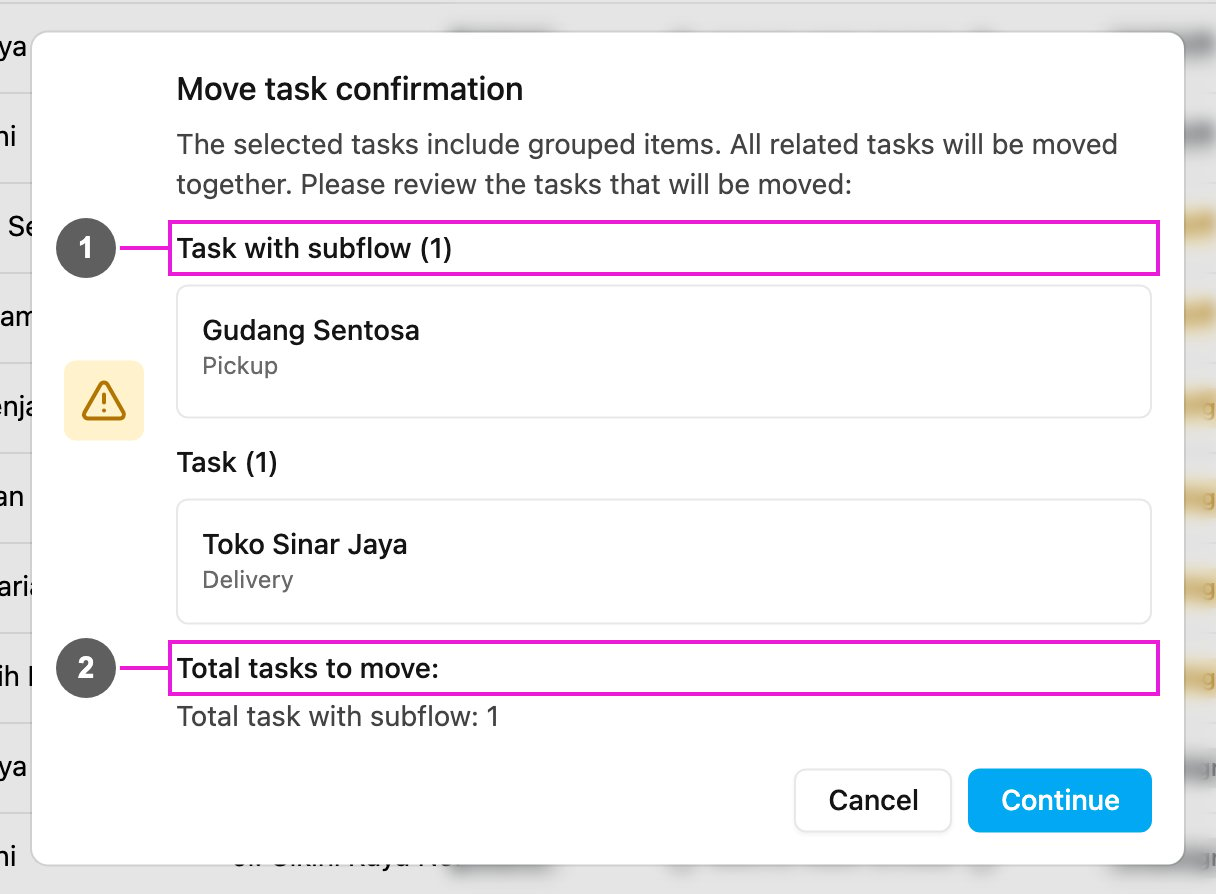
- Task with subflow: the main tasks and every subtask that move together. Check that nothing else is included.
- Total tasks to move: how many main tasks (Total task with subflow) and subtasks (Total subflow) will move when you click Continue.