The task list shows seven columns at first: Task Type, Title, Content, Label, Start Time, Status and Assignee. You can show up to ten columns at once, taken from the standard columns and from the fields of your task types.
Required permission:
  • View task

Choose columns

Open Activities › Task and click Columns.
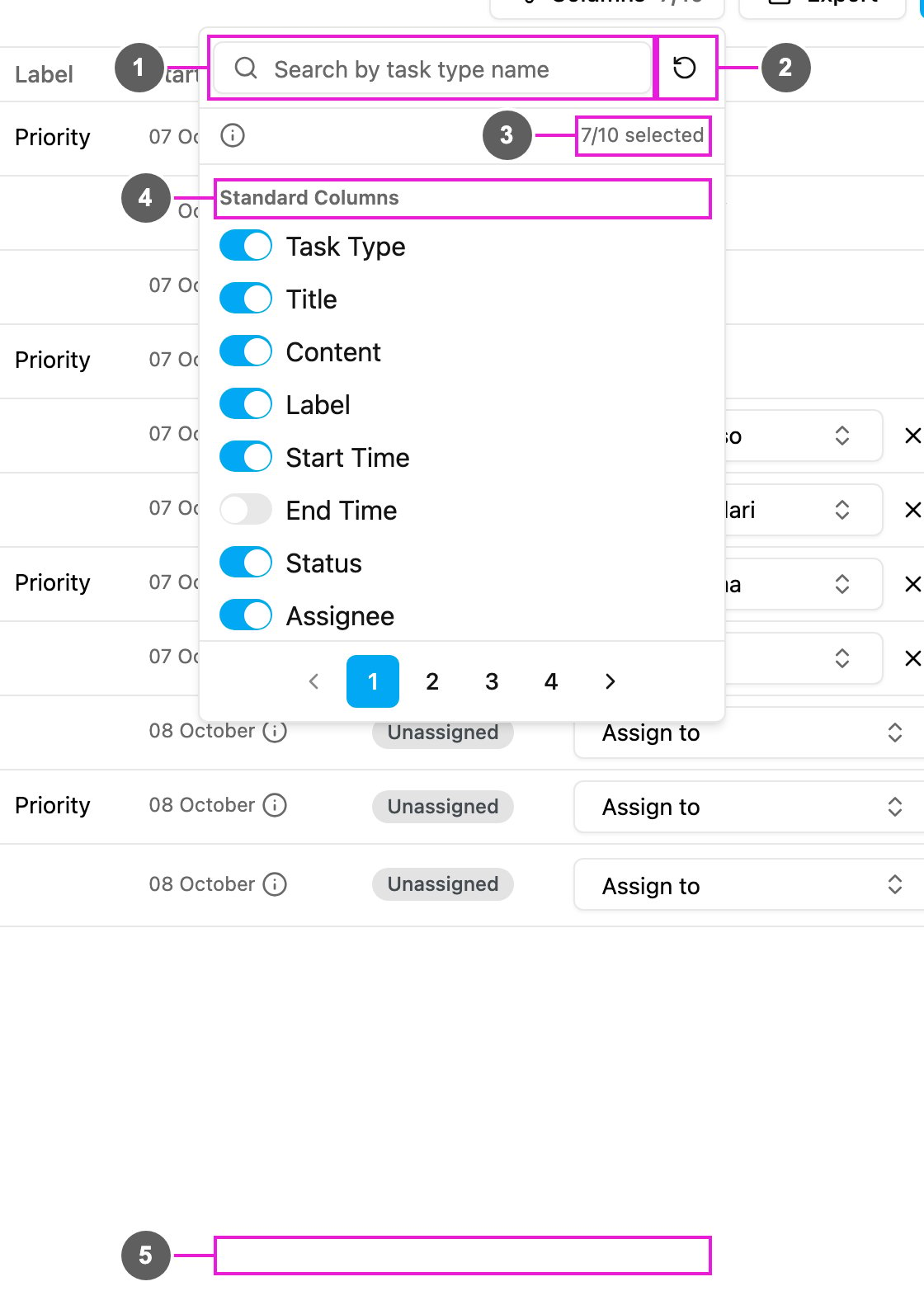
Columns
  1. Search by task type name: find a column, or the task type whose fields you want.
  2. Reset to the default columns: go back to the seven default columns.
  3. Counter: how many columns are on, out of ten. Point at the i icon to read which fields can be added: input, select and most view fields from every task type.
  4. Standard Columns: the columns every task has. Turn one on or off with its switch.
  5. Task type groups: after the standard columns come the fields of each task type, one group per task type, page by page.
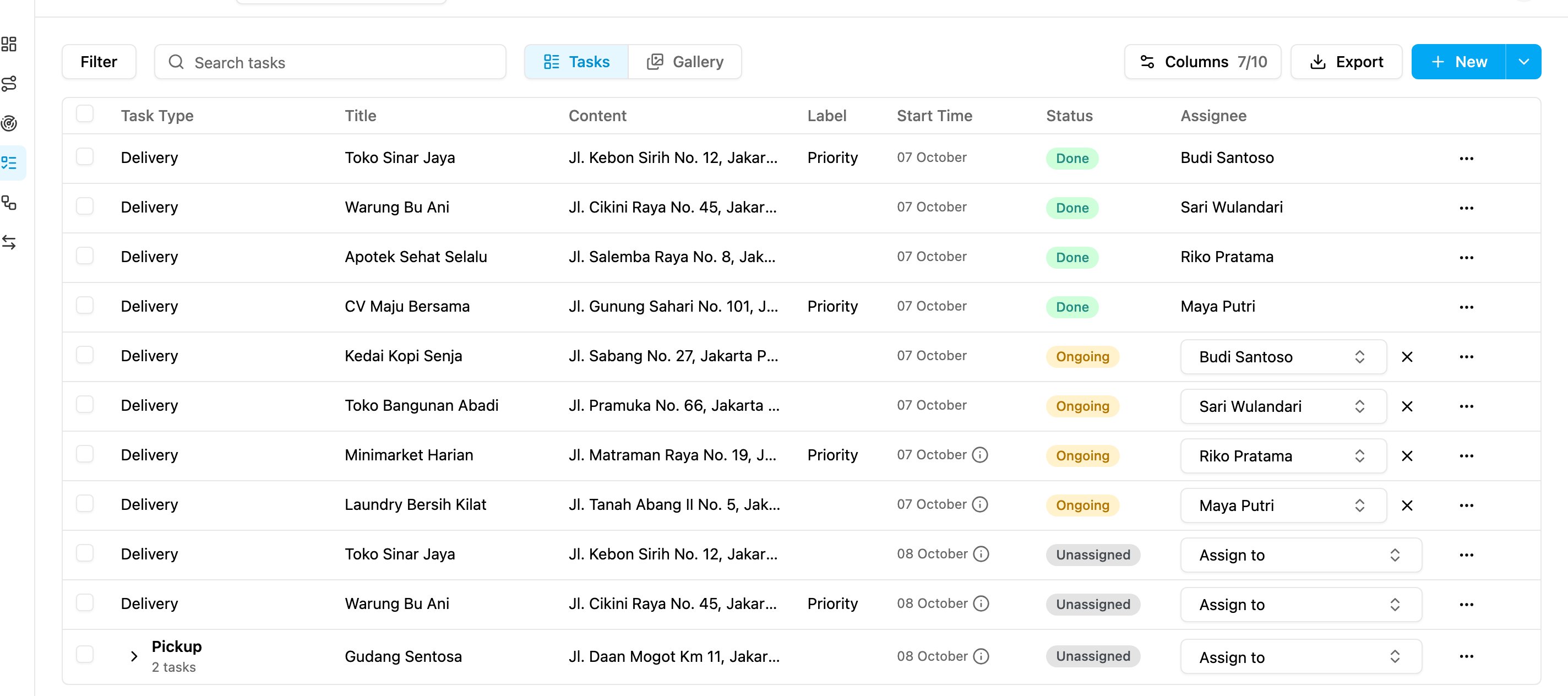
Once ten columns are on, the other switches are locked until you turn one off. Your column choice is saved in this browser for you, per organization. Drag a column header’s edge to make it wider; the width is kept too.
Task list with more columns

Standard columns

Task type columns

Below the standard columns, each task type lists its own fields, for example Receiver Name or Delivery Status. A task type field column is filled only for tasks of that task type; other rows stay empty.