

Required permission:
- View gallery
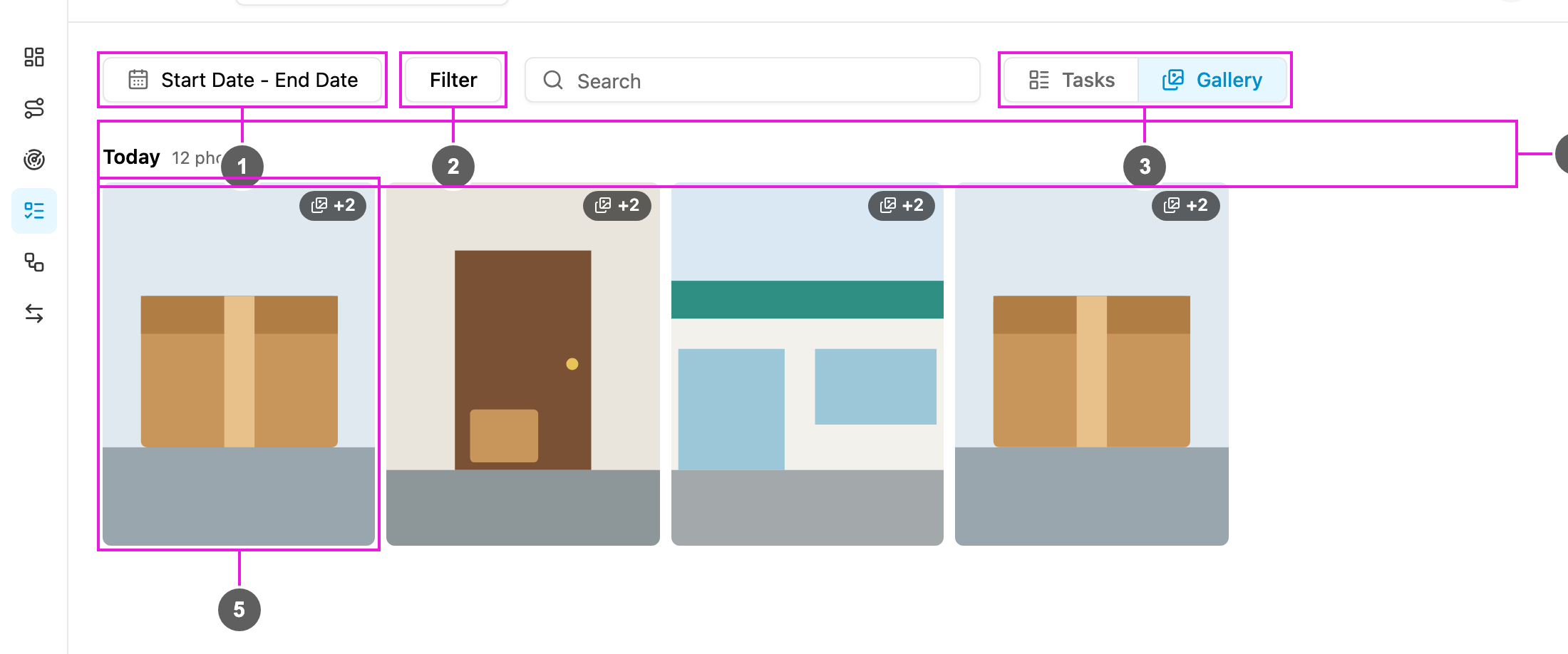
- Start Date - End Date: the days the tasks were done. Pick Today, 7 days or 30 days, or choose the days on the calendar. A range spans up to 30 days, and future dates cannot be picked.
- Filter: show the media of one User, or of one or more task types (Task Type). Reset all clears them, and each active filter shows as a chip.
- Tasks / Gallery: go back to the task list.
- Day: the media is grouped by the day it was done, with the number of photos that day.
- Card: one card per task. All the media of a task is on one card: the first is shown, and a +N badge says how many more there are. Below it are the task’s title, the time it was done and who did it.
Open media full size
Click a card to open the media viewer.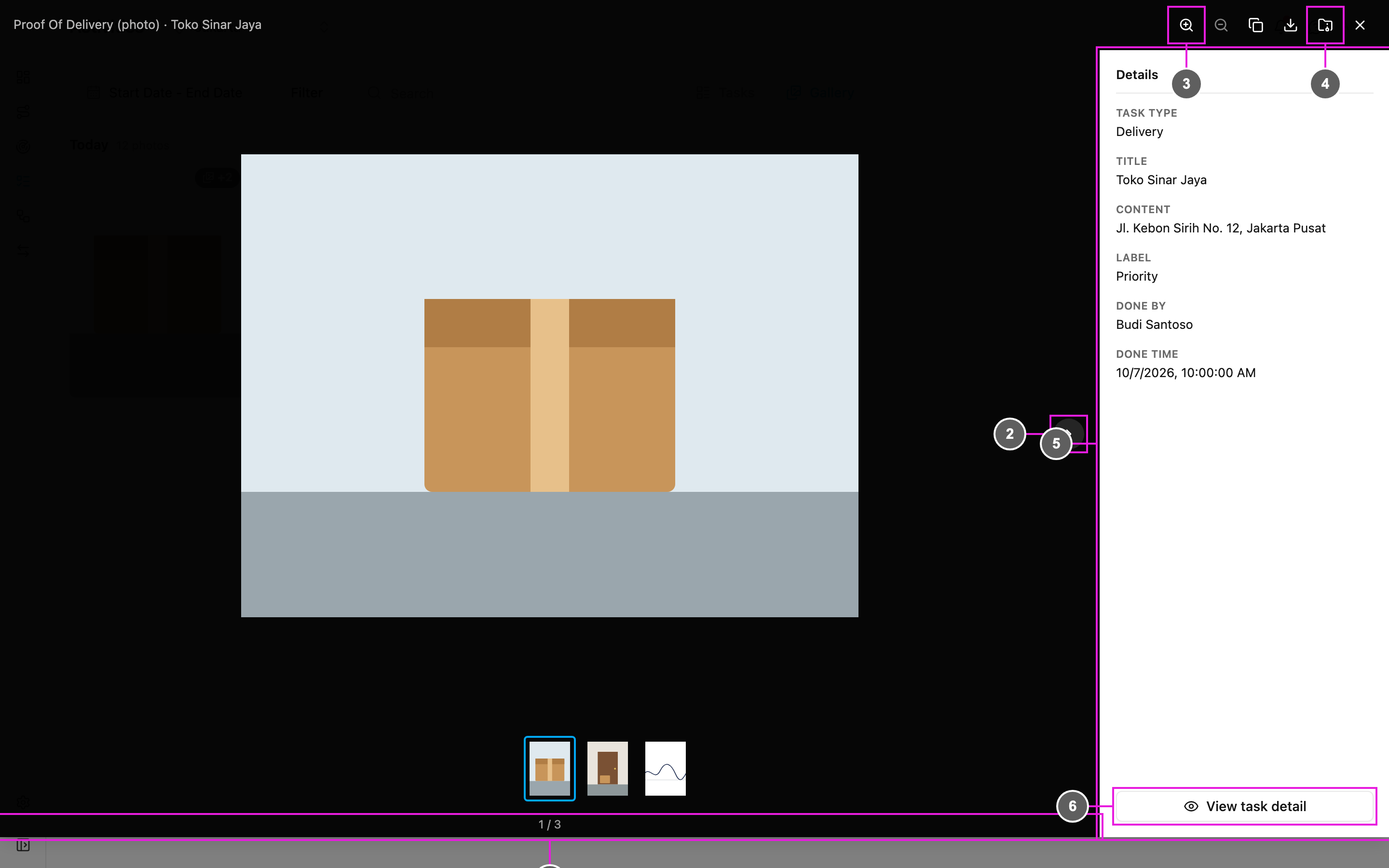
- Title: the field the media comes from and the task’s title, with the position of the item, such as 1 / 3.
- Media: the photo or video. Use Previous and Next, or the thumbnails, to move between all the media of the task.
- Zoom in / Zoom out: look closer at a photo.
- Copy link, Download this file and Download all as ZIP: share or save the current item, or every item of the task in one zip file.
- Details: the task’s Task Type, Title, Content, Label, Done by and Done time.
- View task detail: open the task the media belongs to.
Open an image from a link
The Image Viewer opens a task image, such as a photo or a signature, from its link. Use it when someone shares the link of a stored image with you.- Open
/viewer?url=followed by the image link in the web app, for examplehttps://<your web app address>/viewer?url=https://…/photo.png. The image opens right away. - Or open
/viewer, paste the link into Write image url here and click Show. The page address then carries the link, so you can share it.