Required permission:
- View task
- Assign task (assign and unassign)
- Move task (move to another hub)
- Edit task (edit time)
- Unassigned: the task has not been given to anyone.
- Ongoing: the task is assigned to someone but not done yet.
- Done: the task has been finished.
Assign one task
Pick the people right in the task’s Assignee cell.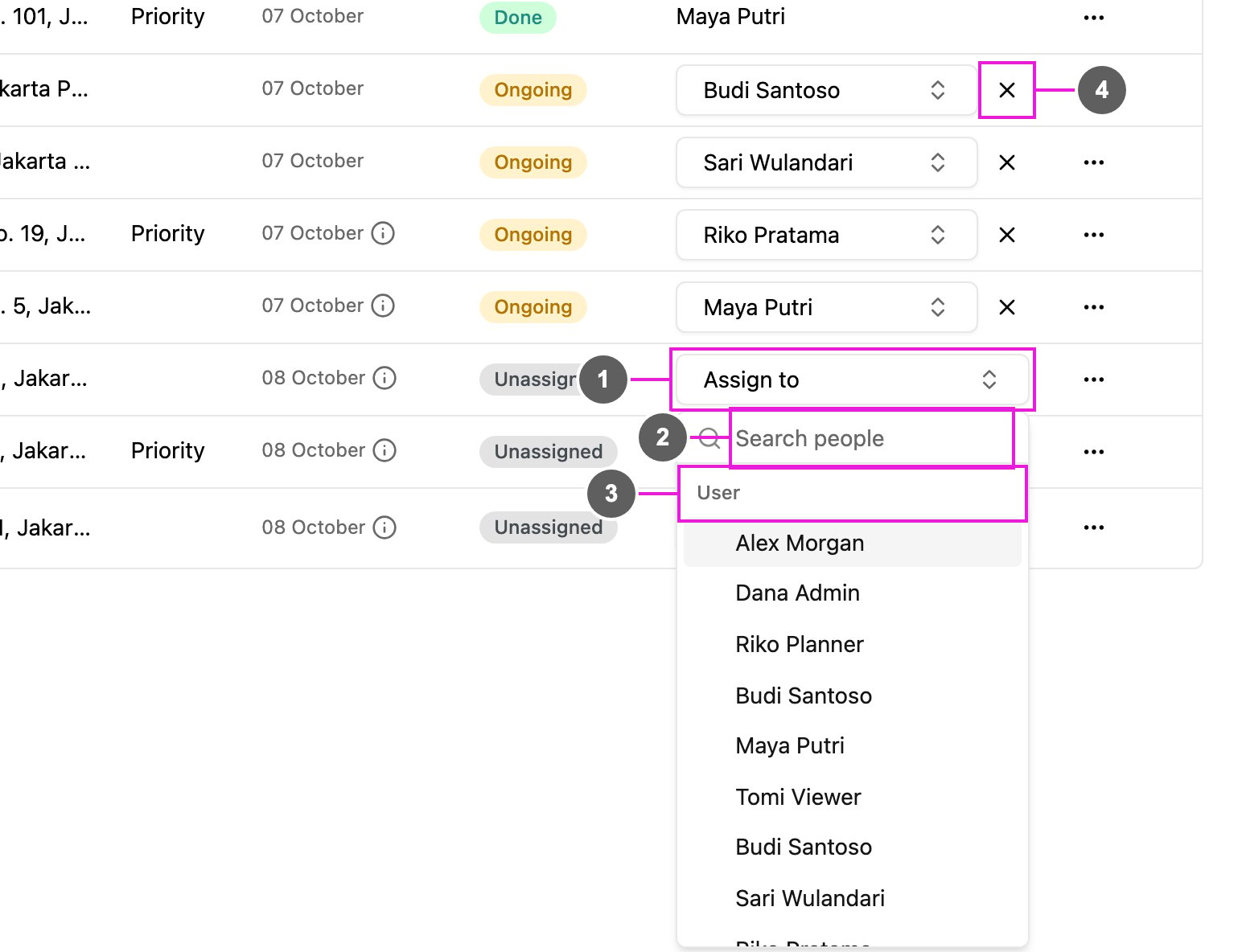
- Assignee: click the cell of an unassigned task (Assign to) or an ongoing one to open the picker.
- Search people: type a name to find a person, across hubs.
- User / Team: pick one or more people, or a whole team at once. A team shows how many members it has. The list shows a limited number of users; type to find the ones not listed.
- Remove: click the x on a name in the cell to remove that person.
Assign many tasks at once
Tick the tasks you want, then use the bar that appears above the list in place of the search.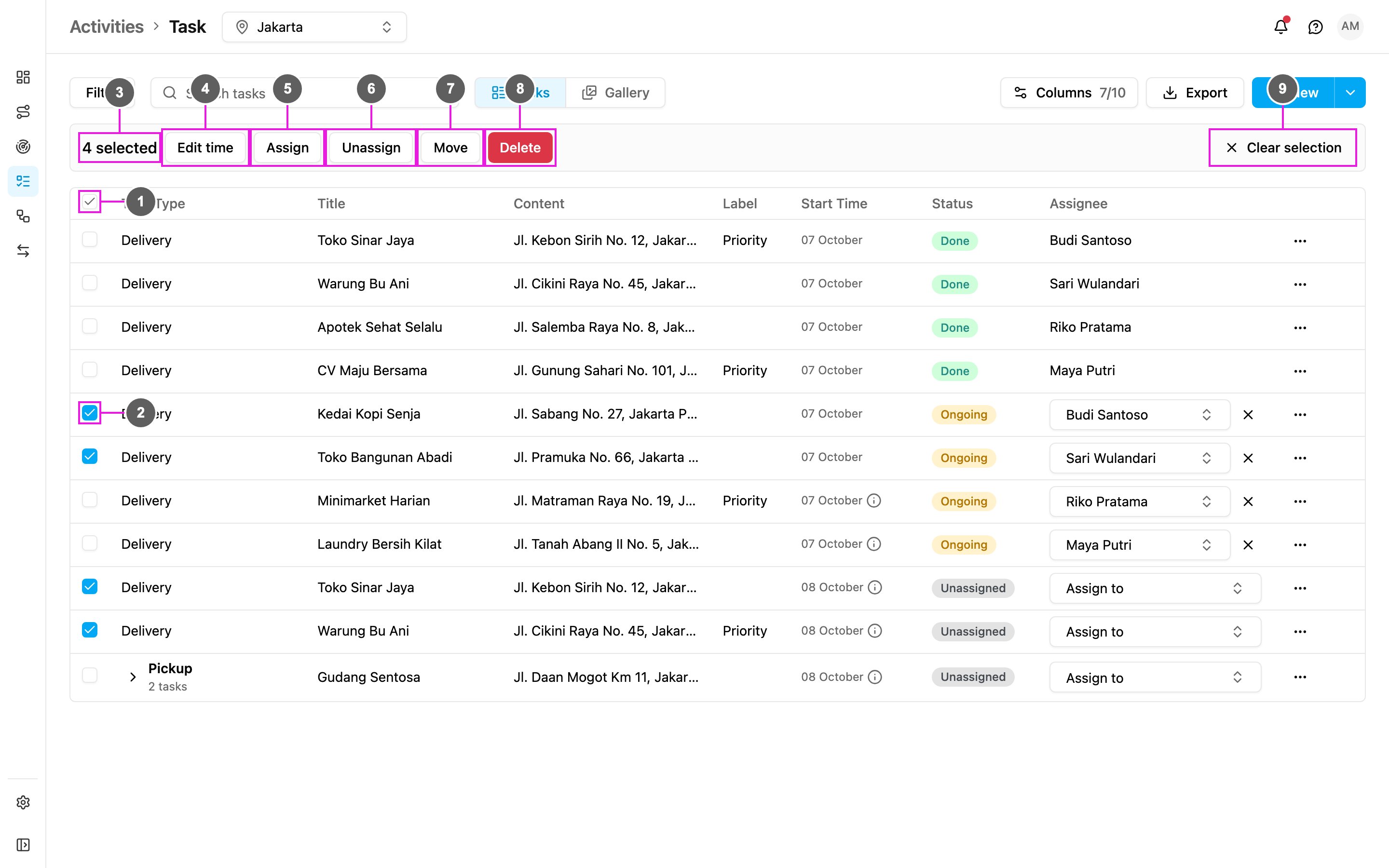
- Select every task on this page: tick all the tasks on the page at once.
- Select this task: a ticked task is changed by the action you choose. An unticked task is not.
- Selected: how many tasks are ticked.
- Edit time: change the start and end time of the ticked tasks.
- Assign: give the ticked tasks to one or more people.
- Unassign: take the ticked tasks away from their assignees.
- Move: move the ticked tasks to another hub.
- Delete: delete the ticked tasks. See Deleting a Task.
- Clear selection: untick every task.
Assign
Click Assign, pick the people in Assign task and click Assign tasks. Everyone picked is assigned to all the ticked tasks.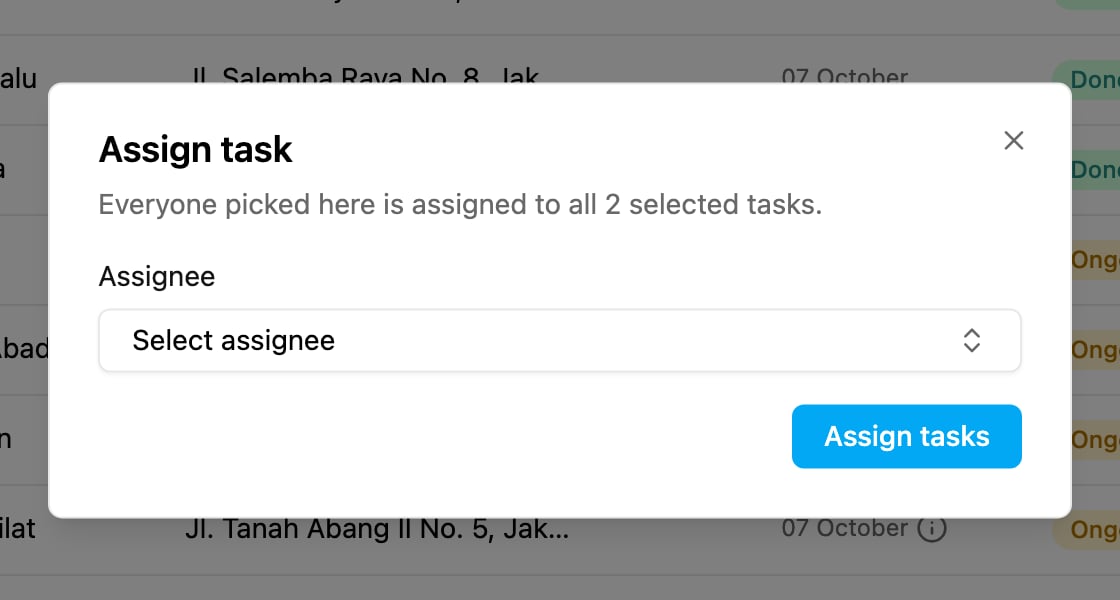
Unassign
Click Unassign to take all the ticked tasks away from their assignees. Only assigned tasks can be unassigned: if a ticked task is already unassigned or done, the action is refused and a message says why.Edit the time of many tasks
Click Edit time, pick the new start and end time in Edit task time and click Update time. The new window is set on every ticked task. The start time must be earlier than the end time.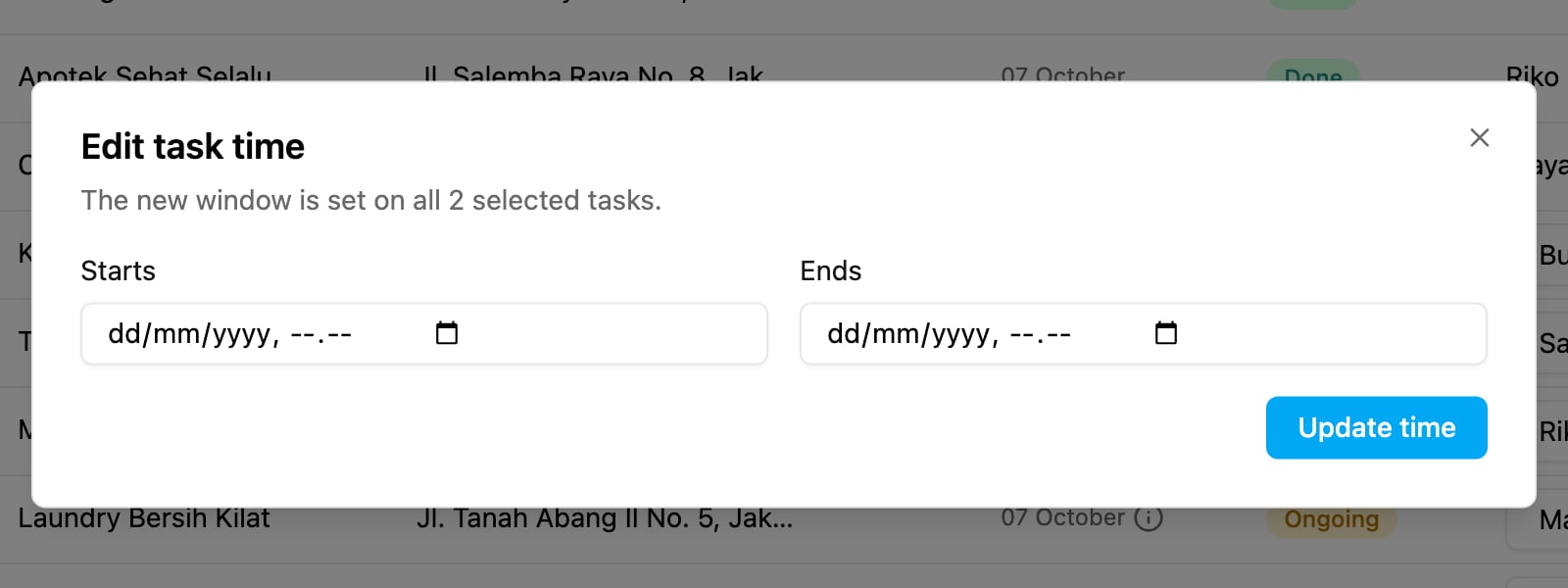
Move tasks to another hub
Click Move, pick the hub in Move task and click Move. Only unassigned tasks can be moved: unassign a task first if it is assigned.