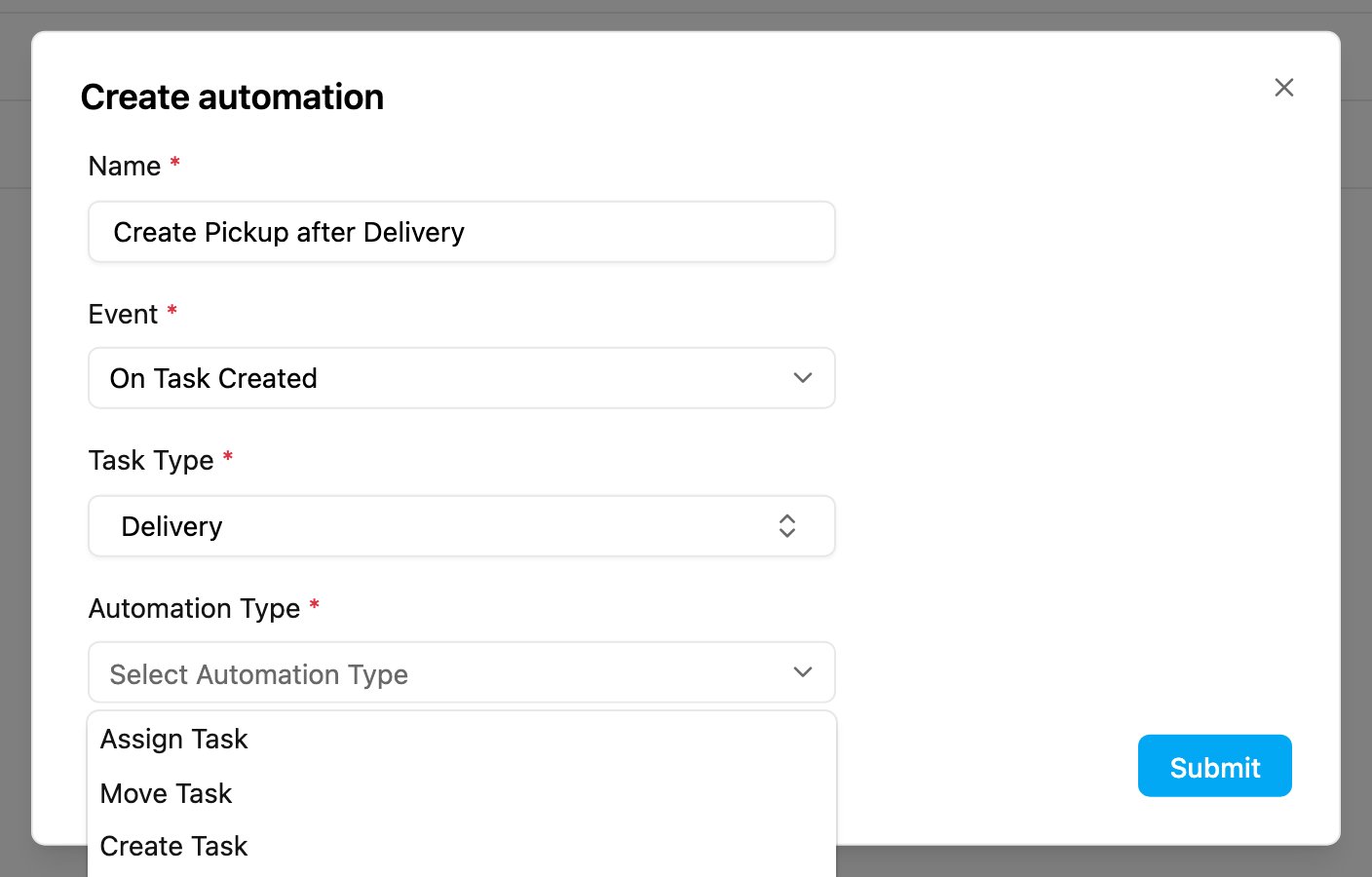
Required permission:
- View automation
- Create automation
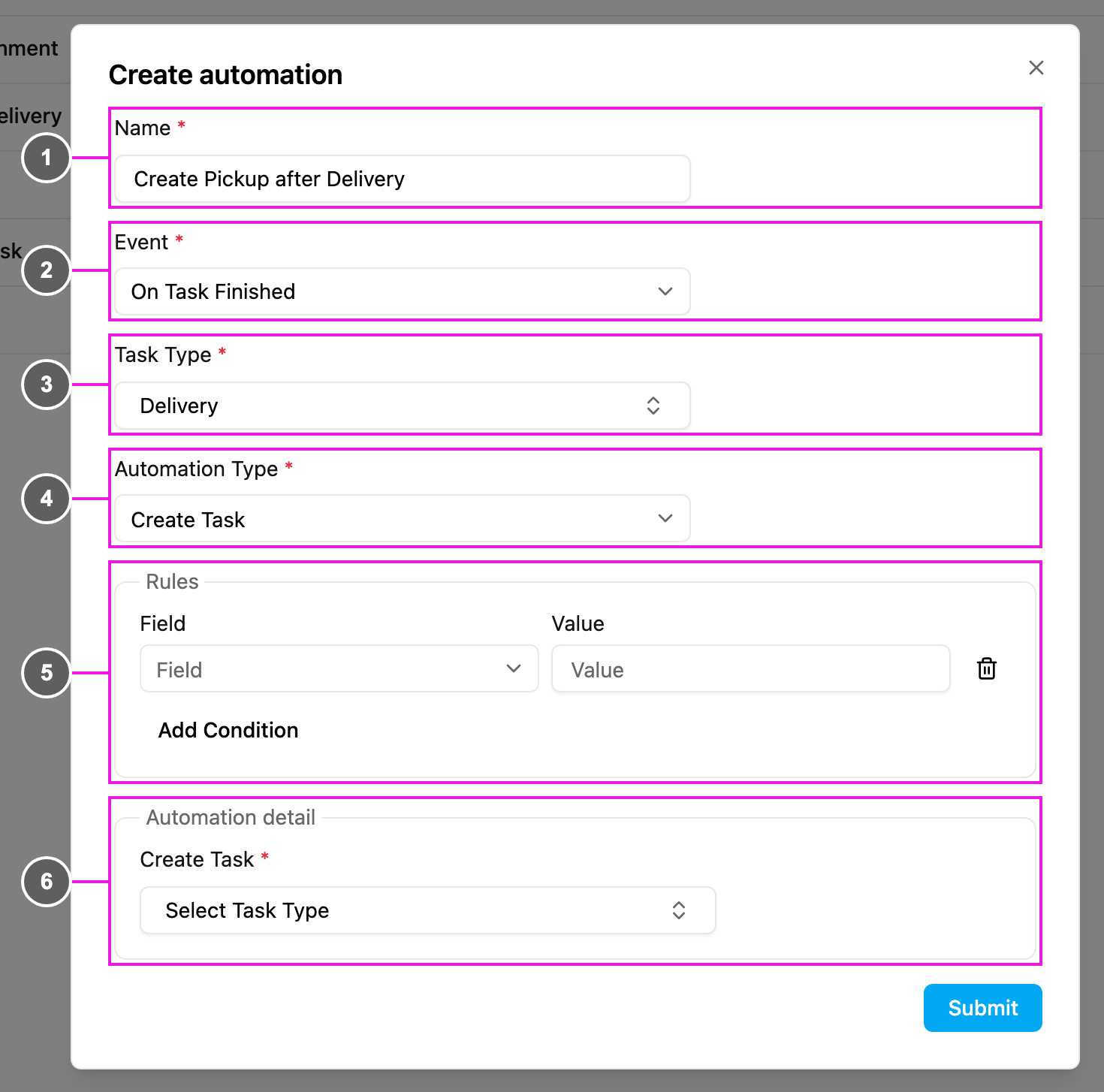
- Name: required. Use a unique, specific name so the automation is easy to tell apart in the list, for example “Create Pickup after Delivery”.
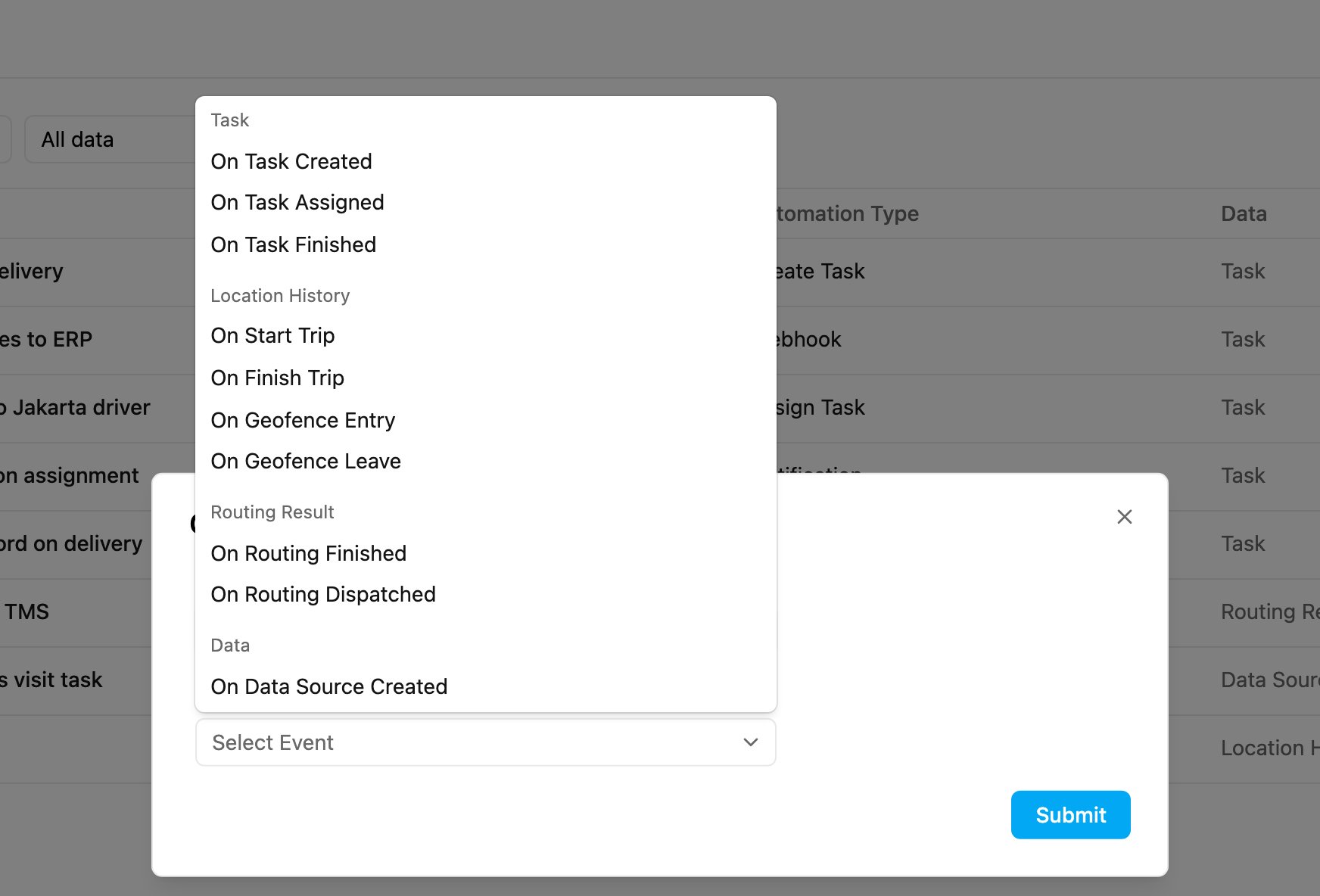
- Event: required. What starts the automation. See Events below.
- Task Type: required for the three task events. The automation runs only for tasks of this task type: with Delivery, a Pickup or Visit task never triggers it. The field changes with the event:
- Task events (On Task Created, On Task Assigned, On Task Finished): Task Type.
- On Data Source Created: Trigger Data Type, the data type whose new records start the automation.
- On Geofence Entry and On Geofence Leave: Geofence Group.
- Trip and routing events: no extra field.
- Automation Type: required. What the automation does. Only the types the chosen event allows are offered. See Automation types below.
- Rules: optional conditions. See Rules.
- Automation detail: the settings of the chosen automation type, for example which task type to create and how to fill it. Each action has its own page.
Events
Automation types